



Cached data is one of those terms people see in browser settings or phone storage, then wonder whether it is good or bad. In most cases, it is helpful. It lets a device, app, or website reuse files it has already seen instead of fetching them again.
That small idea has a big business impact. Grand View Research estimates the global content delivery network market was valued at USD 31.52 billion in 2025, which shows how much effort companies now put into serving content from cache instead of from the origin every time.
Still, cached data can cause headaches. Old files can hang around. Pages can show stale layouts. Apps can keep too many temporary files. So the real question is not whether cache is good or bad. It is when to keep it, when to clear it, and what actually changes when you do.
What Is Cached Data?
Before we decide whether to clear cached data, we need a simple definition. We think of cache as a reusable shortcut. It is a saved copy of something that took time, bandwidth, or processing power to get the first time.
1. Cached Data and the Caching Process
Cached data is temporary data stored so a system can reuse it faster later. The caching process starts when a browser, app, operating system, or server saves a copy of a file, lookup, or response after it is first requested.
That copy can live on your phone, in your browser, in memory, on a server, or at a CDN location. The goal is always the same. Keep a nearby copy, then avoid repeating the same work unless something changed.
2. What Gets Stored in Cache
Many different things can be cached. On the web, that often includes HTML, CSS, JavaScript, images, fonts, and API responses. In apps, it can include thumbnails, feed items, map tiles, search results, and temporary offline content.
- Web page assets such as styles, scripts, and images
- App resources such as previews, recent content, and media fragments
- Network lookups such as domain name results
- Backend results such as repeated database queries or rendered pages
3. Where Cached Data Is Stored
It depends on the layer. Browsers store cache in memory and on local device storage. Apps keep cache inside their own storage space. Operating systems keep system-level temporary data in managed storage areas.
Cache can also live far away from the device. A web server may cache rendered pages or objects in memory. A CDN may keep copies on edge servers that sit closer to users than the origin server does.
Recommended reading: AWS DynamoDB: A Practical Guide to Data Modeling, Indexes, Scaling, and Use Cases
How Cached Data Works
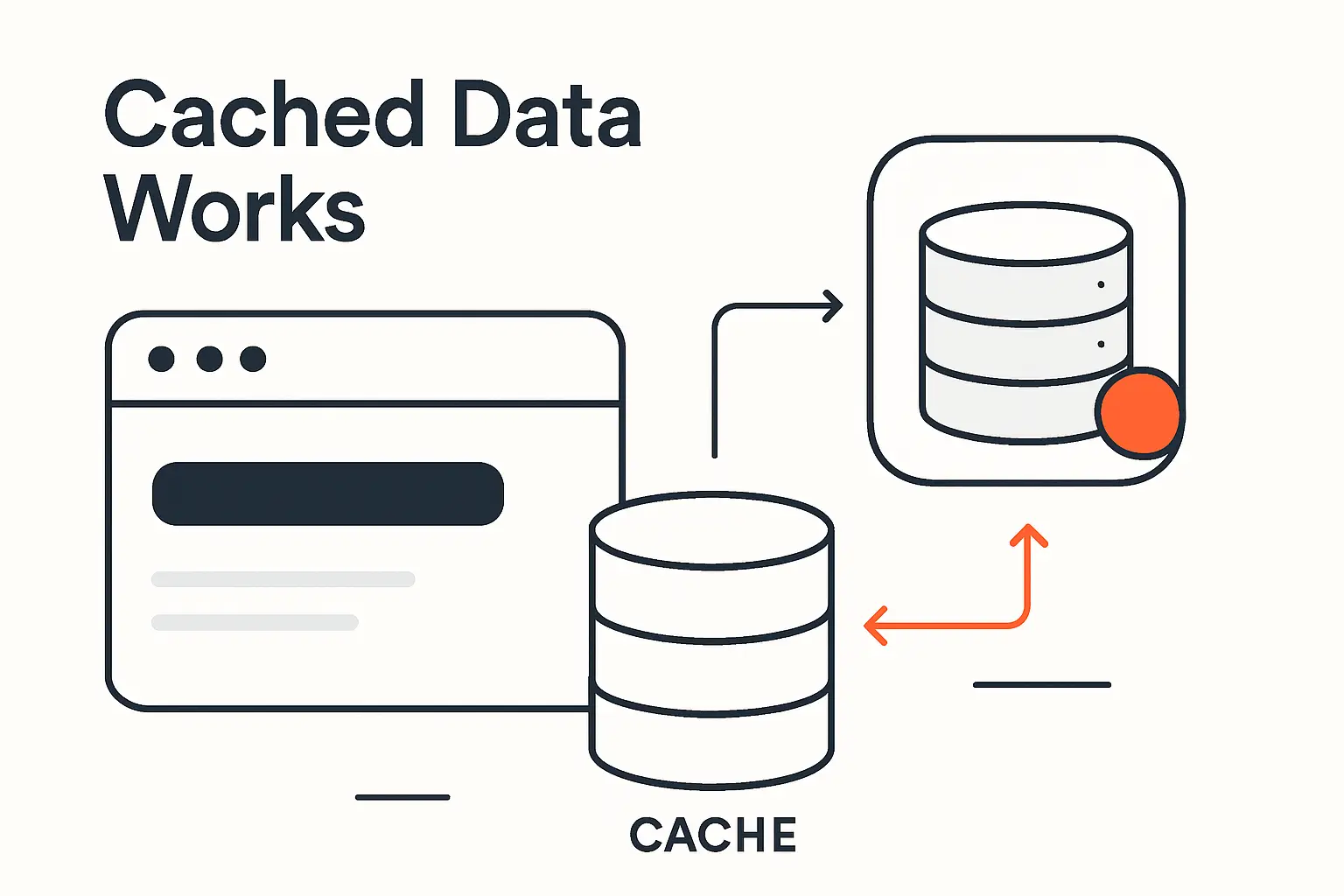
Caching sounds simple, but timing matters. The first request usually does the heavy lifting. Later requests can reuse what is already available nearby.
1. What Happens on a First Visit
On a first visit, there is often no local copy yet. The browser asks the network for the page, its styles, its scripts, its images, and any data the page needs.
When the server replies, it can also send Cache-Control rules that tell the browser whether the response can be stored and how long it can be reused. In some apps, a service worker can also save files into its own cache for later visits.
2. Why Repeat Visits Load Faster
On a repeat visit, the browser or app checks whether it already has a usable copy. If it does, it can load that copy immediately or validate it with the server before showing it again.
That cuts out part of the trip. Fewer files need to travel across the network. Less work happens on the origin server. The result is a page or screen that feels quicker, especially when it reuses the same fonts, styles, icons, and images.
3. Why Cached Files Expire or Become Outdated
Cached files expire because real content changes. Prices update. Product images change. Code gets redeployed. News feeds move fast. A cache that never refreshes would eventually become wrong.
Files can also disappear from cache because space is limited. Browsers, phones, and operating systems throw away older temporary data when newer data needs room. That is why cache works best when it has clear freshness rules and a clean update path.
Recommended reading: Lambda Functions: A Cross-Platform Outline for AWS, Python, and Excel
Why Cached Data Matters
In our work, cached data matters because it affects user experience, bandwidth costs, and server load at the same time. It is one of the simplest ideas in software, but it touches almost everything.
1. Faster Load Times and Better Performance
Every reused file removes a repeat trip across the network. That lowers waiting time and reduces the work a server must do again. For a single image, the gain may be small. For a busy website or app, it adds up quickly.
This is also why some screens feel fast even on mediocre connections. The layout, icons, and shared code may already be sitting on the device, ready to be reused.
2. Less Data Usage and Better Offline Access
Cached data helps reduce bandwidth use because the same file does not have to be downloaded over and over. That matters on mobile plans, spotty Wi-Fi, and slower networks.
It also helps with offline behavior. A browser or app may still be able to open saved screens, recent content, or core interface files even when the connection drops. That is why map, media, and reading apps often feel more resilient after you have used them once.
3. How Server and CDN Cache Improve Website Speed
Website owners use caching too. A server can reuse rendered pages or repeated query results. A CDN can serve static files from edge locations closer to the visitor, which reduces the distance each request has to travel.
Wix described a caching architecture that expanded to over 90% of eligible page views, which is a strong reminder that performance work is rarely just front-end polish. Good caching becomes part of the product architecture.
At the infrastructure edge, Docker reported a cache hit ratio of more than 99%, showing how effective CDN caching can cut repeated origin work and keep delivery efficient.
Recommended reading: What Is Email Hosting? How It Works, Options, and How to Choose the Right Service
Common Types of Cache
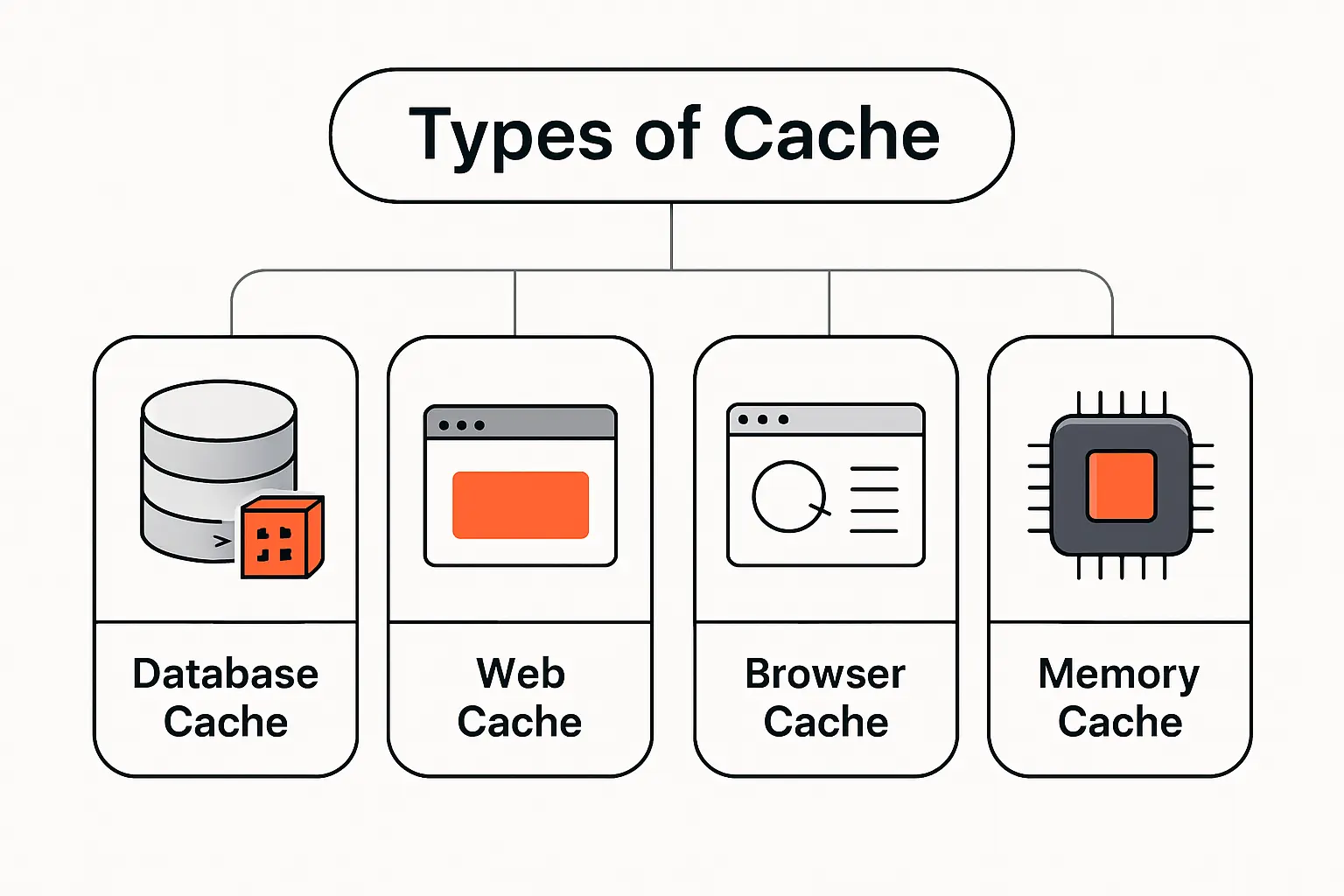
The word cache shows up in many places, and that can be confusing for beginners. We usually split it into a few common buckets so the idea stays grounded.
1. Browser, App, and System Cache
Browser cache stores website assets so pages can reload faster. App cache stores temporary content that helps an app open familiar screens, images, or data without pulling everything again. System cache stores operating system level temporary files that help the device run common tasks more smoothly.
These are the caches most people run into when cleaning up storage or fixing a broken page.
2. CPU, Disk, and DNS Cache
CPU cache is tiny, very fast memory close to the processor. It keeps frequently used instructions and data near the chip so the processor does not need to wait on slower main memory as often.
Disk cache helps with repeated file access. DNS cache stores recent domain lookups so your device or resolver can remember where a website lives instead of asking again from scratch.
3. Server and CDN Cache
Server cache lives on the backend. It may store full pages, reusable fragments, objects, or repeated query results. CDN cache lives on edge servers around the network and is designed to deliver shared content quickly to many users.
This is where caching moves from a personal device feature to an infrastructure strategy.
Recommended reading: AWS Cost Allocation Tags: Strategy, Activation, and Best Practices
Cache, Cookies, and App Data
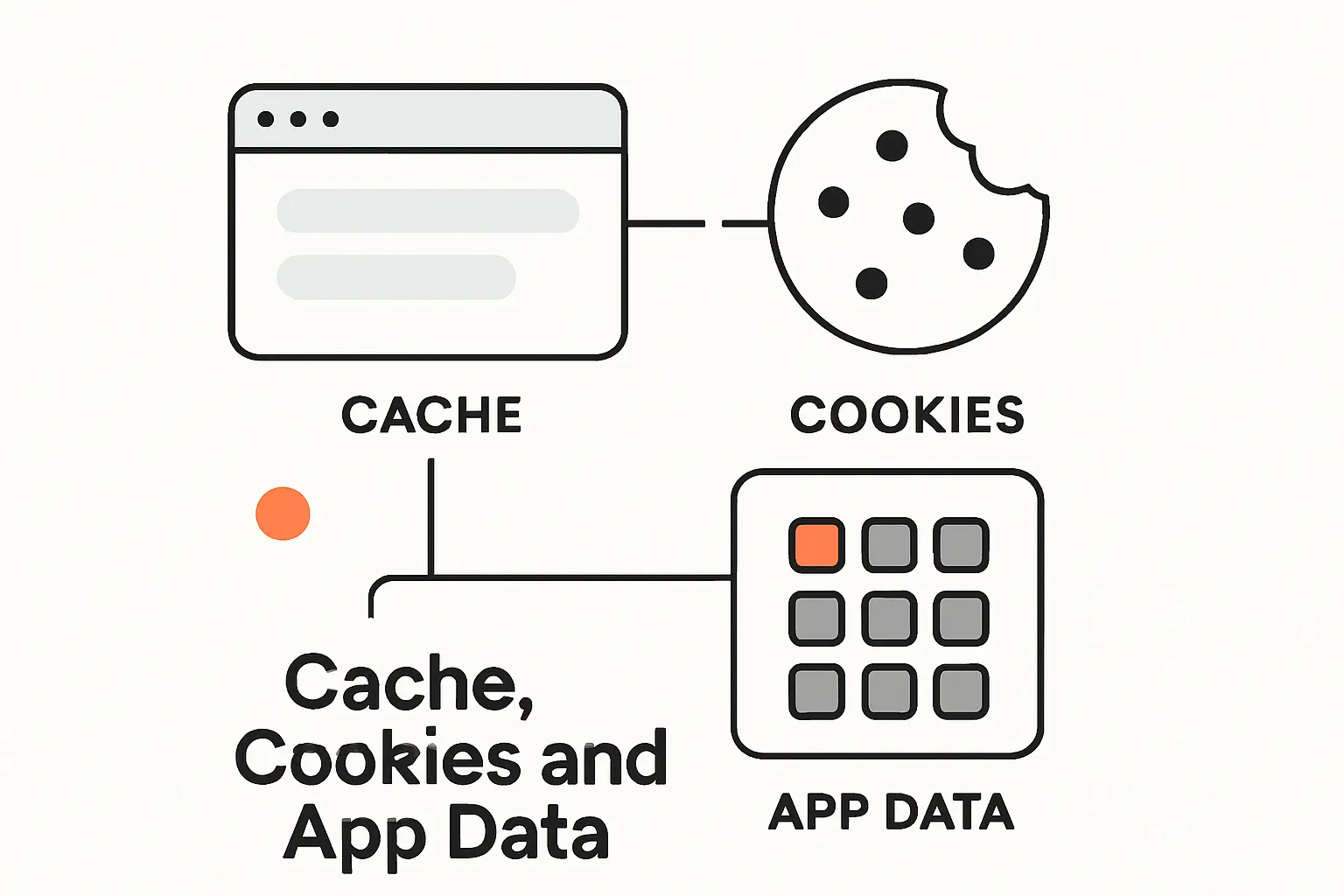
These terms get lumped together all the time. They do overlap in browser menus and storage screens, but they are not the same thing.
1. How Cache and Cookies Differ
Cache stores reusable copies of content. Cookies store small pieces of state, such as login sessions, preferences, or cart identifiers. One is mainly about speed. The other is mainly about remembering context.
That difference matters when you clean up storage. Clearing cache usually removes temporary files. Clearing cookies often signs you out, resets preferences, or changes how a site behaves.
2. How App Data Differs from Cache
App data is the information an app keeps to remember your state. That can include account details, settings, saved drafts, local databases, synced content, and downloads. If losing it would feel like a reset, it is probably app data.
Cache is supposed to be expendable. The app should be able to rebuild or re-download it. That is the simplest line between the two.
3. When to Clear Cache Instead of App Data
We clear cache first when an app shows stale information, loads broken images, refuses to refresh, or keeps too much temporary storage. It is the lighter fix and usually the safer first move.
We clear app data only when we want a real reset or support specifically asks for it. That broader step can remove sign-ins, saved settings, queued offline changes, and local content.
Recommended reading: Windows Server 2022 Standard: Features, Licensing, Evaluation, and Buying Guide
When to Keep Cached Data and When to Clear It
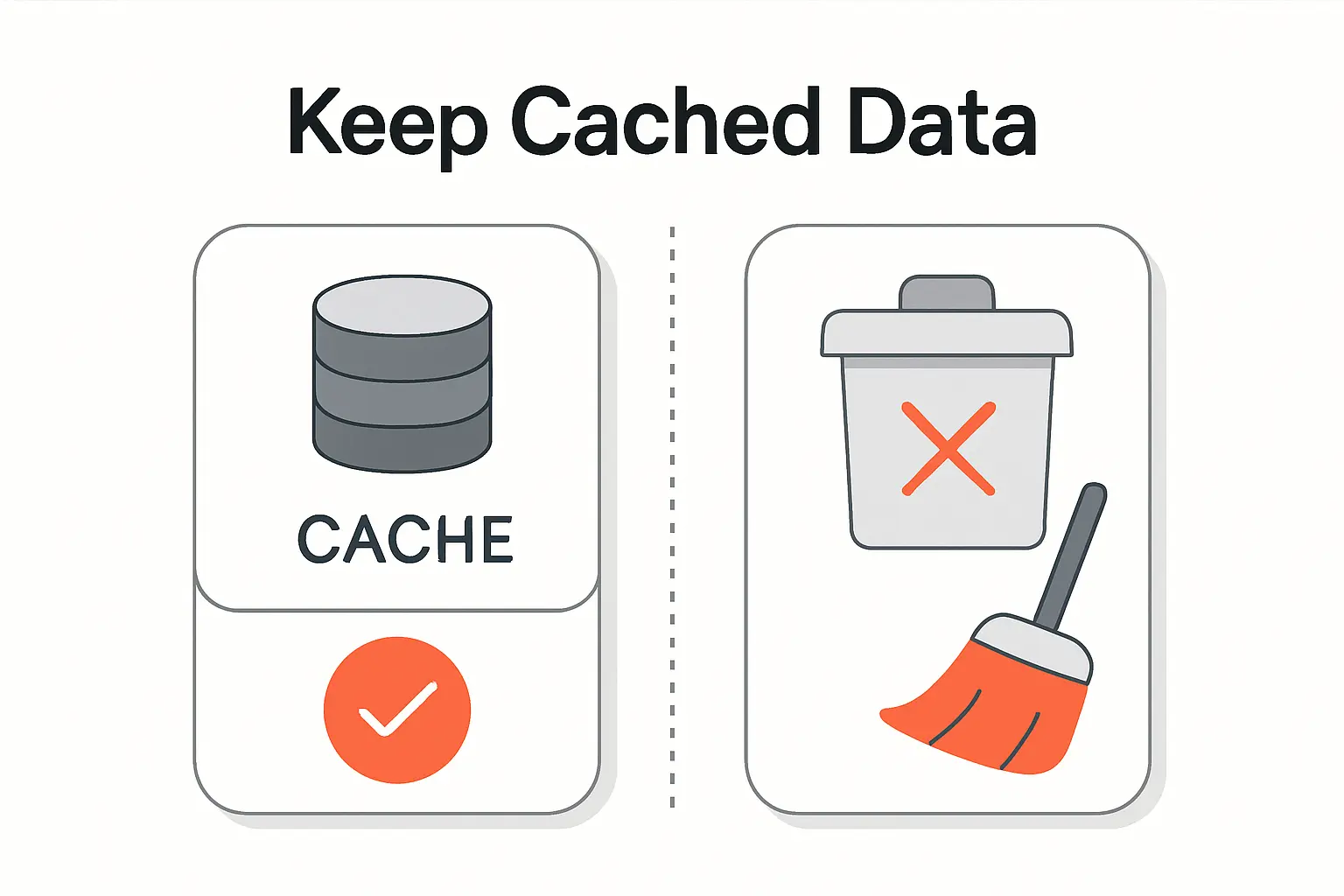
So should you clear cached data on a schedule? Usually, no. Cache is meant to help. We clear it when it creates a specific problem, not as weekly housekeeping.
1. When Cached Data Still Adds Value
Keep cached data when sites load correctly, apps open normally, and storage is not under pressure. It speeds up repeat actions, lowers data usage, and can make weak connections feel more manageable.
If you revisit the same tools every day, clearing cache too often just forces them to rebuild the same temporary files again.
2. Signs Cached Data Is Causing Problems
Cache becomes suspicious when the software clearly looks out of sync. Common signs include the page showing an old layout after an update, broken styling, stale images, odd login loops, or an app hanging onto far more temporary storage than expected.
- You updated a site, but still see the old version
- An app keeps showing stale thumbnails or outdated content
- A page loads with missing styles or scripts
- You get strange behavior only in one browser or one device
- Temporary storage has become unusually large
When those symptoms appear, clearing cache is a sensible troubleshooting step. For websites, though, the real culprit may be a CDN or server cache, not just the local browser.
3. Results of Clearing Cached Data
After you clear cache, the next load often feels slower. That is normal. The browser or app has to fetch fresh files again or rebuild temporary content.
You may also lose offline access to temporary copies. But clearing cache alone does not usually remove your personal photos, documents, or messages. Those typically live in other storage areas.
The catch is that many cleanup screens bundle options together. If you clear cookies, site data, or full app storage at the same time, the result is much more disruptive.
How to Clear Cached Data on Browsers, iPhone, and Android
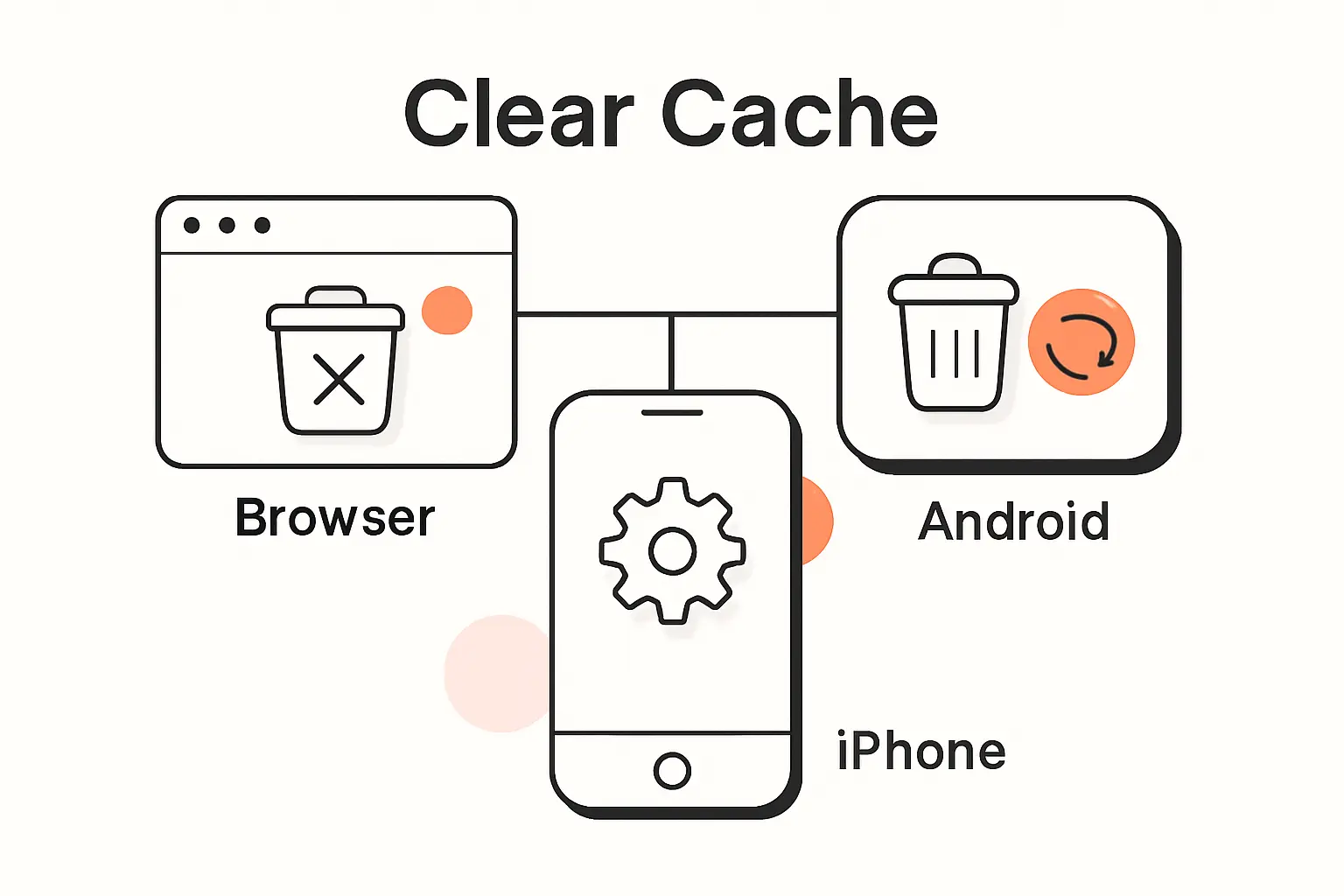
The exact menu names can shift over time, but the pattern stays familiar. Start with cache, not the broader reset options. That gives you the best chance of fixing a problem without wiping more than you intended.
1. Desktop Browsers
Chrome: Open the three-dot menu, choose Delete browsing data, pick a time range, and select cached images and files. If you want the lightest reset, leave cookies and site data unchecked.
Firefox: Open Settings, go to Privacy & Security, and use clear the Firefox cache. Make sure only temporary cached files and pages are selected if you do not want a broader cleanup.
Edge and Safari on Mac: In Edge, go to Settings > Privacy, search, and services, then choose what to clear under browsing data. In Safari on Mac, open Safari > Settings > Privacy and manage website data there. The same rule applies. Clear cache first, then escalate only if the problem stays.
2. iPhone and iPad
Safari: On newer iPhone and iPad versions, go to Settings > Apps > Safari and use Clear History and Website Data. If you want to remove website data but keep browsing history, use the Website Data area inside Safari settings instead.
Other apps: iOS does not give you one universal clear-cache button for every app. Many apps keep their own cache controls inside their settings. If they do not, deleting or offloading and reinstalling the app may be the only way to force a deeper cleanup.
3. Android Apps and Browsers
Apps: On Android, open Settings > Apps > your app > Storage & cache, then use clear an app’s cache and data. Clear cache first. Clear storage only if you want to reset the app more fully.
Browsers: In Chrome on Android, open the menu, choose Delete browsing data, and select cached images and files. If you also remove cookies and site data, expect some sign-ins and saved website state to reset.
How Website Owners Clear Cached Data on Servers and CDNs
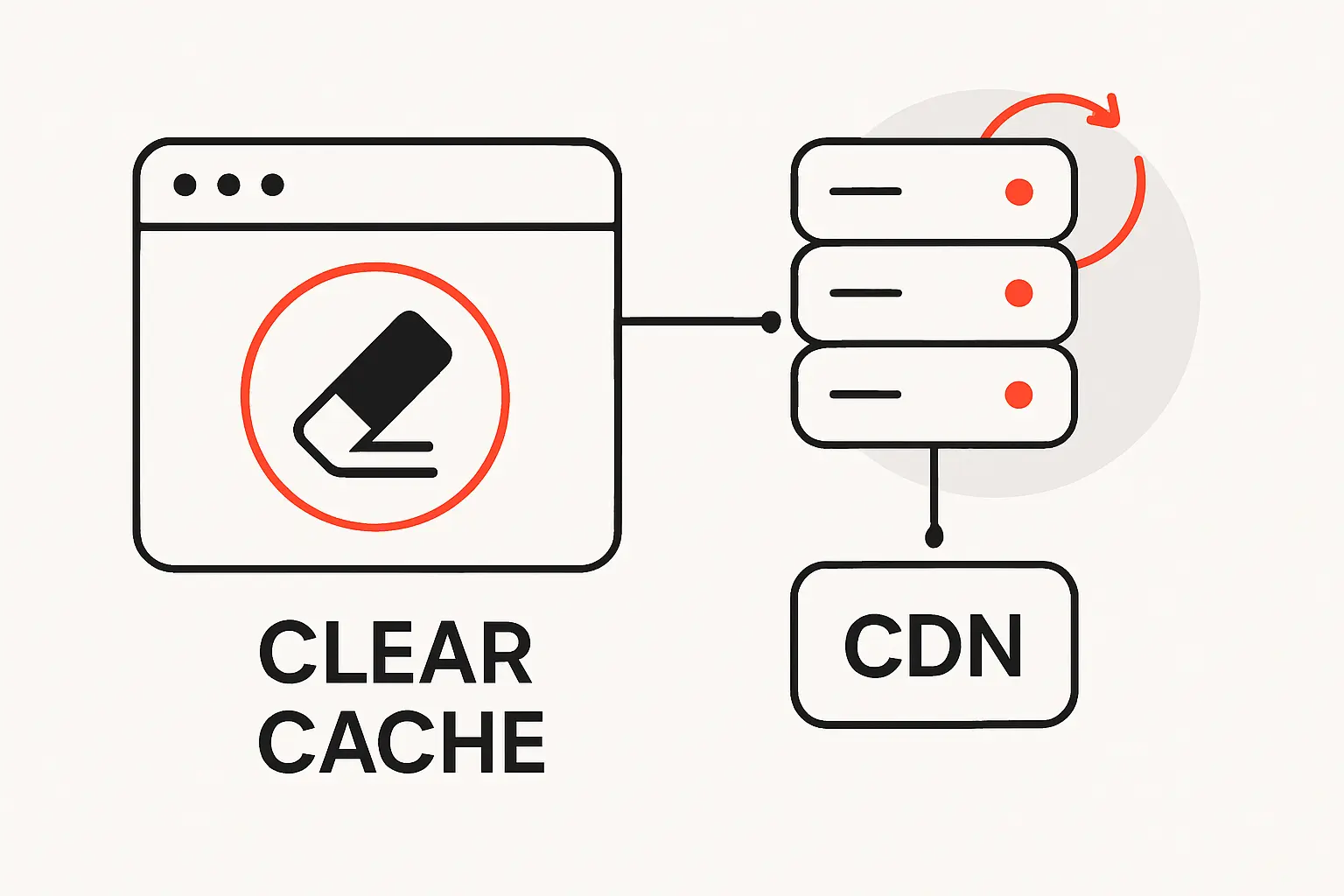
From the site owner’s side, cache clearing is really cache invalidation. We are telling the right layer to forget the right copy, without throwing away every performance gain at once.
1. When to Clear Server Cache
Clear server cache after template changes, publishing issues, permission logic changes, content model updates, or anything else that changes rendered output without changing the URL. This often affects full-page caches, fragment caches, or object caches in the app stack.
Precision matters here. Purging only the affected routes, tags, or keys keeps the rest of the site warm and avoids a full performance dip after deployment.
2. When to Clear CDN Cache
Clear CDN cache when old assets keep appearing at edge locations, when response headers changed, when an image was replaced without a new file name, or when a bad deploy must disappear quickly. As a rule, targeted invalidation is better. Cloudflare explicitly recommends single-file purging instead of a full purge whenever possible.
3. Why Site Updates Can Require Cache Refreshes
A site update can touch several cache layers at once. The browser may still have old CSS. The CDN may still have old images. The server may still have an old rendered page. That mixed state is how people end up seeing half-new, half-old screens.
We avoid that by versioning static assets, keeping HTML more revalidatable, and tying deploys to targeted purge steps. If the update path is clear, cache stays helpful instead of becoming a ghost from the last release.
Frequently Asked Questions about Cached Data
Here are the short answers to the questions we hear most often from users, clients, and support teams.
1. Is Clearing Cached Data Safe?
Yes, clearing cached data is usually safe. It removes temporary copies, not the original source files. What you need to watch is the checklist around it. If you clear cookies, site data, or app storage too, the effect becomes much broader.
2. Can Clearing Cached Data Remove Pictures?
Usually, no. It does not delete photos in your camera roll, gallery, or cloud library. It can remove cached thumbnails, previews, or temporary downloaded copies inside an app, which the app may need to rebuild or re-download.
3. What Changes When You Delete Cached Data on a Phone?
You free temporary space, and the app or browser has to fetch fresh files again. Some screens may open more slowly at first. If you cleared only cache, most personal settings and saved content usually stay in place.
4. What Does Clearing Cache Actually Do?
It tells the device, browser, or app to throw away temporary local copies. The next time you open the same page or screen, it starts again from the source or rebuilds the temporary data from scratch.
5. Will Apps or Sites Feel Slower Right After You Clear Cache?
Yes, for a little while. The first visit after a cache clear often behaves more like a first visit. After a few normal uses, performance usually settles back down because the cache fills again.
6. How Often Do You Need to Clear Cached Data?
Not on a set schedule. We do not recommend routine cache clearing as maintenance. Clear it when a page is broken, an app is showing stale content, storage is unusually tight, or support asks you to try it.
How TechTide Solutions Builds Custom Solutions with Smarter Caching
When we build software, we do not treat caching as a random speed trick. We treat it as part of data design, release management, and user experience. That keeps performance gains real and bugs easier to diagnose.
1. Custom Web and Mobile Apps Designed for Better Performance
We decide what should load from cache, what should validate often, and what should stay live. Shared assets like images, fonts, and interface code are good caching candidates. Time-sensitive data such as account balances, carts, and transactional states usually need fresher rules.
That balance matters. A fast app is useful only when the right parts are fast and the sensitive parts stay trustworthy.
2. Tailored Caching and Data Workflows for Unique Requirements
A field app with weak connectivity needs a different plan than a live booking system. So we design around actual update patterns, not generic defaults. Sometimes that means offline-first read flows. Sometimes it means short-lived API caching, selective purge hooks, or versioned assets tied to releases.
We also plan invalidation early. That is where many projects slip. Saving data is easy. Knowing exactly when to throw old copies away is the hard part.
3. Scalable Development Support from Launch to Optimization
Launch is not the end of caching work. We keep refining freshness rules, purge behavior, asset versioning, and monitoring after real traffic appears. That helps us spot stale content issues before they turn into support tickets.
In practice, the best caching setups are the ones that stay boring. Pages load fast. Updates show up when they should. Nobody has to guess which layer is serving the old file.
Final Thoughts on What Is Cached Data
Cached data is usually a helper, not a hazard. It keeps common files and results close by so devices and websites do less repeated work. That is why pages load faster, apps feel more responsive, and networks waste less bandwidth.
So should you clear it? Only when there is a reason. If a site looks wrong, an app is clinging to stale content, or temporary storage has grown too large, clearing cache is a smart fix. Otherwise, it is usually best to let cache do its job. For software teams, the bigger lesson is simple. Cache aggressively where it is safe, and design refresh rules just as carefully.


