


If you’re asking what is NPM and how does it work in JavaScript development, the short answer is simple. We use npm to install packages, manage dependencies, and run common project tasks from one familiar tool. It sits at the center of many Node.js and frontend workflows because it solves a very practical problem. It helps us avoid rebuilding the same plumbing over and over again.
That scale matters. From a market view, more than 62% of developers in 2024 reported using JavaScript worldwide, which helps explain why npm is still such a core part of modern software work.
In this guide, we will walk through what npm is, why teams rely on it, how it manages dependencies, and where it fits into secure release workflows. We will also share the mistakes we see most often, along with the habits that keep JavaScript projects easier to maintain.
What Is NPM
NPM is easiest to understand when we stop treating it like a single thing. In practice, it is both a registry for published packages and a command-line tool for installing and managing them, and Node.js still describes it as the standard package manager for Node.js.
1. What NPM Stands for and What It Does
You will often hear people say npm means “Node Package Manager.” The project itself has long noted that npm is not officially an acronym, but for beginners the practical takeaway is the same. npm is the tool we use to discover, install, update, publish, and organize JavaScript packages for Node.js projects and many frontend projects too.
2. How NPM Combines a Registry and a Package Manager
The registry is the huge catalog of packages and metadata. The CLI is the tool we run in the terminal. The npm website helps us search packages and manage accounts, while the registry stores package records and tarballs, and the CLI handles installation and publishing from our machine.
3. Why NPM Matters for Node.js and JavaScript Projects
npm matters because JavaScript projects rarely live in isolation. A backend service may need an HTTP framework, a logger, and a validation library. A frontend app may need a bundler, test runner, linter, and type checker. npm gives us one consistent way to pull those tools into a project and keep them organized.
Recommended reading: What Is AJAX, How It Works, and When to Use It
Why Developers Use NPM
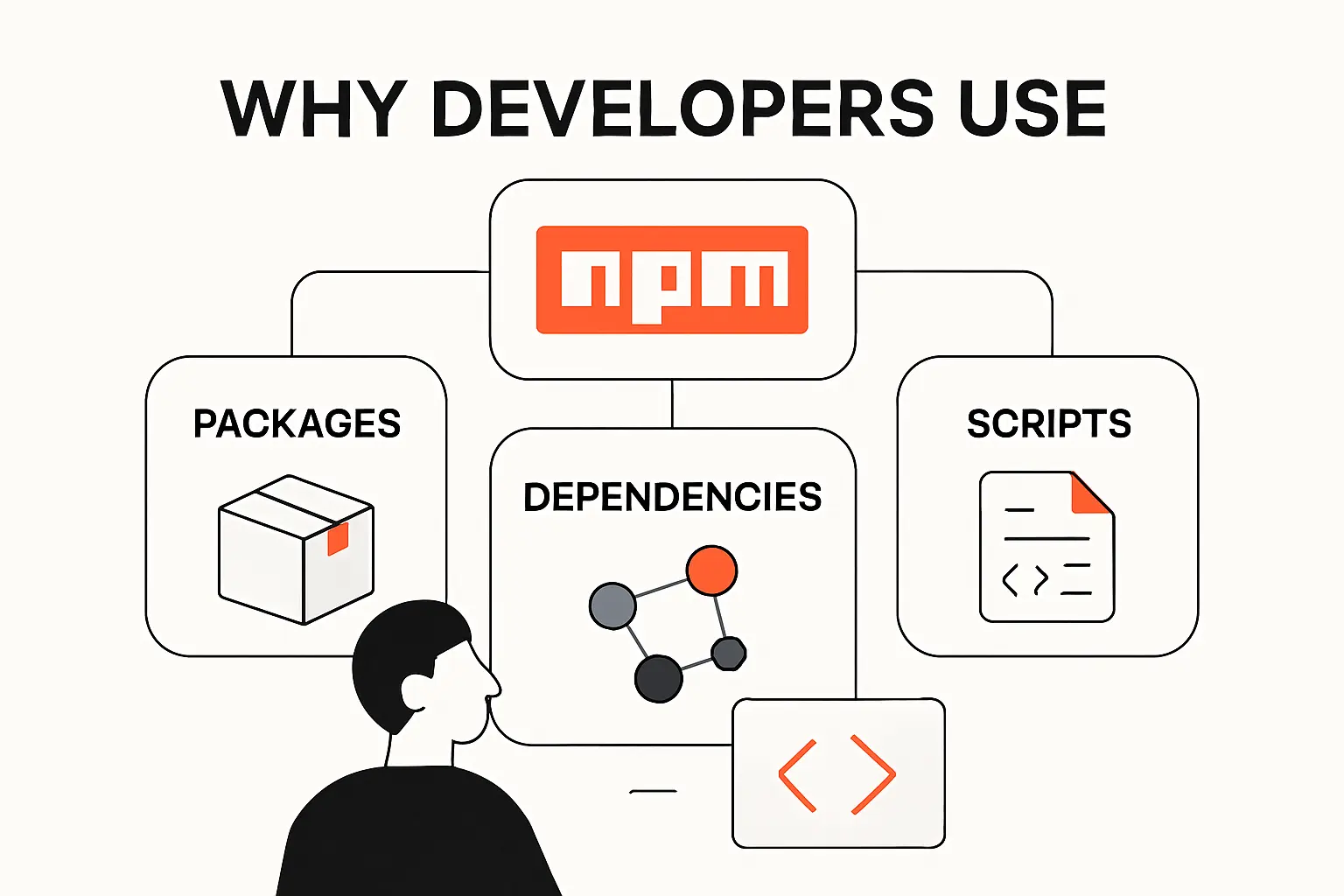
Most teams do not use npm because it is trendy. We use it because building software from scratch is expensive, slow, and often unnecessary. npm lets us reuse proven building blocks while still keeping control over versions and project setup.
1. Reusing Open Source Packages
If a well-maintained package already solves a common problem, we usually prefer to evaluate it instead of rewriting it. That might mean using a framework for routing, a library for schema validation, or a test tool for automation. Why write one more CSV parser if a good one already exists and fits the job?
2. Saving Time and Avoiding Repetitive Work
npm also saves time by standardizing routine commands. We can define scripts for linting, testing, building, or seeding data, then run the same command on every machine. That removes a lot of guesswork, especially when several people touch the same codebase.
3. Supporting Team and Project Collaboration
When a project includes a clear manifest and a committed lock file, teammates can install the same dependency tree without passing around local setup notes. That gives new developers a faster start and gives reviewers a clearer picture of what changed between releases.
Recommended reading: How to Create a Custom Dialog by Angular Material Dialog: Setup, Data Flow, Configuration, and Styling
How to Install NPM and Start Using It
The fastest path is to install Node.js and npm together. The official docs recommend using a Node version manager when possible because it makes upgrades and version switching much easier to control.
1. Installing Node.js and NPM Together
When you install Node.js, npm is usually installed with it. On macOS and Linux, many developers prefer a version manager such as nvm. On Windows, tools like nvm-windows are common. If you are new, choose a current LTS release and avoid overthinking it on day one.
2. Checking the Installed NPM Version
After installation, we usually confirm both tools right away. It is a quick check, and it catches path problems early.
node -vnpm -vIf both commands return versions, your environment is ready. If they do not, the problem is usually your shell path or the way Node.js was installed.
3. Searching the Registry and Choosing Packages
Once npm is running, package selection becomes the real skill. The official docs on searching for packages are a good starting point, but we still recommend a quick human review before adding anything to production code.
In practice, we check the README, release history, maintenance activity, and whether the package page shows provenance details. We also use the CLI when we want fast metadata from the terminal.
npm search csv parsernpm view package-nameRecommended reading: CSS Text Outline Techniques for the Web
How NPM Manages Project Dependencies
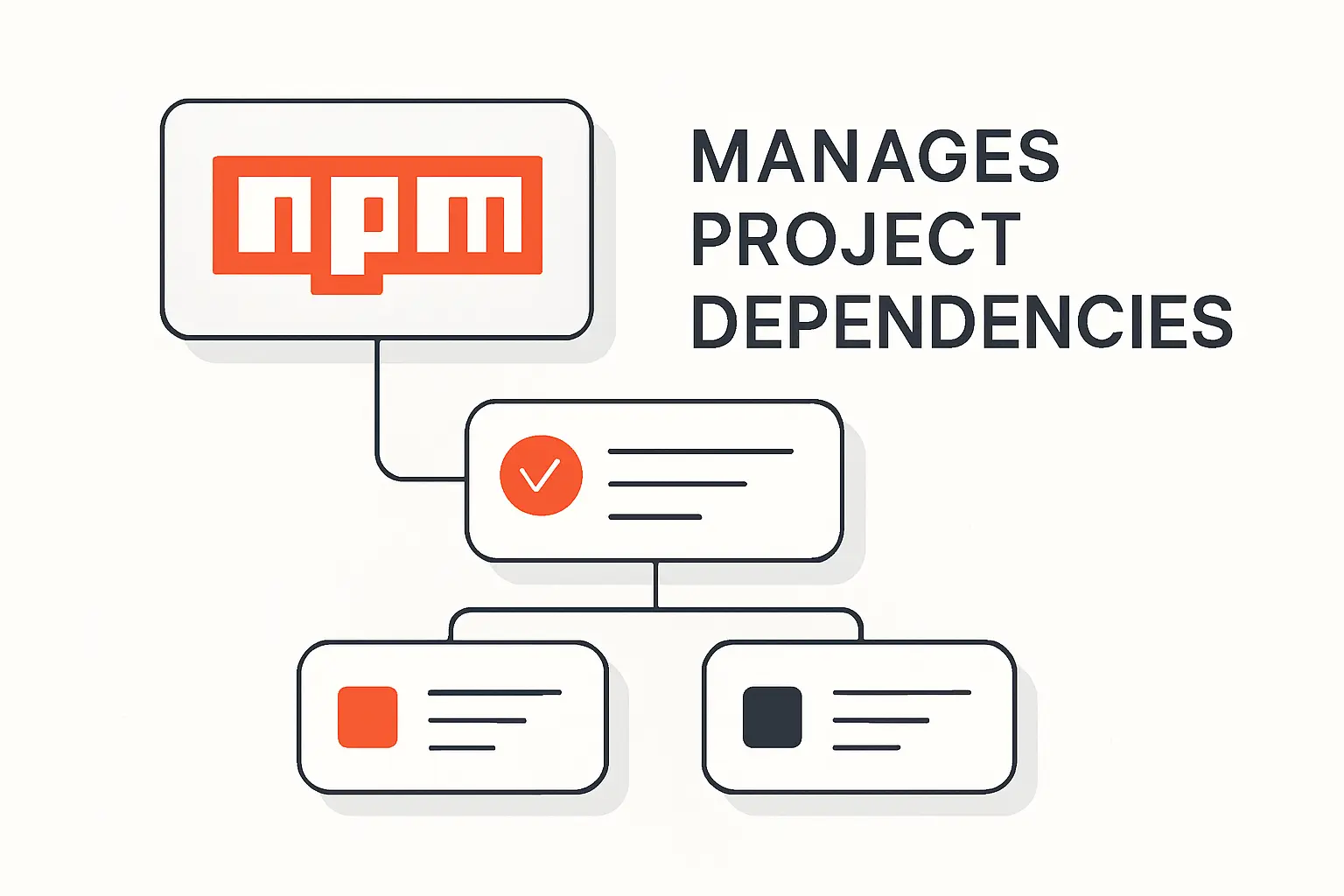
npm manages dependencies through the package.json file and, in most real projects, a lock file. Once those files are in place, npm knows what to install, which versions are acceptable, and how to reproduce the dependency tree later.
1. Understanding the Package Manifest File
The package.json file is the project manifest. It can hold the package name, version, scripts, dependency lists, entry points, repository details, and other metadata. If you plan to publish a package, the name and version fields are required. Even if you never publish, the file still gives the project a clear contract.
2. Managing Production and Development Dependencies
A helpful distinction for beginners is dependencies versus devDependencies. Production dependencies are needed when the app runs. Development dependencies support work like testing, linting, or transpiling. npm installs named packages into the right section depending on the flags we use.
npm install expressnpm install -D eslintThat split keeps deployment leaner and makes project intent clearer. When we open a new codebase, those sections tell us a lot about how it is built and how it behaves in production.
3. How NPM Resolves and Installs Packages
When we run npm install, npm resolves direct and transitive dependencies, checks version ranges, consults the lock file when present, and installs packages into node_modules. If a matching lock file already exists, npm can reuse the exact resolved versions from it instead of recalculating everything from scratch.
Recommended reading: Angular vs React: How to Choose the Right Frontend Stack for Scalable Web Apps
Essential NPM Commands to Know
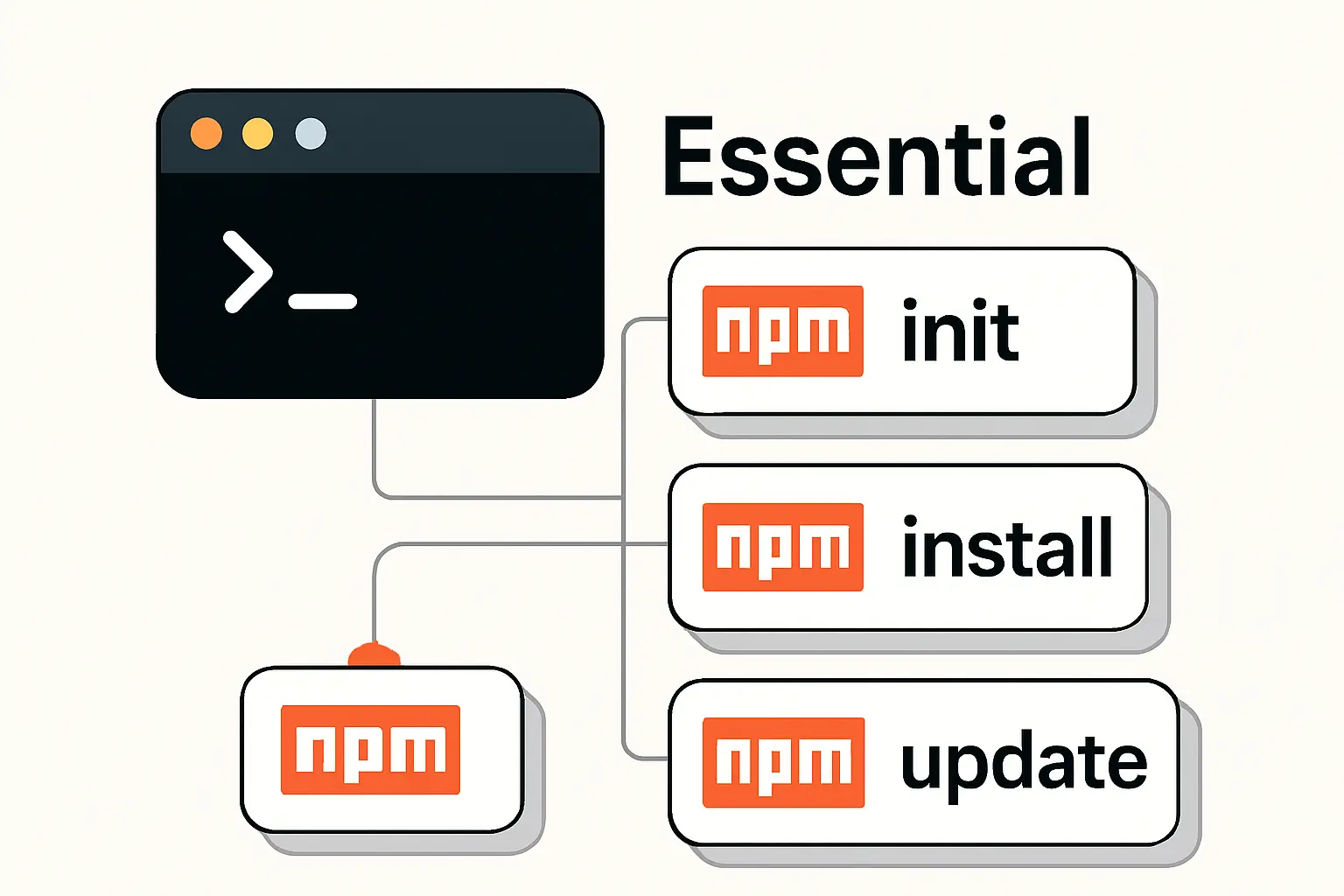
You do not need to memorize the entire CLI to be productive. In our experience, a small set of commands covers most daily work. Once you understand those, the rest of npm feels much less mysterious.
1. Installing Packages with NPM Install
npm install is the command most developers meet first. It installs all project dependencies when run in a folder with a manifest, and it can also add a single package to a project. By default, a named install is saved to dependencies, while -D saves to devDependencies.
npm installnpm install axiosnpm install -D vitest2. Versioning Releases with NPM Version
npm version helps us bump a package version in a way that matches semantic versioning. It supports values like major, minor, and patch, and it can integrate with Git by creating a tag as part of the release flow. That is one reason many teams use it in release scripts instead of editing version numbers by hand.
npm version patchnpm version minornpm version major3. Publishing Packages with NPM Publish
npm publish sends a package to the registry so others can install it by name. One practical rule matters a lot here. Once a package name and version combination has been published, that exact combination cannot be reused later, even if the version is removed. That rule protects the integrity of package history.
npm publishnpm publish --access publicRecommended reading: What Is HTML: Definition, Structure, And Modern Practice
Understanding Versions, Lock Files, and Dependency Control
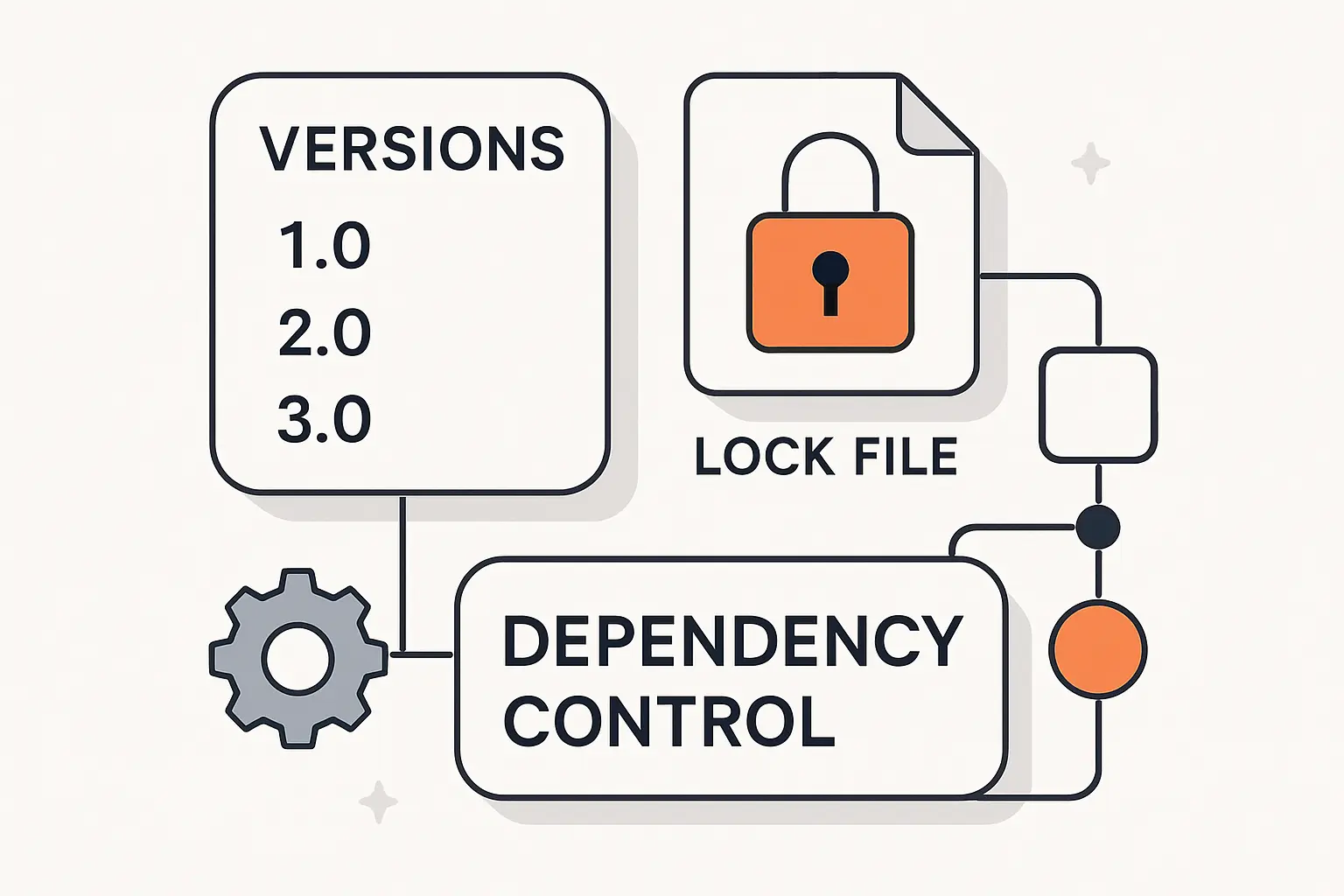
This is where many beginners get tripped up. npm works best when we understand version ranges, exact locks, and the intent behind Semantic Versioning. Once that clicks, package management feels far less random.
1. How Semantic Versioning Works
Semantic versioning follows a three-part pattern. Major versions signal breaking changes. Minor versions add backward-compatible features. Patch versions fix bugs without breaking the public API. npm also uses common range operators like ^ and ~, which let us define how much change a dependency can accept automatically.
2. Why Lock Files Keep Builds Consistent
The lock file records the exact dependency tree that was installed. That matters because version ranges alone can still allow newer compatible releases later. By committing package-lock.json, we give teammates, CI systems, and deployments a shared source of truth for exact package resolution.
3. How Overrides Help Resolve Version Conflicts
The overrides field gives us a controlled way to replace a transitive dependency version when we need to fix a conflict or work around a vulnerable package. npm only considers overrides from the root package.json, which is useful because it keeps the final decision in the hands of the application that owns the install.
{ "overrides": { "some-transitive-package": "1.2.3" }}How to Create and Publish an NPM Package
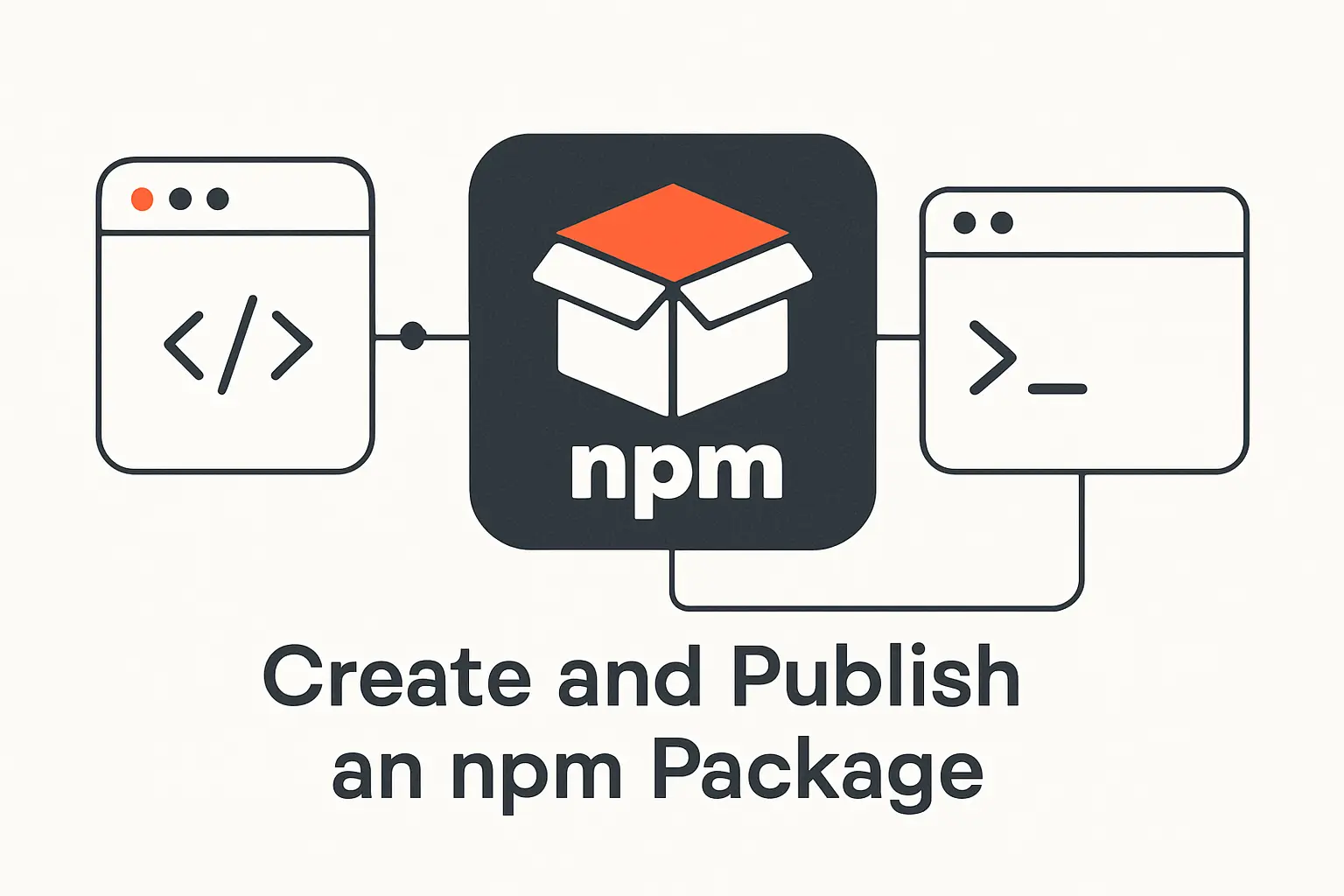
Publishing a package is not reserved for framework authors. We use npm to share tiny utilities, internal tools, design-system components, and reusable service clients. The key is to package them cleanly and publish them with intent.
1. Preparing a Package for Distribution
Most package creation starts with npm init. That generates a starter manifest and gives the project a defined identity. From there, we add a sensible name, a clear entry point, and a small public API. Before publishing, we always test installation and basic usage locally.
npm init -y2. Adding Metadata and Supporting Files
Good packages need more than working code. We add a readable README, license information, repository details, and useful keywords so people can discover and trust the package. We also use fields like private to block accidental publication and publishConfig when a package should publish with specific access, tags, or registry settings.
3. Publishing and Releasing New Versions
A simple release flow is often enough. We update the version, run tests, inspect the package contents, and publish. As the package grows, that process usually moves into CI, but the basic logic stays the same.
npm version patchnpm packnpm publishNPM Security Risks and Best Practices
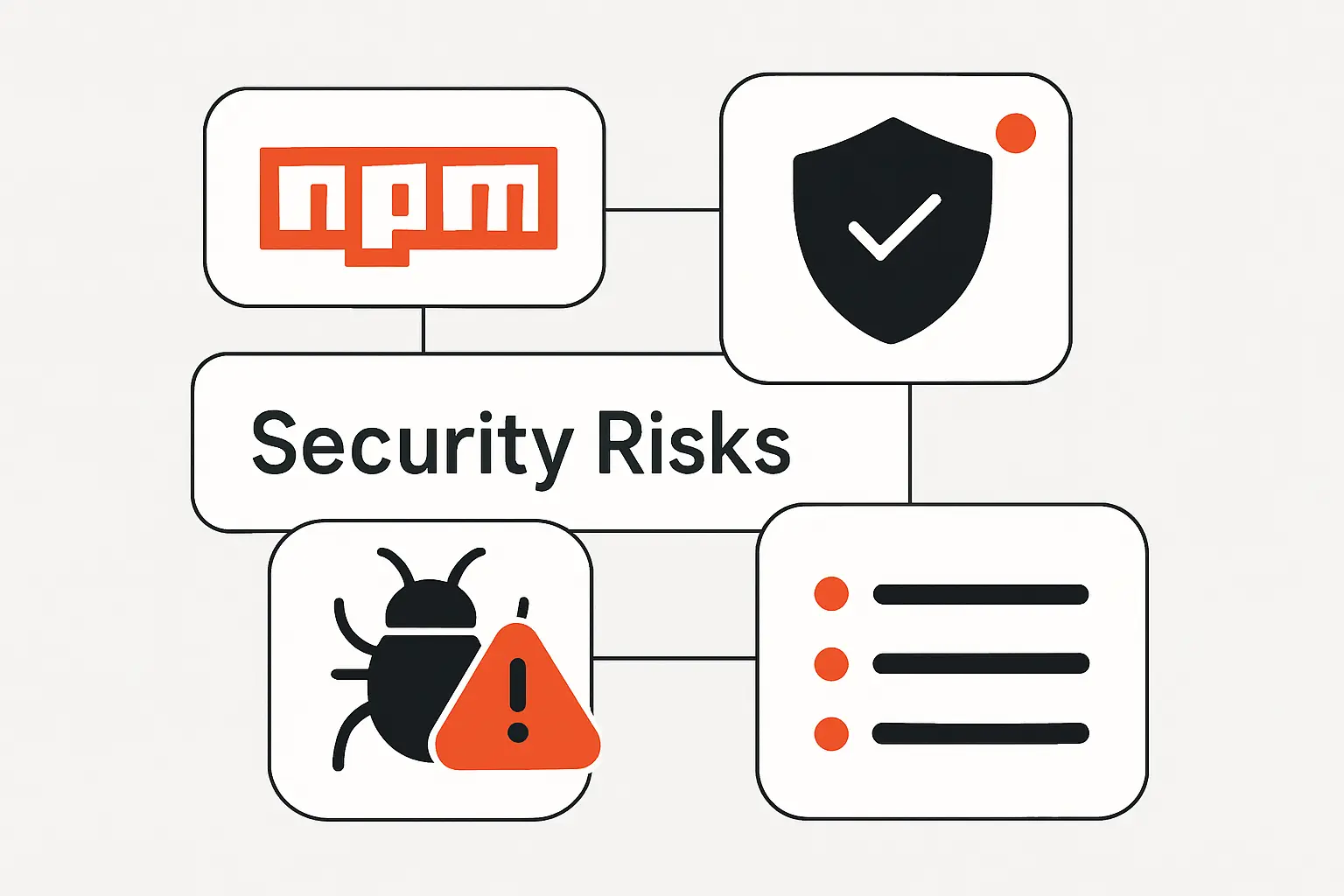
Security is not a side topic in npm. It is part of everyday package management. That pressure keeps rising as open source consumption grows, and Sonatype reported a 156% YoY increase in malicious open source packages in its 2024 software supply chain analysis.
1. Common Threats in the NPM Ecosystem
Common risks include typosquatting, dependency confusion, malicious install scripts, abandoned packages, and compromised maintainer accounts. In other words, a package can be risky even if its code looked harmless a month ago. That is why we treat dependency reviews as part of engineering, not paperwork.
The left-pad incident is still a useful lesson in package fragility. It showed how a very small package, once removed, could disrupt far more projects than most teams realized. For us, the big takeaway is simple. Tiny dependencies are still dependencies, and they still carry operational weight.
The event-stream incident is the security case every npm team should know. A trusted package pulled in malicious code through its dependency chain, which is a sharp reminder that reputation alone is not a full defense.
2. Safer Dependency Management Habits
We reduce risk with boring habits that actually work. We prefer fewer dependencies. We inspect package purpose before installing it. We pay attention to postinstall behavior and transitive dependency sprawl. We use overrides when a known bad version needs to be replaced quickly. And when provenance or registry signatures are available, we treat them as extra trust signals, not magic guarantees.
3. Keeping Packages Updated and Secure
Waiting months to update dependencies usually makes the work harder, not easier. We prefer smaller, steady updates, regular npm audit checks, and automated testing around dependency changes. For publishers, modern protections like provenance, registry signatures, and short-lived publish credentials make release pipelines much safer than long-lived tokens sitting in CI secrets forever.
How NPM Supports Modern Development Workflows
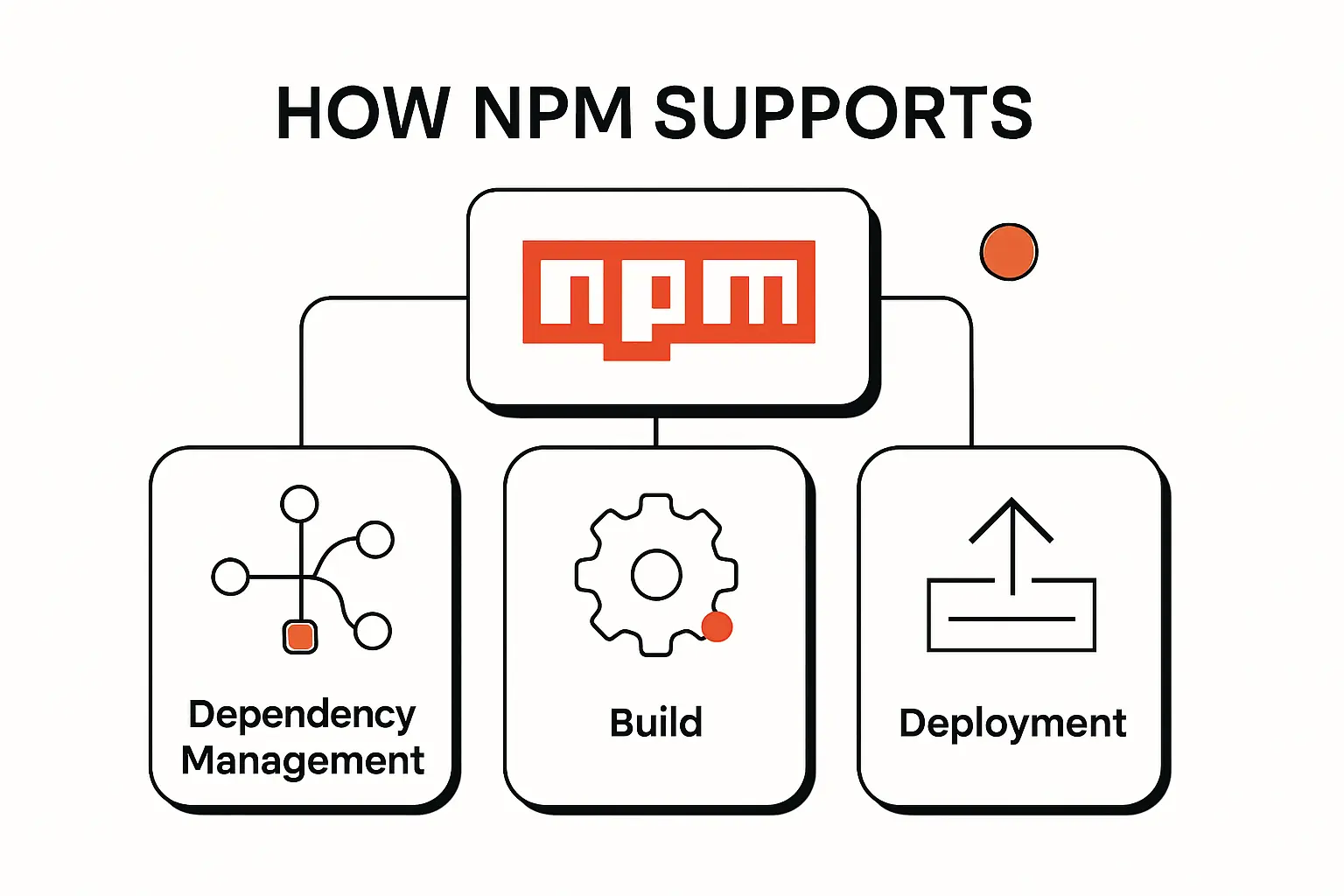
npm is not just for downloading libraries. We also use it to standardize project scripts, produce repeatable installs, and support internal package distribution. That makes it part of the day-to-day workflow, not just part of initial setup.
1. Standardizing Tasks with Project Scripts
The scripts field in package.json lets us define project commands with names everyone on the team understands. Local package executables are added to the script path automatically, which means a command like npm test or npm run build works the same way across machines without requiring global installs.
{ "scripts": { "dev": "vite", "test": "vitest", "build": "tsc && vite build" }}2. Supporting Continuous Integration and Repeatable Builds
For CI, we usually prefer npm ci over npm install. It requires an existing lock file, removes any old node_modules folder, and refuses to silently rewrite dependency state when the manifest and lock file do not match. That strictness is exactly what we want in automated builds.
3. Using Private Registries for Team and Enterprise Workflows
Teams often need to share internal packages without publishing them to the public registry. npm supports compatible private registries, scoped package setups, and release controls like private and publishConfig. For publishing pipelines, modern trusted publishing replaces long-lived tokens with short-lived workflow-specific credentials, which is a much healthier default for enterprise release automation.
Frequently Asked Questions about NPM
This section covers the questions we hear most often from clients, junior developers, and teams moving deeper into JavaScript tooling.
1. How Node.js and NPM Work Together
Node.js is the runtime that executes JavaScript outside the browser. npm is the package manager that installs and organizes the code your Node.js project depends on. They solve different problems, but they are commonly installed together and used side by side.
2. How Do You Use NPM in VS Code?
You use npm in VS Code the same way you use it anywhere else. Open the integrated terminal, run commands like npm install or npm run dev, and work from the project root. VS Code makes that comfortable, but npm itself is still just running in a shell against your project files and scripts.
3. Do Developers Still Use NPM Today?
Yes, absolutely. npm remains the default package manager in many Node.js workflows, even though alternatives like Yarn and pnpm are also common. In real projects, we still see npm used heavily for application development, CI pipelines, package publishing, and script automation.
4. How Do You Install NPM?
The usual answer is to install Node.js, because npm is installed with it. If you want better control over versions, use a Node version manager first and install Node.js through that tool. Afterward, confirm the setup with node -v and npm -v.
How TechTide Solutions Helps Build Custom Software with Modern JavaScript Tooling
At TechTide Solutions, we treat tooling choices as part of product engineering, not as a side task. The packages a team installs, the scripts it standardizes, and the release controls it uses all affect maintainability, onboarding, and production risk later on.
1. Building Custom Web and Mobile Applications with the Right Tooling
We build custom JavaScript applications by choosing tools that fit the problem instead of copying a fashionable stack. Sometimes that means a lighter dependency footprint. Sometimes it means stronger testing and linting from day one. Our goal is to keep the codebase understandable for the team that will maintain it after launch.
2. Setting Up Scalable Package and Dependency Workflows
We set up clear manifests, repeatable scripts, committed lock files, and release-friendly dependency rules. When needed, we also design private package flows, CI installs with npm ci, and safer publishing pipelines that reduce token sprawl and version drift across environments.
3. Creating Software Solutions Tailored to Business Needs
Every business has a different tolerance for speed, flexibility, compliance, and operational risk. We shape the JavaScript tooling around those needs. That might mean stricter dependency review, fewer external packages, or a more automated release process. The point is not to use more tooling. The point is to use the right tooling with clear reasons behind it.
Conclusion
npm is one of the most practical pieces of the JavaScript ecosystem. It gives us a common way to install packages, describe project requirements, automate scripts, control versions, and publish reusable code. Once we understand package.json, semantic versioning, and lock files, npm starts to feel much less like magic and much more like a dependable part of the toolchain.
Our advice is simple. Start with the basics, stay disciplined about dependency choices, and treat security and repeatability as core habits from the beginning. That approach keeps JavaScript projects easier to run, easier to share, and easier to trust as they grow.

