
In our day-to-day work at TechTide Solutions, we treat public_html as less of a folder name and more of a contract: it’s the place your web server expects to find the files it’s allowed to show the public. Across shared hosting, that contract is surprisingly consistent, even when the directory label changes between panels. As a market sanity check, Statista projects U.S. web hosting revenue to reach US$73.71bn in 2025 in the Web Hosting market, so a single “missing folder” incident can cascade into real business impact for teams that depend on cPanel-style operations.
What the public_html folder does and what it may be called on your host

1. public_html vs httpdocs in Plesk-based hosting
On Plesk servers, the mental model is the same but the default directory name often differs, and that naming difference alone can derail migrations. Instead of public_html, many Plesk subscriptions store site content under httpdocs, and Plesk’s own documentation notes that By default it is the httpdocs folder for the document root. From a troubleshooting standpoint, that means “the website is blank” may actually be “we uploaded into the wrong folder name for this panel.”
In practice, we see this most when a team copies a WordPress export, logs into a new host, searches for public_html, panics when it’s missing, and then uploads the site into a newly created public_html that the server never serves. Under the hood, the server is doing exactly what it was configured to do; the humans just pointed the content at a directory the vhost does not reference. When we unify naming across environments, we do it by aligning document roots first, then copying content, not by forcing one panel’s convention onto another.
2. public_html vs htdocs on some hosting control panels
Some stacks—especially managed appliances, developer bundles, and a few alternative control panels—use htdocs as the web-facing directory. In our experience, that naming shows up in two “gotcha” scenarios: local-to-host deployments (developers test in an htdocs world, then ship to cPanel) and multi-site servers where each application has its own web root under a shared scheme. The trick is not memorizing names; it’s verifying what the server considers the document root for the hostname you care about.
Operationally, we like to reframe the question from “where did public_html go?” to “what directory is currently mapped to this domain?” That shift makes recovery calmer, because it stops us from guessing. During a migration, we often create a short checklist that includes the expected web root name per environment, plus a test file strategy (a harmless index.html) so we can confirm what’s being served without touching production application files.
3. How the website document root determines what folder is served
Document roots aren’t folklore; they’re a direct input to web server behavior. Apache’s core documentation is blunt about it: DocumentRoot sets the directory from which httpd will serve files, and the server maps URL paths onto filesystem paths beneath that directory unless rules say otherwise. Once we anchor on that, the “missing public_html” story usually becomes one of three realities: the folder was deleted, the folder exists but isn’t the document root, or you’re not looking at the account’s real home directory.
Why this matters to business continuity
From a business lens, document root drift is a quiet failure mode: the site may still respond, but it responds with the wrong content (a parked page, a default page, or an old deploy). Meanwhile, marketing teams keep running campaigns to a domain that no longer points at the intended build. Our stance is practical: treat document root configuration as part of release management, not as “that hosting thing someone set once.”
First checks when public_html folder missing in cpanel
Before we restore anything, we prefer to confirm what symptom we’re actually seeing on the public internet and inside the account. A missing folder message inside File Manager can be real deletion, but it can also be a permissions issue, a different document root, or an FTP user jailed into an empty directory. Early clarity prevents the worst-case mistake: “fixing” the wrong thing and losing time while the real issue keeps the site offline.
1. Identify a domain parking page or default page versus your uploaded index.html
A surprising number of incidents are just “you’re seeing the host’s default content,” not “your content vanished.” One tell is when the browser shows a generic holding page, a placeholder template, or a hosting-company branded landing page even though you’re sure you uploaded files. Another tell is when you upload a simple index.html and it never appears—meaning the server is likely serving a different directory than the one you edited.
In client rescues, we often ask teams to inspect the response headers and page source, because default pages often have recognizable signatures. On the filesystem side, we look for typical application markers (a CMS config file, a wp-content folder, or a framework’s public directory), then cross-check whether those markers live under the actual document root. Once you know which directory is being served, “missing public_html” becomes a narrower, solvable problem.
A real-world pattern we see
During one migration, a team uploaded the correct build, but the domain was still pointed to an old server. Nothing was “missing” on disk; the web request was simply going elsewhere. That’s why we insist on verifying routing before doing file surgery.
2. Confirm your domain nameservers are set correctly and allow time for DNS propagation
DNS misrouting often impersonates a missing folder problem. If nameservers still point to the old provider, the browser never reaches the cPanel account. The same happens when the A record targets a different server. We prefer a simple verification path. First, confirm the domain resolves to the correct server IP. Then check that this IP is actually bound to the hosting account.
At TechTide Solutions, we also watch for split brain DNS periods. During that phase, some networks hit the new host while others still reach the old one. Teams may swear the fix is done and still get failure reports. Instead of chasing ghosts, we validate from multiple networks or trusted DNS tools. Only after resolution stabilizes do we blame the file system.
3. When the domain setup itself is wrong and may require provider assistance or an account reset
Sometimes the issue isn’t a folder at all; it’s a domain-to-virtual-host mismatch on the server. cPanel’s own guidance on the classic default page says that traffic for the domain is redirected to the cgi-sys/defaultwebpage.cgi page when the domain resolves to a different IP than the one in the domain’s VirtualHost setting or when no VirtualHost is configured. Put plainly, your files can be perfect and still never be served.
In those scenarios, we stop treating it as an end-user fix. Host support may need to rebuild web server configs, repair domain mapping, or correct an internal vhost record. Sometimes the fastest path is a controlled account reset followed by a clean restore. Especially after server migrations, stale internal mappings can be the real cause. Our bias is to preserve evidence first, then escalate with snapshots, logs, and concrete artifacts. That beats vague reports like it does not work.
Restore public_html from cPanel File Manager Trash
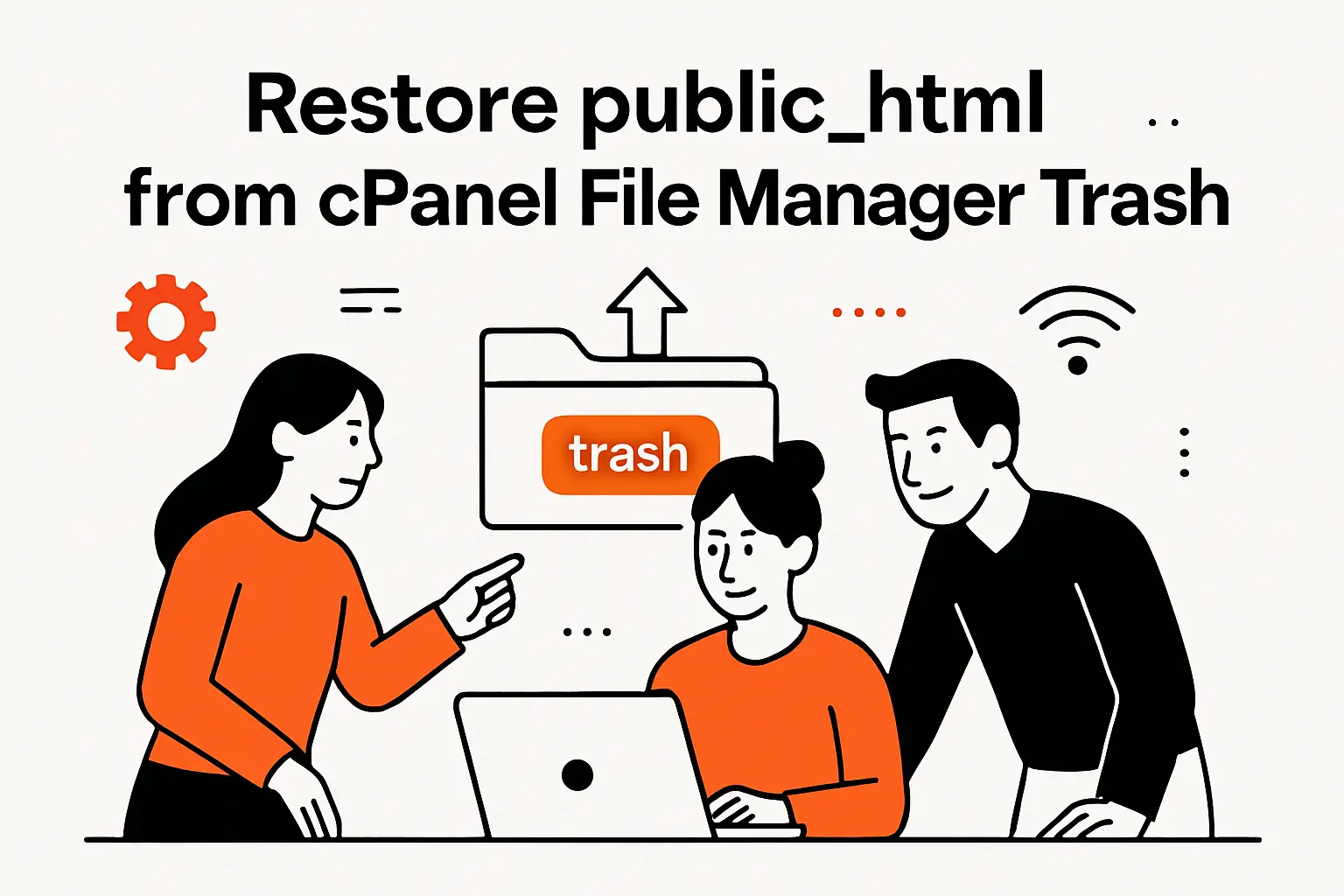
If public_html was truly deleted, the best case is that it was not deleted permanently. cPanel File Manager may place it in Trash, where the folder can still be recovered. In our experience, this is one of the fastest recoveries. Still, teams often miss it because they rush to create a new directory.
1. Log in to cPanel and open File Manager
Inside cPanel, File Manager is the fastest way to check whether public_html is missing or just hidden. First, make hidden files visible, because .htaccess can affect routing and redirects. Then inspect the account home directory and confirm which folder cPanel marks as the main web root.
During incident response, we start with File Manager instead of FTP. That removes the wrong FTP user home as a variable. If File Manager and FileZilla show different directory trees, treat that difference as a clue. Once the filesystem view is trustworthy, recovery stops being guesswork.
2. Use View Trash to find the deleted public_html folder
cPanel’s support documentation describes using View Trash to access deleted items and restore them to their previous location, which is exactly what we hope is possible in a public_html disappearance. In our workflow, we scan Trash for the directory itself as well as any parent directories that may have been removed as a set. Deletions are rarely “surgical” during a stressful moment; they’re often broad strokes.
When the folder is present in Trash, we also pause to understand how it got deleted. Accidental clicks happen, but repeated deletions can indicate automation gone wrong, a compromised credential, or a cleanup job misconfigured to target the wrong path. Restoring is step one; preventing the repeat is step two.
3. Restore the folder and confirm it returns to your main directory tree
After restoring, confirm the directory reappears where the server expects it, not just somewhere in home. A quick check looks for an index file and the key application subfolders. Next, test a simple request to the domain and verify the correct site responds. Because cache can mislead the browser view, use a fresh request method for validation.
Then check for secondary damage. A restored public_html can still fail if critical config files are missing. Sometimes ownership changes during restore and breaks the site. In other cases, a security layer still blocks the content. Ultimately, the folder’s return is necessary, but not always sufficient. We finish with a short smoke test across the homepage, deep links, and critical forms.
Recreate the public_html directory manually and republish files
When Trash is empty or disabled by policy, manual recreation becomes the pragmatic option. Rebuilding public_html is not inherently risky; the risk comes from rebuilding it incorrectly or republishing files that are incomplete, infected, or mismatched with the domain’s actual document root. Our approach is to rebuild structure first, then content, then routing.
1. Create a new folder named public_html in your account home directory
Creating a new public_html directory is straightforward, but we treat it like infrastructure work: confirm location, confirm spelling, confirm the server expects it. On many shared hosts, public_html sits directly under the account’s home directory and is used as the primary domain’s document root by default. If the host uses a different mapping scheme, recreating public_html might only create a folder that nothing serves.
Before republishing, we like to place a minimal test file in the new directory and request it through the browser. That tiny validation step tells us whether the mapping is correct before we upload thousands of assets. When the mapping is wrong, discovering it early saves time and reduces the chance of overwriting the wrong content in the wrong path.
What we avoid during recreation
During urgent rebuilds, teams sometimes create multiple similarly named directories and then lose track of which one is real. Our advice is to keep one canonical web root, clean up duplicates later, and document what changed while the memory is fresh.
2. Upload site files through cPanel File Manager or via FTP
Republishing content can happen through File Manager, FTP, or deployment pipelines, depending on site complexity. For a simple static site, uploading a clean build artifact is usually enough. However, dynamic apps also need configuration files, environment variables, and database connections to function beyond a homepage.
From a DevOps perspective, we prefer repeatable deployments over manual uploads, even on shared hosting. That may mean packaging releases, keeping a small file manifest, and using a predictable directory layout. Otherwise, restores turn into archaeology instead of routine recovery. When clients lack that discipline, we at least suggest keeping a local production copy for faster recovery.
3. If the site still redirects to a default page like cgi-sys defaultwebpage.cgi, escalate to your host
If you recreated public_html, uploaded a valid site, and still see a default page, the problem likely sits upstream. At that point, stop repeating fixes and verify domain to vhost mapping, account IP assignment, and any proxy layer. In managed environments, providers sometimes run front end routing that masks what Apache would do on its own. That can make a correct filesystem look wrong from the public side.
In escalations, the most helpful evidence is concrete. Show the expected document root. Show proof the files exist there. Include the requested domain and the response returned. With that evidence, hosting support can check mappings quickly instead of asking for repeated uploads. After the provider fixes it, write down exactly what changed. Otherwise, mystery fixes have a bad habit of returning.
Recover your site content after deletion or quarantine
Deletion is not the only way content “disappears.” Security tooling can quarantine files, malware scanners can remove infected scripts, and CMS auto-updaters can overwrite files in ways that look like data loss. In our incident work, recovery is as much about proving what happened as it is about restoring what’s missing.
1. If you have no local backup, request a hosting backup and extract it to recover public_html
When local backups don’t exist, the hosting provider becomes the next lifeline. Many hosts keep snapshots or account-level backups, and those can often be restored partially rather than overwriting the entire account. We generally ask for a backup that includes home directory files and databases, because restoring only the web root can revive the UI while leaving the application broken behind the scenes.
After obtaining a backup, we like to extract it into a staging folder first instead of dropping it directly into the live document root. That staging step lets us confirm what’s inside, compare timestamps, and avoid overwriting newer content unintentionally. Once we’ve identified the correct public_html content, we copy it into place and do a controlled validation. For business teams, this approach reduces the risk of “restoring the wrong past” while trying to save the present.
2. If files were quarantined after a hack, restore only clean backups or reinstall the CMS core files
A hack changes the emotional temperature of recovery, and we understand why: the instinct is to restore as fast as possible. Still, speed without hygiene is how reinfection happens. Verizon’s DBIR analysis notes ransomware and extortion accounted for 32% of all breaches, and while shared hosting incidents aren’t all ransomware, the broader lesson holds: restoring blindly can reintroduce the same compromised code paths that caused the outage.
When a CMS is involved, we prefer reinstalling core files from a trusted source. Then we restore only the minimum required configuration and content. Plugins and themes stay suspect until verified. Writable directories deserve extra scrutiny, especially uploads, caches, and temporary folders. In a clean rebuild, we also rotate credentials and review admin users. Finally, we check scheduled tasks for malware that may reappear after cleanup.
How we keep teams moving without panic
During a security recovery, we set a clear goal: restore service safely, then investigate deeply. That sequencing prevents “analysis paralysis” while still respecting that security is part of uptime.
3. Retrieve safe assets like images and uploads from quarantine when possible
Not everything in quarantine is equally risky. In many CMS sites, the most valuable business assets are media uploads—product photos, PDFs, brand collateral—and those are often recoverable even when code files are compromised. Our approach is to restore assets selectively, prioritizing non-executable formats and scanning them before reintroduction.
From a workflow perspective, we advise teams to rebuild the application layer first. Then reattach content only after the codebase is clean and stable. That order lowers the chance of restoring an infected script alongside images and other assets. Otherwise, the web server may execute malware hidden in recovered content. Once the site is stable, we also recommend moving user uploaded content out of the main code tree when possible. This separation between content and code makes future recoveries far less dramatic.
Fix public_html subfolders not loading: document root and folder structure

A particularly frustrating variant of this issue is when the homepage loads, but deeper URLs don’t. In our experience, that symptom is often structural rather than mysterious: the domain points to a directory that contains an index file, but the rest of the app is in a different path. Document root settings, nested folder layouts, and permissions can all create that “half-working” site that wastes more time than a full outage.
1. Verify the domain Document Root setting in cPanel Addon Domains or Domains
In cPanel environments that host multiple domains, each domain can have its own document root. cPanel’s support guidance on document root adjustments warns that changing roots can break hard links and application paths, and it describes how to manage the setting by using the Domains interface and Change the document root under New Document Root for addon domains or subdomains. The operational takeaway is simple: verify where the domain is pointed before assuming files are missing.
When we troubleshoot, we compare the domain’s document root to what the application expects. If a WordPress install lives in a nested directory but the domain points higher up, you may see a directory listing, a default index, or a redirect loop depending on what files exist where. Fixing the mismatch usually restores the “missing subpages” immediately, because the server starts reading the correct rewrite rules and application router.
2. Match URLs to the correct path when the root is nested like public_html/mysite
Nested roots are common in shared hosting: a main domain serves public_html, and a sub-site lives under a subfolder. Trouble begins when the domain is supposed to serve that subfolder directly but is instead configured to serve the parent. In that case, URLs can look correct while the filesystem mapping is wrong, and the site may partially load by accident because some assets exist in both locations.
At TechTide Solutions, we treat nested path deployments as a routing problem first and a file problem second. Application configs often hardcode base URLs, so moving the document root without updating the app can cause broken assets and confusing redirects. We usually fix this by aligning the document root with the app’s intended entry point. Then we update the app settings to match the public URL structure. Finally, we verify that the server reads rewrite rules from the correct directory.
A practical trick for fast verification
When logs are available, we look for repeated requests to missing assets or repeated redirects. Those patterns often reveal whether the server is looking in the wrong folder or the app is generating paths that don’t exist.
3. Check folder and file permissions so directories are readable publicly
Permissions problems can mimic missing folders because the server may return an access error instead of the content you expect. In shared hosting, the web server must traverse directories and read files, but the team should grant write access only where the app truly needs it. If the team locks down a directory too tightly, the server can’t read the index file, can’t load rewrite rules, or can’t serve assets from subfolders.
From an operations standpoint, we recommend focusing on principles rather than magic numbers: directories should be executable for traversal, public assets should be readable, and sensitive configuration files should not be world-readable. When teams are unsure, host support can often reset ownership and permissions to a sane baseline. After you fix permissions, also check whether a security plugin or WAF is blocking requests. Those blocks can look like filesystem permission issues in the browser.
FTP or FileZilla shows an empty directory: correct the FTP user home directory
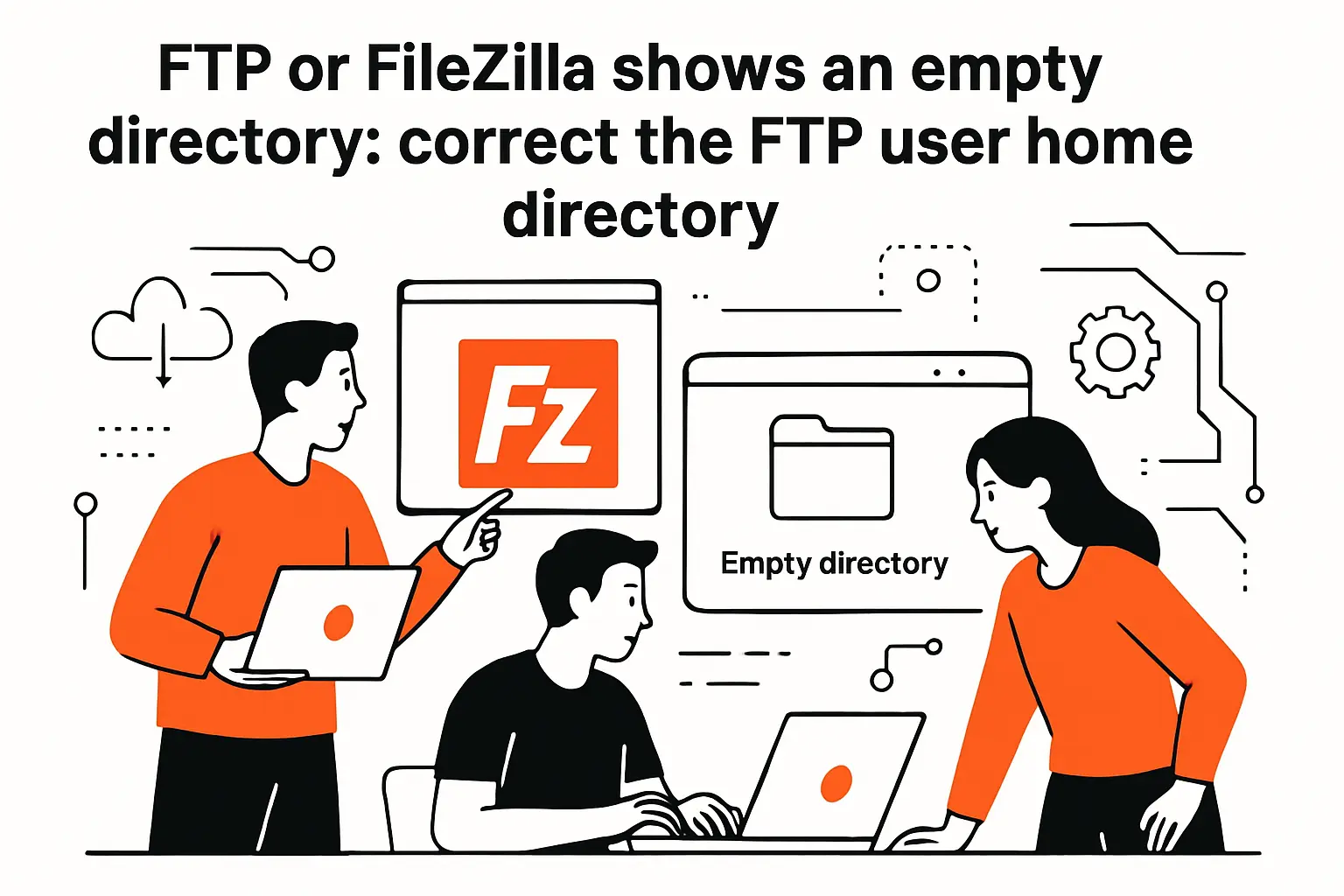
One of the most common “false missing public_html” reports we handle is an FTP scoping issue. The main cPanel user can browse everything in File Manager, but a newly created FTP user may see an empty folder and assume the site vanished. In reality, the host often jails that FTP user to a specific directory. FileZilla simply shows what that user has permission to see.
1. Why a newly created FTP account may only see its own empty directory
FTP accounts on shared hosting are frequently created with a specific home directory for safety. That design prevents one contractor, one integration, or one compromised password from exposing the entire account. The downside is usability: if the FTP user’s home is set to a blank folder, the login looks like a wiped server even when the real site is intact elsewhere.
In real projects, this happens when teams create an FTP user with a new directory instead of the real web root. The developer logs in, sees an empty folder, and uploads a fresh site copy there. As a result, two competing versions of the site can end up on disk. Our fix is simple. Point the FTP user to the correct deployment directory. Then remove the accidental duplicate after confirming which version is authoritative.
2. Set the FTP user path to the correct WordPress or public_html location in User Manager
cPanel’s user interfaces vary by host and version, so the button names differ, but the underlying reality is consistent: an FTP user has a home directory. cPanel’s documentation on FTP paths notes that There is currently not a method to change the FTP account’s Path using the cPanel interface, which is why some providers expose this via support requests or server-side tools instead. In more advanced setups, providers may use API calls or administrative tooling to adjust the FTP home safely.
At TechTide Solutions, we usually recommend SFTP or SSH based workflows when possible. FTP path confusion causes operational mistakes more often than teams expect. When FTP is required, document which user maps to which directory. Also use separate users for separate sites. Then an empty directory becomes a quick permission check, not a crisis meeting.
3. Re-test FTP access and confirm the expected folders and files appear
After correcting the FTP path, we log in again and confirm the expected web root structure appears. Instead of trusting the GUI alone, we check for hallmark files. Look for the main index file, the CMS config, and the expected asset directories. If the structure is present but changes still do not appear, caching may be the culprit. Otherwise, content may be deploying to the wrong domain document root.
In our operational playbooks, this is where we add a simple control: a tiny text file uploaded via FTP that should be retrievable via the browser. That single “canary” proves end-to-end alignment: credentials, path, filesystem write, web server read, and correct domain routing. Once the canary works, the rest of the deployment becomes routine rather than speculative.
TechTide Solutions: custom solutions for smoother hosting operations and fewer public_html surprises

We build software for teams that are tired of solving the same hosting incidents repeatedly. From our perspective, “public_html missing” is rarely a one-off; it’s a symptom of unclear ownership, manual processes, and brittle workflows around deployment and recovery. When the hosting panel is the source of truth but the engineering team lives in code, bridging that gap with internal tools can turn chaos into procedure.
1. Custom web dashboards and internal tools tailored to how your team manages cPanel environments
For organizations managing multiple cPanel accounts, the hardest part is not fixing one account—it’s seeing patterns across them. Our dashboards typically surface what teams actually need during an incident: which domains map to which document roots, which accounts changed recently, and which web roots appear empty or newly created. That visibility reduces the “log in and click around” time that burns hours during outages.
In a real support operation, a single dashboard view can reveal two different problems fast. One reseller account may map domains outside the expected directory structure. Another account may have a web root that exists, but the root is missing key application folders. With that comparison, the support team stops treating each ticket as a brand-new mystery. Instead, they apply a known fix path, with confidence that they’re targeting the right layer: DNS, vhost mapping, filesystem, or application.
Our point of view on panel-driven operations
cPanel is a powerful interface, but GUIs don’t create institutional memory. Internal tooling does, because it turns “what we did last time” into “what we always do.”
2. Automation for backups, deployments, and repeatable recovery workflows aligned to customer needs
Manual restores are stressful because they’re manual, not because they’re inherently complex. We automate the safe parts: scheduled backups, integrity checks, and deployment packaging that teams can replay the same way every time. After automation locks those pieces in, recovery becomes a checkpointed workflow—not a late-night improvisation session.
From a software engineering standpoint, we also advocate for “recovery-as-code” in shared hosting contexts. That can look like a scripted export of web root content, a predictable release bundle, or a checklist app that tracks whether DNS, document root, and permissions were verified. When teams can repeat the process, they can also improve it—tightening security, reducing downtime, and cutting the risk of restoring compromised content.
3. Monitoring and proactive checks to catch public_html folder missing in cpanel issues before users notice downtime
Reactive recovery is necessary, but proactive detection is cheaper. We implement checks that watch for telltale signs: a document root that suddenly changes, a web root that drops in file count, or a site that begins serving a default page signature. Those are not just “server metrics”; they are business-impact indicators, because they correlate strongly with customer-visible failures.
In practice, we combine uptime monitoring with lightweight filesystem verification. If the homepage responds but the signature changes to a known placeholder, we alert before customers flood support channels. When the web root directory disappears or becomes unreadable, we flag it as a priority incident with a recommended runbook. That pairing—alert plus next action—turns monitoring from noise into operations leverage.
Conclusion: resolving public_html folder missing in cpanel and getting back online
Across hundreds of hosting incidents, we’ve learned that “missing public_html” is rarely just a missing directory. Sometimes it’s Trash waiting for a restore, sometimes it’s DNS pointing elsewhere, and sometimes it’s a document root mismatch that only the host can repair. The common thread is that disciplined verification beats frantic uploading every time.
1. Pick the right recovery path: restore from Trash, recreate the folder, or recover from backups
The fastest fix is the one that matches reality. If Trash contains the directory, restore it and validate. If you truly lost the directory, recreate it carefully and republish from a known-good source. And if security might be involved, choose a clean restore or rebuild instead of copying unknown code back into production.
From our perspective at TechTide Solutions, every recovery should end with a better baseline than you started with. That might mean enabling a backup routine, documenting the correct document root, or standardizing how FTP users are created so they don’t land in empty directories. Once those habits exist, the next incident becomes manageable rather than existential.
2. Confirm domain routing so your server actually serves the files you uploaded
Routing checks are the guardrails of hosting recovery. If DNS resolves to the wrong server, no filesystem change will help. If the domain maps to the wrong vhost, your correct files will still be ignored. When you confirm routing early, you prevent wasted effort and shorten time-to-recovery dramatically.
In many cases, a simple “served content verification” step—requesting a known test file from the expected web root—settles the debate quickly. Once you prove the server serves the right directory for the right hostname, you can do normal troubleshooting. Check the app configuration, confirm rewrite rules, and verify content integrity.
3. Prioritize clean restores and repeatable recovery steps to reduce future risk
Restoring service is only half the job; restoring trust is the other half. Clean restores reduce the chance of reinfection, repeatable steps reduce the chance of operator error, and documented workflows reduce the chance of institutional amnesia. Over time, that discipline shifts your hosting posture from reactive to resilient.
So here’s the next step we’d suggest: if your team had to fix a missing web root tomorrow under pressure, would you rely on memory and screenshots—or would you rather have a tested runbook and an automated backup you can restore with confidence?