
At TechTide Solutions, we treat the IP address as the internet’s quiet workhorse: it’s rarely glamorous, yet it sits underneath almost every login, API call, streaming session, and incident-response alert we touch. An IP address looks like a technical footnote until something breaks—until a customer can’t reach a service, a fraud rule triggers, a game lags, or a security team spots suspicious traffic from an unfamiliar network. From that moment onward, “what is my IP?” stops being trivia and becomes operational reality. In this guide, we’ll unpack what an IP address is, how to check it, what it can (and can’t) reveal, and how we recommend protecting it without turning day-to-day work into a bunker mentality.
What your ip address is: Internet Protocol basics and why you have one

Behind every website visit is a routing problem: data has to leave one network and arrive at another, reliably enough that humans perceive it as “instant.” IP addressing is the labeling system that makes that delivery possible at internet scale. In our work, we’ve seen most confusion disappear once teams clearly separate who assigns the address, what it’s used for, and why it changes.
1. IP addresses as unique numeric labels assigned by your Internet Service Provider
In the simplest public-internet sense, an IP address is the label the rest of the internet uses to talk back to your connection. Typically, your Internet Service Provider (ISP) assigns that public-facing address to your modem, router, or gateway, and your devices sit behind it. From a business perspective, this is why customer support often asks for an IP: it’s a practical handle that helps correlate logs, firewall rules, and connection paths. In our experience, the IP is less like a personal identifier and more like a “return address” for packets on the open internet.
Importantly, “unique” is contextual. Many households, coffee shops, and offices share one public IP among multiple devices via a router, and large providers sometimes share public addresses across many subscribers using carrier-grade NAT. Because of that sharing, a public IP can be “your internet exit” without being “your device.” When teams miss that nuance, they overestimate what an IP proves—and underestimate how often broad IP-based blocks catch innocent users.
2. How IP addressing directs data to the right destination for websites and online requests
When you open a website, your device doesn’t magically know where “the site” lives; it resolves a domain name to an IP address and then sends packets toward that destination. Routers along the path read the destination IP and forward traffic step by step, like a relay of sorting offices that only care about the next hop. Operationally, this is why outages can be partial: the website may be “up,” yet certain networks can’t reach it because a route, peering link, or security filter fails somewhere in between.
From our build-and-debug trenches, we think of IP addressing as the internet’s “delivery layer,” while the application (your browser, your mobile app, your API client) provides the meaning. That separation matters for businesses because troubleshooting often starts below the application. If a user reports “login is broken,” checking whether requests reach the server IP—and whether responses return to the client IP—is often the fastest way to separate app bugs from network realities.
3. TCP/IP basics and why your IP address may change when you switch networks
Most everyday internet traffic relies on the TCP/IP suite: IP delivers packets to the correct network endpoint, while TCP (or alternatives like UDP) handles data exchange and reassembly. Under the hood, your current network decides which IP address you present to the wider internet, so moving between networks often means your “public face” changes. For example, switching from home Wi‑Fi to cellular data typically puts you behind an entirely different ISP infrastructure with different addressing, routing, and security policies.
From a practical standpoint, IP change is a feature, not a bug. Residential ISPs often rotate addresses over time, and enterprise networks may assign different egress IPs depending on VPN status, location, or security posture. In our consulting work, we’ve seen teams accidentally design fragile allowlists—assuming a single IP will remain stable—only to discover that reliability requires an explicit strategy (static IPs, managed VPN egress, or identity-based controls) rather than hope.
How to check your public IP address online (IPv4 and IPv6)

Most people check their IP for one reason: they want to know what the outside world sees. The easiest path is to ask an external service to report the address it observes from your connection. In testing environments, we do this constantly—especially when validating VPN behavior, edge routing, or geo-aware features.
1. Using “what is my IP” tools that automatically display your current public address
Any “what is my IP” website works by reading the IP address that connects to it and then printing that value back to you. Search engines often provide this directly in results, and there are also minimal endpoints used by developers that return only the raw address for scripting. In our internal QA checklists, we like tools that show both IPv4 and IPv6, because modern networks can prefer one protocol without the user realizing it.
Ease comes with a small trade-off: you’re trusting a third party with the fact that your IP visited them at a given time. For casual checks, that’s usually fine. For corporate environments, we advise using well-known, reputable tools—or hosting an internal “what is my egress IP” endpoint behind your own infrastructure—so the check itself doesn’t add unnecessary data exposure.
2. What you’ll typically see next to your IP: ISP, city/region/country, and related connection details
Many IP-check pages display “extra context” beside your address: an inferred ISP name, a guessed city or region, an autonomous system label, and sometimes a hostname. That data is typically derived from IP-to-organization mappings and geolocation databases rather than from your device. In other words, you’re seeing what commercial and public datasets believe about the block of addresses, not a GPS reading from your phone.
In product terms, this is both powerful and dangerous. Fraud systems, content licensing gates, and abuse-prevention filters routinely use IP reputation and rough location as signals, and those signals can be directionally helpful. Yet we’ve also watched legitimate customers get flagged when their ISP routes them through a different metro area, when a VPN endpoint is misclassified, or when an IP range changes ownership and the metadata lags behind reality.
3. Why some methods show IPv6 by default and how to confirm your IPv4
On many modern networks, IPv6 connectivity is available and may be preferred, so an IP tool can show an IPv6 address even if you expected IPv4. That preference can come from the OS, the router, or the ISP’s network design, and it can vary by destination. In our experience, confusion shows up most during “VPN verification,” where a user expects a single visible IP but actually has split behavior depending on which protocol a site supports.
To confirm IPv4 specifically, use an IP-check service that explicitly reports both protocols, or use a tool that allows selecting the IPv4 endpoint. Another reliable approach is to test multiple destinations and compare results, because some sites are reachable over one protocol and not the other. When both are visible, documenting the pair in your troubleshooting notes saves time—especially if support teams, security tools, or allowlists treat IPv4 and IPv6 differently.
Public IP vs private IP addresses inside your local network

One of the most common misunderstandings we see is mixing up a device’s private address (inside the home or office) with the router’s public address (visible on the internet). The difference matters because policies, logs, and threat models are completely different on each side of that boundary. Once teams internalize “public outside, private inside,” router behavior suddenly makes sense.
1. Your router’s public IP address vs each device’s private IP on Wi-Fi
Your router (or gateway) typically holds the public IP on its internet-facing interface, while each phone, laptop, and TV gets a private IP on the local network. NAT then translates outbound connections so many devices can share one public identity. From an engineering lens, that translation is why an external server can respond to the right device even though it only “sees” one public address: the router tracks connection state and maps replies back to the originating private host.
In enterprise environments, the pattern scales up. A company might have many offices and many public egress points, plus VPN concentrators that act as additional exits. When a customer reports an issue, we often ask whether the problem happens on multiple networks, because a failure might be tied to a specific egress IP’s reputation, a regional firewall rule, or an upstream provider—rather than the application itself.
2. Why 192.168 is a private IP range and why it isn’t your public IP location
The “192.168.x.x” pattern is common because it belongs to private address space reserved for local networks, not for global routing. If your device shows something like that, it’s not exposing your public location to the internet; it’s simply showing where you sit inside your local Wi‑Fi network. The public internet cannot route to that space directly, which is precisely why it’s safe for millions of disconnected networks to reuse the same internal numbering.
To ground this in standards, the IANA lists 192.168.0.0 – 192.168.255.255 as private-use IPv4 address space. In practice, that means your laptop can be “192.168…” at home and a totally different “192.168…” in a hotel, and nothing on the public internet considers those two machines the same. From our viewpoint, this is one of the healthiest mental models to teach non-networking teams: private IPs identify a device within a local context, not a person on the global internet.
3. 192.168.1.1 and accessing a router admin panel to manage network settings
Many consumer routers expose their admin interface at a local gateway address such as 192.168.1.1, which is reachable only from inside the network. From there, you can adjust Wi‑Fi settings, review connected devices, configure DNS, and manage firewall or port-forwarding rules. In our experience, the admin panel is where small security decisions quietly stack up—often without anyone realizing that “default settings” are still choices.
Because routers protect the boundary between private and public networks, access controls matter. First, change default admin credentials. Next, keep firmware updated. Also, disable remote administration unless a clear business need exists. For small teams hosting demos from home offices, port forwarding can seem tempting. Still, exposing services directly to the internet quickly increases scanning and attack surface. When external access is required, we usually recommend a managed tunnel or VPN workflow instead. That is safer than opening inbound ports on a consumer router.
IPv4 vs IPv6 formats: what changes and what stays the same

Teams often talk about IPv4 and IPv6 as if they’re competing products, but we view them more like two generations of the same addressing idea. The format changes, the operational edge cases change, and the adoption story changes, yet the purpose remains steady: label endpoints so networks can route traffic. For businesses, the real question is whether your tooling, logging, allowlists, and security controls treat both protocols as first-class citizens.
1. IPv4: the most common IP version assigned by ISPs
IPv4 addresses appear as four decimal numbers separated by dots, so they are easy to read in logs. That readability keeps IPv4 central to daily troubleshooting because people can compare addresses and spot patterns quickly. In many client environments, IP allowlisting still usually means IPv4 allowlisting, even when IPv6 is available.
However, familiarity can hide complexity. Shared addressing, NAT, and reputation systems mean an IPv4 address is often a network signal, not an identity. In our incident reviews, one suspicious IPv4 may represent one attacker, a noisy neighbor, or a corporate VPN exit. Therefore, blocking decisions should always include context and time windows.
2. IPv6: a newer, longer IP format that many networks use
IPv6 addresses look different—longer, hexadecimal, and structured—so they can feel intimidating at first glance. Under the protocol design, IPv6 expands address size from 32 bits to 128 bits, which changes how networks allocate, summarize, and manage space. In our view, the practical business outcome is not “more addresses” in the abstract; it’s more flexibility for ISPs and enterprises to assign globally unique addresses without leaning as heavily on NAT gymnastics.
On modern systems, IPv6 also introduces new privacy and operational considerations. Some devices use temporary addresses (privacy extensions), logs become noisier if you aren’t normalizing correctly, and teams sometimes forget to include IPv6 in firewall rules or monitoring scopes. When we help organizations modernize infrastructure, we treat IPv6 readiness as part of “done,” because attackers and customers alike can arrive over whichever protocol your network supports.
3. When checking both IPv4 and IPv6 helps with troubleshooting and VPN verification
Checking both protocols pays off when behavior differs by destination or network path. A VPN might tunnel IPv4 but leave IPv6 direct, or a firewall rule might block one family unintentionally. In our QA flow, we verify that “what the user sees” matches “what the platform enforces,” and that means validating both address families in the same session.
For remote access and corporate security, the stakes are higher than curiosity. If an allowlist accepts only IPv4 but a user reaches the service via IPv6, access can fail in ways that look random. Similarly, if your security posture assumes all traffic exits through a managed VPN egress, a protocol mismatch can create a blind spot. Treating IPv4 and IPv6 as a pair—especially in logging and policy—reduces those surprises.
Using an IP lookup to understand IP location and network details

An IP lookup is a form of translation: it turns an address into metadata that humans can interpret. In product work, that metadata can be useful for analytics, fraud prevention, debugging, and regional compliance workflows. In privacy work, that same metadata can be sensitive, so we recommend using it with restraint and explicit purpose.
1. What IP lookup tools can reveal: ISP/organization, hostname, region/state, city, latitude/longitude, area code, and known services
Most IP lookup tools return ISP or organization labels, autonomous system indicators, and coarse location estimates like region and city. Some also return hostnames derived from reverse DNS. They may flag addresses tied to hosting providers, VPN endpoints, or data centers. From a security perspective, that metadata often separates typical consumer traffic from likely hosted or automated traffic. Still, we treat those signals as probabilities, not verdicts.
In business systems, we use this metadata for real outcomes. For example, it can route support tickets to the right regional team. It can also trigger step up authentication when logins come from unusual network categories. Additionally, it helps debug CDN edge selection when performance complaints cluster in one geography. The key is to treat lookups as signals that enrich your understanding. Any product that treats lookup output as ground truth—without fallbacks or appeals—invites false positives and frustrated users.
2. What IP lookup tools can’t reveal: name, exact street address, phone number, or email address
An IP address is not a public directory listing for personal identity. Even when a lookup shows a city and ISP, it does not reveal a person’s name, home address, phone number, or email. From our perspective, that distinction matters. Fear based stories about IP addresses often trigger bad decisions. Users panic when they do not need to. Meanwhile, organizations may enforce policies that the technology does not truly justify.
At the same time, “can’t reveal identity by itself” doesn’t mean “harmless.” IP addresses can still support correlation, especially when combined with timestamps, account activity, device fingerprints, and cookie-based tracking. In our privacy reviews, we encourage teams to treat IP-related data as potentially sensitive, minimize retention, and be transparent about how it is used—particularly in user-facing products where trust is part of the brand.
3. IP geolocation accuracy is a best guess: country and region are more reliable than city, and results vary by region
Geolocation accuracy is fundamentally probabilistic, because the internet’s addressing and routing do not map cleanly to physical geography. Databases infer location from registry data, ISP disclosures, network measurements, and partner feeds, and those sources can drift as networks change. In our experience, this is why users sometimes appear to be “in the wrong city,” even when nothing suspicious is happening.
Even leading datasets frame their output as estimates rather than guarantees. MaxMind, for instance, estimates 99.8% accuracy at the country level, while describing more variability at finer granularity. From a product design standpoint, that is a warning label. Country level decisions can be reasonable in some contexts. City level enforcement needs more care. Build user friendly remediation paths. Also expect occasional location mismatches.
How your public IP address affects you: privacy, security, access, and troubleshooting
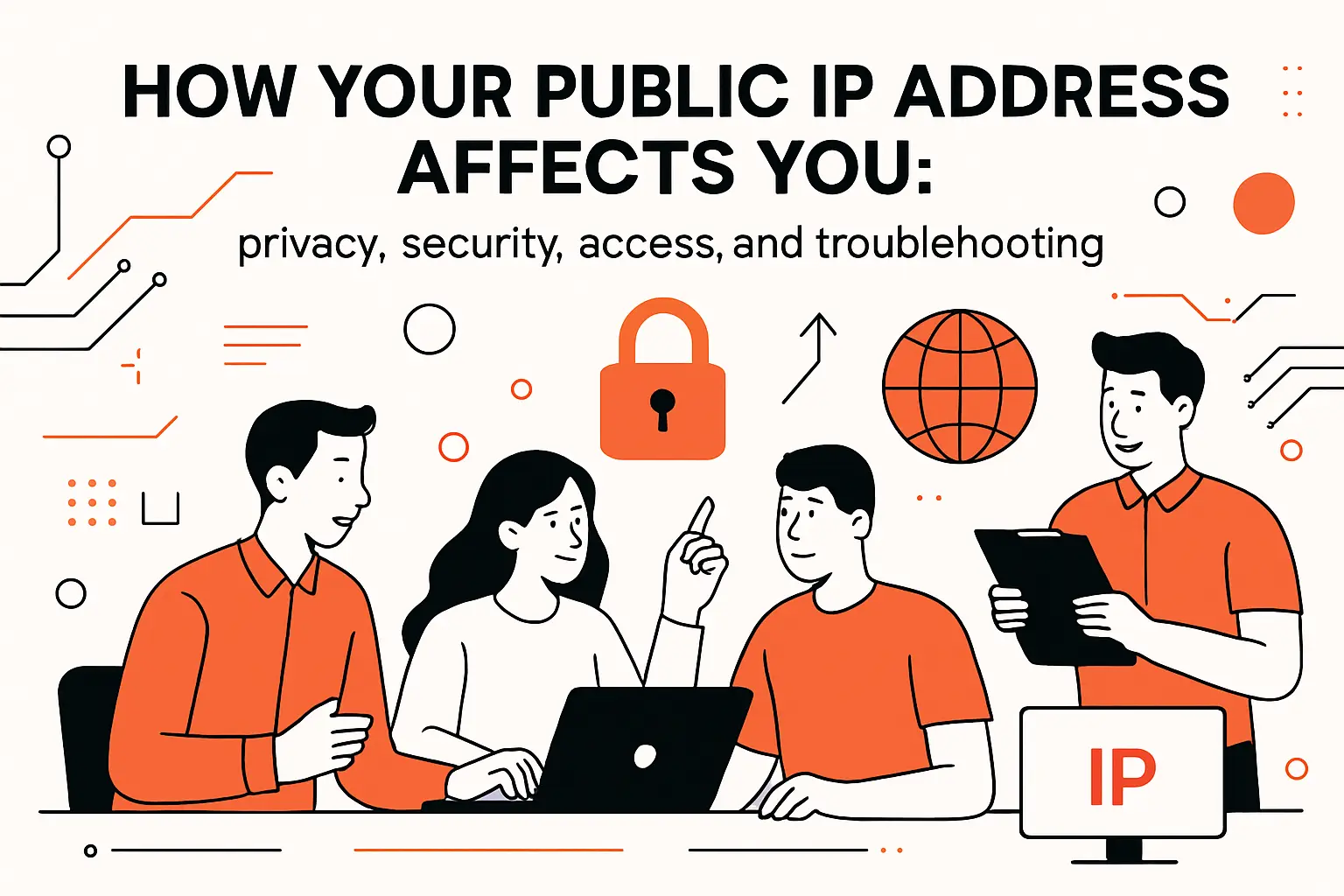
IP addresses sit at the intersection of identity, risk, and operations: they influence what a service believes about your connection and what a network can do to protect itself. From a market lens, security investment keeps rising because these foundational signals matter across the stack, and Gartner projects worldwide end-user spending on information security to reach $213 billion in 2025. In our view, that spending reflects a broad realization: companies can’t treat network-layer realities as someone else’s problem anymore.
1. Location exposure and digital profiling based on your city/region and ISP
Your public IP leaks a kind of network location. Services infer likely geography and organization from it. That supports personalization, compliance gates, and fraud scoring. Then they choose CDN edges, show regional pricing, or challenge logins. In our work, IP signals help reduce account takeovers when paired with device and behavior data.
Profiling is where convenience becomes contentious. Advertisers and analytics stacks can treat IP-derived location as one more ingredient in a user profile, even if it’s coarse. Because of that, privacy minded product teams should decide explicitly how they use IP location. Is it improving service delivery? Or is it quietly expanding the tracking surface? The answer should shape retention policies, disclosure language, and whether users can opt out.
2. ISP visibility during browsing: what can be seen on HTTPS-secured vs non-HTTPS traffic
Even with encryption, your ISP still handles the connection and can see certain metadata. For routing, it can observe the server IPs you contact, plus traffic timing and volume. Encryption protects much of the content, which is a major privacy win. However, it does not erase the fact that your device reached a specific server IP.
By contrast, unencrypted traffic exposes far more, including requests and responses in transit. From our security view, that is why HTTPS is table stakes. Likewise, internal services need protection too, not just public websites. For regulated industries, encrypted does not mean invisible. So audits and privacy reviews must consider metadata leakage, logging scope, and vendor access paths.
3. Common reasons to check or change an IP: verifying a VPN, remote access, online gaming, and hosting servers
In the real world, people check IPs when networks need to line up. VPN verification is a classic case. Users want to confirm traffic exits from an expected region or corporate egress before opening sensitive tools. Remote access workflows also drive IP checks. Connecting to a home lab or office device often depends on knowing where the network can be reached.
Meanwhile, gaming and media also drive frequent checks. Matchmaking quality and content availability can depend on routing and region signals. Hosting a server raises the stakes further. That applies to a web demo, a self hosted project, or a business critical endpoint. Then public IP stability and reputation start to matter. In our view, checking your IP usually signals a deeper need. People want predictability, transparency, and control over how their network appears to the outside world.
How to hide or change your IP address: VPNs, Tor, proxies, and switching networks

Changing your visible IP is less about vanishing and more about choosing which network represents you to a destination. Sometimes that’s about privacy; other times it’s about security, segmentation, or reaching a resource that trusts only specific egress points. In our practice, the best tool depends on the threat model, the performance budget, and how much operational complexity a user or organization can tolerate.
1. VPNs: encrypted tunnels that mask what your ip address is to the wider internet and can help with privacy and security
A VPN creates an encrypted tunnel from your device or router to a VPN provider or corporate gateway. Then your traffic exits from that gateway to the broader internet. To outside services, the visible client is the VPN egress IP, not your home or mobile IP. That reduces direct exposure and adds encryption across hostile networks like public Wi Fi.
Policy enforcement through a controlled exit is often the bigger security win. Still, tradeoffs appear quickly in real use. Performance can vary, and trust shifts from your ISP to the VPN operator or your employer. We evaluate VPNs by transparency, logging posture, and how they handle split tunneling, DNS, and IPv6. Otherwise, the masked IP story falls apart when supporting systems still leak identifying metadata.
Practical business pattern
For teams, a managed VPN egress can also function as a stable allowlist target for SaaS tools, admin panels, and partner APIs. Instead of chasing changing home IPs, organizations standardize outbound traffic through controlled gateways and monitor those exits carefully.
2. Tor Browser: layered encryption to conceal your IP address, with a performance trade-off
Tor Browser routes traffic through multiple relays, so destination sites do not see your original IP address. No single relay sees the full path in a simple, straightforward way. That design is powerful for anonymity and censorship resistance.
Still, Tor works best as a specialized privacy tool, not a general performance solution. Latency and site compatibility are the main tradeoffs. Many services block or challenge Tor traffic because of abuse patterns. That also shows why IP based trust is imperfect. When services rely on IP reputation too heavily, they can exclude legitimate privacy conscious users.
3. Proxy servers and public Wi-Fi: rerouting your connection to alter your visible IP, plus higher privacy and security risks
A proxy can change what a destination sees as your client IP by forwarding requests on your behalf. Some proxies are benign and enterprise-managed; others are sketchy, misconfigured, or outright malicious. In our experience, the risk is not theoretical: free public proxies are frequently abused, and users may unknowingly send sensitive data through infrastructure with unclear ownership and weak security controls.
Public Wi Fi also changes your visible IP because traffic exits through the venue’s network, not your own. That can help when you simply need a different network path. However, weak protections can increase exposure to local attackers. For everyday privacy and security, we usually prefer a trusted network plus VPN. That matters even more for business accounts, admin portals, and workflows involving credentials or financial data.
TechTide Solutions: custom software that helps teams manage IP visibility and online privacy

Our stance is simple: IP addresses are unavoidable in networking, but chaos is optional. Without planning for IP visibility, teams create brittle fraud rules, confusing experiences, and logging that misses incidents or hoards data. At TechTide Solutions, we design software so IP signals are used intentionally, explained clearly, and governed with privacy in mind.
1. Custom web and mobile apps tailored to customer needs that surface IP, location indicators, and connectivity context
In customer-facing apps, we often surface connection context in a way that helps users help themselves. Instead of burying network details in obscure diagnostics, we can show clear network status panels. They can indicate whether the user appears to be on a VPN. They can also show IPv4 or IPv6 support. Additionally, they can warn when location based features may behave differently. From a support perspective, that turns vague tickets into actionable reports without forcing users to learn networking vocabulary overnight.
Real-world examples guide our design choices. A streaming or ticketing platform might want to warn users when their connection appears to be routed through a data center, because that can affect licensing or fraud scoring. A field-service mobile app might need to detect captive portals and unstable networks before attempting large uploads. In both cases, the goal is not to expose sensitive internals; it’s to reduce confusion and shorten time-to-resolution.
Design principle we rely on
Context should be descriptive, not accusatory. When we display IP-derived hints, we phrase them as “what we’re observing” and “what you can try next,” rather than implying wrongdoing.
2. Back-end systems built to customer requirements for handling IP-related data with security and privacy in mind
On the server side, IP addresses show up in logs, rate-limits, fraud pipelines, and security investigations. Our approach is to treat IP data as potentially sensitive and to handle it with explicit purpose: retention limits, access controls, and clear separation between operational logs and analytics datasets. In our experience, “log everything forever” is not a strategy; it’s technical debt with legal and reputational interest rates.
Security use cases still matter, so we build for defensibility. That can include hashed or truncated IP storage for analytics. Meanwhile, full fidelity storage stays only in restricted security logs. We also require auditable access for investigations. When location is uncertain, the system should fall back to safer flows like step up verification. That avoids blocking legitimate users on a shaky city guess.
3. End-to-end custom solutions that integrate VPN workflows, access patterns, and product-specific privacy controls
For organizations with remote teams, contractors, or partner access, VPN workflows often become part of the product unexpectedly. We build end to end solutions where network posture, identity, and authorization work together. That can include managed VPN egress for admin access and policy driven routing for sensitive tools. We also add monitoring that flags unusual egress behavior. From our viewpoint, this replaces informal IP allowlists and tribal knowledge with maintainable, auditable controls.
Privacy controls matter just as much as access controls. We help teams implement user-facing settings, internal governance, and product constraints so IP-based signals are not silently repurposed for tracking. When a company can say, credibly, “we use IP information for security and reliability, not surveillance,” it earns trust—and that trust is an asset that compounds over time.
Conclusion: practical next steps for understanding what your ip address is and protecting it

Clarity starts with separating the layers: your device has a private IP on your local network, your router (or VPN) has a public IP to the internet, and IP lookups provide estimates—not identity. For a quick self-check, we recommend confirming your public IP on a reputable “what is my IP” tool, then checking whether the result changes when you switch networks or enable a VPN. On the security side, tightening router hygiene, avoiding risky proxies, and using encryption-first browsing are pragmatic moves that reduce exposure without demanding perfection.
Clarity starts with separating the layers. Your device has a private IP on the local network. Your router, or VPN, has a public IP on the internet. IP lookups provide estimates, not identity. For a quick self check, confirm your public IP on a reputable tool. Then see whether it changes when you switch networks or enable a VPN. On security, tighten router hygiene, avoid risky proxies, and favor encryption first browsing. These moves reduce exposure without demanding perfection.