
At TechTide Solutions, we still run into FTP in the wild more often than people admit—especially in older hosting environments, vendor integrations, and “it’s worked for years” operational runbooks. Legacy doesn’t automatically mean useless; it usually means “understood well enough to be dangerous.” FTP can be perfectly serviceable for basic file movement, yet it has sharp edges around security, reliability, and expectations about what “copying a folder” really means.
Market overview: Gartner-linked research pegs the global managed file transfer suite market at $985 million in 2024, and that spending exists largely because businesses want governance, auditability, and secure automation that plain FTP doesn’t deliver by default.
Our stance is pragmatic: learn FTP so you can support existing systems competently, then use that understanding to migrate workflows toward safer, more observable patterns. The MOVEit incident is a sobering reminder that file transfer sits right on the fault line between “IT plumbing” and “material business risk,” and the MOVEit Transfer vulnerability advisory is a useful example of why we treat file movement as part of the attack surface, not merely an ops convenience. With that mindset in place, we can connect, browse, and transfer files with fewer surprises and a lot more discipline.
FTP fundamentals and what the protocol can and cannot do
1. What FTP is designed for: transferring files between a local and a remote host
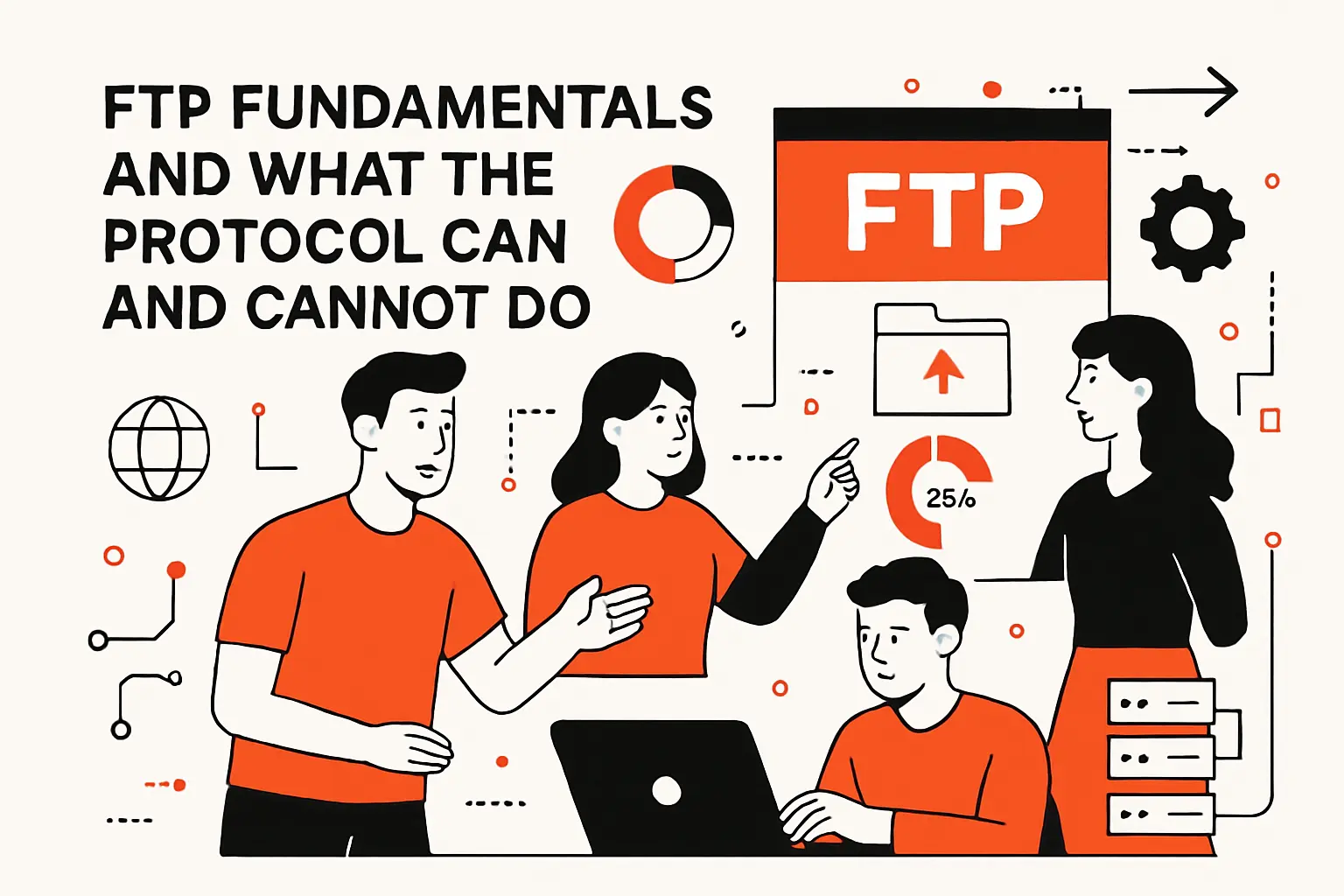
From a protocol standpoint, FTP is about moving bytes and listing remote directories, not about “remote management” in the broader sense. In the original RFC 959 definition, the intent is reliable file transfer plus a standardized way to navigate and query a remote file store, even when systems differ under the hood. That framing matters because it sets expectations: FTP helps you fetch and place files, verify that they exist, and do basic housekeeping, while leaving application logic and execution outside the protocol’s scope.
In our delivery work, FTP shows up most commonly as a deployment path for static assets, nightly exports, or partner “drop zones.” A clean way to think about it is “a remote filing cabinet with a text-based clerk”—you can ask what’s inside, change drawers, and move documents, but you can’t assume anything about how the cabinet is built.
2. FTP flexibility across different file systems and platforms
Operationally, FTP’s longevity comes from its cross-platform tolerance. Different operating systems disagree on path formats, permissions models, and metadata semantics, yet FTP offers a lowest-common-denominator set of actions that most servers can map onto their own storage layer. That makes FTP handy when you have to integrate with a vendor appliance, a hosted service, or a legacy environment where modern tooling is constrained.
In practice, we treat FTP as an integration boundary: local scripts produce artifacts, FTP transports them, and the receiving side ingests them through a separate mechanism. That separation keeps responsibilities clearer and reduces the temptation to “do everything over FTP,” which is where teams tend to create brittle, mystery-meat workflows that no one wants to own.
3. Key limitations: no recursive folder copying and no preservation of certain file attributes
Here’s the trap we see repeatedly: people expect FTP to behave like a modern filesystem sync tool. Standard FTP commands operate on individual files and directories, and “copy this whole tree” is not a universal primitive; many clients add recursion as a convenience, but that behavior is client-specific and can fail in edge cases. Even “multi-file” commands typically work within a single directory scope unless the client implements its own traversal logic.
Metadata is another gotcha. Depending on server support and client behavior, timestamps, permissions, ownership markers, and symbolic link semantics may not survive a transfer in the way a sysadmin expects from native tooling. At TechTide Solutions, we plan migrations and deployments as if FTP carries content reliably but treats attributes as advisory, then we validate what the server actually preserved before calling the job done.
4. When FTP is not recommended, including remote execution concerns
Security is the headline reason to avoid plain FTP for sensitive workloads. The protocol itself was not designed around modern encryption expectations, and many environments still run it without transport security. As Mozilla bluntly summarizes, FTP transfers data in cleartext, which changes the risk model for credentials and file contents the moment traffic crosses an untrusted network segment.
Execution is the other big reason. FTP is not a remote shell, and trying to approximate “run this on the server” by uploading scripts and triggering them through side channels is an anti-pattern we actively unwind in inherited systems. If you need remote execution, we recommend designing an explicit deployment or job-runner path (often SSH-based, API-based, or CI-driven) rather than building a shadow control plane out of file drops.
What you need before connecting to an FTP server
1. Server address requirements: hostname or IP address and sometimes a port
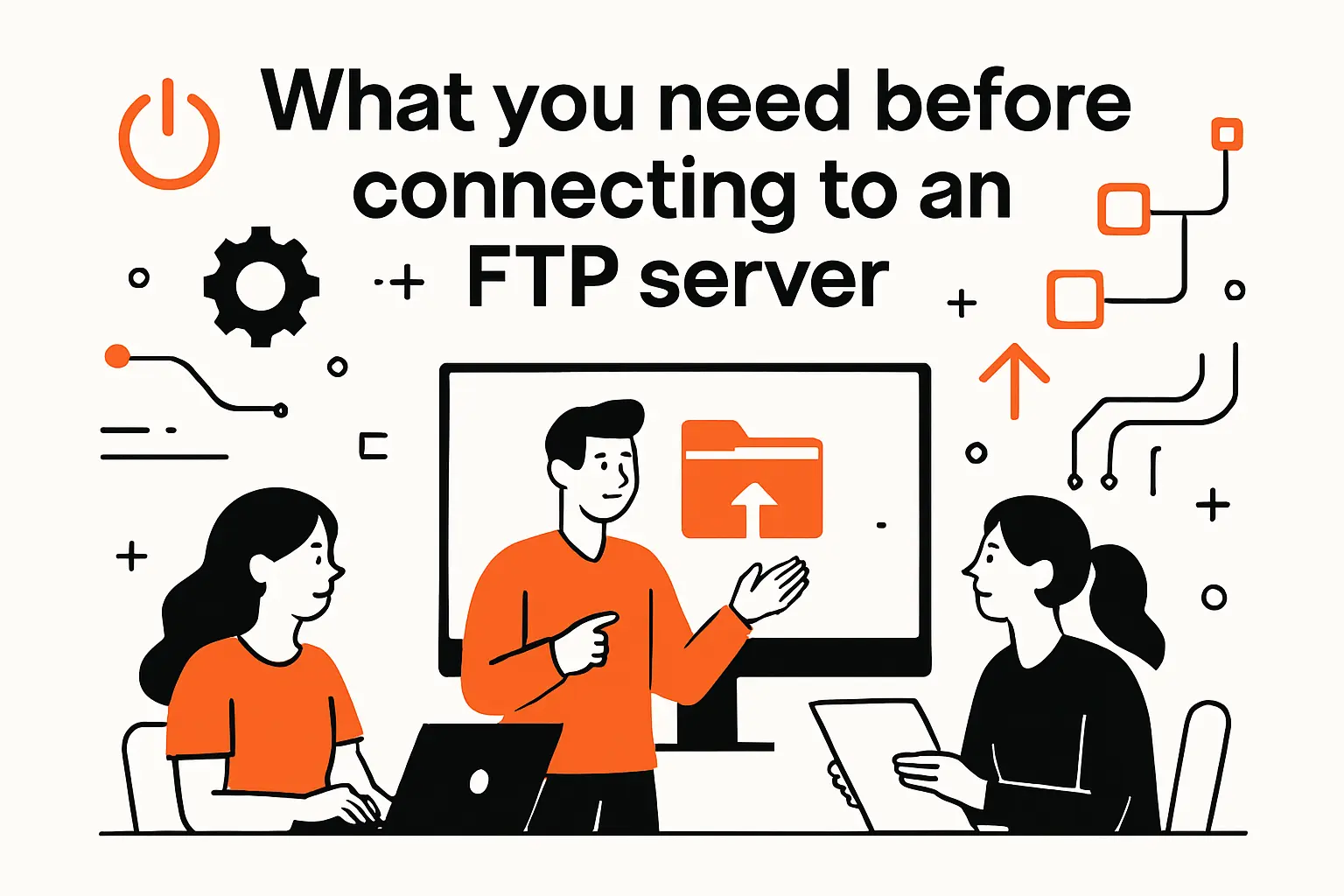
Before any client can connect, you need an address that resolves to the server. In everyday operations that’s usually a hostname, because it’s easier to rotate infrastructure behind a stable name than to chase a moving address. Some environments also require a non-default port, which is common when providers segment traffic, run multiple services on a shared endpoint, or place legacy services behind custom network policies.
From our perspective, “having the host” is necessary but not sufficient. A production-ready handoff also includes knowing which protocol flavor is expected (plain FTP versus FTPS) and what the server expects for firewall behavior, because that affects whether directory listings and transfers will succeed consistently.
2. Authentication basics: username and password, including anonymous login scenarios
FTP authentication is usually a username/password exchange. Some public download servers also support anonymous access, where the username is a conventional placeholder and the password may be ignored or treated as an email-like identifier. In business contexts, anonymous access can be acceptable for distributing public artifacts, but it’s almost never appropriate for uploading or for exchanging proprietary data.
In our client work, the biggest operational failure mode isn’t the password itself; it’s password reuse across environments and the silent sprawl of shared credentials. When multiple people “just use the same login,” incident response becomes guesswork, and auditing becomes a story everyone tells differently.
3. Directory readiness: knowing the target folder and confirming write permissions
FTP sessions often fail in ways that look like network problems but are actually permission problems. Knowing the intended remote directory upfront prevents accidental uploads into a home directory, a staging directory, or a public web root. The same care applies on the local side: staging files into a clean export folder reduces the chance of uploading temp files, editor backups, or partial artifacts.
At TechTide Solutions, we like to validate directory readiness by doing a small, reversible action: list the directory, create a test folder if allowed, and remove it. That simple ritual confirms both write access and delete rights, which matter for rollbacks and for “clean up after yourself” automation.
4. Mode expectations: some servers may require passive mode or active mode
FTP’s connection model interacts with firewalls and NAT in ways that can surprise modern networks. Depending on server configuration, a client may need passive mode to avoid inbound connection requirements, or active mode in tightly controlled internal networks where the server cannot open outbound data connections to the client. Many GUI clients can negotiate these settings, but command-line sessions sometimes need explicit configuration.
We treat mode mismatches as a diagnostic clue: if login works but listings hang, or small transfers succeed while large ones fail, the issue is often data-channel connectivity rather than credentials. Clear documentation of the expected mode is one of those small pieces of operational hygiene that prevents repeated escalations.
Choose your workflow: FTP client, command line, or browser access
1. Why a dedicated FTP client is commonly recommended for most users
Dedicated clients tend to be the most forgiving option: they visualize local and remote trees side by side, maintain transfer queues, and provide logs that help debug permission and connectivity issues. For most teams, that observability is the difference between “it failed” and “it failed because the server rejected a rename after upload,” which are very different problems to solve.
In our experience, GUI clients also reduce human error during high-pressure moments. Drag-and-drop isn’t inherently safer than a command line, but a good client makes state visible: you can see what directory you’re in, what is queued, and what actually completed.
2. Browser-based FTP access: useful for viewing files but typically limited for uploads
Browser FTP used to be a convenient “quick peek” tool, but modern browsers have deliberately moved away from it. The Chrome team publicly discussed deprecating and removing support for FTP URLs as part of reducing exposure to insecure legacy functionality. Even where a browser still hands off an FTP link, it often delegates to an external handler rather than providing a full read-write experience.
Our practical guidance is simple: treat browser access as read-mostly convenience, not as a workflow. If you need consistent uploads, permission-aware operations, and repeatable behavior across machines, use a purpose-built client or an automated script instead.
3. Built-in command line utilities: when they are helpful for quick sessions and automation
Command-line FTP shines when you need speed, repeatability, and the ability to capture output for logs. Ad hoc troubleshooting is a classic case: you can connect, list a directory, fetch a single file, and exit with minimal overhead. Automation is another: batch mode can push predictable artifacts on a schedule, assuming you handle credentials responsibly.
At the same time, the command line makes it easier to shoot ourselves in the foot. One wrong directory, one wildcard expanded unexpectedly, and you can overwrite production content. For that reason, we treat scripted FTP as “production code”: reviewed, logged, and tested against a non-production endpoint before it touches anything that matters.
4. FileZilla overview: free FTP solution options including client and server
When teams ask us for a default GUI option, FileZilla is often the first name on the shortlist because it’s widely used and well documented. The official project describes the FileZilla Client as open source and notes that it supports FTP, but also FTP over TLS (FTPS) and SFTP, which is a meaningful upgrade path if you’re trying to keep the workflow familiar while improving security posture.
From our viewpoint, FileZilla is less about brand loyalty and more about features that reduce mistakes: a clear connection profile, visible transfer logs, and enough knobs to handle odd server requirements. That said, we still recommend aligning your tool choice with your risk model, especially around credential storage and encryption.
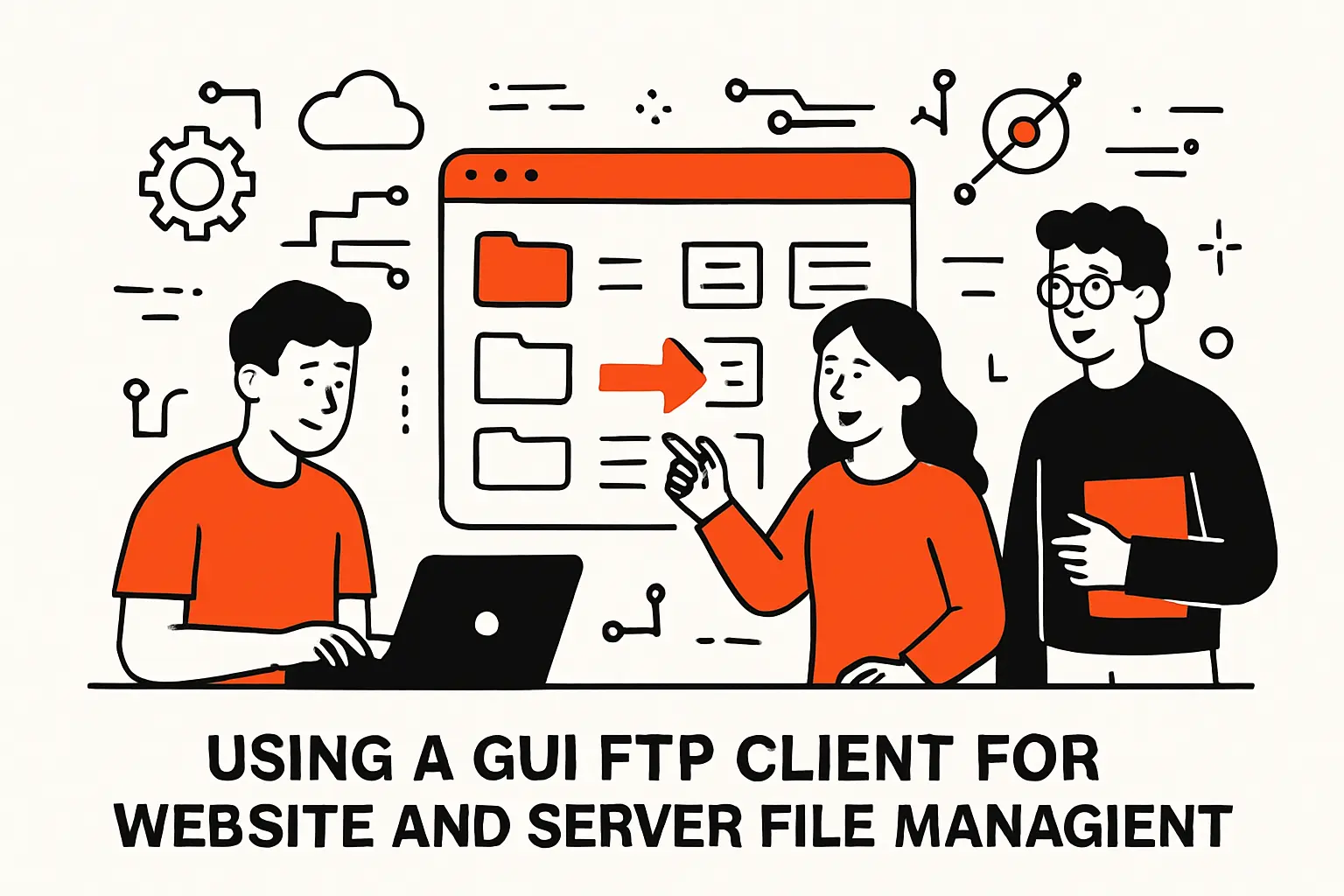
Using a GUI FTP client for website and server file management
1. Connection setup fields you typically enter: host, username, password, and optional mode settings
Most GUI clients ask for a host, a username, and a password, then provide optional settings for protocol flavor, encryption, and transfer mode. The main mistake we see is leaving protocol selection ambiguous: users assume they’re “using FTP,” when the server actually expects FTPS or SFTP. Clarity at this step saves hours later.
Connection Profiles We Standardize
In internal runbooks, we define a connection profile with a human-readable name, the correct remote root directory, and an explicit note about whether the server expects passive behavior. That small bit of process prevents the “it works on my laptop” phenomenon when another machine has different defaults.
2. File transfer workflow: local side vs server side and drag-and-drop movement
GUI clients typically present a local pane and a remote pane. Dragging files from local to remote uploads them; dragging in the other direction downloads them. What matters for safety is not the gesture but the discipline: confirm the remote directory, confirm the local source, then transfer with intent.
When we manage website deployments over FTP for legacy hosts, we also adopt a “stage then promote” approach. Assets land in a staging folder first, then we rename or move them into place in a controlled step, which reduces partial-deploy states where half the site references the new build and half references the old one.
3. Practical download choices: stable release vs beta and when you do not need source code
Client downloads often offer stable builds, pre-release builds, and sometimes source code bundles. For production workstations, we prefer stable releases because they’re less likely to change behavior unexpectedly. Beta builds can be valuable when you need a specific fix, but they should be treated like any other experimental dependency: test first, roll out second.
Source code downloads are rarely needed for day-to-day operations unless your security policy requires building from source or you’re auditing the toolchain. In most organizations, the best practice is to download the official installer from the vendor’s site and keep updates under change management, not under individual preference.
4. Credential handling considerations: saved password security depends on the client
Saving credentials in a GUI client is convenient, but convenience has a cost. Some clients store credentials in plain configuration files, some rely on OS keychains, and some offer master-password protection that is only as strong as the endpoint’s overall security. The right choice depends on whether the machine is shared, whether disk encryption is enforced, and how you handle offboarding.
In our engagements, we generally recommend minimizing saved secrets, using role-based accounts instead of shared logins, and rotating credentials as part of normal operations. If a workflow truly requires stored credentials for unattended transfers, we push teams toward dedicated service accounts with narrow permissions and strong monitoring.
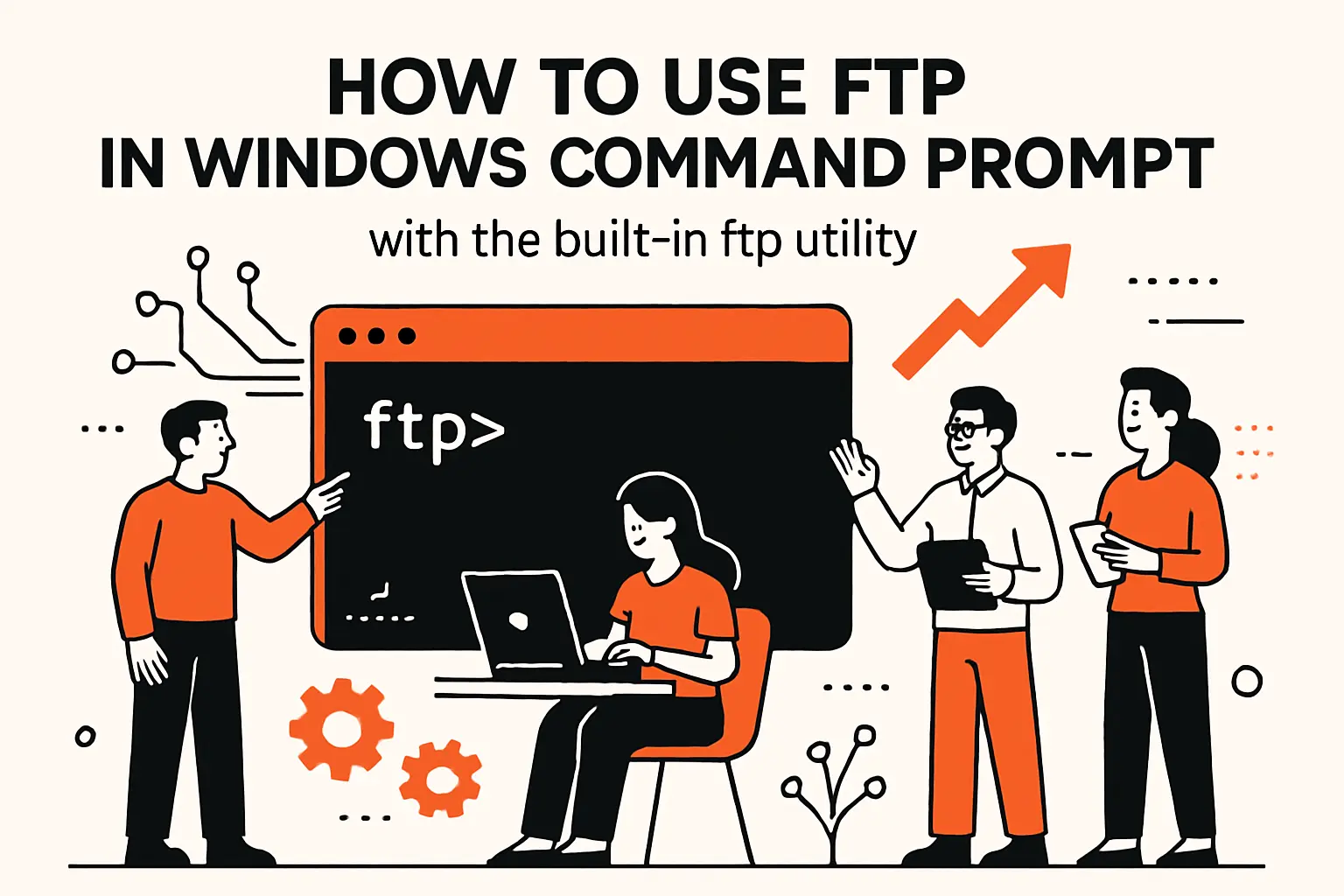
how to use ftp in Windows Command Prompt with the built in ftp utility
1. Open a site and log in: starting a session and reaching the ftp prompt
On Windows, the built-in ftp utility can be used for interactive sessions and batch execution. Microsoft’s documentation notes that the command can be used interactively and that some parameters are case-sensitive, which is easy to miss if you assume Windows tools ignore letter case everywhere.
A typical session starts by launching Command Prompt, running ftp with the host, then providing your username and password when prompted. Once connected, you’ll see an FTP prompt where subsequent commands run in the context of that session.
ftp example.comUser: youruserPassword: ********ftp>2. Browse and navigate
Browsing is where you confirm you’re “in the right place” before moving any data. Use dir (or ls on some servers) to list files, then cd to change directories. When you need to go up a directory level, cd .. is commonly supported, and many servers also implement a dedicated “change to parent” command.
In our workflow, navigation is also a safety check. If the listing output doesn’t match what you expect—missing folders, strange names, or permission errors—stop and reassess before uploading anything. Production mistakes often begin with a quiet assumption at this step.
3. Transfer files: get for downloads and put for uploads
File transfers in the Windows FTP utility are built around get and put. The mental model is straightforward: “get pulls from remote to local,” while “put pushes from local to remote.” For multi-file operations, variants exist, but they can prompt per file unless you adjust interactive prompting behavior.
At TechTide Solutions, we also suggest choosing a clear local folder before you move any files. Keeping all downloads and uploads in one dedicated place makes it much easier to stay organized. It also helps prevent sensitive files from ending up all over your desktop or sending the wrong file by mistake because it was already open or saved in the folder you were using. For example, if you keep everything in a folder called “Transfer Files,” you can quickly check that you are sending the correct file before you upload it.
4. Session rules and wrap-up: command case sensitivity notes and exiting with bye
FTP commands are generally short and memorable, but their behavior can vary across servers and clients. Some servers are strict about path formats; some interpret wildcards differently; and some clients treat command-line flags with case sensitivity even when the subcommands feel forgiving. That’s why we encourage teams to keep a small, tested command sequence in documentation instead of relying on memory.
To end a session cleanly, use bye or quit. Exiting deliberately matters because it helps ensure buffers flush and logs record a normal termination, which makes troubleshooting cleaner when you later need to answer, “Did it actually finish, or did it just disconnect?”
how to use ftp on Unix, Linux, and AIX with the ftp command
1. Starting an FTP session and connecting with open when no host is provided at launch
On Unix-like systems, the classic ftp client still appears in many environments, though modern distributions may prefer alternatives by default. You can start it by specifying the host directly or by launching ftp and then using open inside the session. That pattern is useful when you want to set options—like transfer type or prompting behavior—before making a connection.
In our ops playbooks, we treat “connect” as a step with preflight checks. Confirm DNS resolution, confirm you’re on the right network segment (especially with VPN split tunneling), and confirm that you’re using the intended secure protocol variant when the server supports it.
2. Core interactive subcommands: ls, dir, cd, lcd, pwd, mkdir, rmdir, delete, rename
The Unix FTP client provides a small vocabulary that covers most daily tasks: list remote contents (ls or dir), change remote directories (cd), and print the remote working directory (pwd). On the local side, lcd changes your local directory without leaving the FTP session, which is surprisingly handy when you’re juggling multiple download targets.
For housekeeping, you typically have mkdir, rmdir, delete, and rename. Those commands are powerful and dangerous in the same breath, so we encourage a “list before delete” habit and a preference for renaming over deleting when you need a reversible change.
3. Transferring one or many files: get, put, mget, and mput plus prompting behavior
Transfers again revolve around get and put, with mget and mput for multi-file operations. The most common surprise is prompting: many clients ask for confirmation before each file in a multi-file transfer, which is safer interactively but disruptive in automation. The flip side is also risky—disabling prompting can turn a small mistake into a large overwrite.
We often handle this by narrowing patterns deliberately. Rather than “grab everything,” we transfer only known extensions or known filenames produced by a build step, then we validate checksums or file sizes out of band when the workflow is high stakes.
4. Power features: macros and unattended use with netrc plus transferring between two remote servers with proxy
Advanced FTP clients can store login details in a .netrc file for unattended sessions, and some support macros for repeating command sequences. Those features are tempting for automation, yet they also concentrate risk: a leaked .netrc can become a skeleton key, and macros can hide destructive operations inside a friendly name.
Proxy mode—where the client coordinates transfers between remote servers—can be useful for migrations, but it also complicates auditing. When we do server-to-server moves, we prefer modern, logged mechanisms where possible, or we wrap FTP operations with additional logging so we can reconstruct what moved, when it moved, and under which identity.
Transfer best practices and common pitfalls during FTP sessions
1. Choose the correct transfer type: binary vs ASCII depending on file content
Transfer type is one of those “small settings” that can corrupt data quietly. Text mode (ASCII) may transform line endings, which can be helpful for plain text but damaging for anything that relies on exact byte sequences. Binary mode, by contrast, aims to move bytes without translation, making it the safe default for images, archives, executables, media, and most modern data files.
In our practice, we default to binary unless we have a deliberate reason not to. When a workflow includes configuration files or scripts, we still transfer in binary and rely on tooling on the target system to normalize formatting if needed, because consistency beats “maybe the client rewrote it the way we wanted.”
2. Multi-file operations: confirmations, overwrites, and unique naming behaviors
Multi-file operations magnify both productivity and risk. Confirmations protect you from overwriting a remote directory accidentally, but they also create fatigue that leads to mindless “yes” responses. Overwrite behavior differs across clients: some default to overwrite, some default to skip, and some offer “unique name” strategies that append suffixes to avoid collisions.
Our Safety Patterns for Multi-File Transfers
- First, we perform a dry-run listing of the remote directory and compare expected filenames mentally.
- Next, we upload into a staging directory when the server layout allows it.
- Finally, we validate by sampling a few transferred files and checking that sizes and timestamps look plausible.
That pattern sounds simple, yet it prevents the classic incident where a bulk upload “succeeds” while silently replacing critical production assets with older ones.
3. Connectivity issues: knowing when passive mode vs active mode matters
Connectivity failures often masquerade as “FTP is down,” when the control channel is fine but the data channel can’t establish cleanly. Firewalls, NAT, and proxy environments can break directory listings, stall transfers, or cause intermittent failures that correlate with file size or time of day. Switching between passive and active behavior can resolve the issue, but only if you understand what your network allows.
When diagnosing, we look for patterns: login succeeds but listing fails, or listing works but transfers stall. Those symptoms usually point to data-channel negotiation problems, not credentials. Documenting the expected mode, and aligning firewall rules accordingly, is the unglamorous work that keeps file exchange predictable.
4. Browser FTP limitations: directory viewing vs full read-write workflows
Even when a browser can open an FTP link, it rarely behaves like a full client. Directory listing might work, downloads may be constrained, and uploads are often unsupported or delegated to external applications. On top of that, browsers are incentivized to reduce legacy protocol surface area, so behavior can change across updates without you ever touching your FTP server.
Our operational advice is to treat browser-based FTP as an emergency flashlight, not as your daily toolkit. For anything involving uploads, deletes, renames, or repeatable work, reach for a dedicated client or a scripted approach that you can test and log.
TechTide Solutions custom solutions for FTP, secure file transfer, and deployment workflows
1. Custom automation: build tailored upload, download, and sync workflows that match your process
At TechTide Solutions, we rarely advocate “FTP forever,” but we do advocate “meet reality where it is.” If a partner only accepts FTP today, we can still build automation that behaves like a modern pipeline: produce artifacts, validate them, transfer them, verify receipt, and alert on anomalies. The key is to make the workflow explicit and observable instead of leaving it as a tribal-knowledge ritual performed by the same person every month.
In practice, that means idempotent scripts, structured logs, and guardrails around what can be uploaded where. When teams move fast, automation should reduce risk, not accelerate failure.
2. Security by design: implement safer transfer options, access controls, and credential handling suited to your environment
Security improvements don’t have to be an all-or-nothing rewrite. If the server supports FTPS, the standards-track approach is documented in RFC 4217, and enabling encrypted transport can materially reduce exposure on untrusted networks. In many environments, the better step is moving to SFTP, which rides inside SSH; OpenSSH positions SSH as a suite providing encryption for network services like remote login or remote file transfers, which aligns well with modern operational expectations.
Beyond protocol choice, we focus on access control and secret handling: least-privilege accounts, short-lived credentials when possible, and endpoint hardening so saved secrets don’t become the easiest path into a production server.
3. System integration: connect file transfer workflows with web apps, internal tools, and hosting infrastructure
File transfer is rarely the business goal; it’s usually a step in a larger process like billing, content publishing, analytics ingestion, or partner reconciliation. Integrating FTP workflows into internal tools can eliminate manual handoffs and reduce errors. For example, a web app can validate file naming conventions before upload, track versioning, and trigger downstream processing only after integrity checks pass.
From our perspective, the real win is auditability. When a transfer becomes an event in a system—tied to an identity, a change request, and a deployment record—you can answer hard questions quickly. That capability matters even more when regulators, customers, or incident responders ask what moved and why.
Conclusion and final checklist for reliable file transfers
1. Confirm the essentials: server address, credentials, correct directory, and permissions before transferring
Reliable FTP work is mostly disciplined preparation. Before any transfer, confirm you have the correct server address, the right account, and the intended remote directory. After login, verify permissions by listing the directory and performing a safe test action when appropriate. If anything looks “off,” pausing to clarify beats rushing into a cleanup you didn’t plan for.
At a business level, these checks reduce downtime and prevent silent data integrity problems that only surface when another system tries to consume the files later.
2. Pick the best tool for the job: GUI client for day-to-day work, command line for repeatable tasks, browser for quick viewing
Tool choice is about intent. A GUI client is excellent for day-to-day operations where visibility matters. Command-line FTP is strong for repeatable tasks and troubleshooting, provided you treat scripts as production assets. The operator can send one stream across the backbone and replicate it only where needed, so a neighborhood of viewers can “share” the same channel stream without multiplying bandwidth use linearly.
In our experience, teams that standardize tooling—and document “the known-good way”—spend less time debating and more time shipping.
3. Prefer safer approaches when possible and always end sessions cleanly
When security is on the line, plain FTP is rarely the best long-term answer. IBM’s research highlights that the global average cost of a data breach can reach $4.4 million, and while FTP alone doesn’t cause breaches, insecure transfer paths often become convenient leverage points in larger incidents. Moving to FTPS or SFTP, tightening credentials, and improving logging typically pays back faster than teams expect.
To wrap up, end sessions cleanly, record what changed, and consider your next step: do you want to keep FTP as an exception you control tightly, or turn file transfer into a hardened, automated workflow that you can trust under pressure?