
Market overview: McKinsey estimates generative AI could add $4.4 trillion in annual value, which keeps content workflows under constant optimization pressure. At TechTide Solutions, we feel that pressure in every backlog. Teams want faster edits, fewer handoffs, and cleaner approvals. They also want brand-safe outputs and predictable quality. That tension is exactly why “ai video editor” tools are booming. Some products behave like copilots. Others behave like factories. Our job is to know the difference and build around it.
Quick Comparison of ai video editor
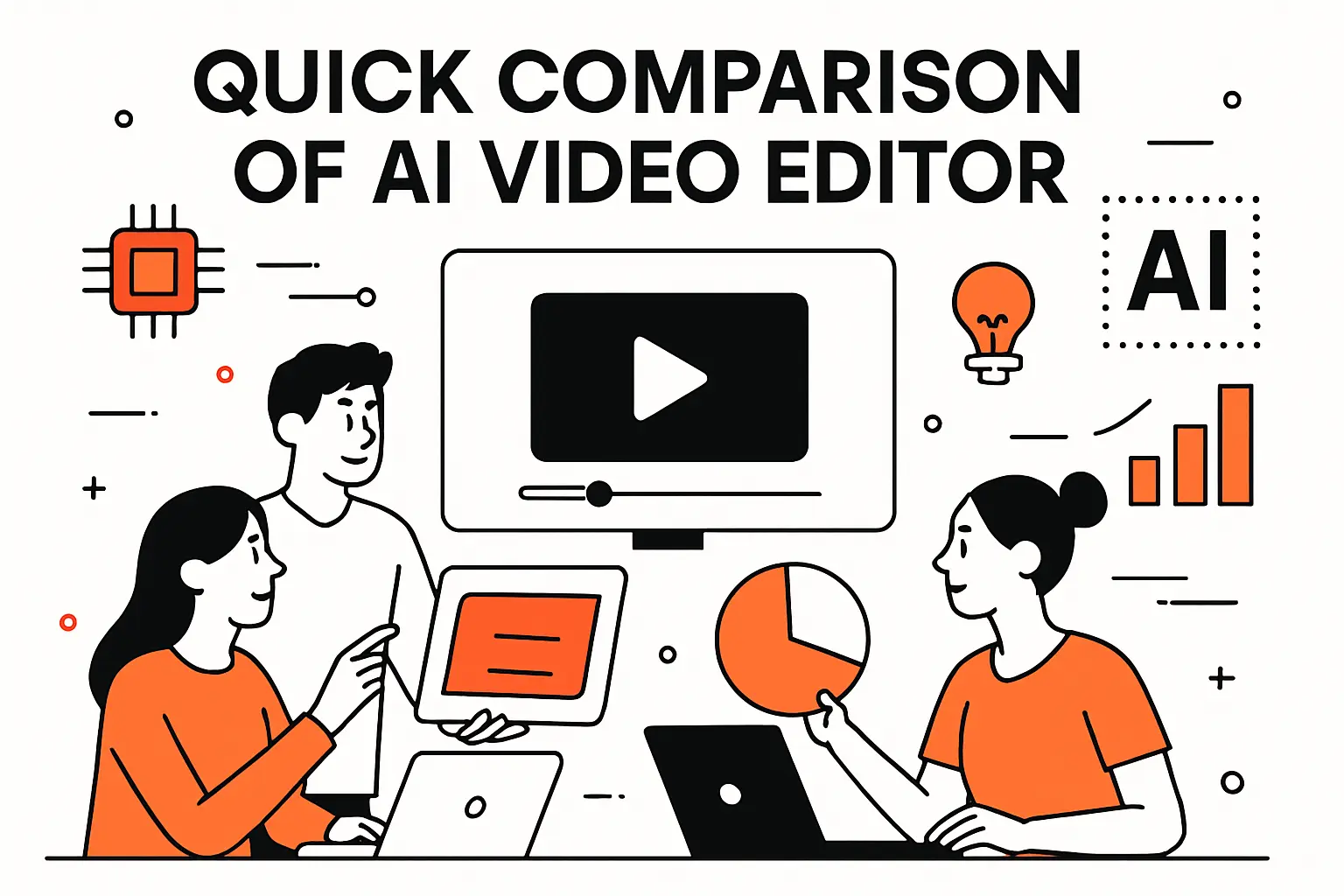
Market overview: Statista reports digital video ad spend worldwide at 176.63bn USD, so even “small” edit gains compound into real budget impact. That money pressures teams to ship more variations. It also raises the bar for consistency. We treat tool choice as a workflow decision, not a feature checklist. The table below reflects what we see work across real teams.
| Tool | Best for | From price | Trial/Free | Key limits |
|---|---|---|---|---|
| Descript | Transcript-first editing | Paid | Free tier | Complex motion work is limited |
| CapCut | Short-form speed | Free | Free plan | Enterprise governance varies |
| Adobe Premiere Pro | Pro timeline control | Paid | Trial | Steeper learning curve |
| DaVinci Resolve | Color plus finishing | Free | Free version | Team setup takes effort |
| Runway | Generative visuals | Paid | Free tier | Outputs need brand review |
| VEED | Captions and social edits | Paid | Free tier | Heavy timelines can feel cramped |
| Kapwing | Team-friendly repurposing | Paid | Free tier | Rendering depends on project size |
| Opus Clip | Highlight discovery | Paid | Trial | Needs human clip selection |
| Clipchamp | Simple business videos | Paid | Free plan | Advanced grading is limited |
| Canva | Brand templates at scale | Free | Free plan | Deep audio workflows are limited |
Outside these picks, teams often add specialist tools. Filmora and Movavi Video Editor work well for generalist editors. Lumen5 and Pictory shine when script-to-video matters. Munch and Recast Studio focus on repurposing output volume. In our view, the “best” stack is the one your team will actually use.
Top 10 ai video editor tools and services to streamline your workflow
We score each pick on the same seven criteria, then weight them into a single 0–5 total. Value-for-money and feature depth do the heavy lifting. Setup friction, integrations, and day-to-day usability follow close behind. Security and support still matter, especially when client footage is involved.
Our method is outcome-first. We ask what you can ship faster, what you can avoid redoing, and what breaks when volume increases. We look for repeatable workflows like “turn one webinar into ten clips,” not one-off magic tricks. Then also sanity-check the fine print. Limits on minutes, exports, watermarks, and seats often decide the real cost.
Scores reflect typical use, not best-case demos. A tool can be powerful and still lose points for confusing quotas. Another can be simple and still win for speed to publish. If you know your bottleneck, the right choice becomes obvious.
1. InVideo AI
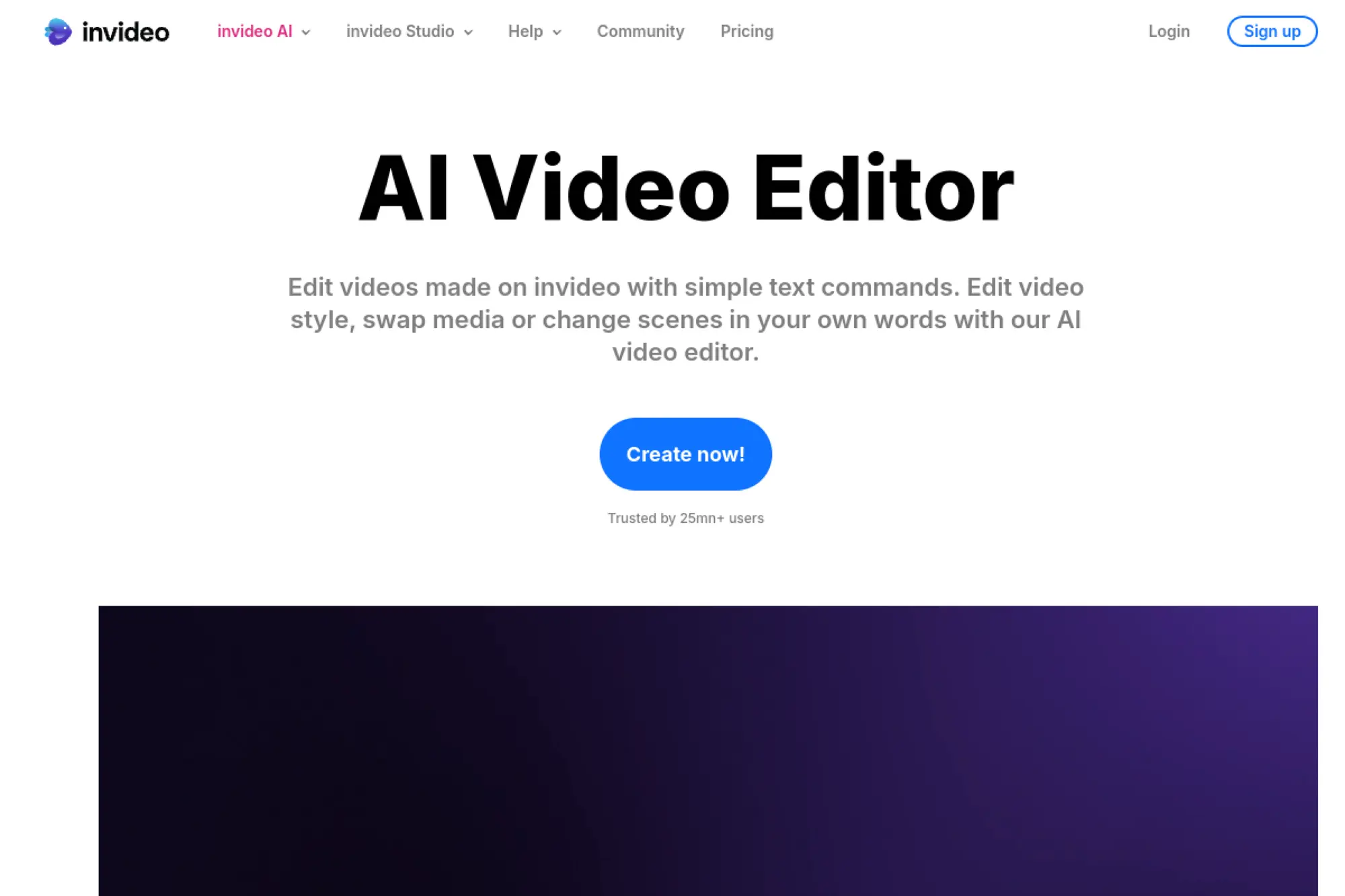
InVideo builds browser-based video tools aimed at marketers and creators. The product team focuses on fast assembly, guided editing, and repeatable output.
Draft a publishable video from a brief, then tighten it fast.
Best for: solo marketers and small content teams shipping weekly promos.
- Prompt-to-scenes workflow → get a first cut without staring at a blank timeline.
- Credit-based generation + stock flow → skip 6–8 separate asset searches per video.
- Guided web editor → time-to-first-value is about 20 minutes for a simple promo.
Pricing & limits: From $0/mo; paid plans start at $28/mo on annual billing. Limits are credit-based, plus monthly video-minute caps like 50 minutes on Plus.
Honest drawbacks: Credits can feel abstract until you learn what consumes them. Also, fine-grained motion and color work stays fairly template-driven.
Verdict: If you need “good enough and on brand,” this helps you ship a cut in a single afternoon. Beats Canva at longer assemblies; trails pro NLEs on frame-level control.
Score: 4.3/5 and .
2. OpusClip
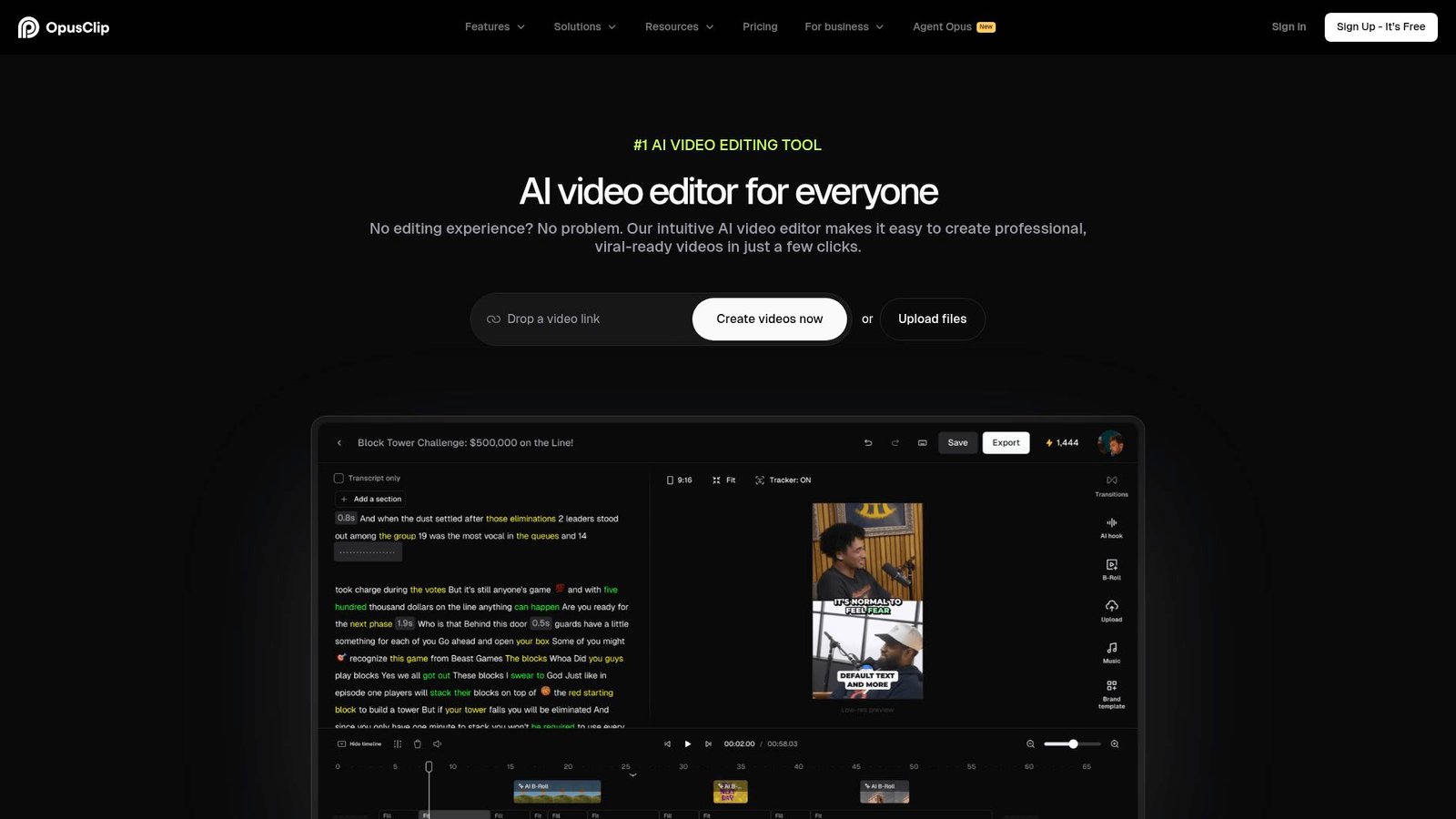
OpusClip is built for repurposing, not blank-canvas editing. The team’s north star is turning long videos into short, formatted clips with minimal effort.
Turn one long recording into a week of shorts, automatically.
Best for: podcasters and creator-operators pushing Shorts, Reels, and TikTok.
- AI clip finding + reframing → get highlight cuts that fit 9:16 without manual keyframes.
- Auto posting and scheduling → save 5–10 upload steps across platforms per batch.
- Simple “upload and wait” flow → time-to-first-value is about 15 minutes per episode.
Pricing & limits: From $0/mo; Starter is $15/mo and Pro is $29/mo. Free includes 60 processing minutes per month, while Pro lists 300 minutes per month and 100GB storage.
Honest drawbacks: It’s not a full editor, so complex storytelling edits are awkward. Also, your results depend on the source audio and pacing.
Verdict: If you want reliable short-form volume, this helps you publish a pack of clips the same day. Beats VEED for automated repurposing; trails Premiere for handcrafted pacing.
Score: 4.4/5 and .
3. Canva
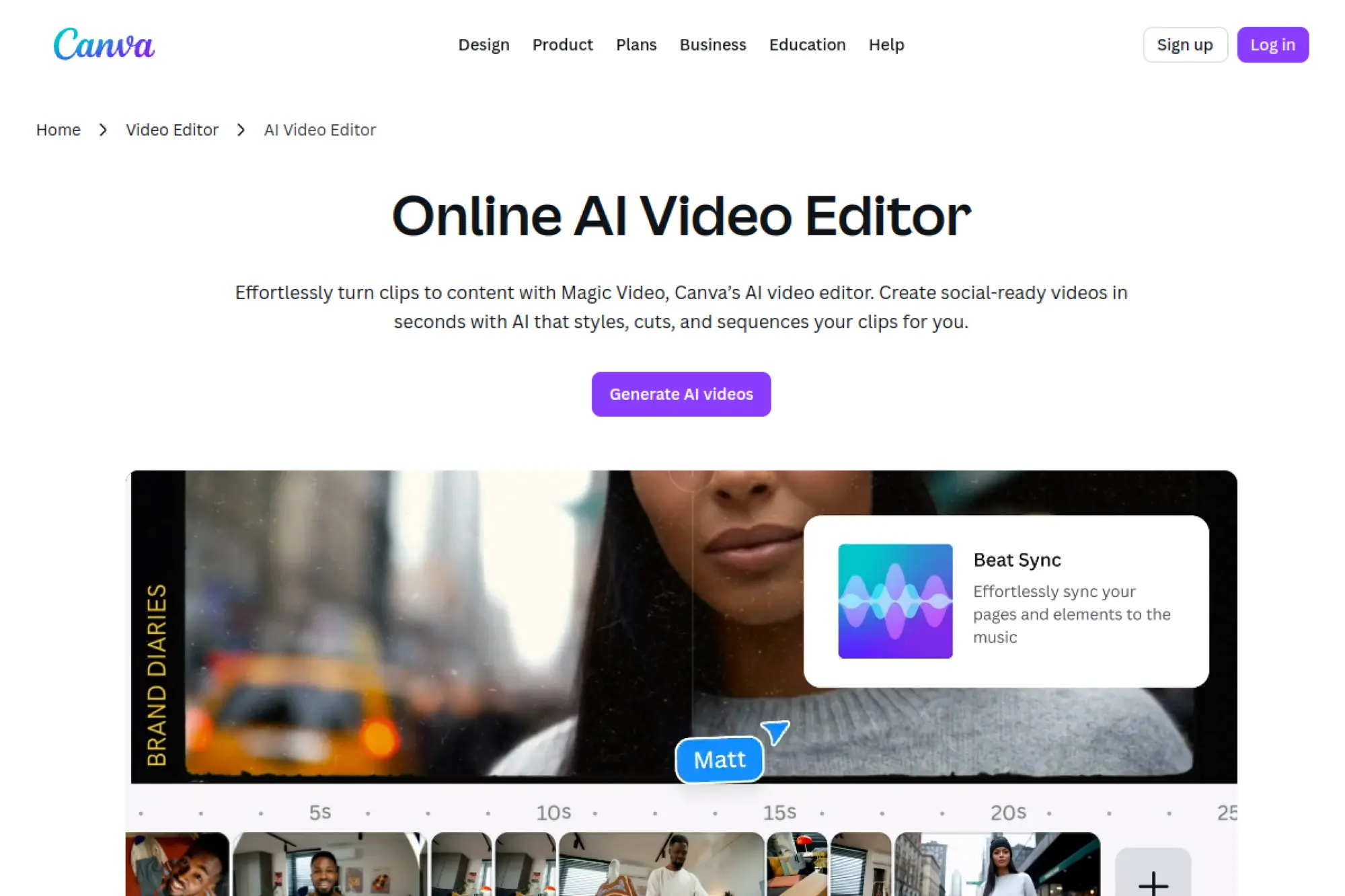
Canva is a broad visual suite with a strong video layer. The team builds for speed, consistency, and non-editor confidence.
Make clean social videos that match your brand, without editor drama.
Best for: busy generalists and small teams producing social-first content.
- Template-driven timelines → turn a brand kit into repeatable weekly content fast.
- Built-in asset library + AI helpers → save 10–15 minutes per video on sourcing basics.
- Drag-and-drop editor → time-to-first-value is about 10 minutes from a template.
Pricing & limits: From $0/mo, with a 30-day trial available for Canva Pro. Free users see watermarks on Pro content, or you can buy a $1 one-time license for certain Pro stock videos.
Honest drawbacks: Precision editing is limited compared with pro timelines. Also, AI feature limits vary by plan and can surprise heavy users.
Verdict: If you need fast, consistent social output, this helps you go from concept to export in under an hour. Beats InVideo for brand consistency; trails VEED for video-specific tooling.
Score: 4.1/5 and .
4. Vmaker AI
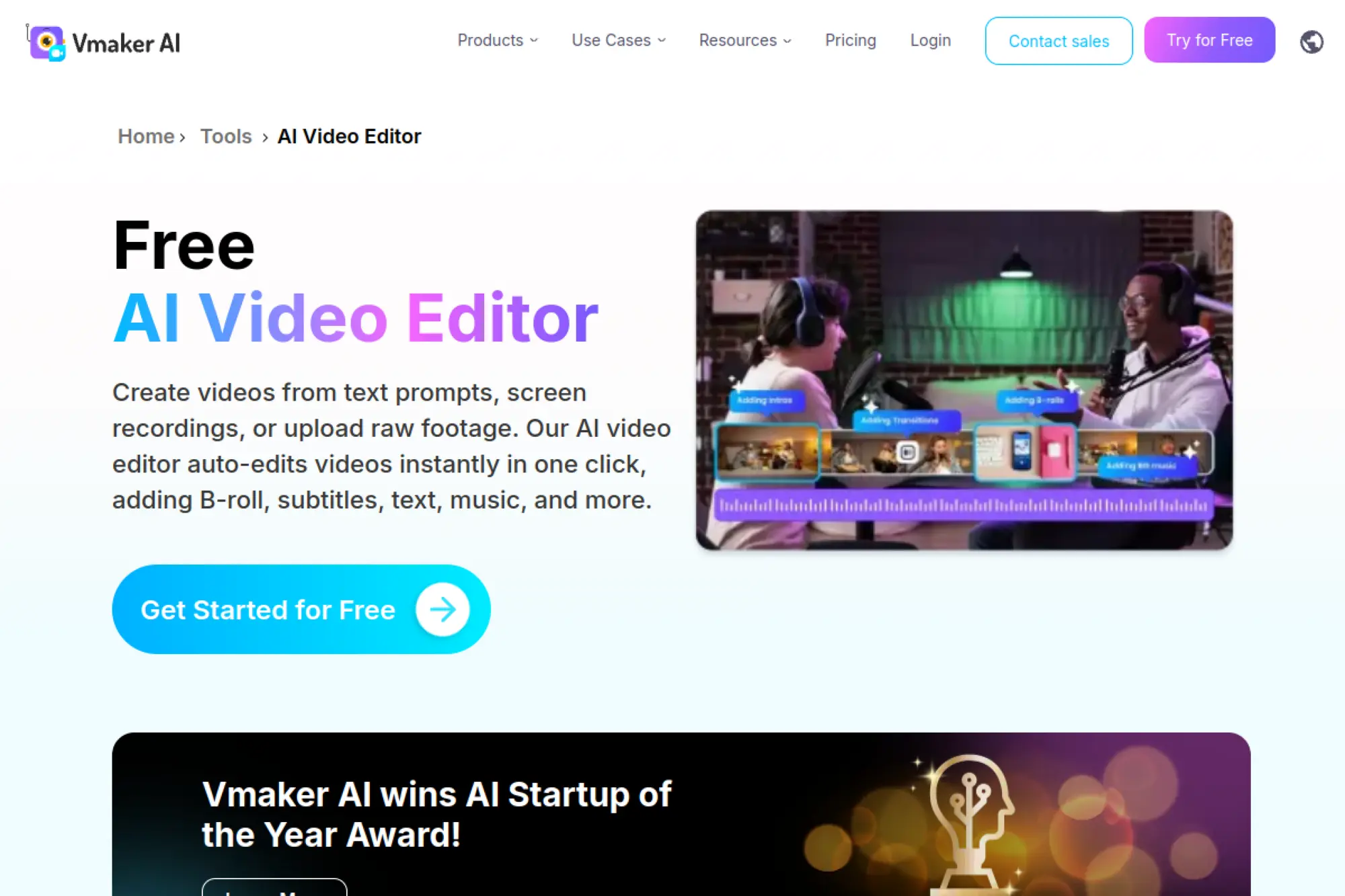
Vmaker positions itself as an AI-first editor for quick marketing videos. The team leans into captions, avatars, and publish flows over complex craft edits.
Get from screen recording to share-ready clip with less cleanup.
Best for: indie educators and lightweight marketing teams making explainers.
- Auto subtitles + quick trims → turn a rough take into something watchable faster.
- YouTube publish workflow → remove 5–7 steps versus export, upload, and title manually.
- Opinionated limits → time-to-first-value is about 20 minutes on a short video.
Pricing & limits: From $0/mo on the Free plan. Free lists 720p exports, a 5-minute export length, 2GB upload storage, and 20 minutes of auto subtitles per month.
Honest drawbacks: Public pricing is shown in INR on the pricing page, which can be confusing for US budgeting. Also, the free tier limits are tight for weekly publishing.
Verdict: If you want a guided path from idea to YouTube, this helps you publish simple videos in a couple of hours. Beats raw screen recorders at polish; trails Canva for template variety.
Score: 3.8/5 and .
5. VEED AI Video Editor
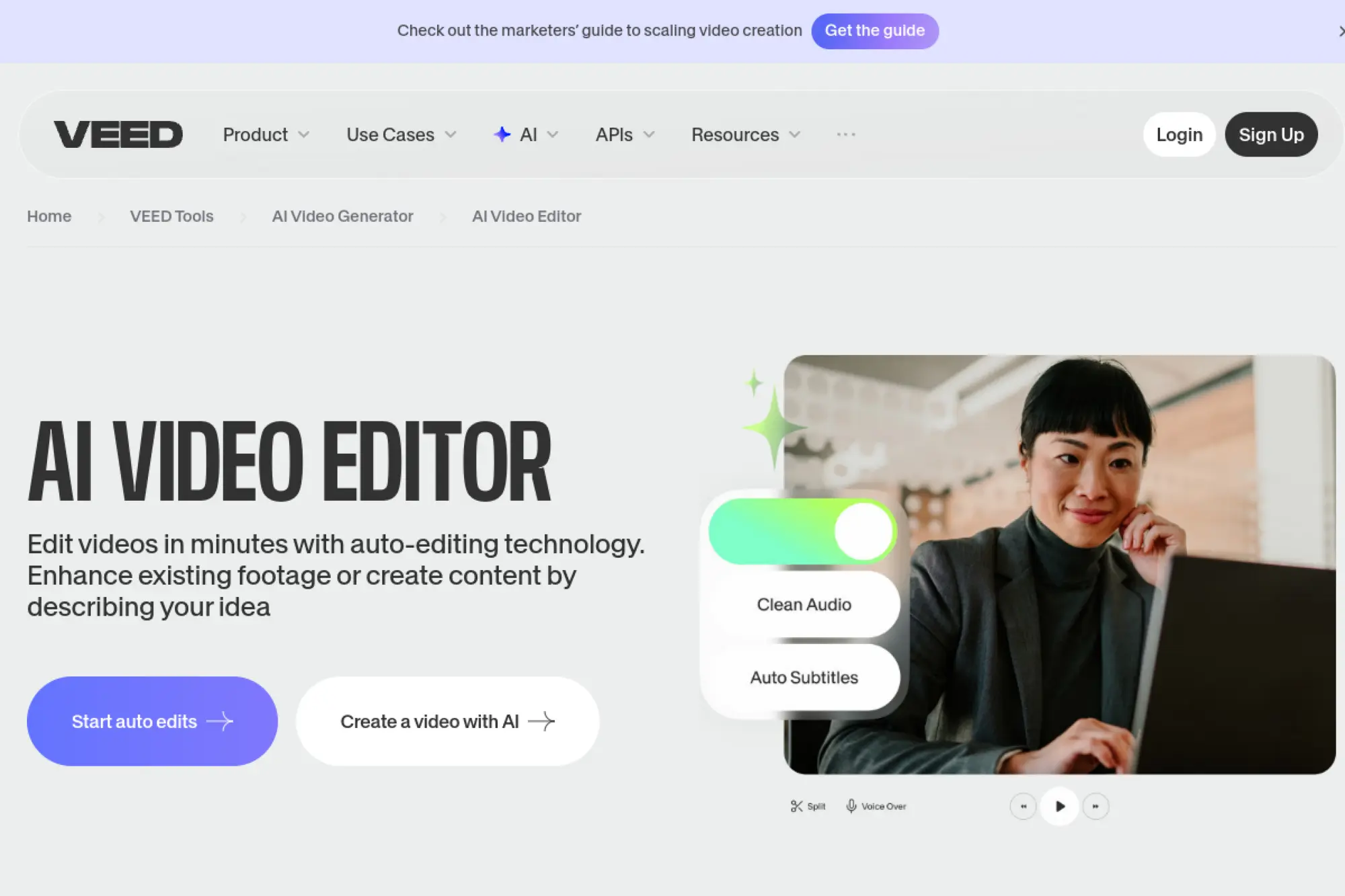
VEED is a browser editor built around speed and sharing. The team ships practical AI features like captions, clipping, and resizing for social workflows.
Edit, caption, and repurpose in one tab, then export clean.
Best for: social teams and creators who need fast captioned variants.
- Clips + subtitles stack → turn long footage into shorts without manual highlight hunting.
- One-click exports and formats → save 10 minutes per deliverable across platforms.
- Browser-first UX → time-to-first-value is about 15 minutes for a captioned cut.
Pricing & limits: From $0/mo; Lite is $9/mo per user billed yearly, and Pro is $24/mo per user billed yearly. Free exports are 720p and include a watermark, while Pro supports up to 4K exports.
Honest drawbacks: Serious editors may find the timeline shallow for complex pacing. Also, some AI features have plan-based limits, like one-time Clips use on Free.
Verdict: If you want fast, branded, captioned social output, this helps you ship variants the same day. Beats Canva at video-specific AI; trails desktop editors on precision.
Score: 4.2/5 and .
6. Adobe Firefly
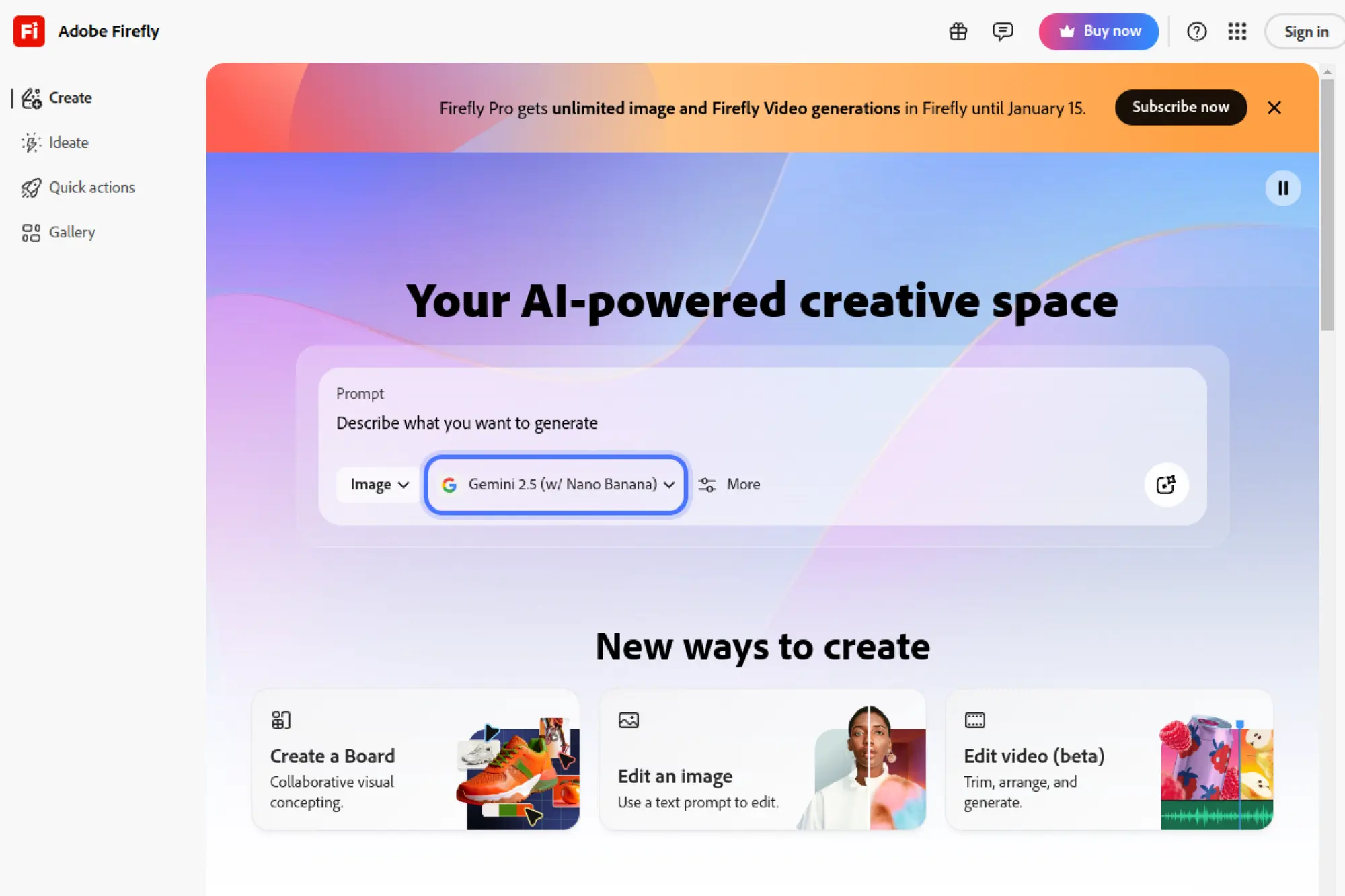
Adobe’s Firefly sits inside Adobe’s broader creative ecosystem. The team is building a credit-based generative layer for images, audio, and video.
Generate new footage and variations when reshoots are not happening.
Best for: creative teams and agencies needing generative options for campaigns.
- Generate Video flow → create short b-roll alternatives when you lack usable footage.
- Generative credits system → replace 3–5 stock searches with one prompt session.
- Adobe-style UI → time-to-first-value is about 30 minutes if you know Adobe tools.
Pricing & limits: From $9.99/mo for Firefly Standard with 2,000 monthly credits. Adobe states that plan can generate up to 20 five-second videos per month.
Honest drawbacks: Five-second outputs mean you still need editorial stitching. Also, the credit model can make experimentation feel expensive.
Verdict: If you need fresh b-roll fast, this helps you generate options in under an hour. Beats many web generators for ecosystem fit; trails a full editor for assembly and finishing.
Score: 4.0/5 and .
7. Loom
Loom is a screen-recording platform built for async communication. The team emphasizes speed, clarity, and AI-assisted cleanup for work videos.
Replace meetings with clear videos that edit themselves.
Best for: product teams and customer-facing teams explaining work quickly.
- Screen + camera recording → create explainers without setting up a full shoot.
- AI summaries and filler removal → save 10–20 minutes per recording on cleanup.
- Low-friction recording → time-to-first-value is about 3 minutes from install.
Pricing & limits: From $0/mo on the Starter plan, which includes a 5-minute recording limit and a 25-video limit. Business is $15/user/mo billed annually, and Business trials are 14 days.
Honest drawbacks: It’s great for explanations, not cinematic editing. Also, offline-heavy workflows can feel constrained by cloud-first sharing.
Verdict: If you want faster internal comms, this helps you ship clearer updates the same day. Beats Zoom for async clarity; trails VEED for polished social edits.
Score: 4.1/5 and .
8. Riverside
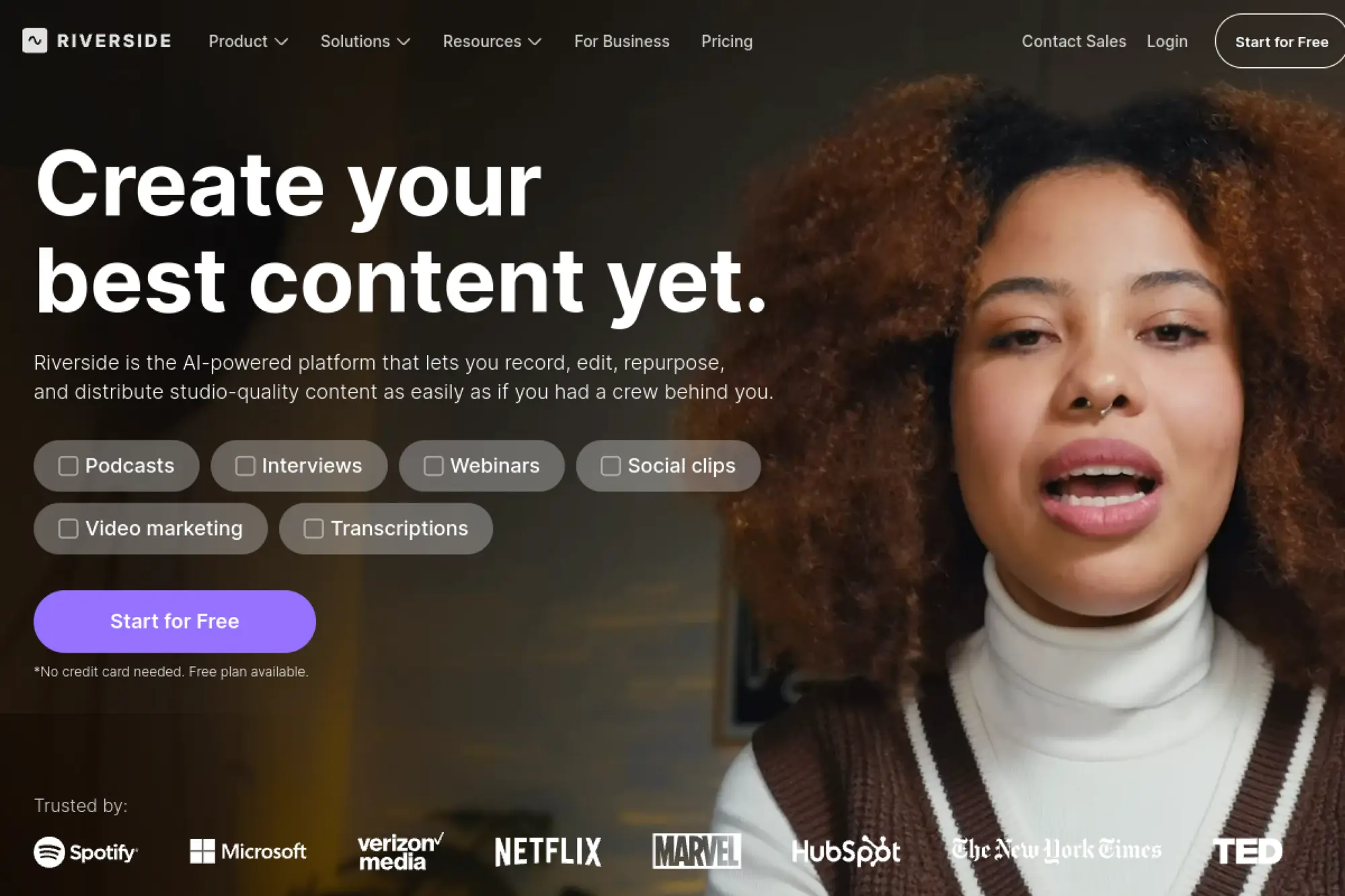
Riverside is a recording and editing platform built for podcasts and interviews. The team’s focus is clean tracks, remote reliability, and fast repurposing.
Record high-quality interviews, then slice them into social-ready clips.
Best for: podcasters and marketing teams producing interview-driven content.
- Separate track recording → get cleaner edits without fighting mixed audio.
- Magic Clips and text-based editing → save 30–60 minutes per episode on first-pass cuts.
- Producer-friendly flow → time-to-first-value is about 20 minutes after your first session.
Pricing & limits: From $0/mo with a free plan that includes a one-time 2 hours of separate track recordings and 720p video. Standard is listed at $15/month, with 5 hours of separate track recording per month.
Honest drawbacks: The free plan’s “once-off” track limit is easy to hit. Also, advanced finishing work may still require a dedicated editor.
Verdict: If you run interview content, this helps you publish clips the same day you record. Beats Zoom for content-grade capture; trails OpusClip for pure clipping automation.
Score: 4.3/5 and .
9. StreamYard
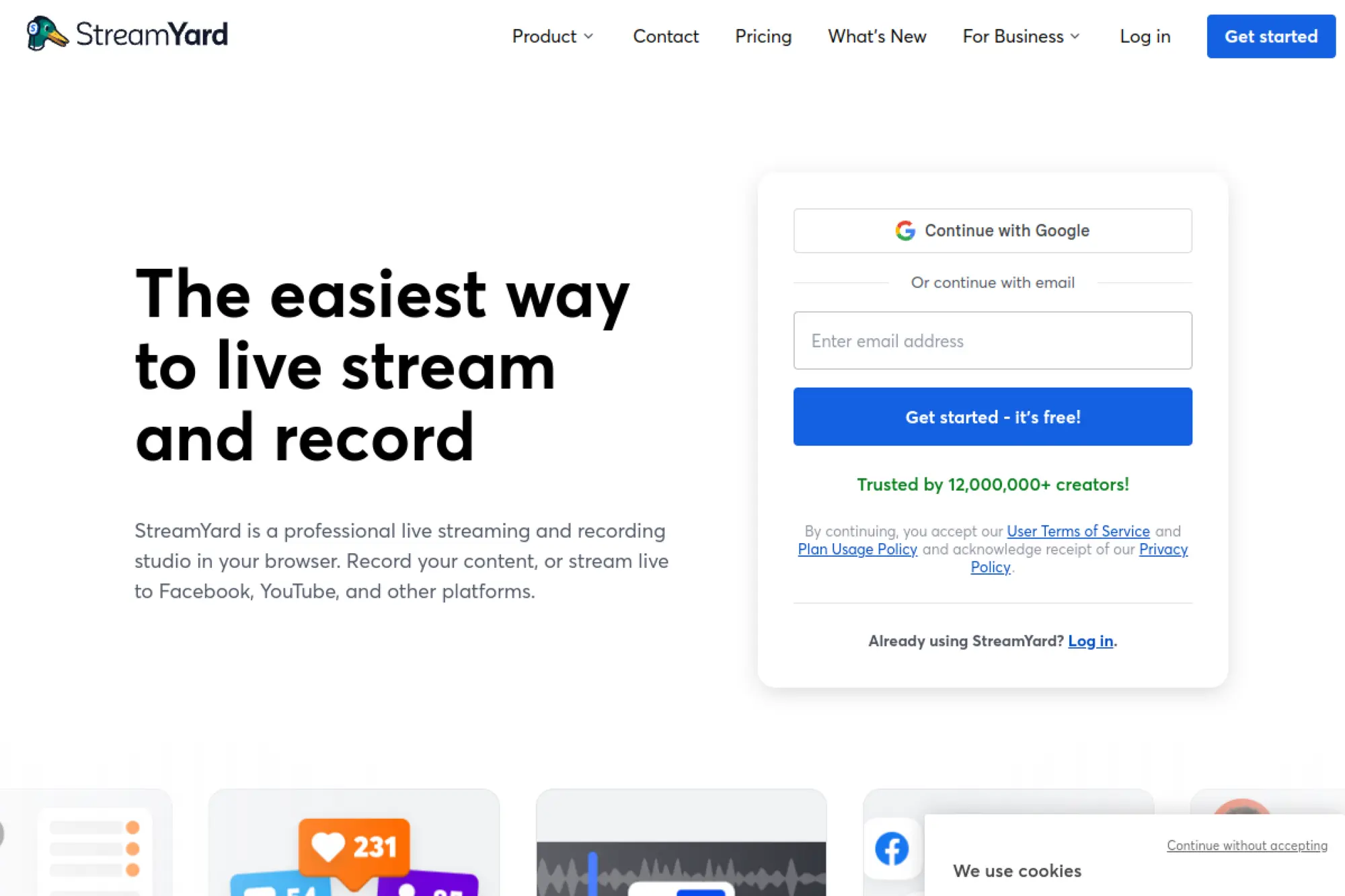
StreamYard is a browser studio for livestreaming and recording. The team targets creators who want reliable live production without tech overhead.
Go live cleanly, then turn the recording into repurposable content.
Best for: solo hosts and small teams running live shows and webinars.
- Browser studio with layouts → produce a professional-looking stream without OBS complexity.
- Multi-destination streaming → save 10 minutes per event by avoiding duplicate setups.
- Quick studio setup → time-to-first-value is about 15 minutes for a basic show.
Pricing & limits: From $0/mo on the Free plan, which lists 2 hours of local recordings per month and up to 6 on-screen participants. Free plan streams are not recorded by StreamYard.
Honest drawbacks: Pricing details can require logging in to view, which slows comparisons. Also, deep edit work still happens elsewhere after the live session.
Verdict: If you need dependable live production, this helps you run a show and get a usable recording the same day. Beats Zoom for on-screen production polish; trails Riverside for track-level post work.
Score: 3.9/5 and .
10. Rev
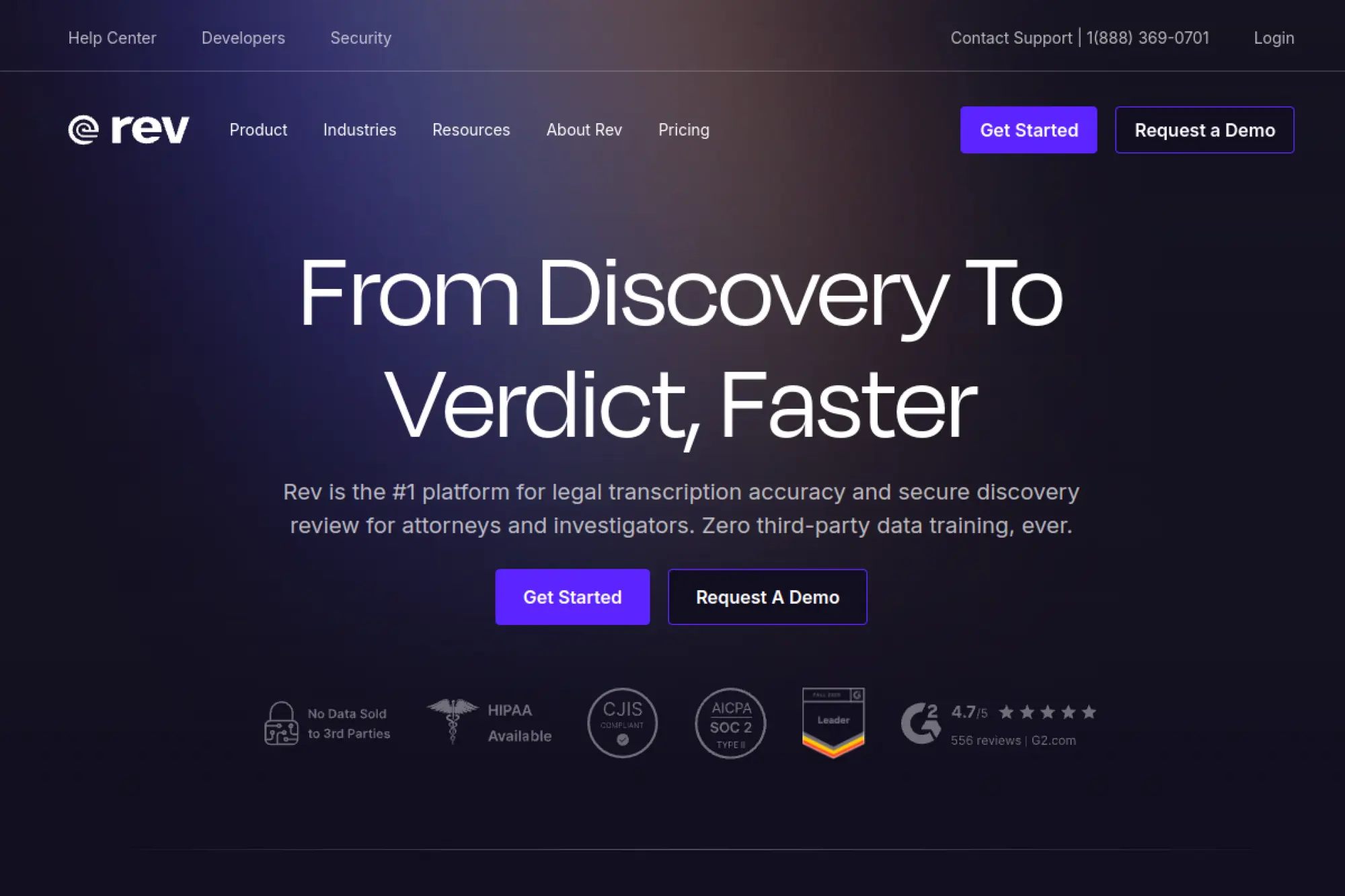
Rev provides transcription, captions, and subtitle services with both AI and human options. The teams optimize for accuracy, turnaround, and workflow-friendly formats.
Ship captions and transcripts that make videos searchable and accessible.
Best for: teams publishing weekly video who need dependable captions.
- AI captions and transcription → add accessibility without spending hours in caption tools.
- Editor and integrations mindset → save 30–60 minutes per hour of footage on text work.
- Pay-and-receive workflow → time-to-first-value is same day for AI orders.
Pricing & limits: From $0/mo on the subscription Free plan, which allows up to 45 minutes of free AI transcription per month. Rev lists AI services at $0.25 per minute, and Basic subscription at $14.99/mo with 1,200 AI minutes.
Honest drawbacks: Human services add up fast at scale. Also, you still need an editor to place captions perfectly for style.
Verdict: If you want faster, more accessible publishing, this helps you add captions within a day. Beats DIY captioning for throughput; trails fully in-editor caption styling tools for design control.
Score: 4.0/5 and .
6 Platforms to Discover AI Video Editing Tools
1. Product Hunt
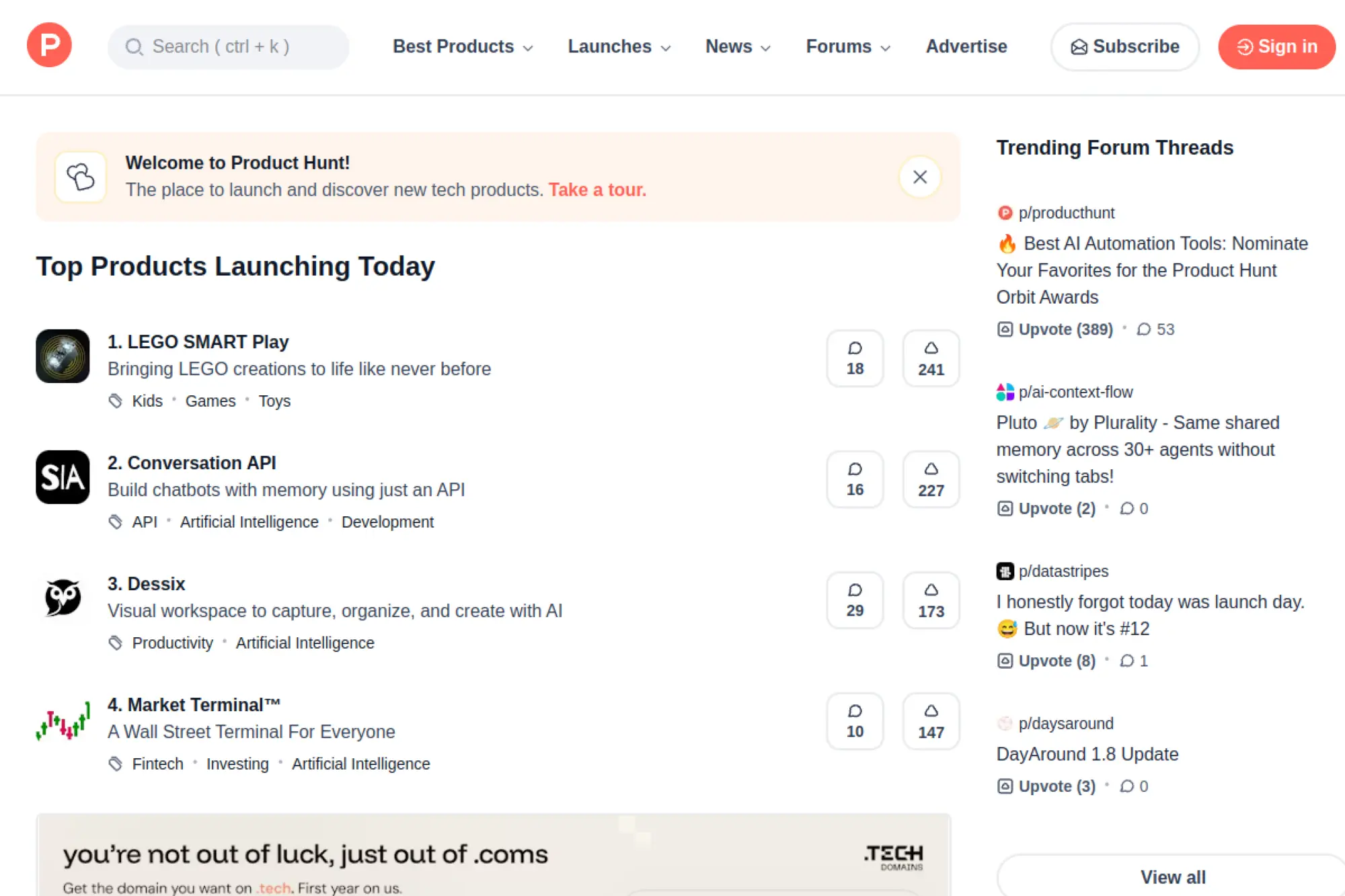
Product Hunt is a discovery platform for new software. The team builds for fast browsing, community feedback, and trend visibility.
Find your next tool before your competitors do.
Best for: solo creators and ops leads scouting editing and AI stacks.
- Launch browsing → shortlist tools without reading 20 scattered blog posts.
- Community comments and comparisons → save 30 minutes per tool on initial vetting.
- Account setup is light → time-to-first-value is about 5 minutes.
Pricing & limits: From $0/mo to browse and participate. The cap is depth: you get discovery and sentiment, not hands-on proof.
Honest drawbacks: Hype cycles can distort reality, especially for AI features. Also, feedback quality varies widely by product and day.
Verdict: If you want to stay current, this helps you build a shortlist in an hour. Beats generic search for novelty; trails G2 for structured comparisons.
Score: 3.0/5 and .
2. Capterra
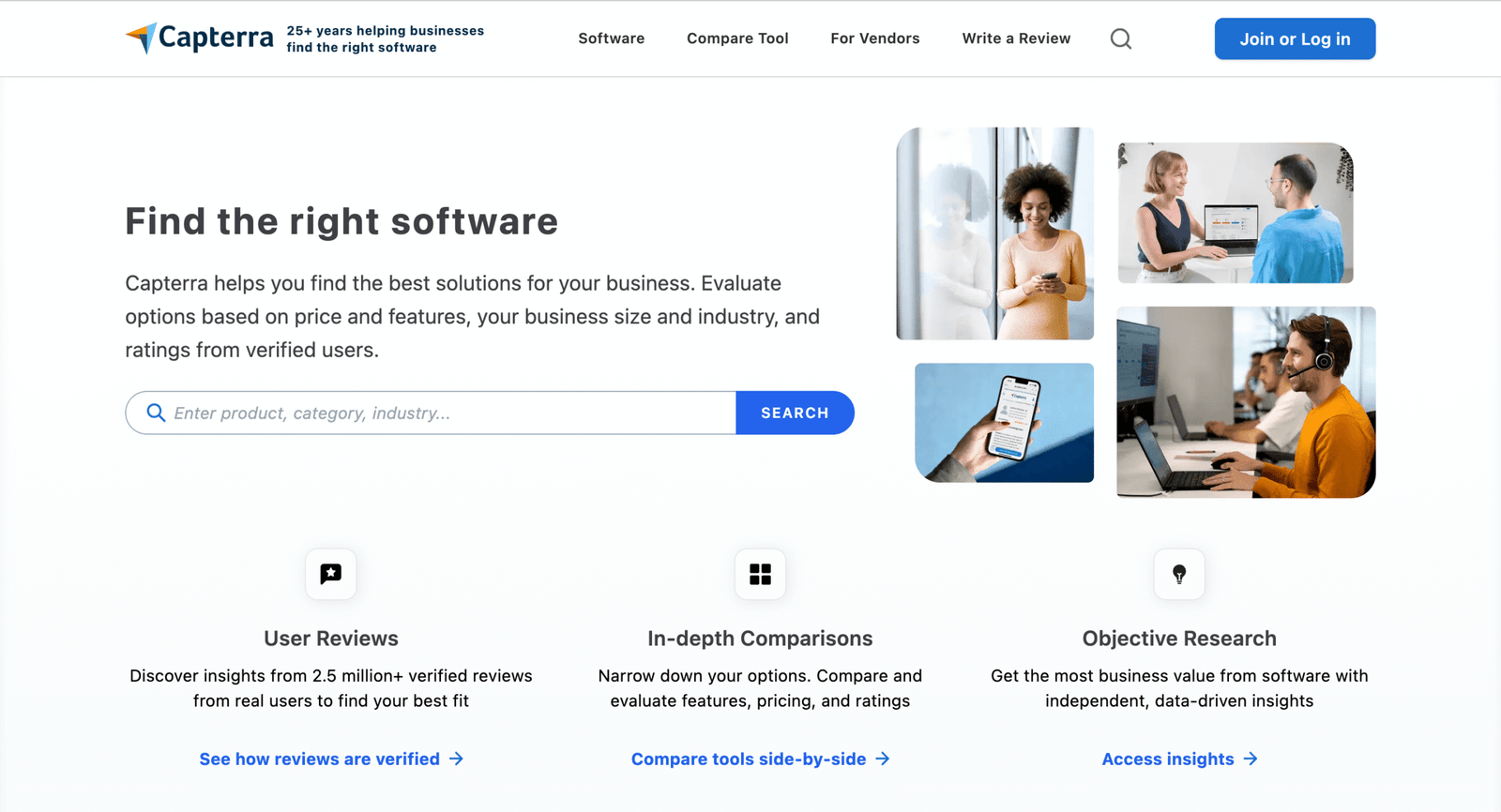
Capterra is a software directory focused on buyer research. The team emphasizes category structure, filters, and aggregated reviews.
Compare tools faster, before you book demos.
Best for: SMB buyers and ops leads choosing editors for a team.
- Category filtering → narrow options without building your own spreadsheet first.
- Review volume and pros/cons patterns → save 60 minutes on early-stage research.
- Low effort to use → time-to-first-value is about 10 minutes per shortlist.
Pricing & limits: From $0/mo for buyers to browse listings. The cap is nuance: review context can be thin without your own testing.
Honest drawbacks: Some listings read like marketing copy. Also, AI features change fast, and directories lag behind reality.
Verdict: If you need a first-pass shortlist, this helps you cut research time in half. Beats Product Hunt on structure; trails direct trials on truth.
Score: 3.2/5 and .
3. G2
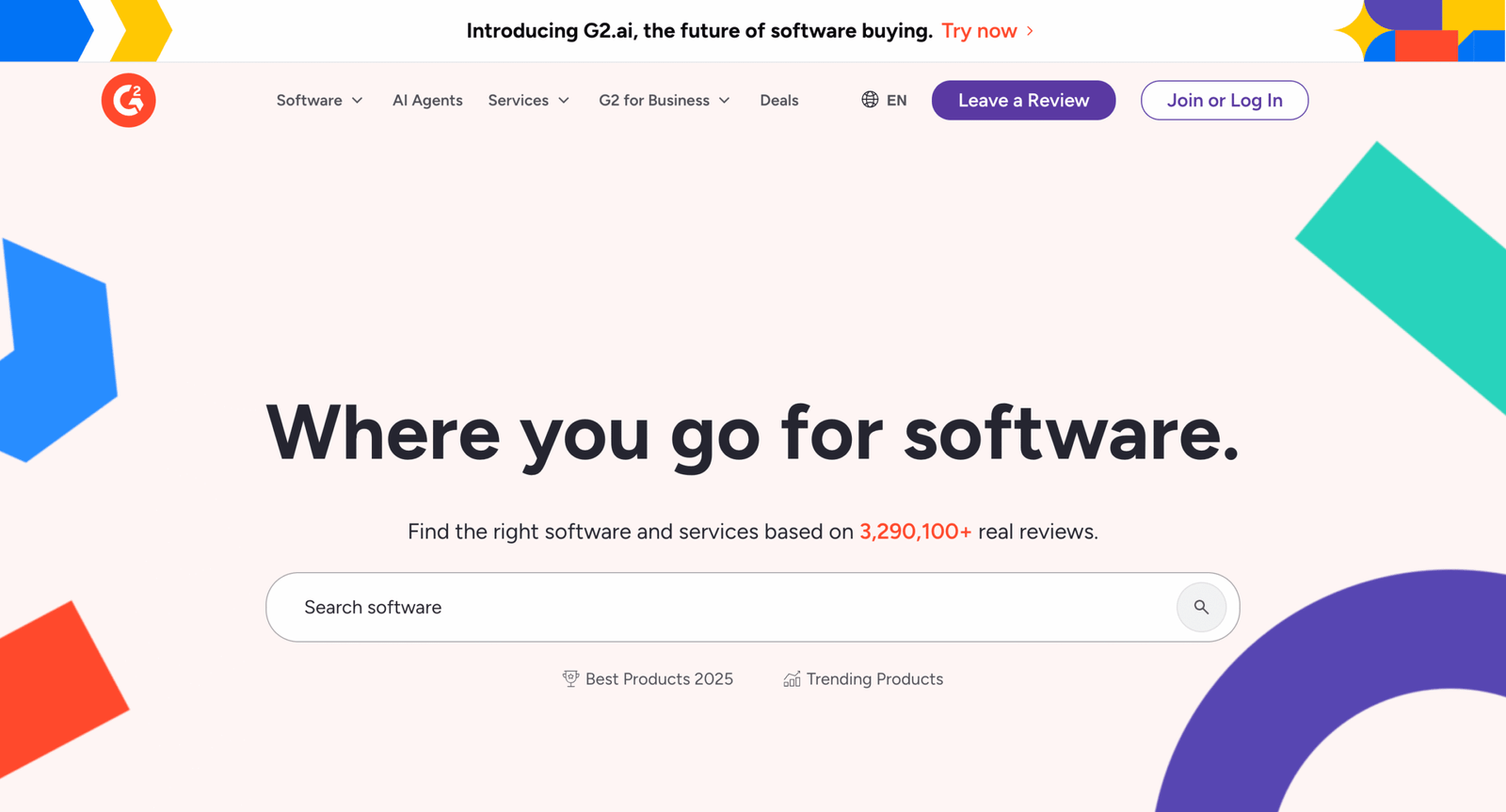
G2 is a review platform built around comparisons and category grids. The team emphasizes enterprise-style evaluation and peer validation.
Pressure-test your shortlist with structured buyer feedback.
Best for: team leads and procurement-adjacent buyers comparing editors.
- Side-by-side comparisons → make tradeoffs visible without a custom scoring sheet.
- Review tagging and categories → save 45 minutes per tool on pattern finding.
- Fast browsing experience → time-to-first-value is about 10 minutes per category.
Pricing & limits: From $0/mo for buyers to read reviews. The cap is context: reviewers rarely match your exact workflow and volume.
Honest drawbacks: Incentivized reviews can skew toward positivity. Also, newer AI tools may lack enough reviews to be useful.
Verdict: If you want a sanity check before purchasing, this helps you spot recurring complaints fast. Beats Capterra for comparison UX; trails hands-on trials for accuracy.
Score: 3.3/5 and .
4. Ashby
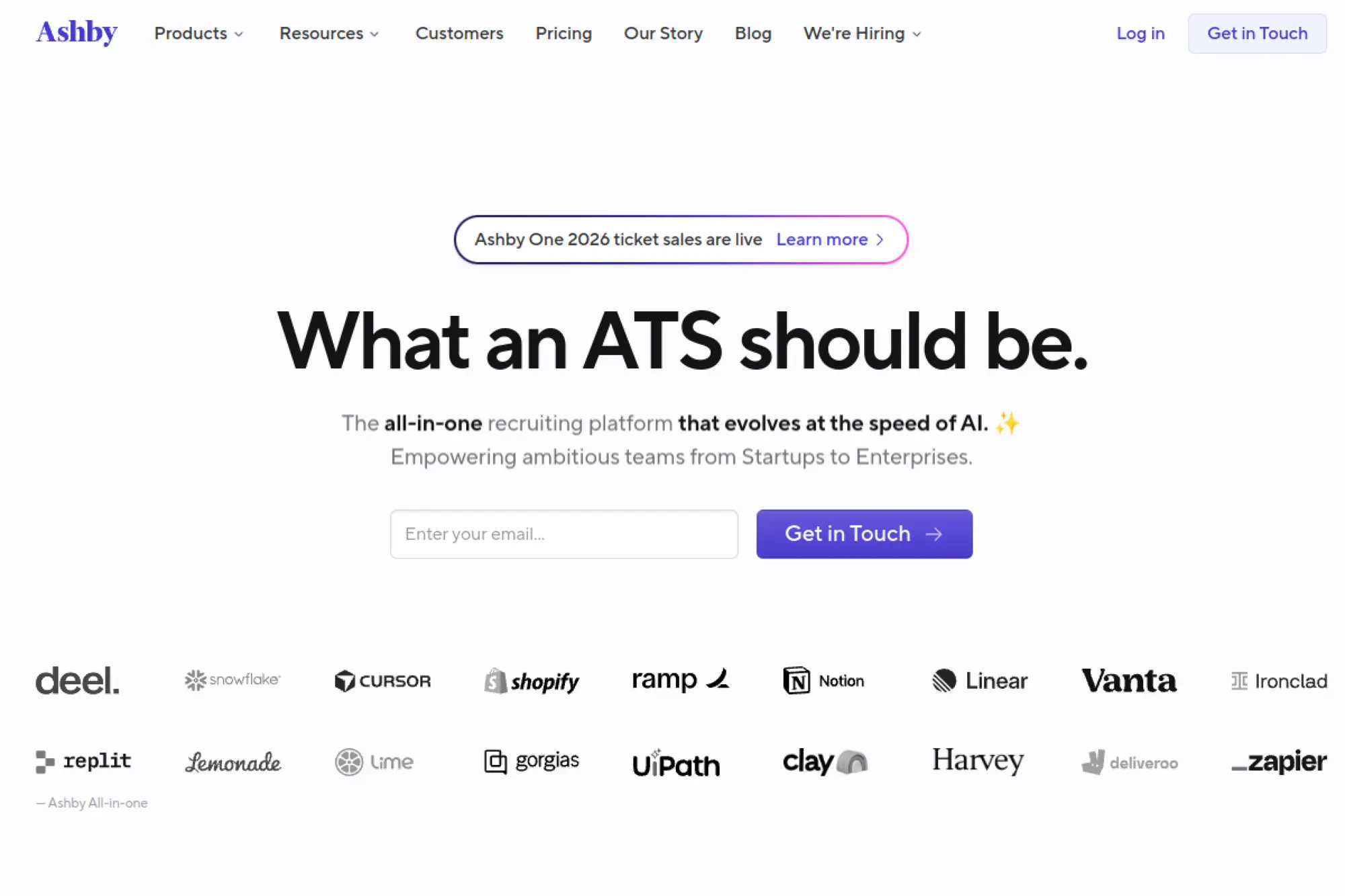
Ashby is a recruiting platform, not a video editor. The team builds systems for structured workflows, approvals, and analytics at scale.
Hire faster, so your video team stops running understaffed.
Best for: growing studios and in-house teams hiring editors and producers.
- Structured pipelines → reduce “lost candidate” chaos and speed up decisions.
- Automation and integrations → save 30–60 minutes per role on coordination work.
- Guided setup → time-to-first-value is about one afternoon for a simple pipeline.
Pricing & limits: From $400/month for the Foundations plan on the pricing page. Pricing is tied to company size and plan, with larger tiers requiring contact.
Honest drawbacks: It does not edit video, so value is indirect. Also, teams without hiring volume may find it overbuilt.
Verdict: If hiring is your bottleneck, this helps you staff up within weeks, not quarters. Beats spreadsheets at accountability; trails lighter ATS tools on simplicity.
Score: 3.2/5 and .
5. Canny
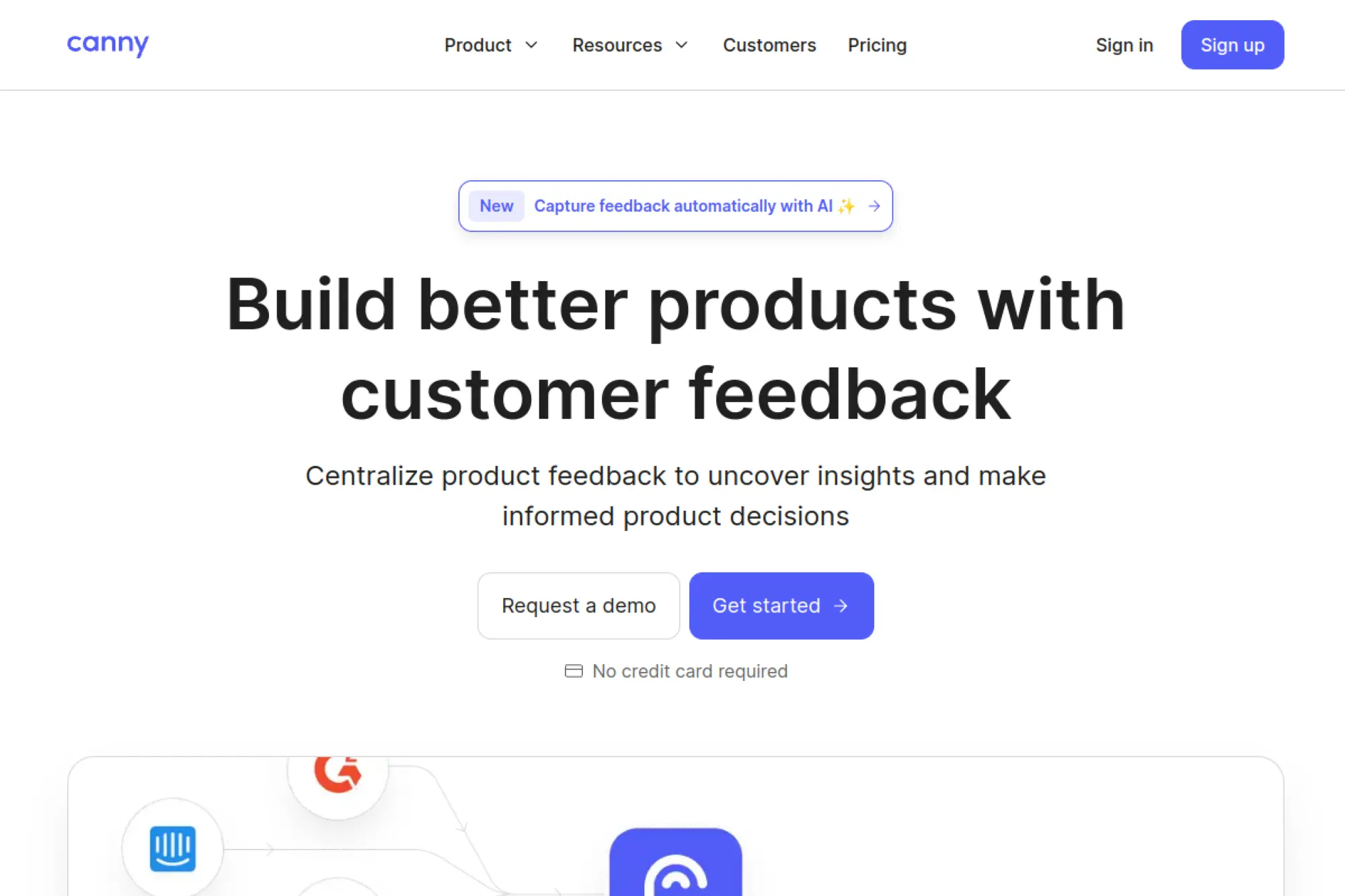
Canny is a feedback and roadmap tool used by product teams. The team focuses on collecting input, prioritizing, and closing the loop publicly.
Turn video feedback into a clear backlog, not endless threads.
Best for: SaaS video teams and creator tools teams managing feature requests.
- Feedback boards and voting → turn scattered notes into prioritized work.
- Integrations with support flows → save 10–20 minutes per issue on deduplication.
- Quick rollout → time-to-first-value is about 30 minutes for your first board.
Pricing & limits: From $0/mo with a Free plan that includes 25 tracked users. Core pricing starts at $24/month at 100 tracked users, with step-up increments as tracked users grow.
Honest drawbacks: It is not a production tool, so impact is indirect. Also, tracked-user pricing can rise as your audience grows.
Verdict: If feedback is drowning your team, this helps you triage in a day and communicate clearly all month. Beats Discord threads for structure; trails full product suites for end-to-end delivery.
Score: 3.4/5 and .
6. GitHub
GitHub is a software collaboration platform used far beyond code. The teams build for versioning, automation, and team governance at scale.
Automate the boring parts of video ops, so editors can keep cutting.
Best for: technical creators and teams building repeatable video pipelines.
- Versioned project templates → reduce “which preset did we use?” mistakes.
- Actions and integrations → save 10–30 minutes per publish with automated checks.
- Fast org setup → time-to-first-value is about 30 minutes for a lightweight workflow.
Pricing & limits: From $0/mo to start, with GitHub Enterprise listed starting at $21 USD per user per month. Copilot has a Free tier, with Pro at $10/month and a 30-day trial noted on the pricing page.
Honest drawbacks: Non-technical teams may struggle to adopt it meaningfully. Also, it supports workflows, but it does not edit footage.
Verdict: If you want repeatable systems around video production, this helps you standardize within a week. Beats ad-hoc docs for rigor; trails dedicated media PM tools on friendliness.
Score: 3.8/5 and .
What an ai video editor can do (and what “AI-powered” really means)
Market overview: Gartner expects more than 80% of enterprises to use GenAI APIs or deploy GenAI-enabled apps in production, so “AI features” will become table stakes. That shift matters for video, because editing is a pile of tiny decisions. AI can automate many decisions, but not all. In our experience, the best tools expose controls and keep you in charge. The worst tools hide choices behind a magic button.
1. Text-based editing: edit video like a document with prompts and commands
Text-based editing turns speech into an editable transcript. Deleting words removes the matching audio and video. That feels like cheating, in a good way. For talking-head content, it often beats scrubbing a timeline. In practice, accuracy and speaker handling matter more than fancy prompts. Good diarization keeps names, roles, and cuts from drifting.
Where We See It Work Best
- Founder updates that must stay conversational and tight.
- Podcast interviews that need fast removals and rearranges.
- Internal training where clarity beats cinematic pacing.
Descript remains the reference point for this workflow. Riverside also leans into transcript-first clipping. Adobe Premiere Pro can mimic the flow when transcription is solid. Our rule is simple: trust the text, then verify the cut.
2. Auto edits that speed up production (cuts, highlights, shorts, and scene changes)
Auto edits usually combine speech detection, silence trimming, and segment scoring. The scoring can use keywords, energy, or topic changes. Highlights are rarely “correct” on the first pass. Still, they are great rough drafts. We treat them like an eager junior editor. They move fast, and they need supervision.
Tools We Commonly See in Clip Factories
- Opus Clip for fast social-first highlight drafts.
- Munch for repurposing with platform-aware scoring.
- Gling for cutting mistakes and dead air in creator footage.
Autopod can help inside a podcast-centric workflow. Wisecut can feel deceptively simple, yet useful. Vizard also fits teams that want “link in, clips out” speed. We always budget time for manual polish after automation.
3. AI captions and subtitles for accessibility and engagement
Captions are no longer optional on many platforms. AI captioning gets you to “readable” quickly. Styling gets you to “brand consistent” and “high retention.” The hardest part is not transcription. It is timing, line breaks, and emphasis. Those details change watch feel more than people expect.
Caption Moves We Recommend
- Keep line breaks aligned with phrases, not word limits.
- Use emphasis sparingly, or the viewer stops noticing it.
- Build a brand preset, then apply it everywhere.
VEED and Kapwing make caption styling approachable. Canva makes brand kits feel natural. CapCut has popular subtitle aesthetics for short-form. For long-form polish, Premiere Pro still earns its place.
4. AI B-roll, layouts, and visual enhancements to boost watch time
B-roll solves a pacing problem and a comprehension problem. AI can suggest inserts, generate cutaways, or pull from stock libraries. It can also create motion layouts that make simple footage feel intentional. The risk is “visual noise.” We push for relevance, not randomness. A useful cutaway clarifies the sentence.
When AI Visuals Help Most
- Product demos where UI moments need punch-ins.
- Explainers that need icons, charts, and quick context.
- Case studies where stock bridges missing shots.
Runway is often the creative wildcard in this category. InVideo and Lumen5 help when you start from a script. Pictory works well for turning long narration into a structured visual flow. For enhancement, Topaz Video AI can rescue imperfect source footage.
5. Audio upgrades: voiceovers, speech enhancement, filler and silence removal
Audio is the fastest way to look professional. AI noise reduction and speech enhancement can be dramatic. Silence and filler removal can tighten pacing without changing meaning. Overuse creates unnatural cadence, so restraint matters. We aim for “clean and human,” not “sterile and robotic.”
Audio Checks We Never Skip
- Listen on cheap earbuds and laptop speakers.
- Watch for pumping artifacts after denoise passes.
- Confirm music ducking does not swallow consonants.
Descript’s studio-style cleanup can speed early passes. Camtasia and Filmora offer approachable audio fixes for generalists. DaVinci Resolve is strong when you need deeper control. Movavi Video Editor can be a pragmatic choice for quick internal outputs.
6. Platform-ready resizing and reframing for vertical, square, and horizontal formats
Reframing is not just cropping. Good reframing tracks the subject and preserves meaning. That usually requires face tracking or motion tracking. It also requires taste, because context can matter more than faces. We like tools that let us lock framing per beat. Automation should not fight the story.
Common Reframe Use Cases
- Webinars turned into vertical highlight reels.
- Product launches cut for feeds and stories.
- Customer interviews repackaged for ads and sales.
CapCut and Clipchamp are fast for social resizing. Premiere Pro and Final Cut Pro give fine control when frames must stay intentional. PowerDirector can be a solid middle ground. Flixier is handy when teams want browser-based speed.
Must-have ai video editor features: prompts, auto-edits, and timeline control
Market overview: Deloitte found 47% of respondents say they are moving fast with adoption, which explains the rush toward AI-first editing features. Speed alone is not enough, though. Teams need repeatability, reviewability, and controls. We look for features that reduce work without hiding decisions. That is how you scale video safely.
1. Prompt-based editing for fast changes (delete scenes, mute audio, swap media, change voiceover)
Prompt editing is best when it maps to deterministic actions. “Remove long pauses” is clear. “Make it more exciting” is vague. The strongest tools translate prompts into visible edits you can approve. That is essential for team trust. We also prefer undoable actions with change history.
What We Look For
- Edits appear as markers or timeline changes, not hidden magic.
- Prompts can target sections, speakers, or topics.
- Edits remain editable after automation runs.
Descript is built around this mental model. Kapwing and VEED are heading in that direction for social workflows. Premiere Pro stays timeline-first, yet integrates AI assistance in useful ways. Our stance is firm: prompts should never trap you.
2. Multi-track timeline editing for layered stories (video, titles, overlays, and audio tracks)
A timeline is still the truth for complex edits. Multi-track control matters for branded lower thirds and layered sound. It also matters for pacing adjustments that AI misreads. Even the best transcript edits need timeline refinement. Teams underestimate how often they need a “real” editor mode.
Where Timeline Depth Pays Off
- Product marketing with overlays, UI zooms, and callouts.
- Event recaps with music, VO, and crowd sound.
- Ads that require precise beats and legal supers.
Adobe Premiere Pro is the default in many studios. DaVinci Resolve is strong for finishing and color. Final Cut Pro stays fast for editors who live on shortcuts. PowerDirector and Filmora can cover many business needs without heavy training.
3. Auto edits for repurposing: shorts, highlights, and viral-ready clips
Repurposing tools promise speed, but the real win is consistency. They standardize clip length, framing, and caption style. That reduces decision fatigue. Still, “viral-ready” is marketing language, not a guarantee. Our approach is to treat outputs as candidates for review.
Signals of a Good Repurposing Engine
- Clips include context, not just punchlines.
- Cut points respect sentences and breaths.
- Exports follow platform safe zones automatically.
Opus Clip and Munch are popular for this use case. Vizard can work well for teams that start from links. Recast Studio often fits B2B creators who want a repeatable pipeline. We still insist on human selection before publishing.
4. Subtitles and captions: styling, animation, and multilingual support
Caption features should include more than transcription. Styling controls must be reusable and brandable. Animation should support readability, not distract from it. Multilingual workflows need good review tooling, because translation mistakes can be costly. We often pair captions with a brand kit for speed.
Caption Workflow Tips
- Create a small set of styles, then lock them.
- Keep highlight words consistent across your content.
- Review names and product terms manually.
VEED and Kapwing are strong for styling and speed. Canva and Adobe Express help teams keep visuals consistent. CapCut can produce trendy effects quickly. For longer projects, Resolve and Premiere Pro remain reliable choices.
5. AI B-roll generation and stock libraries for quick visual upgrades
AI B-roll is a bridge, not a replacement for real footage. It fills gaps when you have no cutaways. It also helps when you need abstract visuals for concepts. The core question is rights and brand safety. We advise teams to establish clear rules before scaling use.
Rules We Recommend Setting Early
- Define what content needs human review before publish.
- Document licensing expectations and storage rules.
- Track prompts and sources for auditability.
Runway is a frequent choice for generative visuals. InVideo and Lumen5 help when you start from text. Pictory can suggest stock coverage quickly. Wave.video and FlexClip are practical for fast stock-based social content.
6. Reframe and aspect-ratio tools for every platform format
Reframe quality comes down to tracking and intent. Face tracking helps for interviews. Object tracking helps for demos and hands-on footage. Intent matters most for slides and UI. Those frames often need manual anchors. We prefer tools that let you set framing rules per segment.
Common Failure Modes
- The speaker looks off-screen after a jump cut.
- Slides get cropped so badly they become unreadable.
- Camera movement breaks the tracker.
CapCut and Clipchamp are quick for basic reframes. Premiere Pro and Final Cut Pro offer finer control for story beats. Flixier can speed cross-platform exports in a browser. PowerDirector is often a good fit for mixed-skill teams.
7. Audio toolkit: speech enhancement, background noise reduction, and audio cleaning
Audio cleanup is where “AI” feels most magical. Noise reduction, de-reverb, and voice leveling save hours. Yet artifacts can sneak in, especially on music. We recommend a simple practice: clean lightly, then A/B on multiple devices. If you notice pumping, dial it back.
Our Practical Audio Routine
- Start with gentle denoise, then add leveling.
- Handle plosives and clicks before heavy enhancement.
- Keep a raw audio backup in the project.
Descript is fast for spoken-word cleanup. DaVinci Resolve gives deeper control for finishing. Camtasia supports straightforward business edits. Movavi Video Editor and Filmora can be enough for internal communications and quick social runs.
8. Voice features: text-to-speech, realistic voiceovers, and voice cloning
AI voice can unlock localization and quick script changes. It can also create compliance risk if governance is weak. We advise teams to separate “draft narration” from “publish narration.” Draft voices speed iteration. Publish voices need approvals and clear rights. The best tools log voice sources and permissions.
Voice Use Cases We Endorse
- Fast prototypes for ads before hiring voice talent.
- Training modules where updates happen frequently.
- Accessibility tracks for viewers who prefer audio guidance.
InVideo and Runway can be part of voice-driven creation flows. Descript helps for narration alongside transcript editing. Canva and Adobe Express fit template-led content with VO layers. Our principle is consistent: make consent and audit trails non-negotiable.
9. Brand customization: templates, brand assets, and consistent styling
Brand control is the quiet killer feature. Templates reduce friction and protect visual consistency. Asset libraries prevent “logo roulette” across teams. We also like tools that support versioning and locked components. That makes collaboration safer. It also reduces accidental off-brand exports.
Brand Controls That Matter
- Shared kits for fonts, colors, and motion styles.
- Locked intro and outro sequences for compliance.
- Reusable lower-thirds that support role changes.
Canva is built around brand kits. Adobe Express fits teams already in Adobe ecosystems. Kapwing supports collaborative templates for social. Clipchamp can be useful for internal business video consistency. We often pair templates with publishing automation to reduce errors.
10. Export, sharing, and collaboration options for teams
Collaboration is more than commenting. Teams need permissions, shared libraries, and predictable exports. They also need review links that match what gets rendered. Our favorite tools behave like product teams expect. They track versions, approvals, and final outputs. That reduces “which file is final” chaos.
Team Features We Prioritize
- Role-based access and project-level sharing controls.
- Centralized media libraries with deduping behavior.
- Review links that tie to a specific version.
Kapwing and Canva are naturally team-oriented. Adobe Premiere Pro shines when paired with structured storage. Flixier supports browser collaboration for distributed groups. For clip factories, Opus Clip and Munch can integrate into review loops when processes are clear.
How to use an ai video editor: proven workflows from prompt to publish
Market overview: IDC forecasts worldwide AI-centric spending to surpass $300 billion, so organizations will keep funding “automation that ships.” Video teams should ride that wave carefully. A good workflow keeps humans accountable. It also makes outcomes repeatable. Below are workflows we have seen succeed across teams.
1. Workflow: Prompt → Generate → Edit → Publish with a command-driven ai video editor
This workflow starts with an outline and a script. AI generates a rough cut, then you refine it. The key is fast iteration, not perfect first renders. We like to separate “creative exploration” from “brand final.” That keeps approvals sane. Command-driven editing works best when edits are traceable.
Where It Fits
- Explainers that follow a stable format each week.
- Product updates that need quick turnaround.
- Campaign variants where the structure stays consistent.
InVideo and Lumen5 fit the script-first model. Runway can generate visual elements for gaps. Canva and Adobe Express help standardize the layout. Our teams still validate pacing and on-screen text before publishing.
2. Workflow: Drop a video link and turn long content into platform-ready clips
Link-based clipping tools promise instant repurposing. The trick is giving them content with clear structure. Clean audio and clear topic shifts help. We also recommend adding titles or chapters in the source. That guidance improves clip boundaries. After clips appear, select only those that match your narrative.
Operational Tips
- Standardize intros, so the tool learns your pattern.
- Keep guest names consistent for caption accuracy.
- Store outputs in a review folder, not a publish folder.
Opus Clip and Vizard are common for this approach. Munch can add platform-aware suggestions. Riverside supports a recording-to-clips pipeline. We still review for context, because partial quotes can backfire.
3. Workflow: Upload or record → one-click auto-edit → manual polish → export
This is the pragmatic workflow for busy teams. Automation handles silence and filler cleanup. Humans handle story and brand. The sweet spot is letting AI do the boring parts. Then you do the taste-based parts. That division keeps quality high without burning time.
What “Manual Polish” Usually Means
- Fixing jump cuts that break eye contact.
- Adjusting captions for emphasis and readability.
- Choosing thumbnails and hooks intentionally.
Wisecut and Gling are often used for the auto-edit step. Clipchamp and CapCut help for fast manual refinement. Filmora can be a good editor for teams that want simplicity. Our preference is to keep an editable project file archived.
4. Workflow: Assemble generations in history → build a timeline → add titles and audio → export
Generative tools often produce many candidate shots. “History” becomes your bin of options. The workflow works when you treat generations like stock. You select the best, then edit like normal. That avoids over-trusting any single output. It also lets you keep brand tone consistent.
Production Practices That Help
- Name generations by intent, not by prompt text.
- Keep a reject folder for auditability later.
- Apply color and audio passes at the end.
Runway is central for many generation-heavy pipelines. Adobe Premiere Pro and DaVinci Resolve handle final assembly well. Final Cut Pro stays snappy for editors who prefer magnetic timelines. Topaz Video AI can help when the generated footage needs cleanup.
5. Workflow: Start from templates → run automatic edits → finalize with AI voices and captions
Template workflows make scale possible. They also reduce brand drift. Automatic edits then adapt content to a platform format. Voices and captions get added last. That order matters, because captions depend on the final cut. We see fewer rework loops when teams follow that sequence.
Template Workflow Guardrails
- Lock brand elements and leave only content fields editable.
- Require review for any AI voice used in public outputs.
- Store templates centrally with clear ownership.
Canva is the template powerhouse for many teams. Adobe Express supports brand-controlled variations. Kapwing works well for collaborative social templates. InVideo can combine templates with script-driven creation. We also recommend a checklist for publish readiness.
6. Workflow: Create highlights and teasers first, then expand into full edits
Starting with highlights forces clarity. It reveals what the audience actually cares about. Then you can expand into a longer edit with confidence. This approach also helps stakeholders align early. It prevents polishing a long cut that nobody wants. We often propose it for busy executive teams.
Why It Works
- Stakeholders approve direction before the heavy work.
- Hooks get tested early across channels.
- Clips become the outline for the longer narrative.
Opus Clip, Munch, and Recast Studio fit highlight-first strategies. CapCut and VEED make teaser polish fast. Premiere Pro and Resolve handle long-form expansions cleanly. Our advice is to keep a “hook library” for future reuse.
ai video editor selection criteria: pricing, quality, and team fit
Market overview: PwC frames AI as a $15.7 trillion economic opportunity, so vendors will keep bundling AI into creative suites. That bundling can confuse buyers. Teams end up paying for features they never operationalize. We prefer selection criteria that reflect work patterns. The right editor is the one that fits your approvals, skills, and brand risk tolerance.
1. Ease of use for beginners: “no editing skills required” editors vs advanced timelines
Beginner tools remove friction and reduce training time. Advanced timelines give precision, but demand skill. The right choice depends on output risk. Low-risk internal videos can live in simpler tools. High-risk brand campaigns need more control. We often recommend a tiered approach across teams.
Pragmatic Pairings
- Canva plus CapCut for fast social templates.
- Clipchamp for business updates and internal training.
- Premiere Pro for high-stakes brand storytelling.
Filmora and Movavi Video Editor sit in the middle. They can suit teams graduating from template-first tools. DaVinci Resolve can be a leap, yet it pays off for finishing. The key is matching tool complexity to team maturity.
2. Input flexibility: upload files vs link-based imports from popular platforms
Input flexibility decides how often a tool gets used. Upload workflows favor teams with shared storage discipline. Link workflows favor creators and social teams. Some organizations need both. In our experience, forcing one path creates hidden labor. We evaluate ingestion like we evaluate APIs.
Ingestion Questions We Ask
- Can it handle long recordings without choking?
- Does it preserve metadata and chapters cleanly?
- Will it fit your storage and retention policies?
Riverside fits recording-first pipelines. Opus Clip and Vizard fit link-first clipping. Flixier works well for browser-based uploads. Premiere Pro and Resolve assume file discipline. Choose the tool that matches your reality, not your aspiration.
3. Short-form and repurposing strength: reframing, resizing, and shorts-ready exports
Short-form strength is about speed and aesthetics. It is also about safe zones and caption placement. Reframing must keep meaning intact. Export presets should reduce guesswork. We like editors that store presets per channel. That makes scaling content less error-prone.
Tools We See Used Often
- CapCut for quick reframes and trend formats.
- VEED for caption-first social exports.
- Kapwing for collaborative repurposing pipelines.
Munch and Opus Clip add highlight discovery on top. Canva supports brand consistency for quick variations. Clipchamp is helpful for lightweight business short-form. The best short-form workflow still includes a human hook check.
4. Audio quality priorities: voiceovers, noise reduction, and filler and silence removal
Audio needs differ by content type. Podcasts need tight cleanup and consistent levels. Ads need punch and music balance. Internal videos need clarity, not perfection. We choose tools based on the “least forgiving” target platform. That prevents embarrassing outputs later.
What We Test During Evaluation
- Speech clarity after denoise, especially on sibilants.
- Room echo behavior on remote guest recordings.
- Consistency across multiple clips in a batch export.
Descript is a fast audio-first choice for spoken content. Gling and Wisecut help remove pauses quickly. DaVinci Resolve supports finishing-level control. Camtasia can be enough for training-heavy teams. Avoid tools that cannot preserve decent audio through exports.
5. Caption and translation needs: subtitle generation, styling, and multilingual workflows
Captions are an operational system, not a button. You need consistent style, review steps, and terminology control. Translation adds another layer of risk. We recommend building a glossary for names and product terms. That improves quality across tools. It also reduces review churn.
Caption Governance Basics
- Define who approves subtitles for public content.
- Store style presets in a shared brand kit.
- Track changes when captions are edited manually.
VEED and Kapwing support fast caption styling. Canva keeps typography consistent through templates. Adobe Express can help when brand systems already exist. Premiere Pro is strong when you need detailed timing control. The safest approach is always a human review pass.
6. Customization depth: brand templates, layouts, and scene-level control
Customization depth separates hobby tools from production systems. Scene-level control matters for compliance text and legal requirements. Layout control matters for multi-format campaigns. Templates matter for speed and consistency. We like tools that support locked components and reusable scenes. That reduces accidental brand drift.
Our Customization Checklist
- Reusable intro and outro with locked brand elements.
- Scene blocks that can be swapped without breaking timing.
- Brand assets that sync across workspaces.
Canva and Adobe Express lead for template-driven production. Kapwing supports collaborative layout work. Premiere Pro and Final Cut Pro lead for scene-level precision. PowerDirector and Filmora often cover mid-market customization needs. Pick the depth that matches your compliance reality.
7. Speed and shortcuts: keyboard workflows and text-based editing performance
Speed is a UX feature and a compute feature. Keyboard support matters for expert editors. Transcript performance matters for talk-heavy content. Browser tools can be fast, yet depend on network reliability. Local tools can be fast, yet depend on machine setup. We evaluate speed using real team tasks.
Speed Signals We Trust
- Edits stay responsive even with long transcripts.
- Export queues are predictable and transparent.
- Hotkeys are customizable for daily workflows.
Final Cut Pro is beloved for responsiveness. Premiere Pro can be fast when projects are organized well. Descript wins when transcript editing is central. DaVinci Resolve shines for editors who know its workflow. Browser tools like Flixier are great when teams are distributed.
8. Collaboration and sharing: team workspaces, libraries, and multiplayer editing support
Collaboration is where tools succeed or collapse. Marketing wants templates and approvals. Legal wants traceability. Creators want speed and autonomy. A good collaboration model supports all of that without chaos. We prioritize comment threads tied to timecodes. We also want clear ownership of final exports.
Collaboration Features That Reduce Drama
- Review links with version locking.
- Shared libraries with permission controls.
- Approval steps that are visible and auditable.
Kapwing and Canva are naturally collaborative. Adobe tools work well when paired with disciplined storage. Clipchamp can support business teams with light review needs. Recast Studio can fit teams that manage a repurposing pipeline. Our advice is to align tool choice with your approval culture.
9. Output and quality settings: 4K export options and publish-ready formatting
Output quality is not only resolution. Bitrate choices, audio codec choices, and color handling matter. Publish-ready formatting also includes safe-zone checks and caption burns. We ask teams where the video will live, then work backward. Social platforms compress aggressively. That changes what “high quality” even means.
Output Checks We Recommend
- Confirm captions remain readable after platform compression.
- Check skin tones and brand colors after export.
- Validate audio loudness against platform norms.
DaVinci Resolve and Premiere Pro support strong finishing. Final Cut Pro can export cleanly with efficient workflows. CapCut and VEED optimize for social, which is often enough. Topaz Video AI can help improve perceived quality when sources are weak. Always test exports on the target platform before scaling.
10. Operating system and file-format considerations (including Windows workflows and AVI editing needs)
Platform constraints sneak into every pipeline. Some teams are Windows-heavy. Others are mixed across devices. File formats can also ruin an otherwise good tool. We advise teams to test with their worst real footage. That includes legacy captures and odd camera codecs. Compatibility problems appear early if you test honestly.
Compatibility Questions That Save Pain
- Can it import legacy files without silent corruption?
- Does it export in formats your publishing stack accepts?
- Will proxies generate automatically for heavy footage?
Clipchamp fits many Windows-centric teams. Premiere Pro and DaVinci Resolve handle diverse formats well. Movavi Video Editor and PowerDirector can be practical for general compatibility. Flixier can help when you need browser access across machines. The safest move is to run a real pilot before committing.
How TechTide Solutions builds custom ai video editor experiences
Market overview: CB Insights reports AI funding hit $100.4B, which fuels a fast-moving vendor landscape and frequent product churn. That churn is why some organizations build instead of buy. We do not build editors for vanity. We build them when workflow fit is strategic. Sometimes the best “ai video editor” is a focused internal tool. It can sit behind your brand and your controls.
1. Custom ai video editor development aligned to customer workflows and feature requirements
Custom editors start with task mapping, not UI sketches. We identify the moments where editors lose time. Then we automate those moments carefully. Many wins come from transcript pipelines and structured metadata. Scene tags, speaker tags, and topic tags become your editing primitives. Once those exist, automation becomes safer.
How We Scope the Right Build
- Define “done” for clips, exports, and approvals.
- Pick the minimal set of edits worth automating first.
- Keep manual override available at every stage.
For a B2B team, we built a clip workflow around chapters and speaker turns. Another client needed strict brand templates and locked legal supers. In both cases, the editor was less “creative suite” and more “production system.” That difference changes everything.
2. Integrations and automation: connecting your editor with storage, publishing, and internal systems
Integrations are where ROI usually lives. Storage integration prevents duplicate uploads and broken links. Publishing integration prevents wrong aspect ratios from shipping. Internal systems integration can enforce approvals and governance. We like event-driven pipelines with clear states. “Uploaded,” “transcribed,” “drafted,” “reviewed,” and “published” should be explicit.
Integration Patterns We Use Often
- Object storage for raw media plus proxy generation.
- Webhook-based publish triggers with approval gates.
- Asset libraries synced to brand systems.
When clients rely on Canva templates, we connect exports into the same storage tree. When teams use Premiere Pro, we integrate review links and metadata capture. For clip factories using Opus Clip or Munch, we focus on routing, naming, and approvals. Automation without governance is just faster chaos.
3. Scalable, secure delivery: enterprise-ready architecture, performance optimization, and ongoing support
Enterprise video systems need more than GPU horsepower. They need privacy, access control, and auditability. They also need predictable performance under batch workloads. We design for isolation between projects and teams. We also plan for model updates and regression testing. AI behavior shifts, even when your UI does not.
Security and Scale Practices We Advocate
- Encrypt media at rest and in transit by default.
- Log edits, exports, and approvals as immutable events.
- Use policy-based access for users and automation agents.
On performance, we often separate interactive editing from background rendering. That keeps the UI snappy while exports run. On support, we monitor quality signals like transcript drift and failed renders. Stable operations make AI features feel trustworthy. That trust is what drives adoption.
Conclusion: choosing the best ai video editor for your content goals
Market overview: the same research signals continued investment in AI-enabled software, which means “AI editing” will keep evolving fast. Tool choice, therefore, is not a one-time decision. It is a workflow commitment you revisit as your channels mature. At TechTide Solutions, we like stacks that balance speed and control. We also like stacks that make review simple and accountability clear. If your team publishes daily, prioritize repeatability and templates. If your team ships fewer, higher-stakes assets, prioritize timeline control and auditability. Either way, start with one workflow and make it boringly reliable. Then scale it.
Our practical next step is a short pilot. Pick a single content series and run it end to end. Compare time saved, review friction, and output consistency. If you want, we can help you design that pilot and the integration plan behind it. Which workflow from this guide matches the way your team actually ships content today?