
At Techtide Solutions, we treat slide-making as software, not “art time.” Market overview: Gartner forecasts worldwide GenAI spending will reach $644 billion, and presentations are a practical front line for that spend. Boards still demand crisp narratives. Sales still needs fast decks. Teachers still need clarity, not chaos. So we look at AI presentation makers as workflow engines. They compress research, writing, and design into one repeatable system. The result is not just faster slides. The result is fewer late nights and fewer “version_final_FINAL” files.
What Is an AI Presentation Maker and How It Works
Our definition is simple: an AI presentation maker turns messy intent into structured slides. Market overview: Statista projects the worldwide generative AI market size at US$66.89bn, and slide creation rides that same adoption curve. Most tools share a similar pipeline. They ingest a prompt or source content. They build an outline. Then they map that outline into slide “chunks.” Finally, they apply a layout system and generate assets. The differences live in control, trust, and export quality.
1. Text-to-PPT generation from a topic or prompt
Text-to-PPT starts with intent compression. A user gives a topic, audience, and goal. The model drafts an outline and slide titles. Next, the system expands bullets into talk tracks. Then it picks a slide archetype per section. That archetype might be “problem-solution,” “timeline,” or “comparison.” Design automation fills placeholders and aligns spacing. In our client work, prompt success depends on constraints. We ask for audience, stakes, and what must not be claimed. That last part saves legal reviews later.
2. Outline-first creation from uploaded files, URLs, or videos
Outline-first creation begins with extraction. PDFs get parsed. Web pages get scraped. Videos get transcribed. The system chunks content into sections and builds a draft narrative. Good tools preserve citations and named entities. Weak tools paraphrase too aggressively and drift from the source. For a procurement deck, that drift is costly. We prefer tools that show the source-to-slide mapping. That traceability is a quiet superpower. It also makes stakeholder reviews faster. Nobody wants to debate where a claim came from.
3. Import existing slides or PDFs to update decks faster
Import workflows are where real teams live. Most companies already have decks. They just need updates, tighter language, and better visuals. Strong importers parse slide masters, placeholders, and speaker notes. They let you regenerate only certain slides. They also preserve brand fonts and theme colors. When import is weak, teams lose formatting and trust. At Techtide Solutions, we often advise “import-first” for regulated industries. It reduces hallucination risk. It also protects executive voice.
4. Template, theme, and style selection to accelerate design
Template selection is not a cosmetic feature. It is a ruleset for hierarchy, spacing, and emphasis. Good systems treat templates like design tokens. A heading style implies size, weight, and line length limits. A chart style implies color palettes and label density. Theme engines also encode accessibility rules. Contrast and font size matter in real rooms. We’ve watched a CFO squint at a slide and lose patience. That moment is expensive. AI design can prevent it when the theme system is strict.
5. Edit control after generation: tone, content, layouts, and visuals
Edit control is the difference between a demo and a product. Teams need to rewrite a section without breaking the layout. They also need to swap a visual while keeping alignment. The best tools separate content from layout. That separation enables safe regeneration. We look for “surgical” edits. A user should edit one slide or one block. They should not regenerate the whole deck. In enterprise settings, that granularity protects approvals. It also protects the cadence of weekly reporting.
6. Best-fit use cases for an ai presentation maker: education, business, and freelancers
Education teams benefit from structure and pacing. A lesson outline becomes slides plus quick checks. Business teams benefit from repeatable templates and faster iteration. Freelancers benefit from speed and polish under pressure. We see three killer scenarios. First, a sales rep builds a client-specific narrative from discovery notes. Second, a product manager creates a roadmap story from release docs. Third, a teacher turns reading material into a guided lecture. In each scenario, the “first draft” is the win. Humans still do the final judgment.
Our Working Longlist of Thirty Tools We Track
- Microsoft Copilot in PowerPoint
- Google Slides with Gemini
- Canva Presentations
- Gamma
- Beautiful.ai
- Pitch
- Prezi
- Visme
- Slidebean
- Decktopus
- SlidesAI
- Plus AI
- MagicSlides
- Presentations.AI
- Storydoc
- Slidesgo.ai
- WPS AI Presentation
- SlideSpeak
- TextDeck
- Simplified
- Powtoon
- Mentimeter
- Genially
- AhaSlides
- Sendsteps.ai
- Nearpod AI Create
- ClassPoint AI
- Zoho Show with Zia AI
- Adobe Express
- GPT for Slides Builder
7. Account and login requirements to generate and download presentations
Accounts are not just friction. They are governance surfaces. Sign-in enables storage, collaboration, and auditability. It also enables policy enforcement. For businesses, we look for SSO support and domain controls. For schools, we look for easy classroom onboarding. And for freelancers, we look for quick exports without lock-in. Some tools allow draft generation without login, then require sign-in to export. That is a reasonable compromise. Still, teams should assume any uploaded content becomes part of a vendor’s processing pipeline. Legal should review terms early.
Quick Comparison of ai presentation maker
Buying behavior is shifting from “slide software” to “content systems.” Market overview: Deloitte reports 47% of surveyed leaders say they are moving fast with GenAI adoption, and presentation workflows often lead those pilots. The quickest way to shortlist is to compare fit, export needs, and limits. We prefer tools that keep edits reversible. We also prefer tools that work where teams already collaborate. Here is a compact starting point.
| Tool | Best for | From price | Trial/Free | Key limits |
|---|---|---|---|---|
| Microsoft Copilot in PowerPoint | Enterprise slide workflows | Included with Microsoft plans | Depends on tenant | Policy and tenant controls |
| Canva Presentations | Brand-forward marketing decks | Free and paid plans | Free plan | Export and brand controls vary |
| Gamma | Doc-to-deck storytelling | Free plan | Free plan | Branding on free exports |
| Beautiful.ai | Auto-layout polish | $12/mo | Trial | Guardrails can feel rigid |
| Pitch | Team collaboration decks | Free and paid plans | Free plan | AI usage metering |
| Prezi | Motion-first narratives | Free and paid plans | Free plan | Nontraditional slide style |
| SlidesAI | Google Slides generation | $8.33/month | Free plan | Prompt and credit caps |
| Decktopus | Fast business drafts | $14.99 | Free start | Credit-driven features |
| Zoho Show with Zia AI | Zoho-centric teams | Suite-based pricing | Depends on plan | Best inside Zoho ecosystem |
| WPS AI Presentation | Office alternative workflow | Free and paid plans | Free tier | Export fidelity varies |
Our practical tip is to test with the same brief. Use the same source doc. Then compare edit speed and export quality. That single exercise reveals most hidden costs.
Top 30 ai presentation maker Tools and Supporting Apps for Faster Slide Creation

We picked these tools like an editor picks verbs: for impact, not decoration. Each entry earns its place by shrinking the distance between “idea” and “ready-to-present.” We looked for tools that can turn rough inputs into a coherent flow, then help you polish it without reformatting purgatory. That includes true AI presentation makers, plus the supporting apps that feed research, assets, narration, collaboration, and performance tracking into your deck workflow.
Scoring is weighted toward what actually changes outcomes. Value-for-money and feature depth carry the most weight, because shiny demos are easy. Ease of setup, integrations, and ecosystem matter next, since presentations rarely live alone. We also scored UX and performance, security and trust signals, and the strength of support or community. Every score is a weighted 0–5 total, rounded to one decimal place.
1. Slidesgo AI Presentation Maker
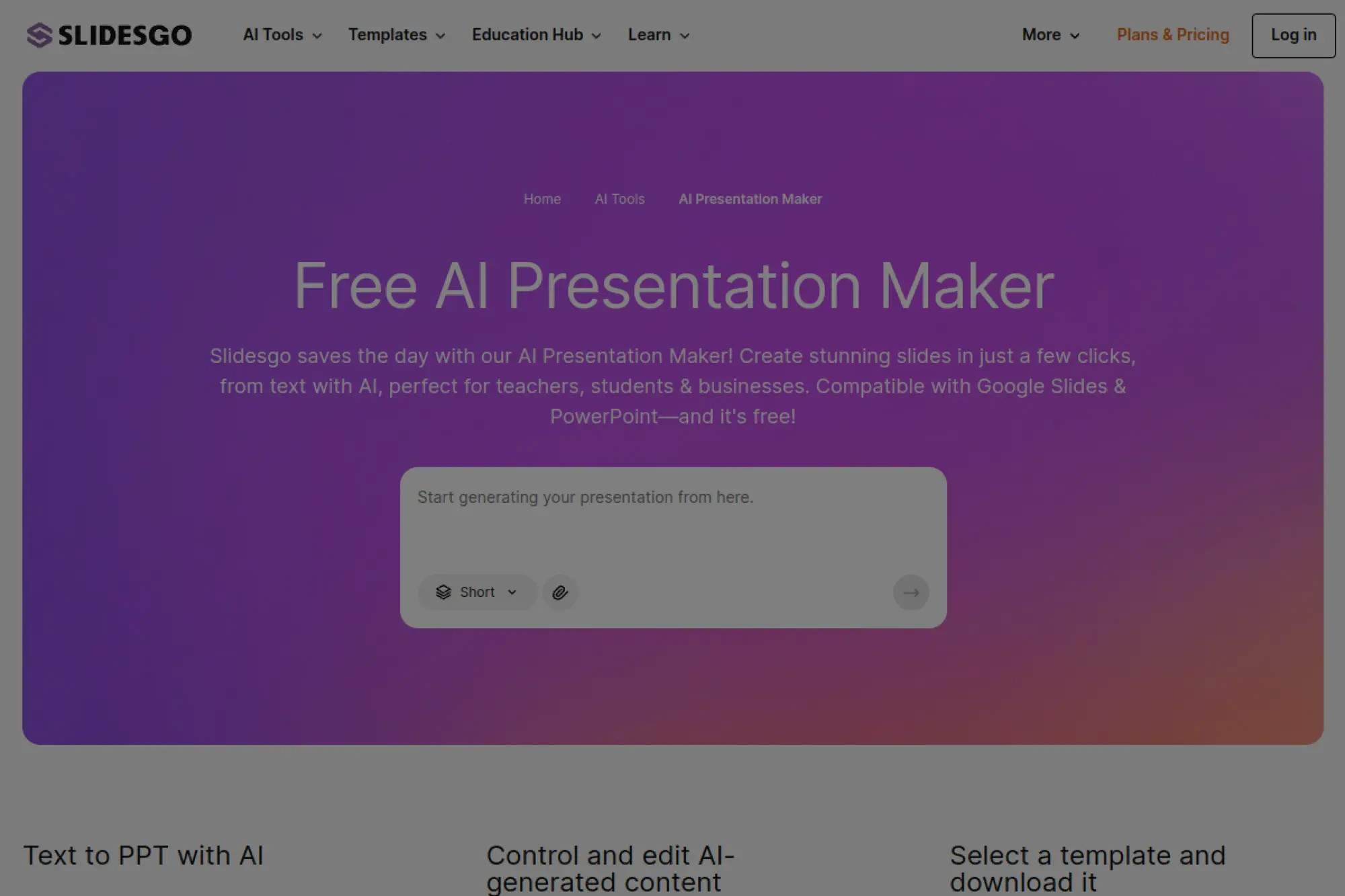
Slidesgo sits inside Freepik Company’s template universe, and it shows. The team’s core strength is editorial curation, not just automation. Their AI builder leans on that library to keep decks visually consistent.
Go from prompt to a clean, themed slide draft in minutes.
Best for: teachers and solo marketers who want “good-looking by default.”
- Prompt-to-template workflow → land a coherent deck structure without layout fiddling.
- Template library + quick edits → skip 3–5 “design rescue” loops per deck.
- Familiar slide formats → first usable draft in about 10–20 minutes.
Pricing & limits: From $5.99/mo. Trial length: free plan with ongoing access. Premium removes attribution and ads, but downloads are capped at 150 per month.
Honest drawbacks: Brand control is lighter than enterprise tools. Also, AI output can feel template-first if your topic is niche.
Verdict: If you need fast, presentable slides, this helps you ship a decent deck in an afternoon. It beats raw AI generators on visual polish; it trails Canva on collaboration depth.
Score: 4.1/5
2. Canva AI Presentation Maker
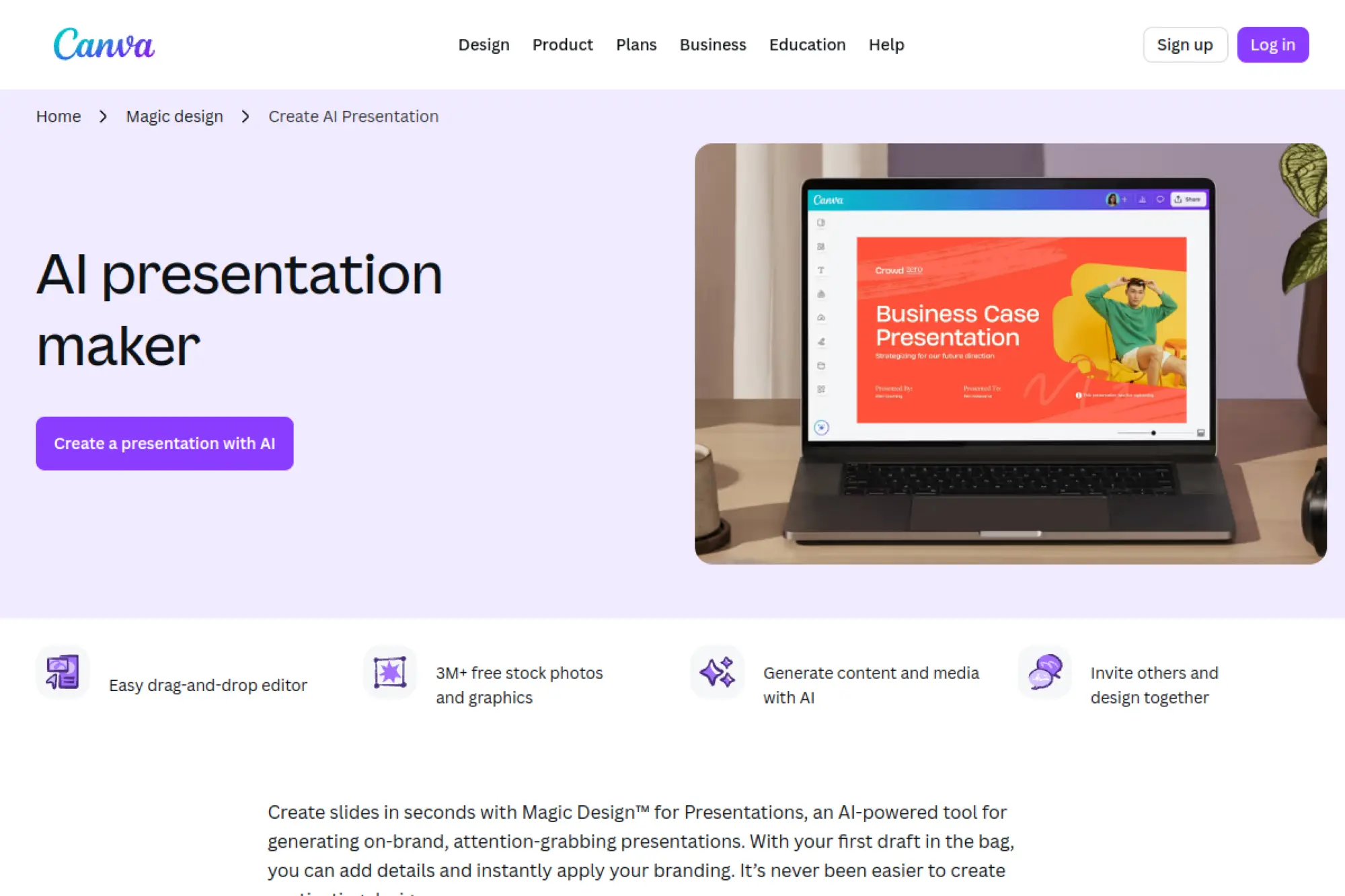
Canva is a product-led design platform with a broad creative suite and a very mature template engine. The team optimizes for speed, reuse, and collaboration. Its AI presentation flow is strongest when you already live in Canva assets.
Create on-brand slides fast, then reuse them everywhere.
Best for: SMB marketing teams and founders who need decks plus social assets.
- AI-assisted draft + templates → turn a messy outline into a shareable deck quickly.
- App ecosystem and sharing → save 3+ steps when routing slides to teammates.
- Drag-and-drop editing → time-to-first-value is often under 15 minutes.
Pricing & limits: From $0/mo. Trial length: Canva Pro offers a 30-day free trial. Canva Business is $20 per person per month, with no seat minimum, and AI usage caps vary by plan.
Honest drawbacks: AI limits can surprise heavy users mid-month. Export fidelity can vary when teammates edit in PowerPoint later.
Verdict: If you want one workspace for deck, promo, and brand assets, this helps you publish a full campaign set in a day. It beats Slidesgo for collaboration; it trails PowerPoint for enterprise slide workflows.
Score: 4.4/5
3. Gamma
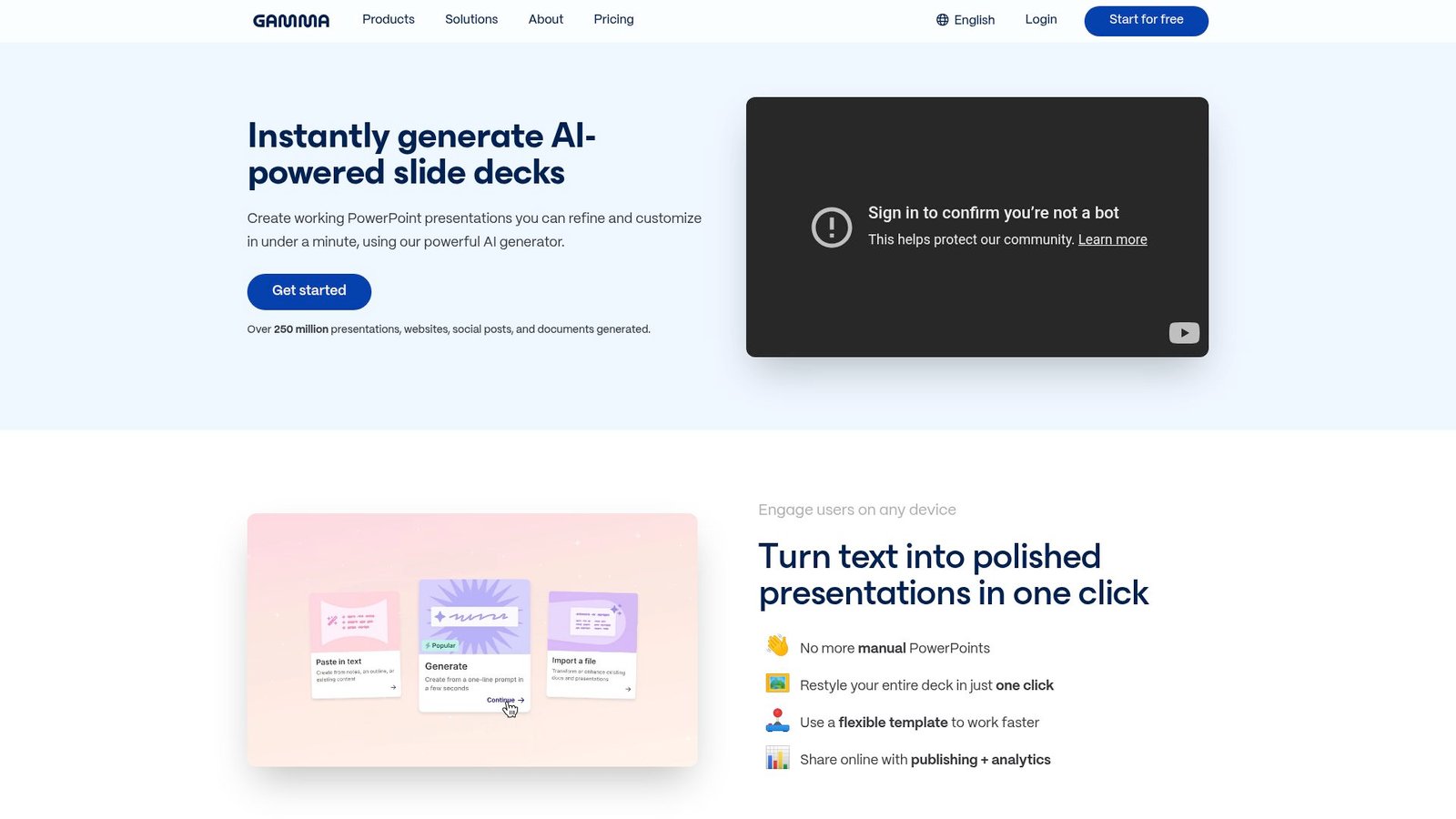
Gamma is built by a team focused on “cards” as a modern unit of content. That mindset keeps you writing and structuring before you obsess over alignment. The product feels like a doc, a deck, and a lightweight page builder merged.
Turn ideas into a narrative deck that reads clean and presents well.
Best for: consultants and product teams who sell ideas with clear flow.
- Card-based generation → keep storyline tight, even when content changes late.
- Imports and exports → save 2–4 reformatting steps across PDF, PPTX, and Slides.
- Low-friction editor → first presentable version in about 20–30 minutes.
Pricing & limits: From $0/mo. Trial length: free plan, no credit card. Plus is $10 per user per month and raises generation to 20 cards per prompt; Pro is $20 per user per month and reaches 60 cards per prompt.
Honest drawbacks: Template variety is narrower than Canva’s. Also, complex brand governance and approvals are not its core strength.
Verdict: If you want faster drafting with fewer design decisions, this helps you land a usable narrative in a morning. It beats Google Slides for AI-first drafting; it trails PowerPoint for advanced slide control.
Score: 4.3/5
4. Adobe Express AI Presentation Maker
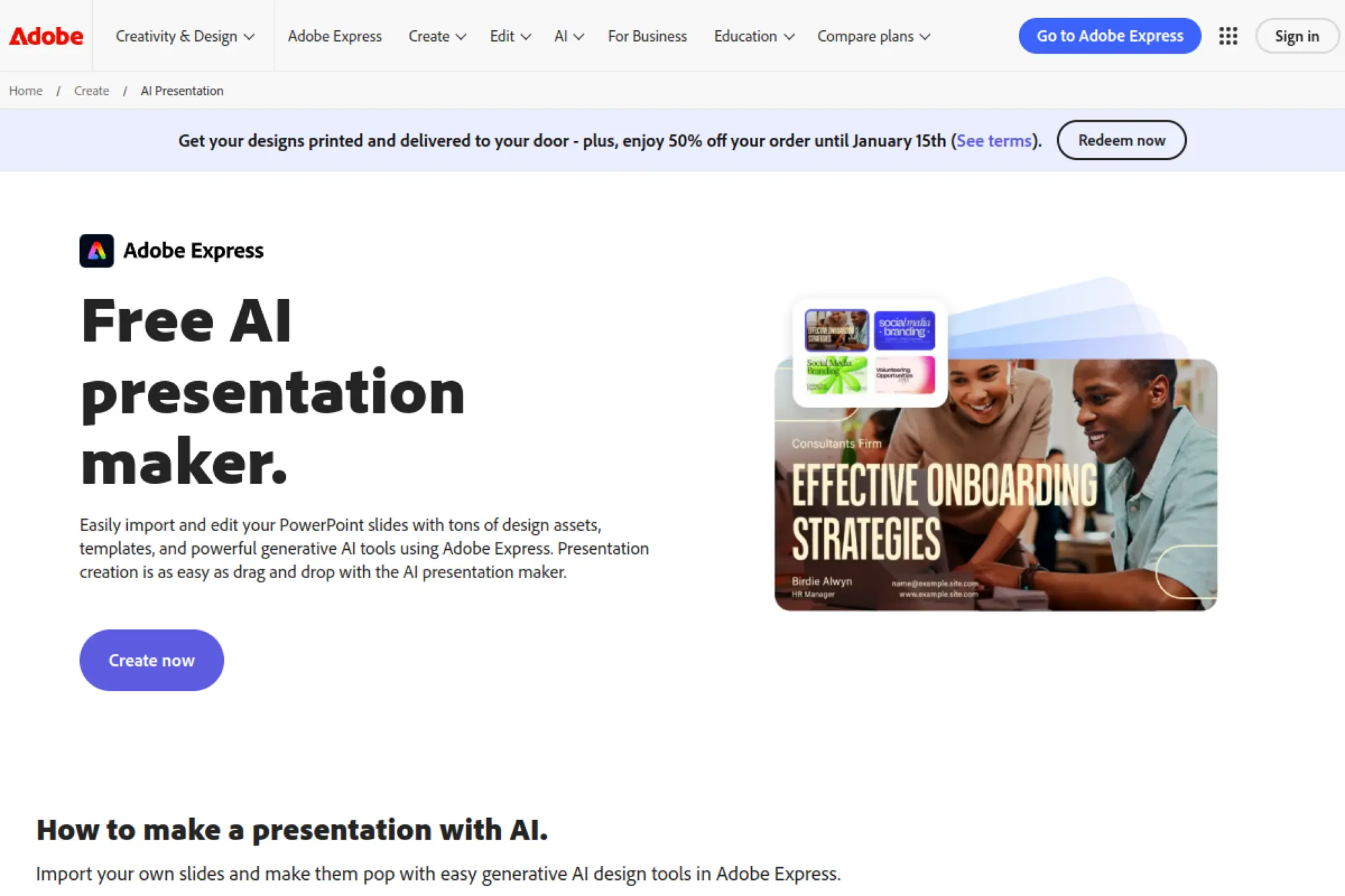
Adobe Express comes from Adobe’s lightweight creation team, aimed at fast content production. It benefits from Adobe’s asset ecosystem and brand tooling. The AI angle is practical when you need visuals, text, and resizing in one place.
Make slides quickly, then repurpose them across every channel.
Best for: solo creators and small brand teams already using Adobe tools.
- Template-led creation → get a polished slide look without a design background.
- Generative AI tools → save 10–20 minutes per deck on image fixes and variants.
- Familiar Adobe workflow → time-to-first-value is often 15–25 minutes.
Pricing & limits: From $0/mo. Trial length: Premium has a 30-day free trial. Premium is $9.99/mo and includes 250 generative credits per month, plus 100GB storage.
Honest drawbacks: Credit-based AI can feel tight for heavy image generation. Advanced presentation features still lag dedicated slide tools.
Verdict: If you need fast, brand-safe creative assets alongside slides, this helps you ship a deck and supporting visuals in a day. It beats basic editors for asset quality; it trails Canva for community templates.
Score: 4.0/5
5. NoteGPT AI Presentation Maker
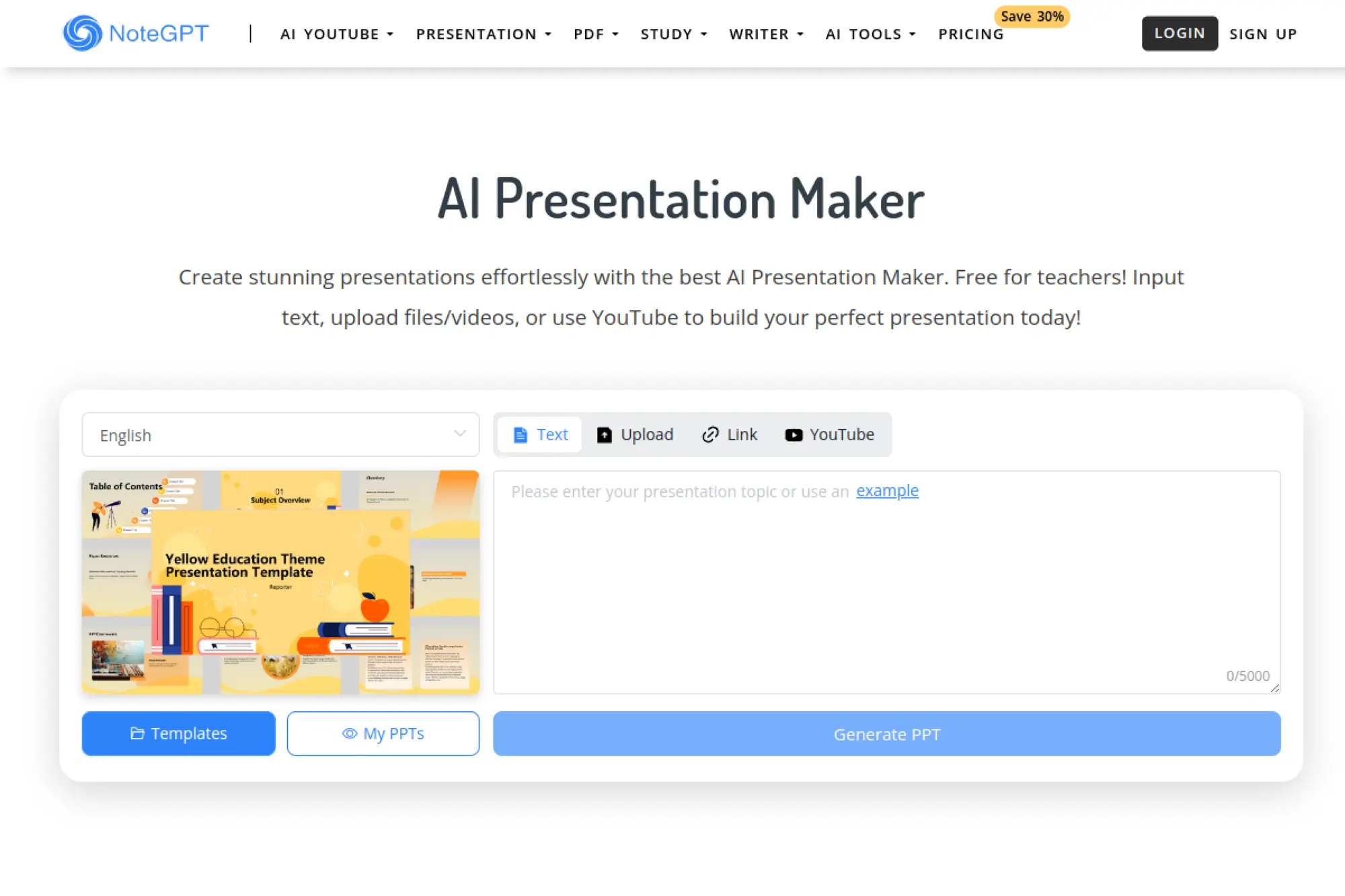
NoteGPT is built as a study-and-summary toolkit, with presentations as one output lane. The team’s focus is ingestion: videos, PDFs, and documents become structured notes. Deck generation works best when you feed it clean inputs.
Convert dense sources into slides that keep the key points.
Best for: students and research-heavy marketers making explainer decks.
- Source-to-outline flow → turn long content into a usable slide storyline.
- Multi-tool workspace → save 2–3 app switches per project cycle.
- Guided generation → first slide draft in about 20–40 minutes.
Pricing & limits: From $9.99/mo. Trial length: none listed. The Pro plan includes 1,000 basic quotas per month and 100 premium credits per month, with file caps such as 100MB per audio or video.
Honest drawbacks: Presentation styling can feel generic without manual design work. Also, quotas and credits require attention if you batch projects.
Verdict: If you start with heavy source material, this helps you extract a clean slide narrative in an hour. It beats ChatGPT at “pipeline” work; it trails Gamma on presentation-native editing.
Score: 3.7/5
6. Presentations.AI
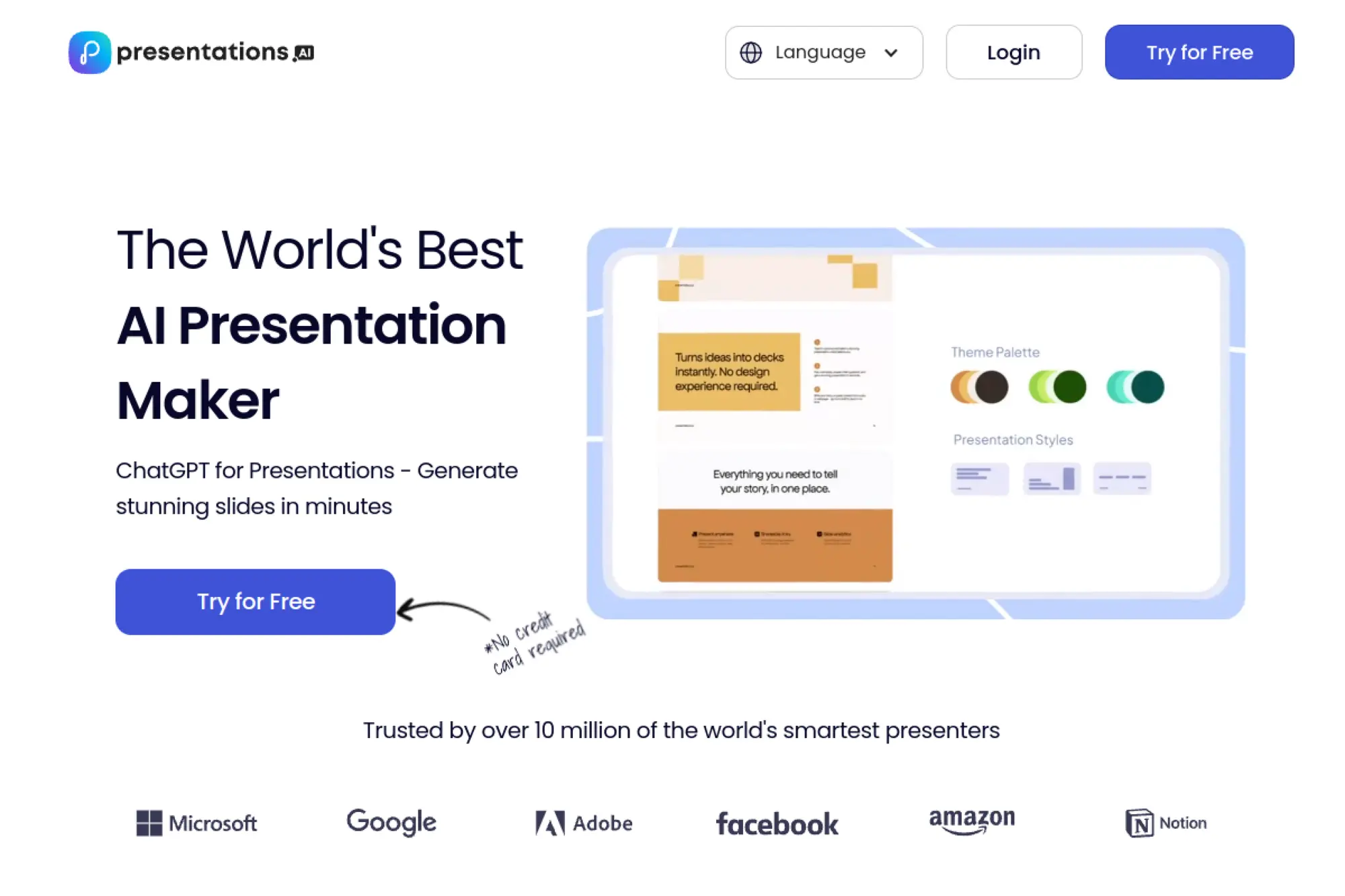
Presentations.AI positions itself as a dedicated AI deck platform, with a strong emphasis on quick generation. The team leans into credits-based creation and fast exporting. It’s most compelling when you need a serviceable deck, not a design thesis.
Generate a credible deck fast, then refine only what matters.
Best for: startup founders and sales reps shipping pitches weekly.
- AI deck generation → draft a pitch story without staring at a blank slide.
- Credits for create and PPT export → save 5–10 manual formatting steps per export.
- Quick onboarding → time-to-first-value is often under 20 minutes.
Pricing & limits: From $0/mo. Trial length: free access varies by rollout, plus a free credit grant at signup. A public beta plan is listed at $40 per year for up to 10 members, while a Pro plan is listed at $198 per year for one user.
Honest drawbacks: Credit mechanics can feel fussy during iteration. Also, long-term roadmap risk exists for any fast-moving AI startup.
Verdict: If you need “good enough, fast,” this helps you get a pitch-ready draft in a morning. It beats PowerPoint for speed; it trails Beautiful.ai for layout automation consistency.
Score: 3.8/5
7. Beautiful.ai
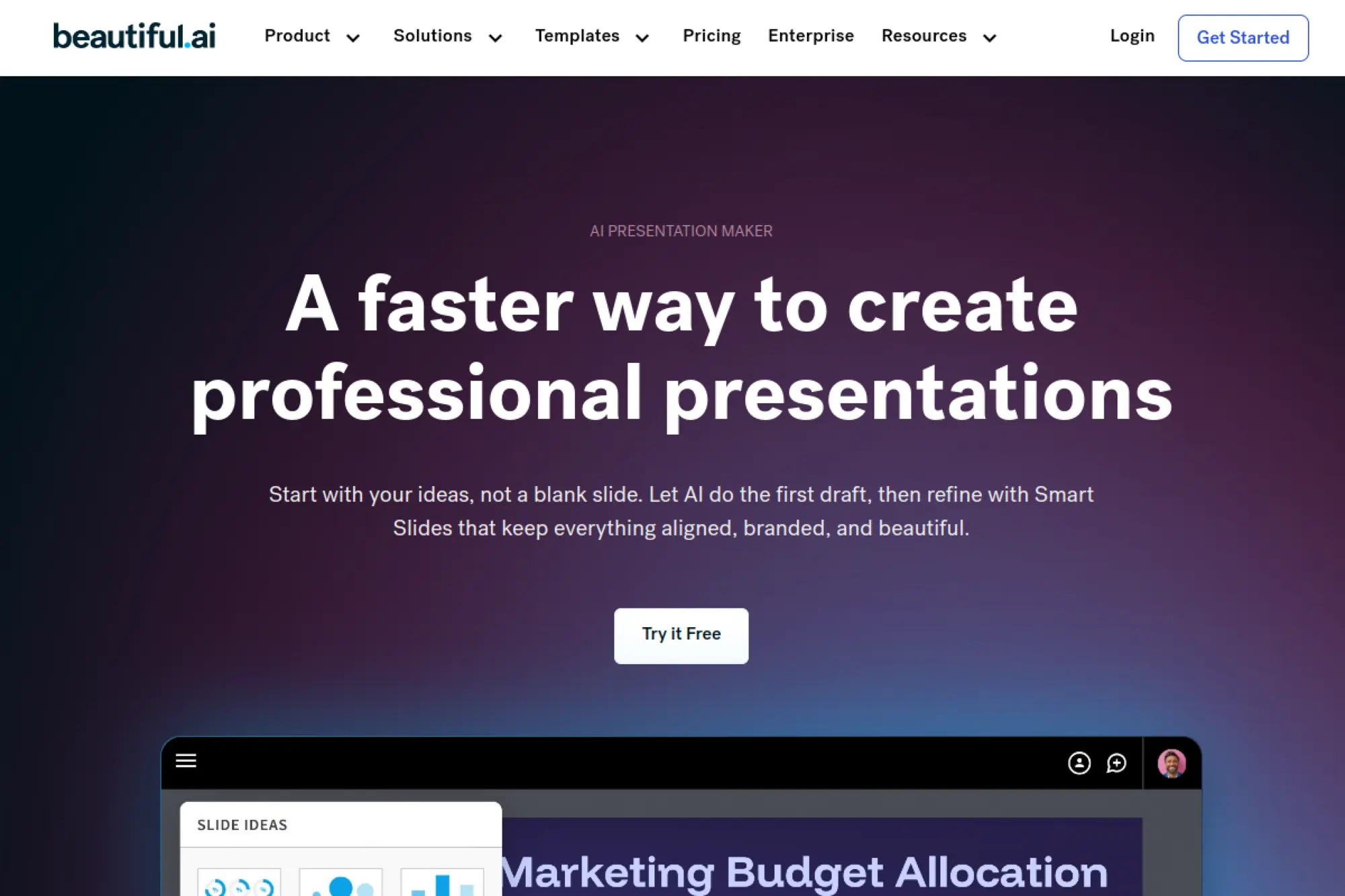
Beautiful.ai is a presentation company built around “smart slides” that auto-format as you edit. The team is obsessed with keeping layouts clean under pressure. That makes it a strong choice when your content changes often.
Keep slides looking designed, even when the content shifts late.
Best for: consultants and internal comms teams who hate layout drift.
- Smart Slide layouts → avoid messy spacing while adding bullets, charts, and images.
- Brand themes and AI writing → save 20–30 minutes per deck on polish passes.
- Structured editor → first solid deck in about 30–60 minutes.
Pricing & limits: From $12/mo (billed annually). Trial length: 14 days. The Pro plan is for individuals; Team plans require 2–20 seats and run higher per user.
Honest drawbacks: Monthly pricing can be steep for casual use. Also, power users may miss the absolute freedom of PowerPoint grids.
Verdict: If you want reliably clean slides without a designer, this helps you ship client-ready decks by end of day. It beats Canva for slide-specific automation; it trails PowerPoint for deep enterprise compatibility.
Score: 4.2/5
8. Tome AI PPT
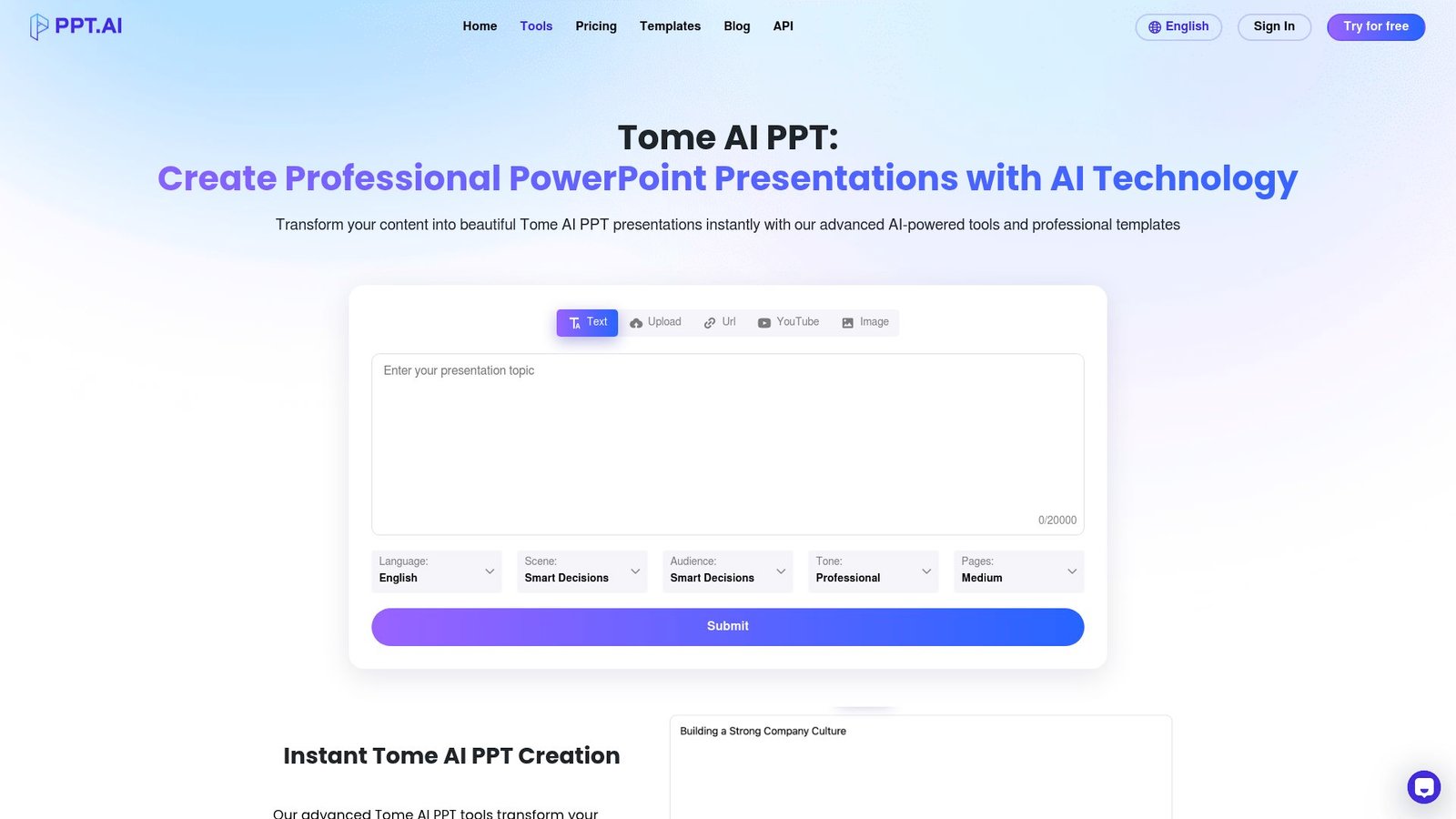
Tome is built by a team chasing a modern, story-first presentation format. It’s closer to a narrative canvas than a traditional slide grid. The AI features help you get from concept to storyline, then layer in media.
Draft a story-driven deck that feels more like a product narrative.
Best for: product marketers and founders pitching vision, not spreadsheets.
- AI-assisted storytelling → turn rough notes into a coherent flow and sections.
- Media-friendly blocks → save 2–3 steps when embedding visuals and demos.
- Fast creation loop → time-to-first-value is often 20–40 minutes.
Pricing & limits: From $0/mo. Trial length: free plan with limited AI usage. Tome Pro is $20 per user per month, or about $16 per user per month when billed annually, and removes most AI constraints.
Honest drawbacks: Traditional slide exports can be limiting for strict corporate templates. Also, some teams will find the “new format” harder to standardize.
Verdict: If you want a narrative deck that reads well on a link, this helps you present a crisp story in a few hours. It beats Google Slides for modern web sharing; it trails Beautiful.ai for strict slide layout control.
Score: 3.9/5
9. Google Slides
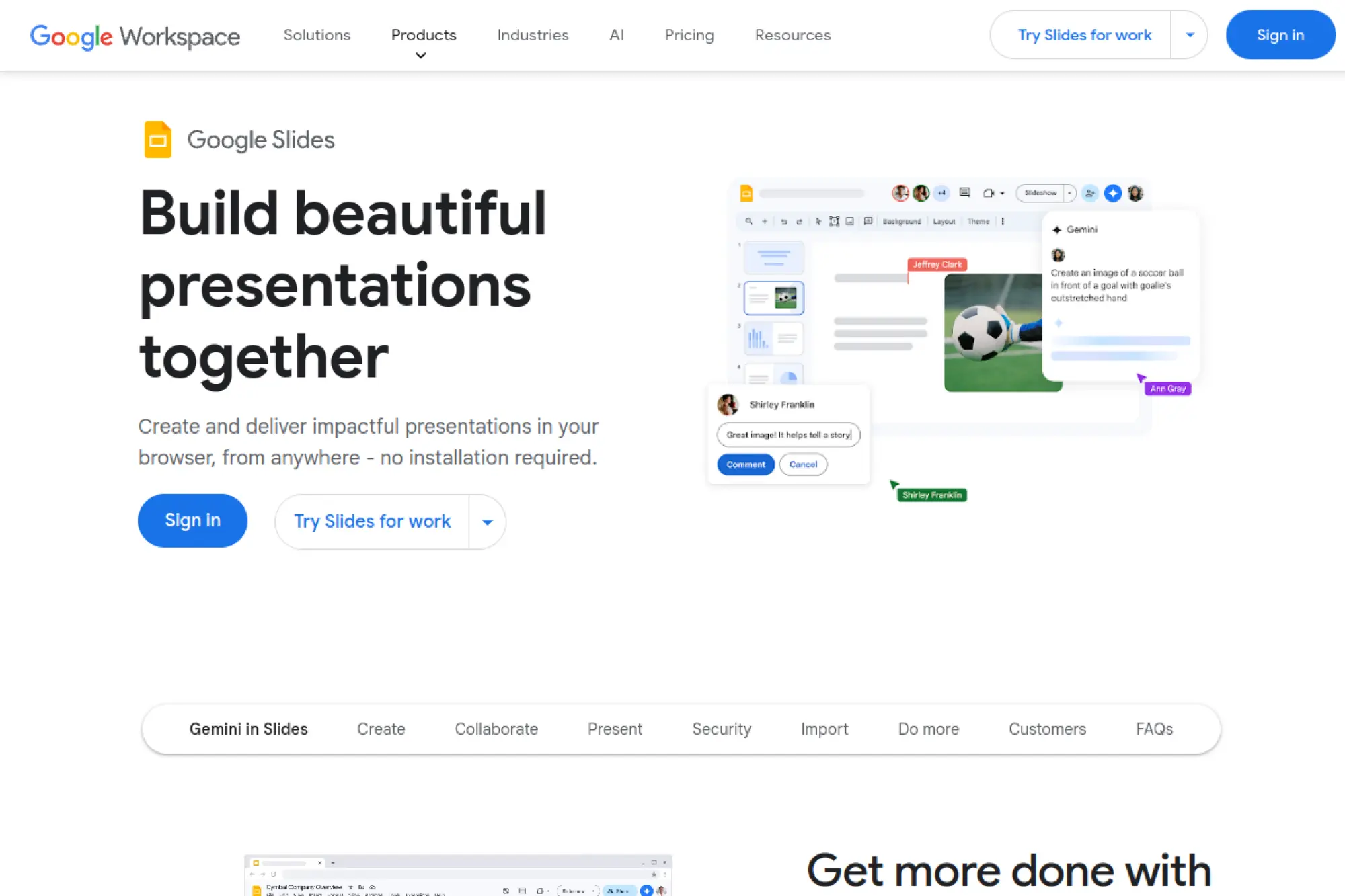
Google Slides is built by Google’s Workspace team, with collaboration at the center. It’s not “AI-native,” yet it’s the default deck surface for many teams. Its real superpower is frictionless sharing and comments.
Collaborate fast, present anywhere, and never chase version files.
Best for: cross-functional teams and educators working in Google Workspace.
- Live co-editing → reduce review cycles by keeping feedback inside the deck.
- Workspace integrations → save 2–4 steps when pulling in Docs, Sheets, and Drive.
- Instant sharing → time-to-first-value is often under 10 minutes.
Pricing & limits: From $0/mo with a Google account. Trial length: Google Workspace offers a 14-day trial. Business Starter is $7 per user per month with a 1-year commitment, and includes pooled storage limits.
Honest drawbacks: Advanced animation and layout control are weaker than PowerPoint. Also, AI help depends on what Workspace plan your org runs.
Verdict: If you need fast collaboration more than fancy effects, this helps you finalize decks in a single day. It beats PowerPoint on real-time teamwork; it trails PowerPoint on advanced formatting depth.
Score: 4.5/5
10. Microsoft PowerPoint
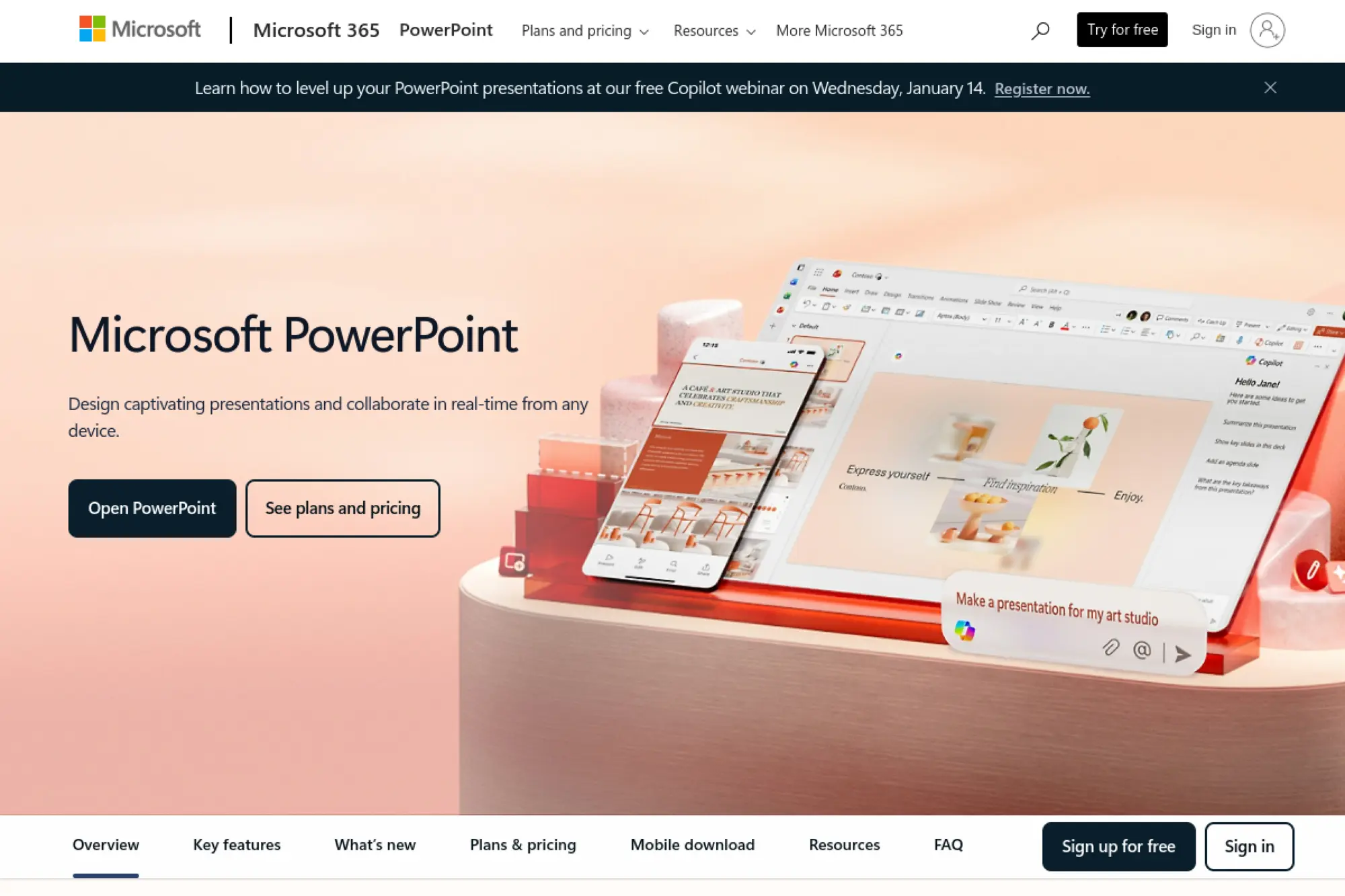
PowerPoint is Microsoft’s flagship presentation product, built for enterprise-grade deck making. The team has decades of design and compatibility work baked in. When slide fidelity matters, PowerPoint remains the reference standard.
Build complex, high-stakes decks with maximum control and compatibility.
Best for: enterprise teams and analysts who live in charts and templates.
- Deep layout and animation control → deliver polished executive slides without compromises.
- Microsoft 365 ecosystem → save 2–3 steps when embedding Excel data and updates.
- Ubiquitous format support → time-to-first-value is quick if you already know it.
Pricing & limits: From $9.99/mo via Microsoft 365 Personal. Trial length: PowerPoint for the web is available with ongoing free access. Microsoft 365 Personal covers 1 person, up to 5 devices, and includes 1TB cloud storage.
Honest drawbacks: Collaboration can feel heavier than Google Slides. Also, AI features vary by plan and admin settings.
Verdict: If you need maximum slide control and enterprise trust, this helps you ship board-ready decks on tight timelines. It beats most tools on formatting depth; it trails Google Slides on frictionless sharing.
Score: 4.6/5
11. Figma
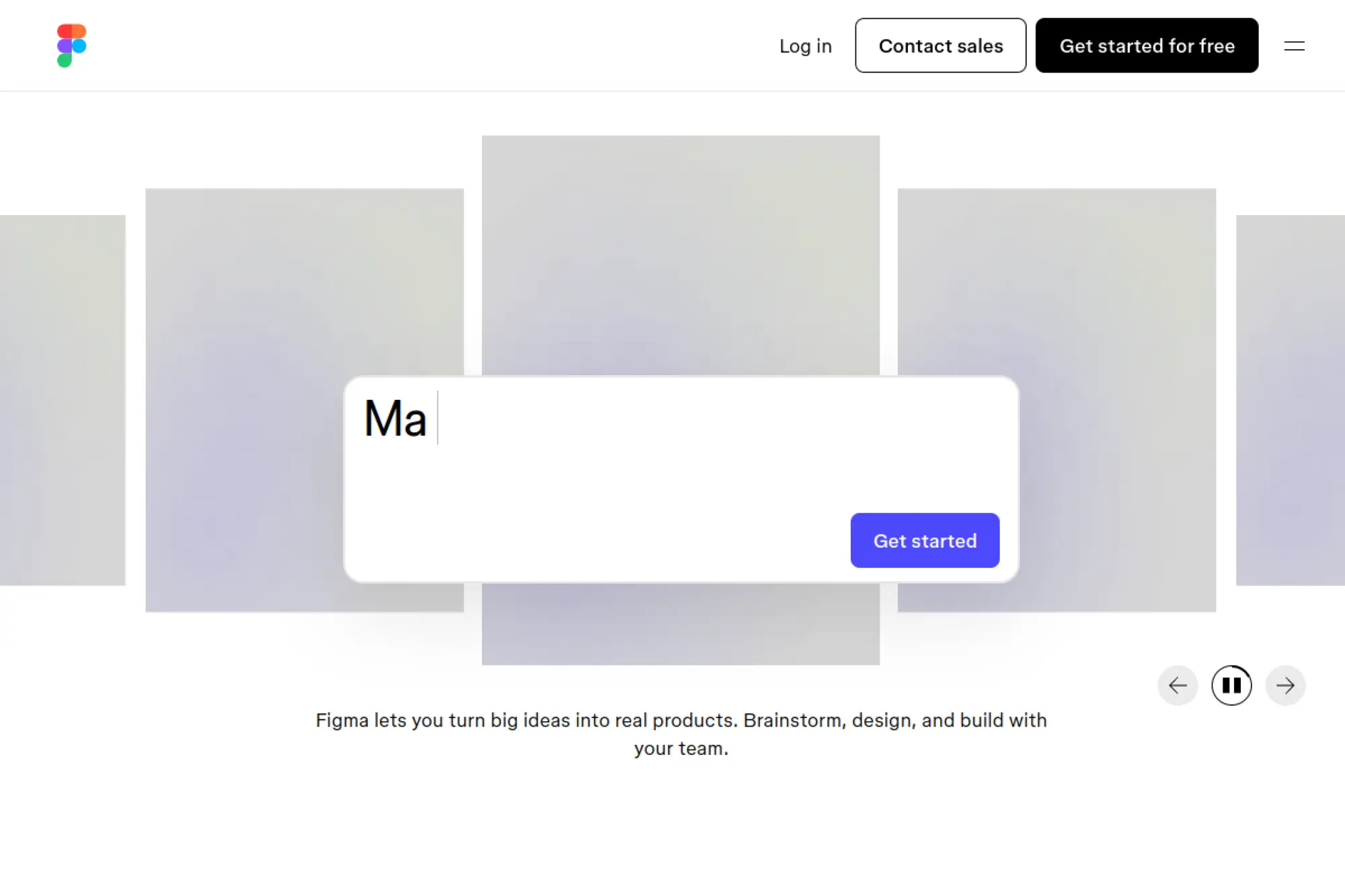
Figma is built by a team that treats design as multiplayer software. Slides are now part of that ecosystem, alongside design files and whiteboards. The result is a strong choice for product storytelling and design-heavy decks.
Design and present from the same source of truth.
Best for: product teams and designers who want deck and design aligned.
- Design-to-slides workflow → keep visuals consistent across UI, diagrams, and decks.
- Shared libraries and components → save 30–60 minutes per deck on brand cleanup.
- Browser-first editing → time-to-first-value is about 20–30 minutes.
Pricing & limits: From $0/mo on Starter. Trial length: Starter is free with ongoing access. Professional full seats run $16/mo, Dev seats $12/mo, and Collab seats $3/mo, with AI credits capped per plan.
Honest drawbacks: It can feel like “design software,” not “presentation software,” for non-designers. Also, some orgs require training before it’s truly fast.
Verdict: If your deck is a visual product story, this helps you keep everything consistent in a single workspace. It beats PowerPoint for shared components; it trails PowerPoint for classic presenter features.
Score: 4.3/5
12. Freepik
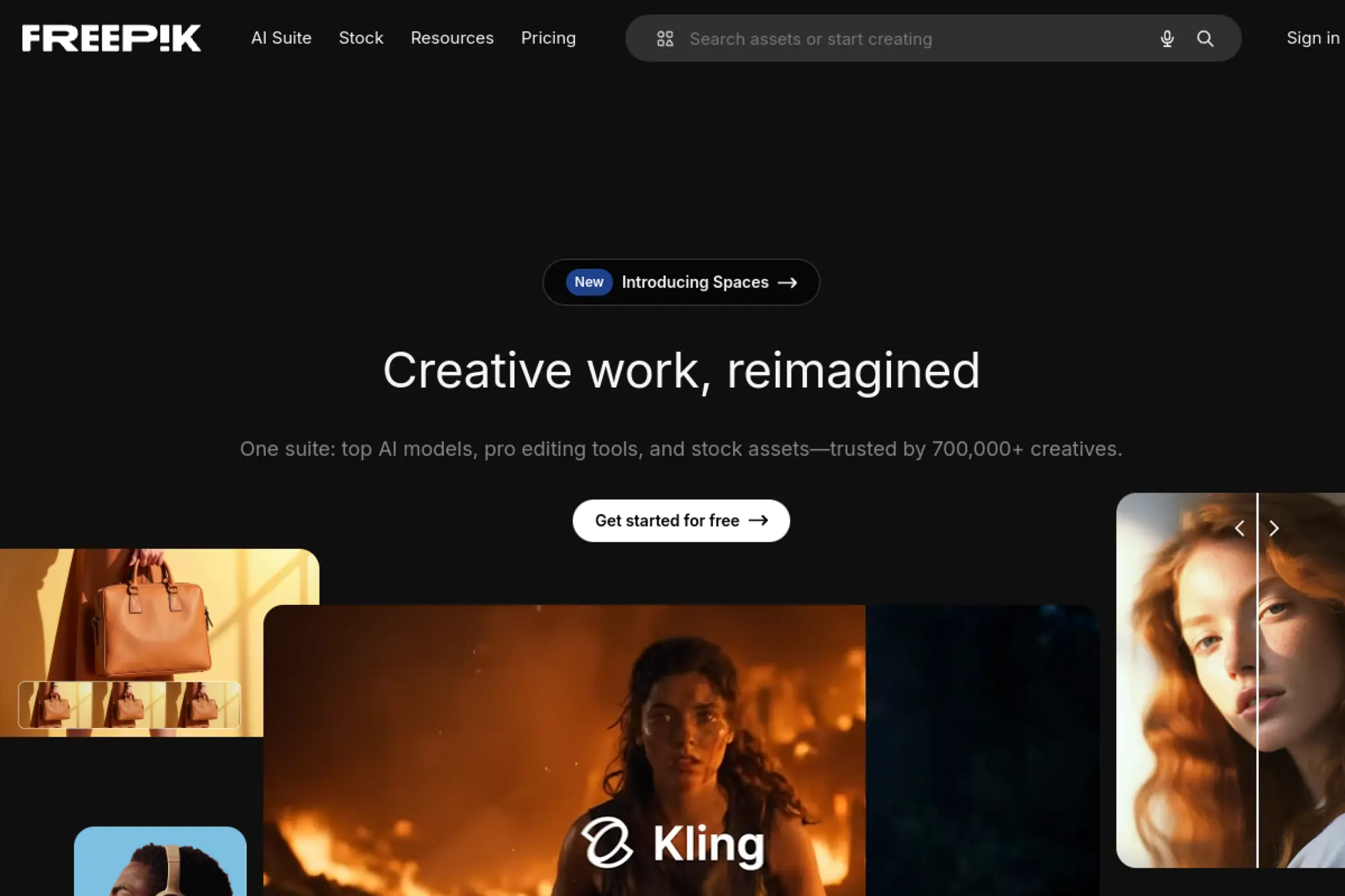
Freepik is a major stock and AI asset platform built for high-volume creators. The team’s focus is breadth: assets, AI generation, and licensing clarity in one place. For slide creation, it’s your visual supply chain.
Fill slides with better visuals, faster, without license anxiety.
Best for: marketers and designers building decks with lots of visuals.
- Stock + AI assets → reduce “image hunting” time by 30–60 minutes per deck.
- Credits-based generation → skip 3–5 iterations of external image tools.
- Search-first UX → first usable asset set in about 10 minutes.
Pricing & limits: From $5.75/mo (billed annually) on Essential. Trial length: free account with ongoing access. Essential includes 84,000 AI credits per year, while Premium adds stock access and higher annual credit caps.
Honest drawbacks: Credit systems can be confusing across tools. Also, “unlimited” downloads still come with abuse guardrails and account controls.
Verdict: If you need better slide visuals at speed, this helps you stock a deck in under an hour. It beats Pinterest for usable assets; it trails Canva for direct slide assembly.
Score: 4.0/5
13. Flaticon
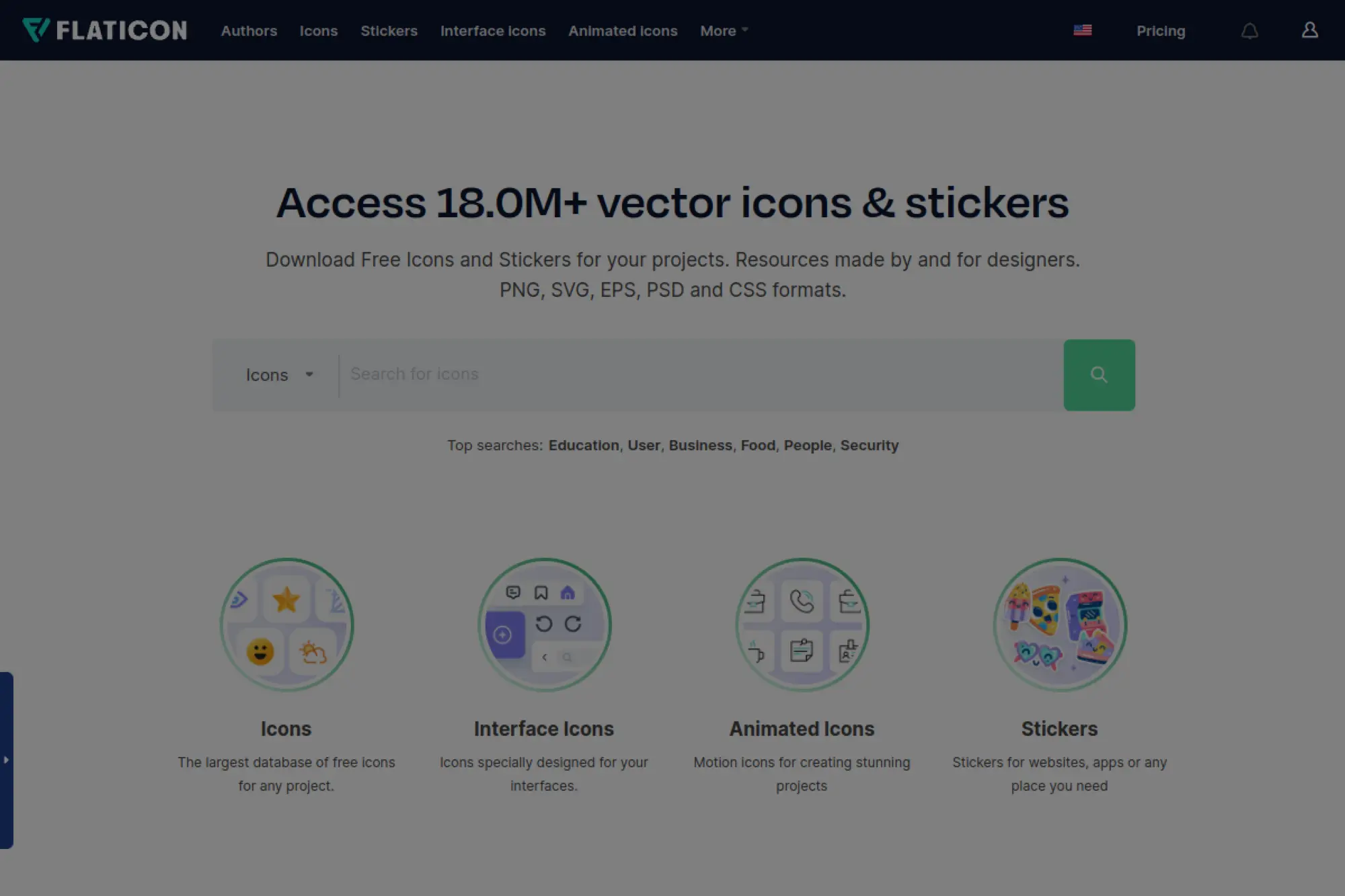
Flaticon is a specialist icon platform under the Freepik umbrella. The team’s value is consistency: icons in many styles, ready for deck systems. For slide makers, icons are the quiet glue of clarity.
Make slides easier to scan with consistent, editable icons.
Best for: consultants and UX-minded teams building diagram-heavy decks.
- Huge icon library → communicate concepts without searching random PNGs.
- Vector formats on Premium → save 5–10 minutes per slide on resizing work.
- Simple licensing flow → time-to-first-value is about 5–10 minutes.
Pricing & limits: From $12.99/mo on Premium monthly, or $8.25/mo when billed annually. Trial length: free plan with ongoing access. Premium extends daily download limits and lists a cap of up to 2,000 icons per day.
Honest drawbacks: Icons can start to look generic if overused. Also, free usage requires attribution, which many business decks cannot include.
Verdict: If you want cleaner diagrams and faster visual communication, this helps you improve slide clarity in an afternoon. It beats general stock sites for icons; it trails custom illustration for uniqueness.
Score: 3.9/5
14. Storyset
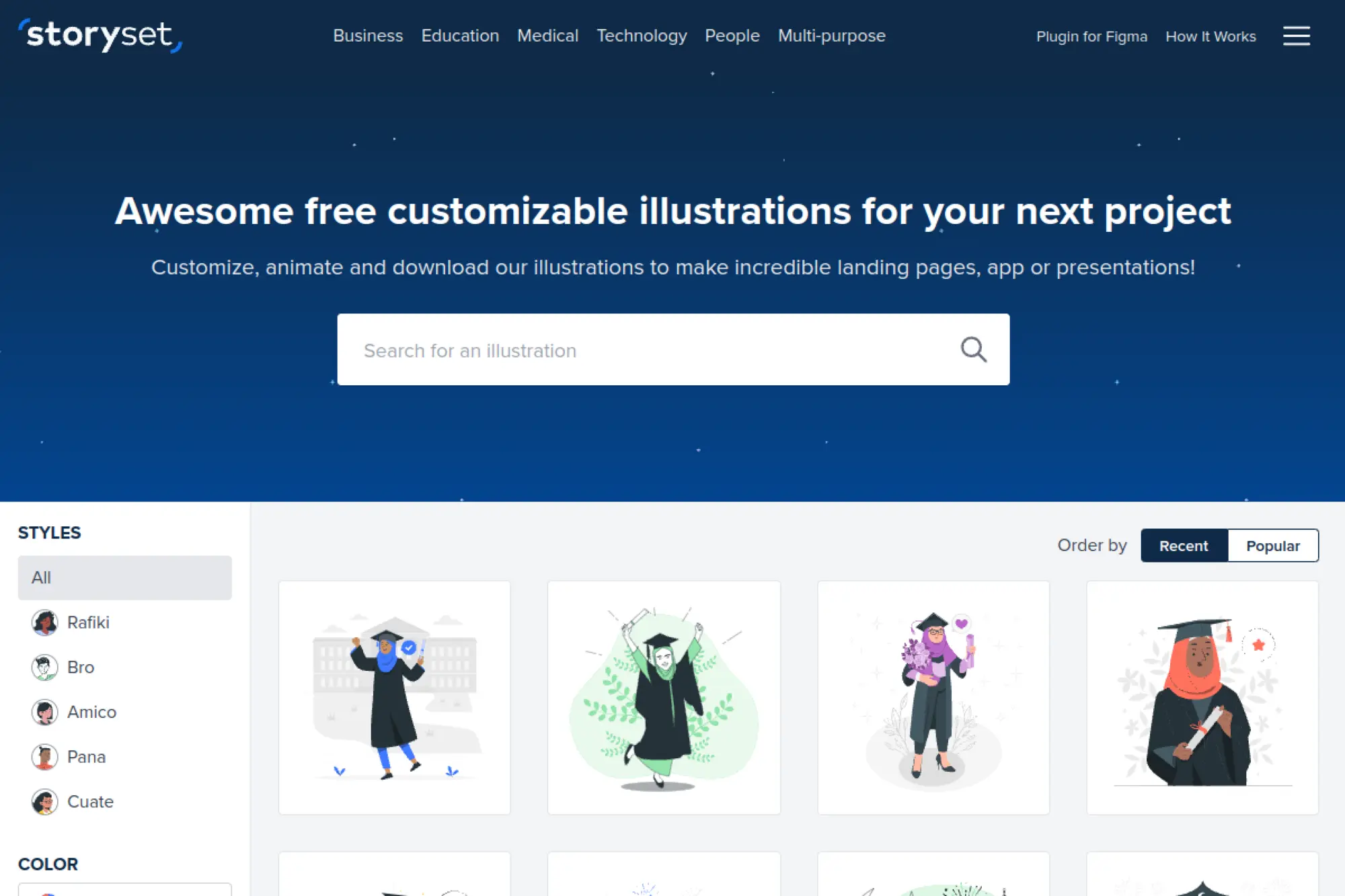
Storyset is an illustration library associated with Freepik’s ecosystem. The team’s focus is editable illustration sets with consistent style. For slides, it’s a shortcut to “friendly” visuals that still feel intentional.
Drop in cohesive illustrations that explain, soften, and humanize ideas.
Best for: educators and HR teams building people-centric decks.
- Editable illustration sets → make abstract topics feel clear and approachable.
- Style consistency → save 20–30 minutes per deck on mismatched visual cleanup.
- Quick downloads → first usable illustration set in about 10 minutes.
Pricing & limits: From $0/mo. Trial length: free access with ongoing use. Attribution rules apply on free usage, and Premium licensing typically comes via a Freepik subscription tier.
Honest drawbacks: The “Storyset look” can feel samey across companies. Also, very formal brands may find the style too playful.
Verdict: If you need warmer slides without hiring an illustrator, this helps you upgrade a deck in a single work session. It beats random web images for consistency; it trails custom art for distinctiveness.
Score: 3.8/5
15. Smartick
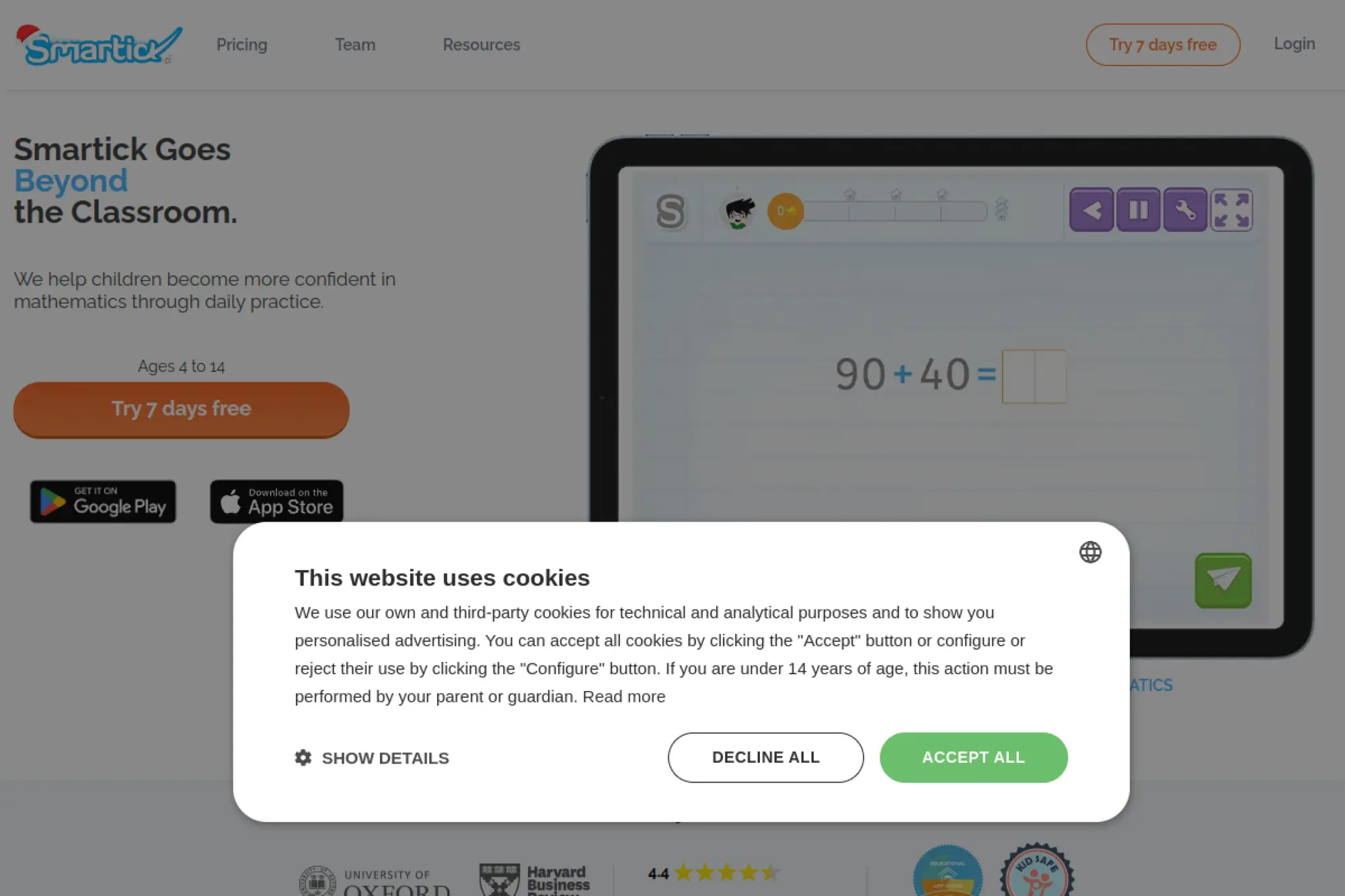
Smartick is an education product team building adaptive, short daily learning sessions. It is not a presentation tool, so treat it as a supporting app. Where it helps is content confidence for math-heavy decks.
Explain math clearly by learning it well enough to teach it.
Best for: educators and parents making instructional slide lessons.
- Adaptive practice flow → tighten your explanations before you put them on slides.
- Short daily sessions → save 30–60 minutes of “prep panic” before teaching.
- Light routine setup → first learning session in about 10 minutes.
Pricing & limits: From $49.99/mo per child on a monthly plan. Trial length: 7 days free. Sessions are designed to be about 15 minutes per day, and each child needs their own subscription.
Honest drawbacks: It won’t build slides for you at all. Also, pricing can add up fast for multiple children.
Verdict: If you’re building math lesson slides, this helps you teach with more confidence within a few weeks. It beats random worksheets for structure; it trails classroom curricula for direct alignment.
Score: 3.2/5
16. Murf AI

Murf is built by a team focused on AI voice production for creators and businesses. It’s a supporting tool, but it upgrades slides into narrated content. That matters when your deck becomes a video or async update.
Turn silent slides into a narrated story people actually finish.
Best for: enablement teams and course creators shipping voiceover decks.
- Text-to-voice workflow → produce narration without booking a voice session.
- Voice generation limits → save 30–90 minutes versus manual recording edits.
- Web-first studio → first voiceover track in about 15–25 minutes.
Pricing & limits: From $0/mo with a free tier. Trial length: free plan with ongoing access. Paid plans start around $29/mo, and usage is capped by monthly voice generation time and project limits.
Honest drawbacks: Heavy users can hit time caps quickly. Also, voice consistency needs careful script editing and pacing.
Verdict: If you want async presentations that feel human, this helps you publish a narrated deck in a day. It beats manual recording for speed; it trails pro voice talent for nuance.
Score: 4.0/5
17. Krikey AI
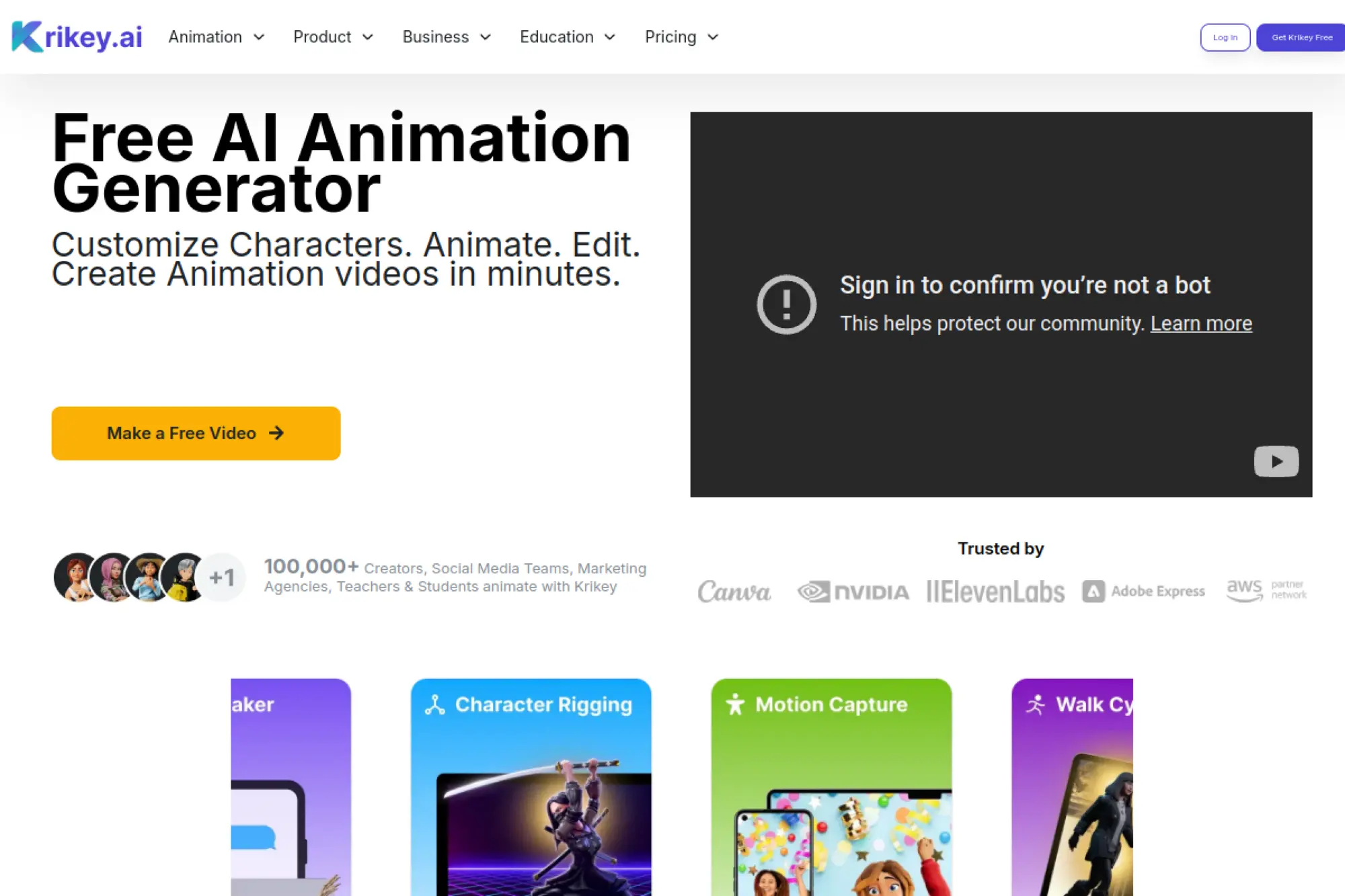
Krikey is a creative tools team focused on quick character animation and short-form motion. It’s not a slide builder, yet it’s a strong supporting app for animated explainers inside decks. Used well, it makes your pitch feel alive.
Add simple animation that makes your slide story stick.
Best for: social marketers and founders making lightweight demo inserts.
- Text-to-animation templates → generate short motion clips for key slides.
- AI assets workflow → save 2–3 production steps versus manual animation tools.
- Quick exports → first usable clip in about 20–30 minutes.
Pricing & limits: From $0/mo. Trial length: free plan with ongoing access. Krikey AI Pro is $15 per person per month, while free usage includes limits like daily feature access and short timeline length.
Honest drawbacks: Animation polish won’t match a dedicated motion studio. Also, overly animated decks can distract from the message.
Verdict: If you want a few animated moments that sell the idea, this helps you create them in an afternoon. It beats static GIF hunting; it trails After Effects for full control.
Score: 3.6/5
18. Affinity
Affinity is a creative suite brand now operating under Canva’s ownership, with a push toward an all-in-one app. The team aims to deliver pro-grade design without subscription pressure. For presentations, it shines as a supporting graphics workshop.
Create sharp diagrams and visuals that make your slides look expensive.
Best for: designers and marketers who need custom graphics for decks.
- Vector and layout tools → build clean charts, icons, and cover slides in-house.
- Export-friendly assets → save 2–4 steps when moving graphics into slide tools.
- Desktop performance → first real asset in about 30–60 minutes.
Pricing & limits: From $0/mo. Trial length: free-to-use model for the unified app. AI-enhanced features may depend on a Canva subscription, and collaboration is not its main lane.
Honest drawbacks: It does not replace slide software for presenting. Also, the learning curve is real if you are not a designer.
Verdict: If you want custom visuals that elevate a deck, this helps you produce them in a day. It beats Canva for deep design control; it trails Canva for quick templated output.
Score: 4.1/5
19. ChatGPT
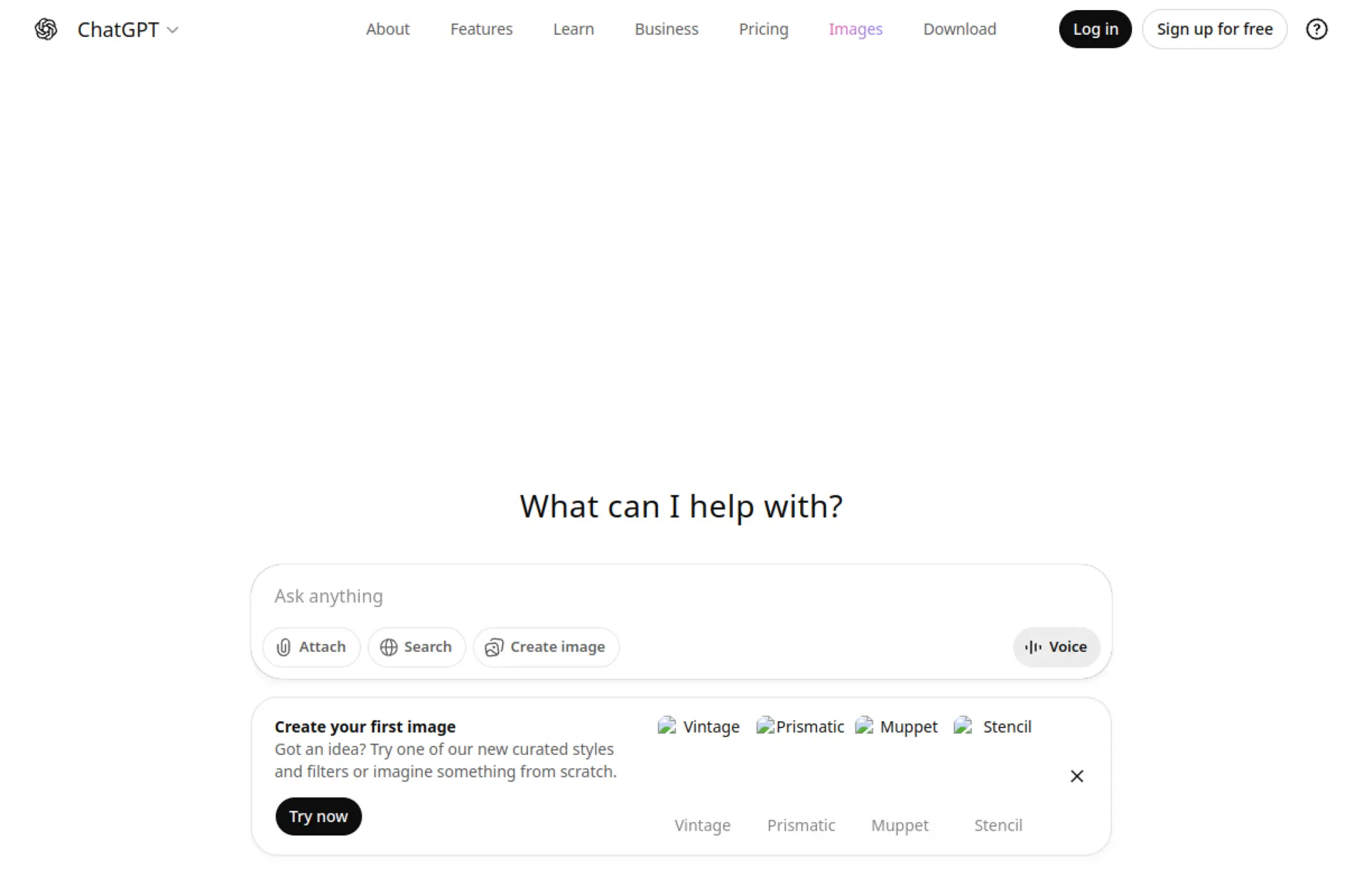
ChatGPT is built by OpenAI’s product and research teams, and it’s become a default drafting partner. It is not a slide app, but it is a slide-making accelerator. The key is using it for structure, messaging, and speaker notes.
Write the deck before you design the deck.
Best for: anyone who needs better slides and clearer words fast.
- Outline and narrative drafting → turn messy thoughts into a slide-by-slide plan.
- Iteration on wording → save 30–90 minutes of rewriting per important deck.
- Low setup friction → first useful outline in under 10 minutes.
Pricing & limits: From $0/mo. Trial length: free plan with ongoing access. Plus is $20/mo, and Business is $25 per user per month billed annually, with usage limits that can vary by plan and demand.
Honest drawbacks: Outputs can drift if your prompt is vague. Also, sensitive data needs policy-aware handling and admin controls.
Verdict: If you want sharper messaging and a cleaner storyline, this helps you get there in an hour. It beats most tools for writing; it trails slide builders for layout execution.
Score: 4.7/5
20. DeepSeek
DeepSeek is an AI lab offering both a consumer chat experience and an API. The team’s edge is cost-efficient inference for developers. For presentations, it’s a strong supporting engine for research, drafts, and Q&A practice.
Research, draft, and refine slide content without spending like it’s 2021.
Best for: lean teams and developers building content pipelines for decks.
- Research and summarization → turn raw notes into structured slide copy faster.
- Low-cost API usage → save money across 1,000s of draft iterations.
- Simple API onboarding → first working call in about 30–60 minutes.
Pricing & limits: From $0/mo for the chat experience. Trial length: free access with ongoing use. API pricing is usage-based, with examples like $0.028 per 1M input tokens (cache hit), $0.28 per 1M input tokens (cache miss), and $0.42 per 1M output tokens.
Honest drawbacks: You still need a slide tool to present. Also, governance and compliance needs may exceed self-serve setups.
Verdict: If you want cheaper content iteration at scale, this helps you draft better decks over a week of work. It beats pricier APIs on cost; it trails ChatGPT on product polish and ecosystem.
Score: 4.0/5
21. ChatPDF
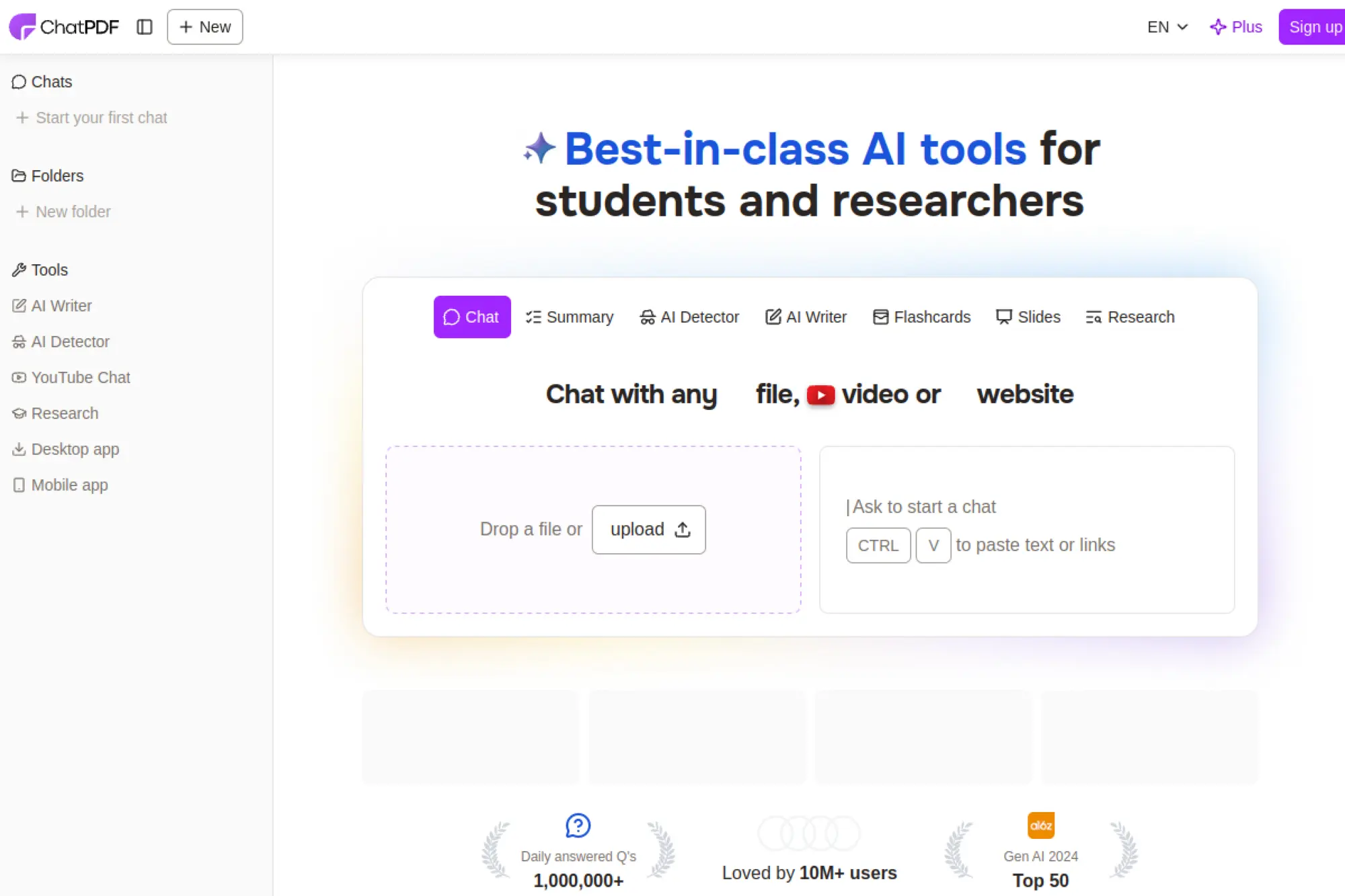
ChatPDF is built for document-first Q&A, aimed at students and researchers. The team optimizes for quick uploads, citations, and multi-file organization. For slide work, it’s a supporting tool for extracting facts and structure from sources.
Turn PDFs into slide-ready notes without rereading everything.
Best for: students and analysts building evidence-heavy decks.
- PDF chat with citations → pull quotes and claims into slides with less page hunting.
- Folders and multi-file chats → save 10–20 minutes per source-heavy section.
- Browser workflow → first useful summary in about 5–15 minutes.
Pricing & limits: From $0/mo. Trial length: free plan with ongoing access. Free usage includes a cap of 2 documents analyzed per day, while the Plus plan offers higher or unlimited analysis, depending on plan details.
Honest drawbacks: Pricing and exact caps can be hard to compare across similar “chat with PDF” products. Also, output still needs human checking for nuance and context.
Verdict: If you need to build slides from dense documents, this helps you extract structure in an hour. It beats manual skimming for speed; it trails full research suites for workflow breadth.
Score: 3.8/5
22. YouTube
YouTube is a platform built by Google, optimized for discovery, creators, and long-tail learning. It is not a slide maker, yet it is a slide maker’s research library. The “team” you benefit from is the creator ecosystem itself.
Find examples, proof, and explanations that upgrade your slides fast.
Best for: educators and marketers who need demos and supporting evidence.
- Search and playlists → collect references for a deck without opening 20 tabs.
- Transcript-driven note taking → save 15–30 minutes per video when extracting key points.
- Instant access → time-to-first-value is under 2 minutes.
Pricing & limits: From $0/mo. Trial length: free access with ongoing use. Limits show up as ads, region locks, and inconsistent transcript quality across videos.
Honest drawbacks: Source quality varies wildly, so vet before you cite. Also, “inspiration” can become procrastination if you don’t set a timer.
Verdict: If you need examples and clarity fast, this helps you strengthen a deck in a morning. It beats blog-searching for breadth; it trails academic databases for rigor.
Score: 3.7/5
23. Discord
Discord is built by Discord, Inc. as a community and communication platform. It becomes a presentation accelerator when you treat it as a feedback room. The best decks are edited in public, even if the “public” is your team.
Get fast feedback loops that tighten your deck before the meeting.
Best for: startup teams and creator communities iterating on pitches.
- Channel-based review → keep slide feedback organized and searchable.
- Screen share and quick calls → save 2–3 back-and-forth email rounds.
- Low setup overhead → first critique session in about 10 minutes.
Pricing & limits: From $0/mo. Trial length: free access with ongoing use. Limits show up in free-tier upload constraints and admin tooling compared with paid plans.
Honest drawbacks: Feedback can get noisy without strong moderation. Also, it is easy to confuse “discussion” with “decision.”
Verdict: If you want faster iteration and clearer alignment, this helps you improve a deck within a day. It beats email threads for speed; it trails Notion for structured documentation.
Score: 3.6/5
24. LinkedIn
LinkedIn is built by LinkedIn, a Microsoft company, and it’s optimized for professional identity and distribution. As a supporting app, it feeds your slides with proof points and audience language. It also helps your deck land after you share it.
Steal the words your audience already uses, then reflect them back.
Best for: B2B marketers and founders building credibility slides.
- Post and comment mining → capture buyer language for clearer slide copy.
- Distribution after publishing → save hours by reusing slides as a content series.
- Low setup barrier → first insights in about 10–15 minutes.
Pricing & limits: From $0/mo. Trial length: free account with ongoing use. Limits include restricted search depth and messaging reach compared with premium tiers.
Honest drawbacks: Signal-to-noise can be rough in hot trend cycles. Also, your results depend on network quality, not just effort.
Verdict: If you want better positioning and stronger proof, this helps you sharpen slides in a few hours. It beats X for professional context; it trails industry research tools for data depth.
Score: 3.5/5
25. X

X is a real-time social platform, now operating under new branding and shifting product priorities. As a supporting app, it’s useful for trend detection and punchy phrasing. It can also be a risky source if you don’t verify claims.
Catch the zeitgeist, then translate it into a deck that feels current.
Best for: growth marketers and founders scanning markets and narratives.
- Real-time idea capture → find angles that make your hook slide sharper.
- Thread-to-outline translation → save 20–30 minutes when summarizing discussions.
- Quick browsing → time-to-first-value is under 10 minutes.
Pricing & limits: From $0/mo. Trial length: free access with ongoing use. Limits can include visibility shifts, rate limits, and paywalled features for heavy users.
Honest drawbacks: Misinformation risk is real, so verify before you present. Also, discourse can skew extreme, which warps positioning if copied blindly.
Verdict: If you want stronger hooks and fresher framing, this helps you reshape a deck in an hour. It beats LinkedIn for speed; it trails LinkedIn for stable professional context.
Score: 3.3/5
26. TikTok
TikTok is a short-form video platform optimized for rapid content discovery. For slide creators, it’s a pattern library for pacing and demos. Used carefully, it helps you simplify explanations into crisp beats.
Learn what holds attention, then build decks that do the same.
Best for: creators and marketers building pitch decks for modern audiences.
- Format and pacing cues → tighten your storyline into clearer slide sections.
- Demo inspiration → save 30–60 minutes when planning examples and visuals.
- Fast discovery loop → first useful idea in about 10 minutes.
Pricing & limits: From $0/mo. Trial length: free access with ongoing use. Limits include region-based content availability and algorithm volatility.
Honest drawbacks: It can push you toward style over substance. Also, sourcing and permissions matter when you reuse examples.
Verdict: If you need sharper pacing and simpler explanations, this helps you reshape a deck in a day. It beats YouTube for speed; it trails YouTube for deep instruction.
Score: 3.4/5
27. Pinterest

Pinterest is a visual discovery platform built for saving and organizing ideas. As a supporting app, it’s a moodboard engine for decks. It’s less about facts and more about visual direction.
Set a visual style fast, then design slides that feel cohesive.
Best for: brand teams and designers planning a deck’s look and tone.
- Moodboarding by topic → pick a slide style direction without endless scrolling.
- Visual reference saves → reduce 10+ “which style?” debates with stakeholders.
- Quick pin workflow → first moodboard in about 15 minutes.
Pricing & limits: From $0/mo. Trial length: free access with ongoing use. Limits show up as ad load and inconsistent search relevance by niche.
Honest drawbacks: It doesn’t solve story or structure at all. Also, copying aesthetics without adapting can make decks feel generic.
Verdict: If you want faster visual alignment, this helps you choose a direction in under an hour. It beats random Google Images for organization; it trails Freepik for production-ready assets.
Score: 3.6/5
28. Dropbox
Dropbox is built by a team focused on file sync, sharing, and content protection. It’s a supporting app, but it prevents the classic deck disaster: “final_final_v7.pptx.” For teams, it’s a calm source of truth.
Ship decks without losing versions, links, or sanity.
Best for: agencies and cross-functional teams juggling many deck iterations.
- Reliable file sharing → keep reviewers on one link, not five attachments.
- Restore and history tools → save hours when someone overwrites a key file.
- Simple setup → first shared folder in about 10 minutes.
Pricing & limits: From $9.99/mo for Plus. Trial length: Dropbox plans advertise a 30-day free trial on eligible tiers. Plus includes 2TB storage, while team plans start at $15 per user per month with shared storage caps.
Honest drawbacks: It won’t improve slide content or design. Also, sharing settings need discipline to avoid permission chaos.
Verdict: If you want smoother review and delivery, this helps you finalize decks faster over a week of work. It beats email attachments every time; it trails Notion for narrative documentation.
Score: 4.0/5
29. Notion
Notion is built by a team focused on flexible docs, databases, and collaboration. It’s not a slide tool, yet it’s where great decks are born. Use it to store the storyline, the research, the assets, and the review notes.
Run your deck like a project, not a last-minute file.
Best for: product teams and marketers managing repeatable deck workflows.
- Deck brief templates → standardize story inputs and reduce blank-page time.
- Databases for assets and claims → save 30–60 minutes per deck on re-finding sources.
- Fast workspace setup → time-to-first-value is about 20 minutes.
Pricing & limits: From $0/seat/mo. Trial length: free plan with ongoing access. Plus is $10 per seat per month, and the Free plan has caps like 5MB file uploads and limited collaboration features for teams.
Honest drawbacks: It’s easy to overbuild systems instead of shipping slides. Also, exporting into a deck still requires a separate slide tool.
Verdict: If you want repeatable, less chaotic slide production, this helps you move faster within a week. It beats Discord for structured work; it trails slide apps for final presentation output.
Score: 4.2/5
30. Meta Pixel
Meta Pixel is part of Meta’s business tooling, built for tracking actions on websites. It’s not a slide tool at all, yet it’s how you measure whether your deck worked. When your deck lives on a landing page, Pixel turns views into feedback.
Measure slide impact by tracking what audiences do after they watch.
Best for: performance marketers and growth teams distributing decks via web pages.
- Conversion tracking → learn which decks drive signups, not just “nice comments.”
- Retargeting audiences → save days by reusing traffic for follow-up campaigns.
- Quick install path → first event data in about 30–90 minutes.
Pricing & limits: From $0/mo. Trial length: free to use with ongoing access. Limits depend on your site setup, consent requirements, and how you configure events and attribution.
Honest drawbacks: Setup can be technical, especially with consent and tagging. Also, privacy rules and platform changes can reduce tracking completeness.
Verdict: If you want to prove a deck drove outcomes, this helps you measure performance within a week. It beats “trust me” reporting; it trails dedicated analytics stacks for deep attribution.
Score: 3.4/5
Key ai presentation maker Features That Matter Most

The “why now” is productivity, but also standardization. Market overview: McKinsey estimates generative AI could add up to $4.4 trillion in annual value across use cases, and presentations sit inside marketing, sales, and knowledge work. Feature checklists help, but behavior matters more. We evaluate tools like we evaluate internal platforms. We ask what scales across a team and what breaks under real scrutiny. Then we ask what creates defensible brand consistency.
1. AI-generated outlines that turn ideas into a cohesive narrative
Outlines are the hidden deliverable. A good outline has an argument, not just topics. It starts with context, then tension, then resolution. We like tools that let us reorder sections easily. We also like tools that explain why a slide exists. In a sales deck, the “so what” must appear early. In training, the “why it matters” must show before details. When an AI tool generates an outline, we review transitions first. Weak transitions signal shallow understanding. That is where humans should intervene.
2. Brand controls: Brand Kit, Brand Sync, custom branding, and fonts
Brand controls prevent accidental chaos. A brand kit is more than a logo upload. It is a set of constraints. Colors should map to semantic roles, like emphasis and warnings. Fonts should map to hierarchy levels. The best systems support slide masters and locked components. That protects legal footers and disclosure language. In our builds, we represent brand rules as code. We enforce spacing, typography, and safe color use. When tools expose those controls, adoption rises. Designers feel respected instead of bypassed.
3. AI writing helpers for rewording, summarizing, expanding, and presenter notes
Writing helpers should act like editors, not authors. Rewording should preserve meaning and domain terms. Summaries should keep the decision points, not the trivia. Expansion should add examples, not fluff. Presenter notes are especially valuable for non-native presenters. They create confidence and pacing. We recommend setting tone rules per deck type. A board update needs restraint. A kickoff deck can be energetic. Tools that keep tone consistent across slides reduce cognitive load. That consistency often matters more than fancy visuals.
4. Translation and multilingual support for global audiences
Translation features are often misunderstood. They are not only about language. They are also about locale expectations and readability. Direct translation can break layout. Text expansion can overflow boxes. Strong tools reflow content automatically. They also preserve terminology lists, like product names and regulatory terms. In global companies, we advise teams to treat translation as a workflow. First, generate the base deck. Next, translate. Then run a “layout pass” to fix overflows. Finally, do human review for sensitive phrasing.
5. AI image generation and on-demand design assets for visual storytelling
Image generation is tempting and risky. It speeds up illustration work. It can also create licensing or accuracy issues. We advise teams to separate “decorative” from “evidentiary” visuals. Decorative images can be generated safely with policy. Evidentiary visuals should be sourced and cited. Many tools now offer stock libraries alongside AI images. That is a useful compromise. For brand teams, style consistency matters. We like systems that generate images in a defined style. We also prefer tools that label generated assets clearly for review.
6. Smart layouts and templates that adapt as content changes
Smart layouts are where design automation earns its keep. They keep margins consistent when text changes. They also prevent crowded slides. The best tools understand layout intent. A comparison slide stays a comparison slide. A timeline stays a timeline. We often see teams paste content into a template and break it. Smart layouts reduce that risk. In technical decks, this matters for diagrams and tables. We also look for good “density controls.” A slide should encourage clarity. It should not reward dumping paragraphs.
7. Multimedia support: videos, YouTube links, images, and audio
Modern decks are hybrid media. A slide might contain a short clip, a product demo, or a recorded narration. Multimedia support matters for async presentations. It also matters for sales enablement. Still, embedded video can introduce playback and permissions issues. We recommend link-based embeds when possible. Asset management is another concern. Teams need to know who owns a clip. They also need to know whether it can be shared externally. Tools that include asset libraries and reuse controls reduce rework. They also reduce accidental leaks.
8. Interactive elements like widgets, mini-games, and calculators
Interactive slides change audience behavior. Polls, quizzes, and calculators invite participation. They also generate feedback signals. Education tools often lead here. Business tools are catching up with embedded forms and scheduling widgets. In our experience, interactivity works best when it supports a decision. A ROI calculator can move a buyer forward. A quiz can check understanding in training. Random interactivity, though, can feel gimmicky. We advise teams to add interactive blocks sparingly. Each block should earn its place in the story.
9. Collaboration features: real-time editing, comments, and access control
Collaboration is where decks either scale or rot. Real-time editing prevents version sprawl. Comments create a record of decisions. Access control prevents accidental overwrites. We look for roles and review flows. Marketing often needs approvals. Sales often needs speed. Both are valid. The best tools support both modes. They also integrate with existing identity providers. That reduces shadow accounts. In regulated teams, we also want audit trails. A deck is often a customer-facing artifact. It deserves the same governance as a document.
10. Analytics and engagement tracking to measure impact
Analytics turn decks into products. Teams can see which slides get skipped. They can see where viewers drop off. That data guides revision. In sales, it also guides follow-up. A rep can focus on the section a buyer lingered on. Still, analytics can raise privacy concerns. We recommend clear disclosure for external sharing. Internally, analytics can help training teams improve material. We also encourage teams to pair analytics with feedback forms. Numbers show behavior. Comments show intent. Together, they create a clear improvement loop.
How to Create, Export, and Share with an ai presentation maker
Workflows win deals and save hours. Market overview: Gartner forecasts worldwide AI spending will total $1.5 trillion, and a lot of that spend funds everyday creation flows like decks. We advise teams to standardize a “deck pipeline.” Start from intent. Bring sources. Validate the outline. Apply brand rules. Then export and distribute. A tool should support that sequence without forcing hacks. Below is the workflow we teach clients.
1. Start with a topic, idea, or short prompt to generate the first draft
Start with the outcome, not the topic. Define what the audience should believe or do. Then define the constraints, like time and familiarity. Next, provide the tool with the raw goal and tone. We often include “what not to claim.” That single line reduces hallucinations. After generation, scan slide titles first. Titles reveal the narrative shape. If titles are vague, the deck will be vague. Fix the outline before polishing design. That order saves time. It also avoids cosmetic work on the wrong story.
2. Bring source content via text input, files, PDFs, or existing PPTX
Source content changes everything. A deck grounded in real documents is more accurate. It is also easier to defend. We recommend using a single “source bundle.” That might be a brief, a report, and meeting notes. For sales, add discovery call notes and product one-pagers. For education, add reading material and learning objectives. When using URLs, confirm the content is accessible. Some sites block scraping. When using PDFs, ensure text is selectable. Scanned PDFs often need OCR. Good tools handle that gracefully.
3. Generate and refine an outline before building the full deck
Outline review is a leadership skill. We ask: does the sequence build tension and resolve it. We also ask: does the deck answer likely objections. Then we tighten redundancy. Repetition is the usual failure mode. AI tools often restate ideas. Remove those repeats early. Next, add missing “proof slides.” Proof might be a quote, a chart, or a case example. Keep it honest and verifiable. Only after the outline feels solid should you generate full slides. Otherwise, you will polish a weak argument.
4. Pick a template or theme, then adjust tone and style
Theme choice is a strategic choice. A minimal theme signals seriousness. A bold theme signals energy. Either can work, but match the moment. After selecting a theme, adjust tone rules. The same content can sound defensive or confident. Tools with tone controls can unify voice quickly. We also recommend a “slide density rule.” Decide how much text is acceptable. Then enforce it. If a tool can auto-reflow layout, use it. Still, make human decisions about emphasis. AI can format content. Humans decide what deserves attention.
5. Enhance slides with AI edits, layouts, translations, and visuals
Enhancement is best done in passes. First, do a clarity pass. Replace jargon and tighten titles. Second, do a structure pass. Ensure each slide has one job. Third, do a visual pass. Add diagrams, icons, and images where they clarify meaning. Fourth, do a localization pass if needed. Translation can shift phrasing and length. Finally, do a consistency pass. Check fonts, punctuation, and capitalization. This is where AI assistants shine. They catch small inconsistencies fast. Still, someone must own final accountability.
6. Export to common formats: PPTX, PDF, PNG, and Google Slides
Export is where many tools disappoint. Teams need editable formats for downstream work. PPTX export matters for enterprise workflows. PDF export matters for compliance and sharing. Image export matters for social and documentation. Some tools export “flattened” slides that are hard to edit. That is a switching cost. We advise testing export early. Pick a deck with charts, images, and icons. Export it. Then open it in your target toolchain. Check alignment and fonts. If the export breaks, the tool will not scale for the team.
7. Share as a link or publish as a website or social post
Link sharing is the default now. It supports async viewing and faster feedback. It also enables analytics and version control. Web-published decks can include interactive embeds. They can also include lead capture forms. That is powerful for marketing and sales. Still, link sharing requires access control discipline. Decide whether links are public or restricted. Decide whether viewers can download. Then decide whether external sharing needs approval. In our consulting work, we see teams leak drafts through permissive links. A good tool makes sharing policies obvious and enforceable.
8. Use analytics to track engagement and iterate on the deck
Analytics should change behavior. If slide drop-off happens early, the opening is weak. If viewers linger on one section, that section is either valuable or confusing. Follow up with questions to learn which one. In sales, send a short note referencing the section they engaged with. In training, rework the slide that caused confusion. Over time, decks become assets. We encourage teams to maintain a “living deck library.” Each deck has an owner. Each owner tracks updates. AI tools accelerate iteration, but governance keeps quality high.
Pricing, Limits, and Compliance Considerations for ai presentation maker Tools
Cost is not only subscription price. It is also risk and lock-in. Market overview: IDC projects worldwide spending on AI-centric systems will surpass $300 billion, and vendors increasingly monetize via usage caps and premium tiers. Presentation tools often gate exports, branding, and advanced models. Compliance matters just as much. A deck can contain strategy, customer data, and financial context. Teams should evaluate limits like they evaluate cloud services. Ask what happens under load. Ask what happens during audits.
1. Free tier constraints: monthly caps and per-prompt creation limits
Free tiers are useful for evaluation. They are also designed to convert. Common constraints include prompt caps, slide caps, and export restrictions. Many tools limit advanced features to paid plans. That is expected. The risk is discovering limits late. We advise teams to test with a realistic deck. Use a representative source file. Try revisions. Try export. If the free tier blocks critical steps, budget time for procurement. For freelancers, free tiers can still be sufficient for occasional work. For teams, predictable capacity usually matters more than “free.”
2. Branding removal and premium customization as upgrade triggers
Branding is a common paywall. Free exports may include tool watermarks. Paid plans remove them and unlock brand kits. That matters for client-facing work. It also matters for internal credibility. People notice watermarks. Premium customization often includes custom fonts, logo placement, and reusable themes. We recommend pricing decisions based on frequency. If a team makes decks weekly, branding controls pay back quickly. If a team makes decks rarely, a lighter plan may work. The key is consistency. Brand drift creates rework for design teams.
3. AI model access tiers: standard vs advanced vs premium models
Model tiers affect quality and speed. Standard tiers may produce generic language. Advanced tiers may handle domain nuance better. Premium tiers may include better image generation. Vendors also meter usage with credits. That can surprise teams during crunch time. We advise tracking usage patterns early. A sales org may spike before conferences. A school may spike before exams. The procurement plan should match that cadence. For regulated teams, model choice also intersects with privacy. Some vendors offer private processing modes. Others do not. Those differences matter more than marketing claims.
4. Slide or card limits per prompt and how that impacts deck length
Generation limits shape narrative. If a tool limits output length, it may compress ideas too aggressively. That can produce missing context. Some tools encourage a card-based format rather than slides. That can be great for web-first sharing. It can also frustrate teams that must export to PPTX. In our practice, we encourage a modular workflow. Generate a short core deck first. Then extend with additional sections. This reduces regeneration risk. It also makes reviews easier. Stakeholders can approve the core story before details expand.
5. Import and export support as a checklist item for switching costs
Import and export define lock-in. If you can import PPTX cleanly, adoption is easier. If you can export PPTX cleanly, switching later is safer. Teams should also check PDF import quality. Many companies store reports as PDFs. Another concern is asset portability. Can you export images and icons then keep speaker notes and slide masters. These details matter in enterprise settings. We’ve seen teams abandon tools because exported decks were not editable. That is a painful failure. Run the export test before you commit.
6. Custom domains for publishing web versions of presentations
Custom domains can be a branding and trust win. They also reduce friction for external audiences. A branded link feels official. It can also integrate with marketing analytics systems. Still, custom domains introduce security responsibilities. Teams must manage DNS and certificates. They must also manage access rules. Some decks should never be public. We advise creating separate publishing modes. One mode is internal sharing. Another mode is external sharing with restricted access. A third mode is public marketing content. Tools that support domain rules and publishing governance reduce risk.
7. API access for automation and integration into existing workflows
APIs turn presentation tools into infrastructure. That matters for scale. With an API, a company can generate decks from CRM records. It can build quarterly business reviews automatically. It can create onboarding decks from knowledge bases. Still, API access is often gated behind higher tiers. It also requires engineering time. We advise clients to check API capabilities early. Look for template selection, asset ingestion, and export endpoints. Also check rate limits and observability. A “black box” API is hard to operate. A well-designed API can become a reliable internal service.
8. Security and trust indicators for business adoption
Security signals trustworthiness. We look for encryption in transit and at rest, SSO support and role-based access control audit logs and retention controls. We also look for clear data processing terms. Presentation content often includes customer names and strategy. That is sensitive. Another key factor is admin tooling. Enterprises need centralized control. They also need the ability to disable risky features. Some tools allow disabling AI features at the workspace level. That helps regulated teams adopt gradually. A vendor’s trust center and documentation quality matter more than flashy demos.
9. Responsible AI safeguards and reporting for unsafe content
Responsible AI is operational, not aspirational. Tools should filter unsafe requests. They should also support user reporting. In enterprise settings, red team testing is common. Teams should ask how the vendor handles abuse and data leakage. Another concern is citation behavior. Slide generators may create plausible-sounding claims. We recommend a “no unsourced numbers” policy in decks. Keep figures tied to verified sources. Tools that support citations and source linking reduce risk. Still, humans must validate. A polished slide can hide a wrong claim. That is a reputational hazard.
10. Education-friendly access and teacher-focused offers
Education has unique constraints. Teachers need speed, but also appropriateness. Student privacy matters. Classroom identity systems matter. Many education tools emphasize safe content and teacher control. Some generate lessons with interactive activities. That is valuable for engagement. Still, schools should verify data handling and account models. They should also consider device constraints. A web-first tool may work better than heavy desktop installs. We advise districts to pilot with a small cohort. Collect feedback on workflow and content quality. Then expand. The right tool becomes a planning partner, not a replacement for pedagogy.
How TechTide Solutions Builds Custom ai presentation maker Solutions

Sometimes a tool is not enough. Some teams need proprietary workflows and stricter governance. Market overview: CB Insights reports AI funding reached $100.4B in a recent year, and that investment is pushing companies to build custom AI systems, not just buy apps. We build custom AI presentation makers when clients need brand enforcement, data integration, and auditability. Off-the-shelf tools are great for general decks. Custom systems are better for regulated, repeatable decks. Think investor updates, compliance reports, or customer QBRs. In those cases, the deck is an output of a business process.
1. Requirements discovery and user-story mapping for ai presentation maker workflows
We start by mapping the workflow, not the UI. Who creates decks, approves and consumes them. Then we identify sources of truth. That might be a CRM, a product analytics warehouse, or a policy repository. Next, we define deck types. A board deck is not a sales deck. Each has different risk tolerance. We also define “non-negotiables,” like disclaimers and brand rules. In workshops, we capture failure modes. Hallucinated metrics are one. Leaked customer data is another. These risks shape architecture decisions. The output is a set of user stories and quality gates.
2. Custom generation pipelines, branding rules, and system integrations tailored to customer needs
Our pipeline approach separates concerns. Ingestion collects approved sources. Extraction normalizes text, tables, and charts. Retrieval pulls only relevant passages for each slide section. Generation produces outlines and speaker notes. Layout then maps content to slide templates. We often enforce a “brand grammar.” That includes typography rules, color constraints, and approved icon sets. Integrations are where value multiplies. A sales deck can pull account data and case studies. A product deck can pull release notes and telemetry insights. We also implement redaction layers for sensitive fields. That protects customer trust.
3. Deployment, scaling, and ongoing optimization for reliable long-term use
Deployment is not a finish line. It is the start of operations. We instrument generation quality with feedback loops. We log which slides get edited heavily. That signals weak prompts or weak templates. We also monitor latency and failure rates. In enterprise contexts, identity integration is critical. SSO and access control must be reliable. Another key is prompt governance. We maintain prompt templates like code. They get versioned and reviewed. Over time, the system learns what “good” looks like for that organization. The goal is stable quality, not constant novelty. Reliability wins trust.
Conclusion: Choosing the Right ai presentation maker for Your Team

Choosing a tool is really choosing a workflow. Market overview: the same major research firms describe GenAI as moving from experimentation to operational adoption, and presentations are a low-friction way to standardize that shift across teams. Our advice is to start with your deck types and constraints. Decide what must be editable. Decide what must be governed. Then choose the tool that fits your collaboration reality. A solo founder needs speed. A sales org needs consistency. A school needs safety and clarity. If you want a next step, run a single pilot deck through three tools. Compare outline quality, edit control, and export fidelity. Which workflow would we at Techtide Solutions trust for your most high-stakes meeting?