


At Techtide Solutions, we treat changing an IP address as a network control, not a gimmick. Market context matters: Gartner projected worldwide end-user spending on information security to reach $213 billion in 2025, and we can see the practical impact of that investment in mainstream tools such as Apple’s iCloud Private Relay and Google’s built-in Pixel VPN. For businesses, that shift matters because IP management now touches privacy, QA testing, vendor allowlists, fraud review, and remote support far more often than many teams expect.
The key is knowing which IP you actually want to change. A website usually sees your public IP, while your phone, laptop, printer, or server often uses a private address inside the local network. Sometimes you need to truly reassign the address on the device. In other cases, you only need to change the address that outside services can see. In this guide, we separate those jobs so you can choose the safest method first and avoid unnecessary network breakage.
What an IP address is and what type you want to change
1. Public IP versus private IP
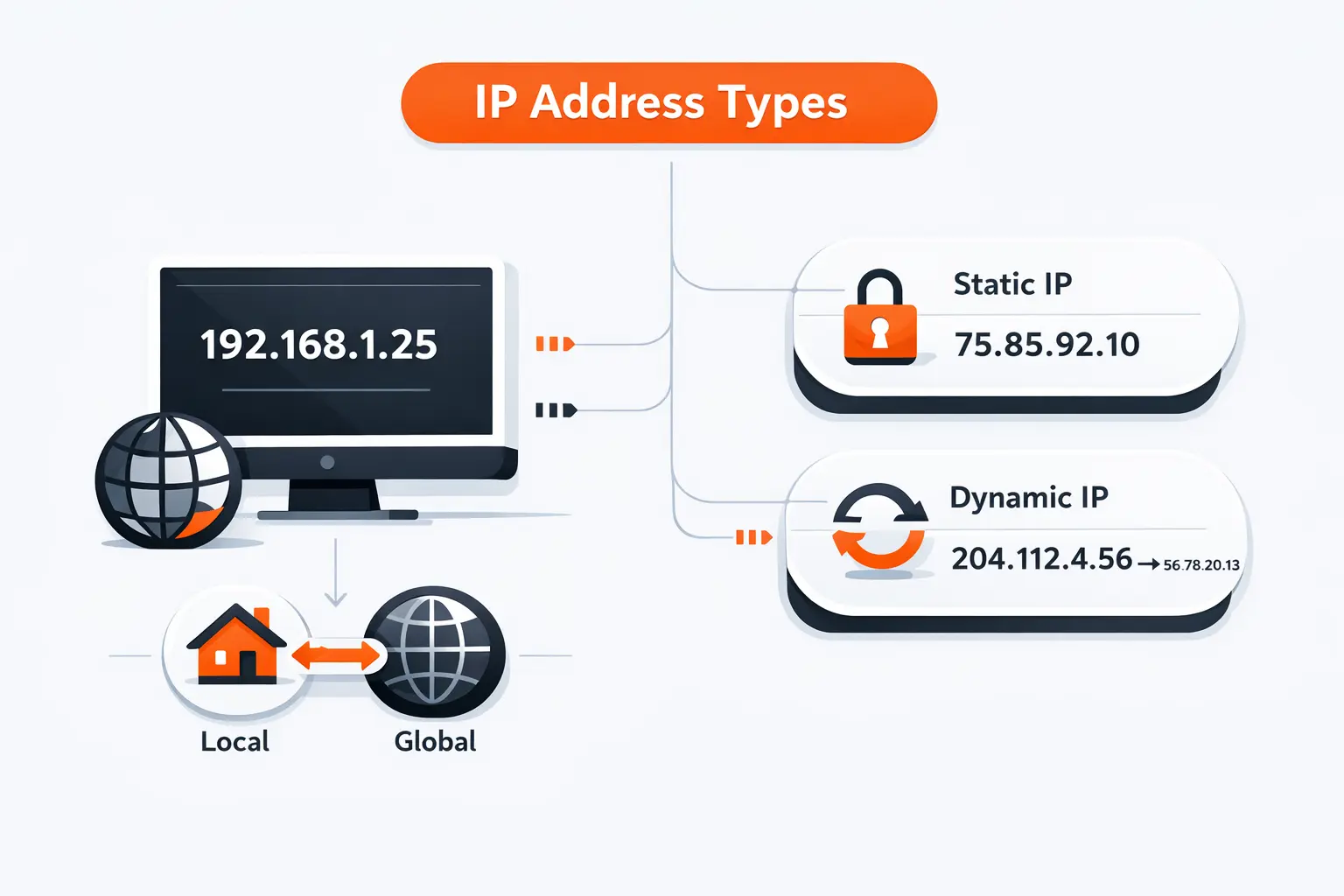
When we explain this to clients, we use a simple rule: the public IP is your network’s outward-facing address, while the private IP is the address a device uses inside the local network. ARIN and IANA distinguish private address space from publicly routable internet space, and Google Nest’s networking documentation makes the same distinction between a router’s WAN address and the local addresses used by devices behind it. If a website, SaaS portal, or outside vendor is the issue, focus on the public IP. If a printer, camera, NAS, or internal application is the problem, focus on the private IP.
2. Dynamic IP versus static IP
Most home and office networks rely on DHCP, which assigns addresses automatically. Google explains that a static IP is reserved for a connection and does not change automatically, while DHCP handles assignment and renewal with far less manual work. From our perspective, dynamic addressing is the right default for ordinary devices, whereas static addressing makes sense when a system must stay reachable at a predictable address, such as a server, a firewall rule target, or a network printer.
3. Changing an IP address versus masking your IP
We draw a hard line between changing and masking. A manual edit in Windows, macOS, Android, or iPhone changes a device’s local network settings, while a VPN, proxy, or Tor usually changes only the visible internet-facing address or the route your traffic takes. Google Nest explicitly separates WAN IPs from local device IPs, and Microsoft notes that proxy traffic is sent through the proxy server instead of coming directly from the PC. That distinction saves an enormous amount of wasted troubleshooting time.
Recommended reading: What Is FTP Hosting and How Does It Work
Why you may want to change an IP address
1. Reduce tracking and improve privacy
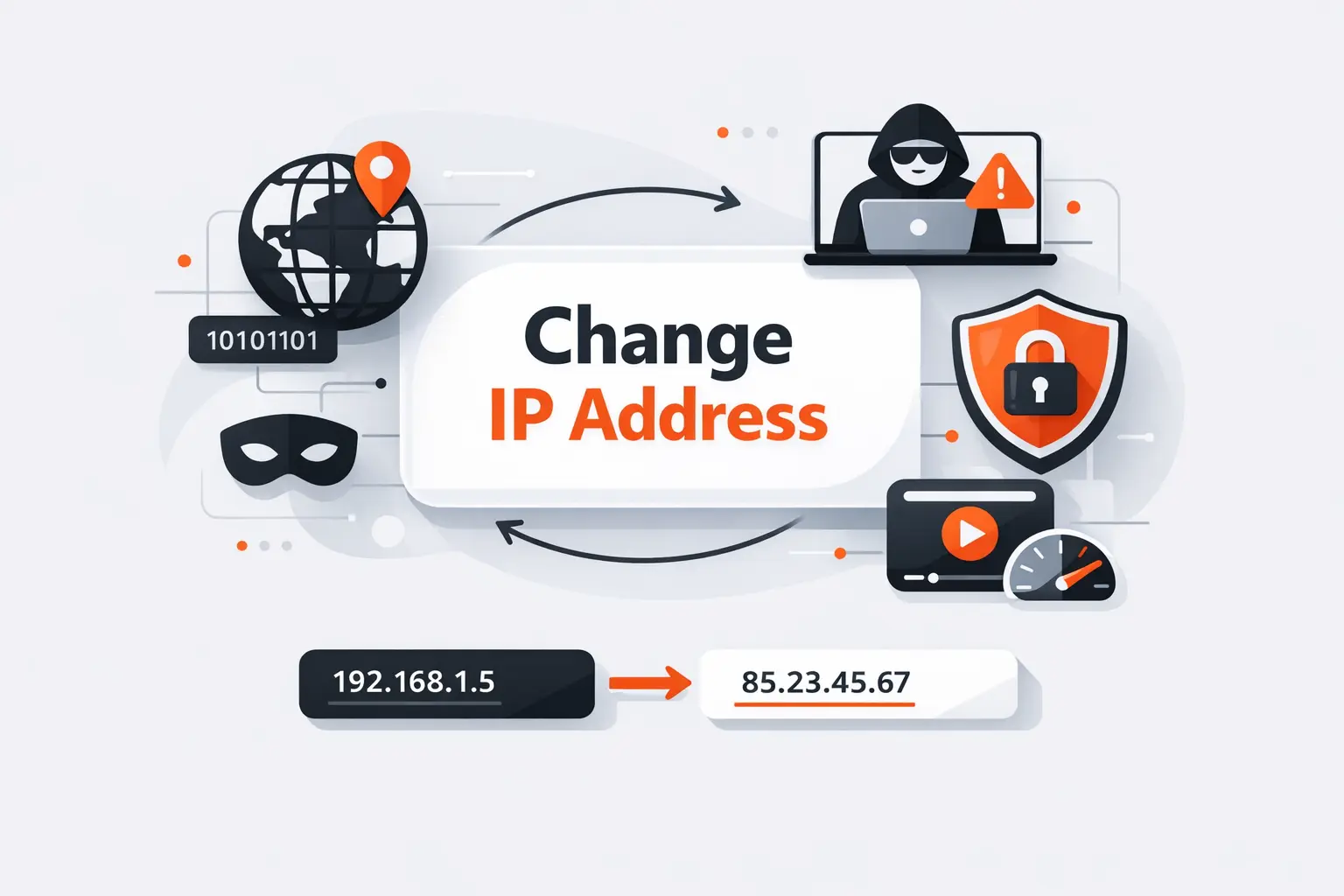
If privacy is the goal, changing or masking the public IP can reduce easy correlation across sessions. Apple explains that IP and DNS information can be used to build a profile of browsing and location over time, while Mozilla notes that fingerprinting can still track people even after they clear browser storage or use private browsing. We therefore treat IP changes as helpful but partial protection: useful against casual network-level visibility, yet insufficient against logins, cookies, or a persistent browser fingerprint.
2. Access blocked websites and location based content
A different visible IP can change which regional site variant, login challenge, or localized catalog you are shown. Even so, not every privacy tool is designed for geo-switching: Google says its Pixel VPN cannot be used to change IP location for content outside your region, and Apple notes that some sites may ask to see your IP or behave differently when Private Relay is active. Our takeaway is simple—use a full VPN when location really matters, and expect some services to resist any relay-based traffic.
3. Resolve website bans, technical errors, and network setup issues
When a platform, API, or site rejects traffic, a new public IP can be a diagnostic tool because it helps you test whether the problem is tied to the address, the account, or something else entirely. On local networks, manual IP work is often even more practical; Microsoft documents direct IP assignment in Windows, and Samsung’s support material walks through setting a static address on Wi-Fi when a device needs predictable network details. We do not recommend using this to violate platform rules, but we often recommend it to isolate the source of a failure.
Recommended reading: How Proxies Are Bridging Global Internet Access: Security, Performance, and Reliable Connectivity
How to find your IP address before you make changes
1. Find your IP address on Windows and Mac
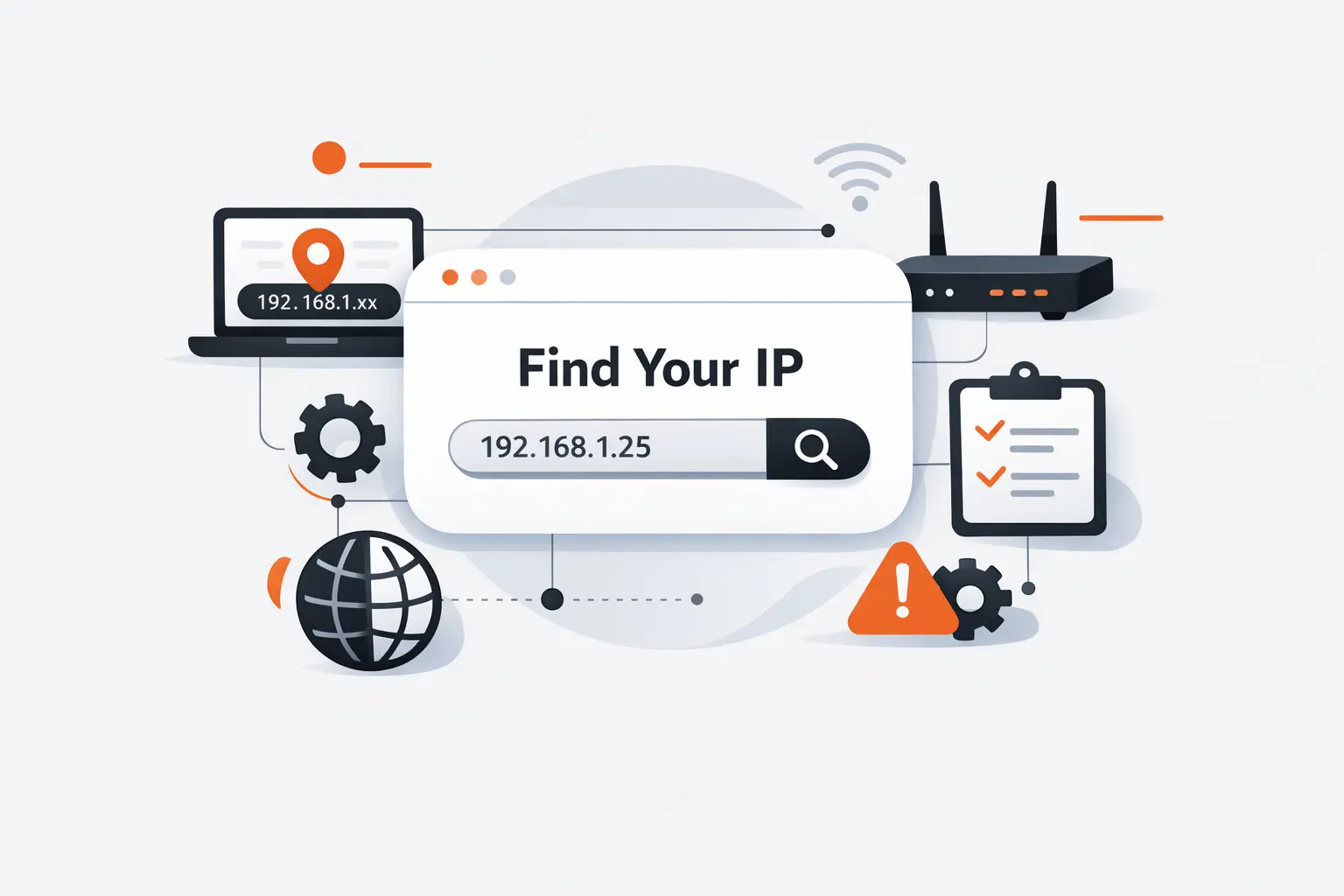
Before touching anything, record the current address, gateway, and whether the device is using automatic or manual settings. Microsoft says Windows can show current IP details in Network & internet settings and via ipconfig, while Apple places the Mac path under System Settings > Network > Details > TCP/IP. We always capture a screenshot before changes because rollback is far faster when the original values are visible.
2. Find your IP address on Android and iPhone
On Android, the usual starting point is Settings > Network & internet > Internet, then the active Wi-Fi network; Google also notes that menu paths can vary by manufacturer. On iPhone, Apple directs users to Settings > Wi-Fi and the info button for the current network, and its advanced setup guidance confirms that static network controls live in that same details area. If we are helping a nontechnical user, this is the exact moment when we tell them to pause and read every field before editing.
3. Verify that your IP address actually changed
After the edit, check the same place you used before rather than guessing. For a private IP, that means the device’s network details page. For a public or WAN IP, that means the router, VPN, or network dashboard that exposes the outward-facing address. Microsoft, Apple, and Google all surface the current values inside their network settings, which makes before-and-after comparison the safest confirmation step. If nothing changed, the lease, server choice, or manual entry probably needs another pass.
Recommended reading: What Your IP Address Is: How to Find It, What It Reveals, and How to Protect It
How to change an IP address with a VPN
1. How a VPN changes your visible IP address
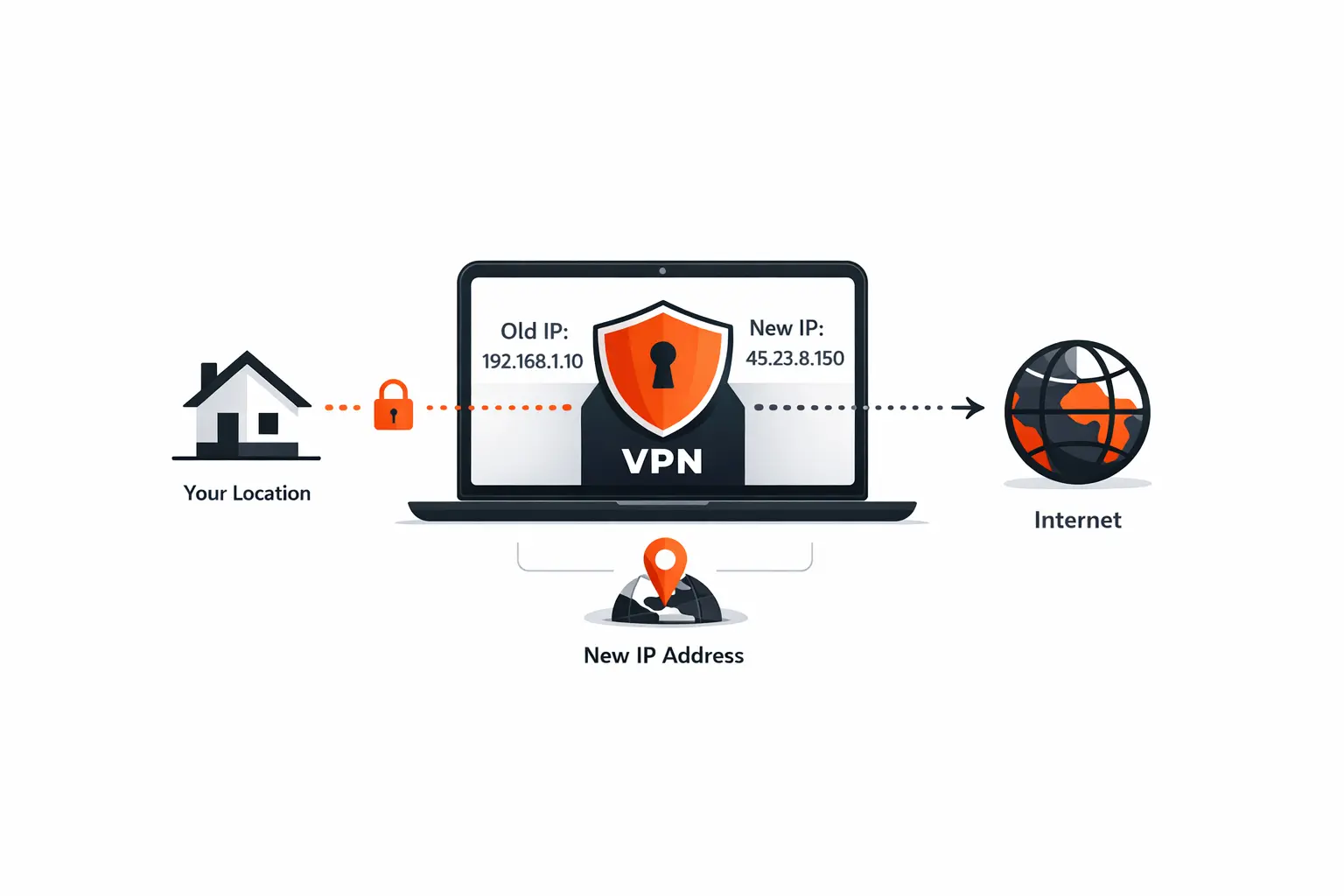
A VPN routes your traffic through the provider’s server so the destination website sees the VPN’s address instead of the address assigned by your ISP. Mozilla describes that as disguising your IP while encrypting traffic, and Apple uses a similar masking concept in Private Relay for Safari browsing. In our view, this is usually the cleanest way to change what outside services see without reconfiguring every device on the local network.
2. Choose the right server location
Server choice should follow the business objective. For privacy, we usually prefer a nearby server because latency stays lower. For QA or localized search checks, we pick the closest server in the target market. At the same time, some built-in privacy services are not designed for content unlocking at all; Google says its Pixel VPN will not change your IP location for out-of-region access. That is a product distinction many teams miss until late in testing.
3. Why a VPN is often the easiest option
A VPN is often the easiest option because it is app-driven, reversible, and broad enough to cover more than a single browser tab. Android lets users add or connect to VPNs from network settings, and Google explains how its own VPN can auto-connect on networks or be paused when needed. Compared with manual subnet work, the operational overhead is much lower. That is why we usually start here when the real goal is public-IP exposure, not LAN repair.
Recommended reading: How to Use FTP: Connect, Browse, and Transfer Files Safely
How to change an IP address with a proxy or Tor
1. How a proxy differs from a VPN
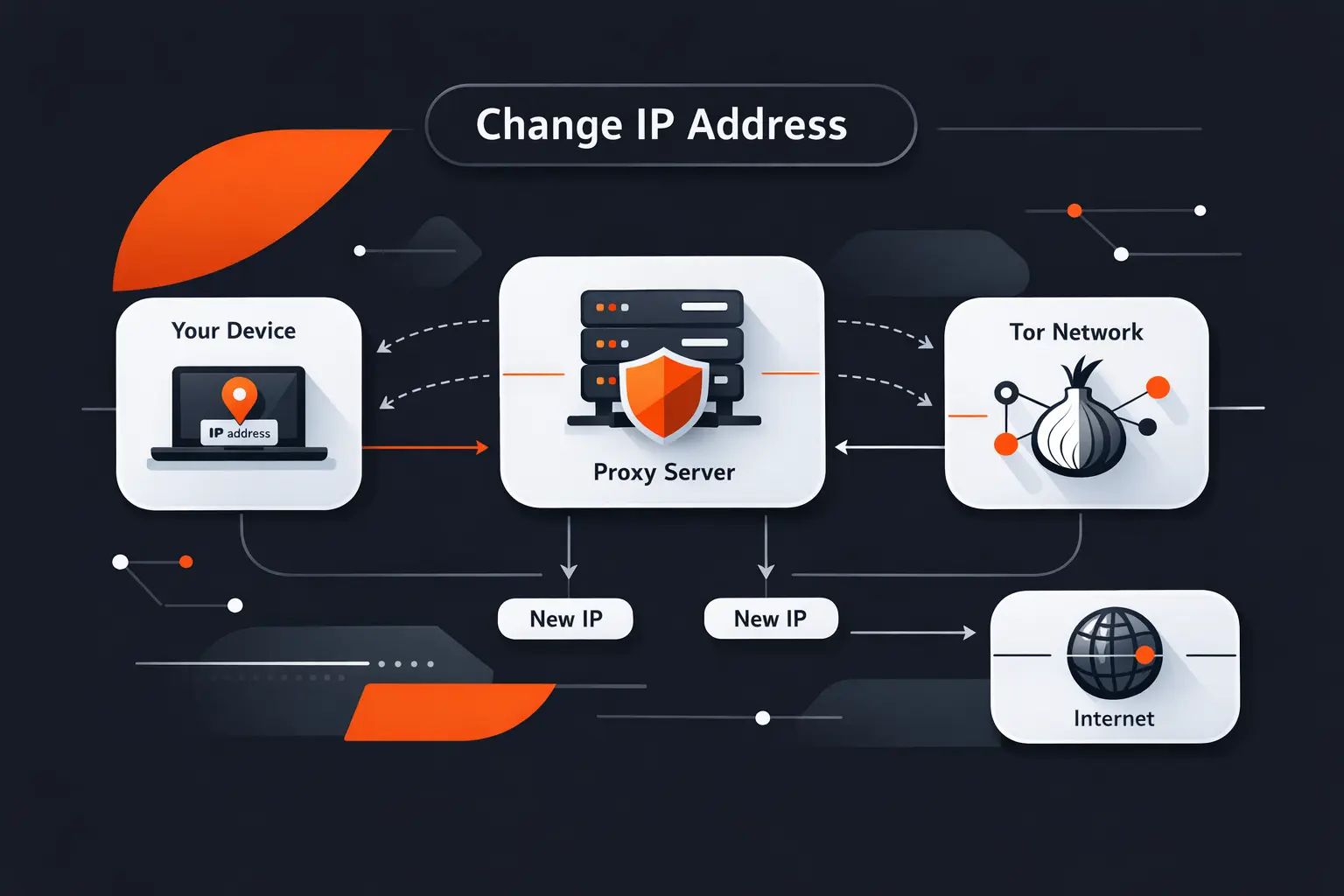
A proxy sits between the app or browser and the internet, but its scope is narrower than a VPN. Microsoft says proxy traffic goes through the proxy server instead of directly from the PC and explicitly notes that a VPN is generally more secure; Mozilla’s Firefox documentation likewise treats proxy setup as a connection setting inside the browser. In practice, we use proxies for quick app-specific routing and VPNs for broader device coverage.
2. Set up a proxy in a browser or device
If you need a proxy, set it where the traffic actually originates. On Windows, Microsoft supports automatic detection, PAC scripts, or manual entry under Network & internet > Proxy. In Firefox, Mozilla exposes similar choices under Connection Settings, including manual configuration and automatic proxy configuration URLs. That makes proxies a good fit for testing, corporate firewalls, or browser-only routing, but a poor fit when you expect system-wide privacy.
3. Use Tor for privacy focused browsing
For privacy-focused browsing, Tor Browser is a different category. The Tor Project says it routes browsing through the Tor network, hides the user’s real IP address, and is designed to resist tracking and fingerprinting. Still, Tor also warns that it does not guarantee perfect anonymity and protects only applications configured to use Tor. We recommend it when privacy is the priority and performance or site compatibility is secondary.
Recommended reading: What Is a URL: A Practical Guide to Web Addresses and How They Work
How to change an IP address manually
1. Restart your router for a new dynamic IP
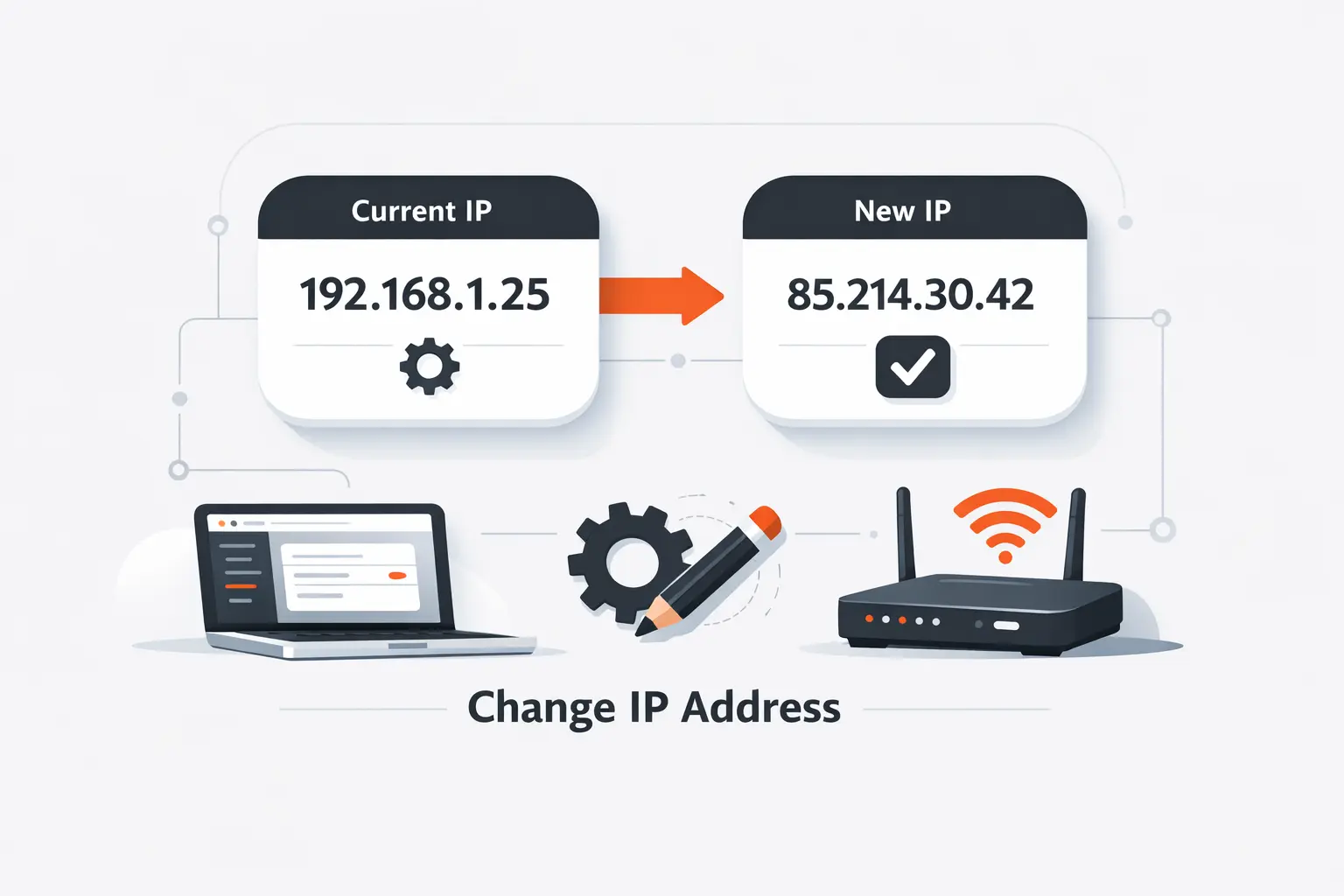
If your ISP gives you a dynamic public address, rebooting the modem or router can sometimes produce a new one. Google’s Nest documentation explains why the result is inconsistent: DHCP leases are automatic, the device often keeps the same address, but reassignment can happen after a reboot. We tell clients to think of this as a possibility, not a promise. It is a lightweight test, not a deterministic method.
2. Renew your IP address with DHCP
For local network changes, DHCP renewal is more direct. Microsoft documents ipconfig /release and ipconfig /renew for Windows, while Apple exposes a Renew DHCP Lease action in macOS TCP/IP settings. We like this path because it asks the network to give the device fresh parameters without forcing a permanent manual address. When a stale lease or local conflict is the problem, this is often the first truly useful fix.
3. Switch between automatic and manual settings
Manual addressing only works when the values you enter fit the network’s subnet, gateway, and DNS expectations. That is why Microsoft, Apple, and Google keep DHCP front and center for ordinary use. We switch a device to manual only when we have a clear reason—reserved access rules, a fixed server target, or a known conflict—and we switch it back to automatic as soon as that need ends. Good IP hygiene is usually about reducing custom settings, not accumulating them.
How to change an IP address on Windows
1. Edit IP assignment in network settings
On Windows, go to Network & internet, open the active Wi-Fi or Ethernet connection, and use IP assignment > Edit. Microsoft documents both routes and keeps the choice simple: Automatic (DHCP) or Manual. We appreciate this design because it separates discovery from editing and makes rollback obvious.
2. Use manual IPv4 settings
If you choose manual settings, Windows lets you enable IPv4 and enter the address, subnet mask, gateway, and DNS fields yourself. We strongly advise copying the current values first and changing only what you actually need. Randomly typed addresses create far more trouble than they solve, especially on busy office networks where the wrong choice can collide with another device.
3. Switch back to automatic IP assignment
To undo the change, open the same IP assignment editor and switch back to Automatic (DHCP). Microsoft treats this as the recommended default because the router or access point then handles assignment for you. From a support standpoint, that default is valuable: it removes hand-entered variables and makes future moves between networks much easier.
How to change an IP address on Mac
1. Open Network settings on Mac
On Mac, the path lives in Apple menu > System Settings > Network > select the service > Details > TCP/IP. Apple uses this pane for both routine viewing and advanced edits, which keeps troubleshooting compact. When we guide Mac users remotely, we start here because it shows whether the device is using DHCP, a manual address, or another variant.
2. Enter a manual IP address
Apple allows several IPv4 modes, including DHCP, DHCP with manual address, and fully manual configuration. That flexibility is useful when an ISP or network administrator gives you a specific address but still expects DHCP behavior around the rest of the connection. In business environments, this mixed model is common enough that we always confirm the intended mode before typing anything.
3. Renew the DHCP lease for an automatic change
If the Mac should stay automatic, use Renew DHCP Lease instead of inventing a new address. Apple exposes that control directly in the TCP/IP panel, which is exactly where we want it because the user can verify the result immediately after the refresh. For temporary connection glitches, that is cleaner than hard-coding a manual address and hoping it happens to work.
How to change an IP address on Android
1. Open WiFi network settings
Android paths vary, but Google’s core help points users to Settings > Network & internet > Internet, then the connected Wi-Fi network. That details page is where Android surfaces the settings that matter most for IP work. Whenever we support a mixed fleet of phones, we call out the manufacturer difference early so people do not waste time hunting for identical menus on very different interfaces.
2. Set a static IP on Android
On stock Android and many manufacturer builds, the static option sits under the selected network’s advanced settings. Google documents the advanced network area and proxy controls there, while Samsung’s support guide shows the Wi-Fi reconnection flow that exposes IP settings and the Static choice. Because vendors move labels around, we treat the exact menu name as variable but the concept as stable: open the network, expand advanced settings, then change IP behavior from automatic to manual.
3. Save the new IP address
Once you enter the new IP, gateway, prefix, and DNS details, save the network and reconnect if needed. Samsung notes that forgetting and rejoining the Wi-Fi network can be part of the process before entering a static address, which matches what we see in the field when a phone clings to an older lease. If connectivity breaks, revert to automatic immediately and verify the values with the network administrator.
How to change an IP address on iPhone
1. Open WiFi and IPv4 settings
On iPhone, start with Settings > Wi-Fi, then tap the info button beside the active network. Apple explicitly points users to that screen for Wi-Fi management, and its advanced network setup documentation confirms that the same details view contains static network controls. In our experience, most iPhone IP work begins and ends in that one panel.
2. Configure a manual IP address
Apple’s public user guides do not spell every label out on the ordinary browsing page, but they do show that static network settings live in the Wi-Fi details screen. On current iPhones, that means the manual IP option is the setting to look for there, typically under Configure IP. We are making a light interface inference from Apple’s documentation, so the wording can shift slightly by iOS version, but the location is stable.
3. Return to automatic settings if needed
When the job is done, we usually push iPhone users back to automatic addressing unless the network administrator specifically asked for a fixed value. The same Wi-Fi details area is where Apple keeps the advanced controls, so rollback should happen there as well. If you are unsure which entry changed, forgetting the network and joining it again can be safer than leaving a questionable manual IP in place.
Pros and cons of changing an IP address
1. Benefits for privacy, access, and security
The upside is real. A changed public IP can reduce basic location exposure and help with access testing. It also keeps your home or office address from being the only identifier a site sees. Apple says Private Relay is designed so no single party sees both your identity and Safari activity. Mozilla describes VPNs as tools that encrypt traffic and disguise your IP. For businesses, that mix is useful in remote work, staged rollouts, and vendor whitelisting.
2. Tradeoffs such as slower speeds, blocked sites, and cost
The downside is equally practical. Google warns that VPNs can reduce speed, add latency, increase battery use, and cause some apps or sites to behave differently. Apple similarly notes that some websites may require extra steps or may not function normally when relay-style privacy tools are active. We treat these frictions as operational costs, not edge cases, especially on teams that depend on video, large transfers, or sensitive SaaS logins.
3. Why changing an IP address does not make you fully private
Changing an IP address is not the same as disappearing. Tor says even Tor Browser cannot promise perfect anonymity, and Mozilla explains that fingerprinting can continue across the web using device and browser traits rather than cookies alone. Add account logins, mobile app identifiers, and traffic that a tool does not route, and the privacy picture becomes much narrower. We advise clients to think in layers, not silver bullets.
FAQ about how to change an IP address
1. Can you really change an IP address
Yes. You can change the public address other services see by using a VPN, proxy, Tor, or by getting a new WAN assignment from your network provider. You can also change a device’s private local address by editing network settings or renewing DHCP. Those are different actions, but they are both real and routinely supported by mainstream platforms.
2. Can you change an IP address without a VPN
Yes. A VPN is only the easiest public-IP tool, not the only one. Router reboots, DHCP renewal, and manual IP assignment all work in the right situation. We usually prefer the lowest-risk method that fits the need: DHCP for repair, manual settings for fixed local addresses, and VPNs for outside-facing changes.
3. Will restarting your router give you a new IP address
Sometimes. Google notes that DHCP often keeps the same address, but reassignment can happen after a reboot. In plain English, restarting the router may work, yet it is never the method we promise first.
4. Why can your IP address appear in a different city
Because IP geolocation is approximate, not exact. Apple notes that an IP gives only a general sense of location. MaxMind also explains that city level data has an accuracy radius and uneven precision. That is why security alerts, ad targeting, and new login emails can show the wrong nearby city. Nothing suspicious may have happened at all.
5. Is changing an IP address allowed
The mechanics themselves are ordinary—Microsoft, Apple, Google, Mozilla, and the Tor Project all publish official instructions for changing IP-related settings or routing traffic differently. Whether your specific use is acceptable is a separate question. We recommend checking workplace policy, platform terms, and local law before using an IP change to get around a restriction.
Final thoughts on how to change an IP address
At Techtide Solutions, we think the smartest way to change an IP address is to start with the smallest correct move. If you need a different public face on the internet, use a VPN, proxy, or Tor. If you need a different local identity on the network, use DHCP or manual settings. And if you are still deciding, start with the reversible option first, verify the result, and only then make the change permanent. Which problem are you really solving—privacy, access, or network repair?

