


At TechTide Solutions, we still treat HTML editing as a craft, not a checkbox. Modern stacks change quickly, yet plain markup still ships the experience users actually touch. Free HTML editors matter because they sit at the center of speed, safety, and repeatability. Editors are where layout bugs are born, where accessibility is preserved, and where security habits start. Market signals keep confirming that web delivery is not slowing down.
Gartner forecasts public cloud end-user spending of $723.4 billion in 2025, which generally tracks digital build intensity across industries. Developer volume also explains why editor ecosystems keep thriving. Statista expects a global developer population of 28.7 million people by 2024, which means “default tooling” still shapes a huge amount of output. Tooling pressure is rising from AI adoption as well.
Quick Comparison of free html editors
Below is the shortlist we see adopted fastest in real teams.
Our bias is toward stable workflows, strong ecosystems, and clear escape hatches.
| Tool | Best for | From price | Trial/Free | Key limits |
|---|---|---|---|---|
| Visual Studio Code | Extensions-first web workflows | Free | Free | Needs setup to avoid extension sprawl |
| VSCodium | VS Code feel with open distribution | Free | Free | Marketplace differences can surprise teams |
| Notepad++ | Fast edits on Windows | Free | Free | Less IDE-like without plugins |
| Phoenix Code | Web-focused editing with visual helpers | Free | Free | Smaller ecosystem than VS Code |
| Bluefish | Traditional web editing on desktop | Free | Free | UI feels old-school for some teams |
| Vim | Keyboard-driven editing | Free | Free | Steep learning curve |
| Neovim | Modern Vim-style workflows | Free | Free | Configuration can become a project |
| BBEdit | macOS editing with strong text tools | Free mode | Free mode | Some pro features remain paid |
| CodePen | Sharing front-end experiments | Free tier | Freemium | Some collaboration features require upgrades |
| CodeSandbox | Browser-first prototyping | Free tier | Freemium | Account-driven workflow may not fit all teams |
Here are all the editors we cover in this guide, spanning desktop, terminal, and browser workflows.
Recommended reading: Top 30 WordPress Alternatives for Faster, Safer Websites in 2026
Top 30 free html editors to Try in 2026
Our picks lean on outcomes, not hype. We ask one question first: what gets you from “blank file” to a clean, working page fastest. Then we score each tool on seven weighted criteria: Value-for-money (20%), Feature depth (20%), Ease of setup & learning (15%), Integrations & ecosystem (15%), UX & performance (10%), Security & trust (10%), and Support & community (10%).
Tools that help you ship earn more points than tools that only look clever. Offline editors get extra scrutiny on speed and stability. Web editors get extra scrutiny on privacy and limits. If a product is discontinued, we say so plainly. When an “editor” is really a workflow helper, we review it for the job it actually does.
Every mini-review ends with a weighted score out of 5. Use the scores to shortlist. Use the drawbacks to decide. Your best editor is the one you’ll open tomorrow.
1. Notepad++
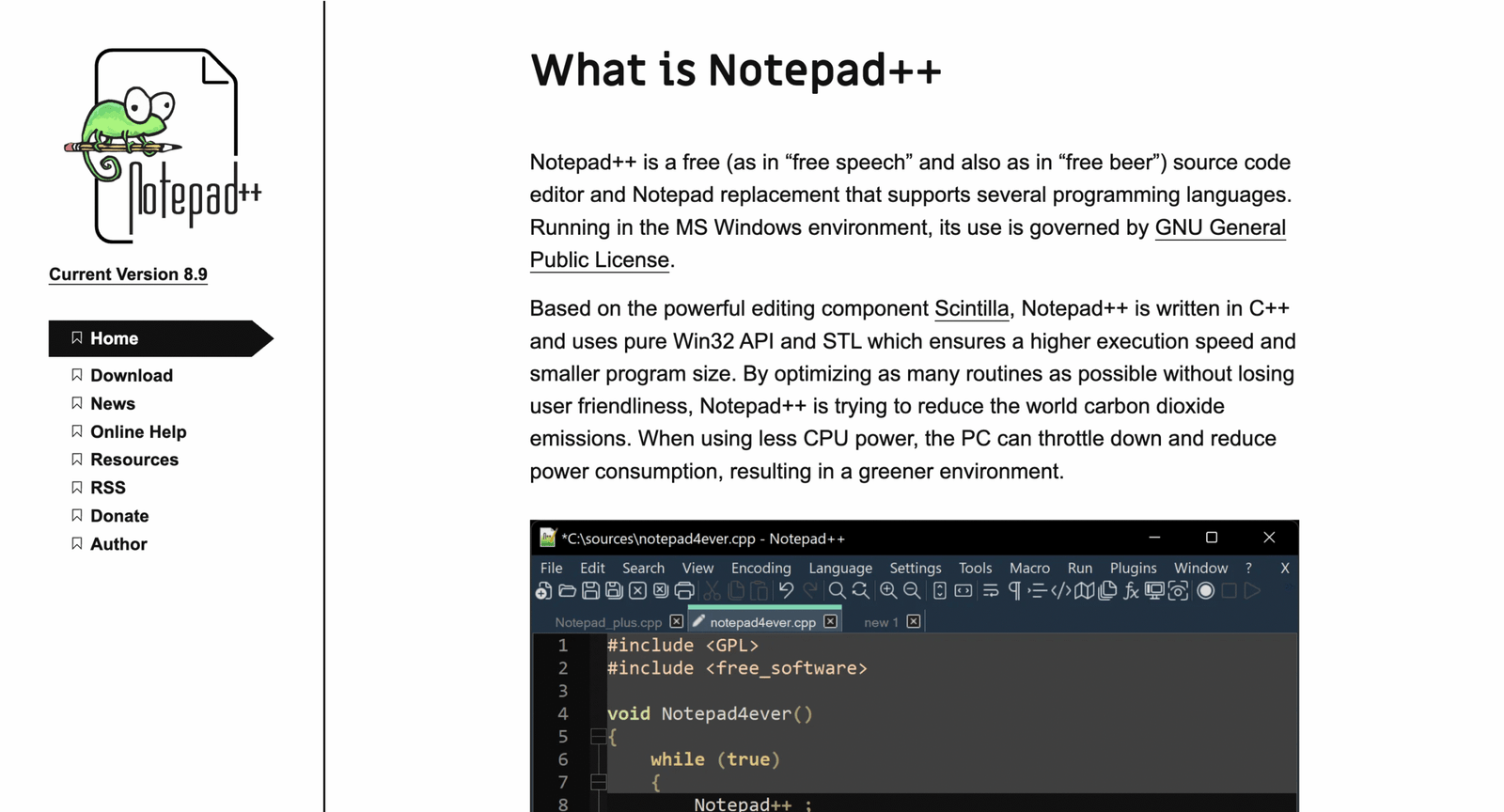
Notepad++ is a long-running open-source project, built for Windows and maintained by a broad contributor base. The team’s bias is clear: keep it fast, keep it simple, and keep it hackable. That focus makes it a dependable “daily driver” for HTML when you want zero drama.
Tagline: Write clean HTML at full speed, without fighting your editor.
Best for: solo developers on Windows; students learning raw HTML.
- [Tabbed editing + search] → jump between files and fix repetitive markup fast.
- [Plugin ecosystem] → automate common cleanups and save 3–5 manual steps.
- [Portable install] → reach first value in about 2 minutes on a fresh PC.
Pricing & limits: From $0/mo; no trial needed. There’s no seat cap. Limits are mostly Windows-only and whatever your disk holds.
Honest drawbacks: Expect fewer “smart” web features than bigger IDEs. Git workflows and deep refactors feel bolted-on, not native.
Verdict: If you want a lightweight HTML scratchpad, this helps you ship edits in minutes. Beats Windows Notepad at everything; trails VS Code on modern web tooling.
Score: 4.0/5
2. Visual Studio Code

Visual Studio Code is built by Microsoft with a huge global team and an even bigger extension community. The product direction is steady: make one editor feel “native” for almost any stack. For HTML work, that means your editor can grow from simple pages to full front-end builds.
Tagline: Turn HTML edits into a repeatable workflow, not a one-off scramble.
Best for: front-end developers; small teams who live in Git.
- [IntelliSense + language services] → catch broken tags and paths before you refresh.
- [Extensions + Marketplace] → add linting, formatting, and deploy flows in a few clicks.
- [Settings sync + profiles] → hit first value in 10–15 minutes, even on a new machine.
Pricing & limits: From $0/mo; no trial needed. Core app is free. Limits come from specific extensions and services you attach.
Honest drawbacks: The learning curve is real once extensions pile up. Performance can dip on very large workspaces or heavy plugin stacks.
Verdict: If you want “one editor for everything,” this helps you go from HTML to production faster. Beats Sublime on ecosystem; trails Notepad++ on minimalism.
Score: 4.7/5
3. CoffeeCup Free HTML Editor
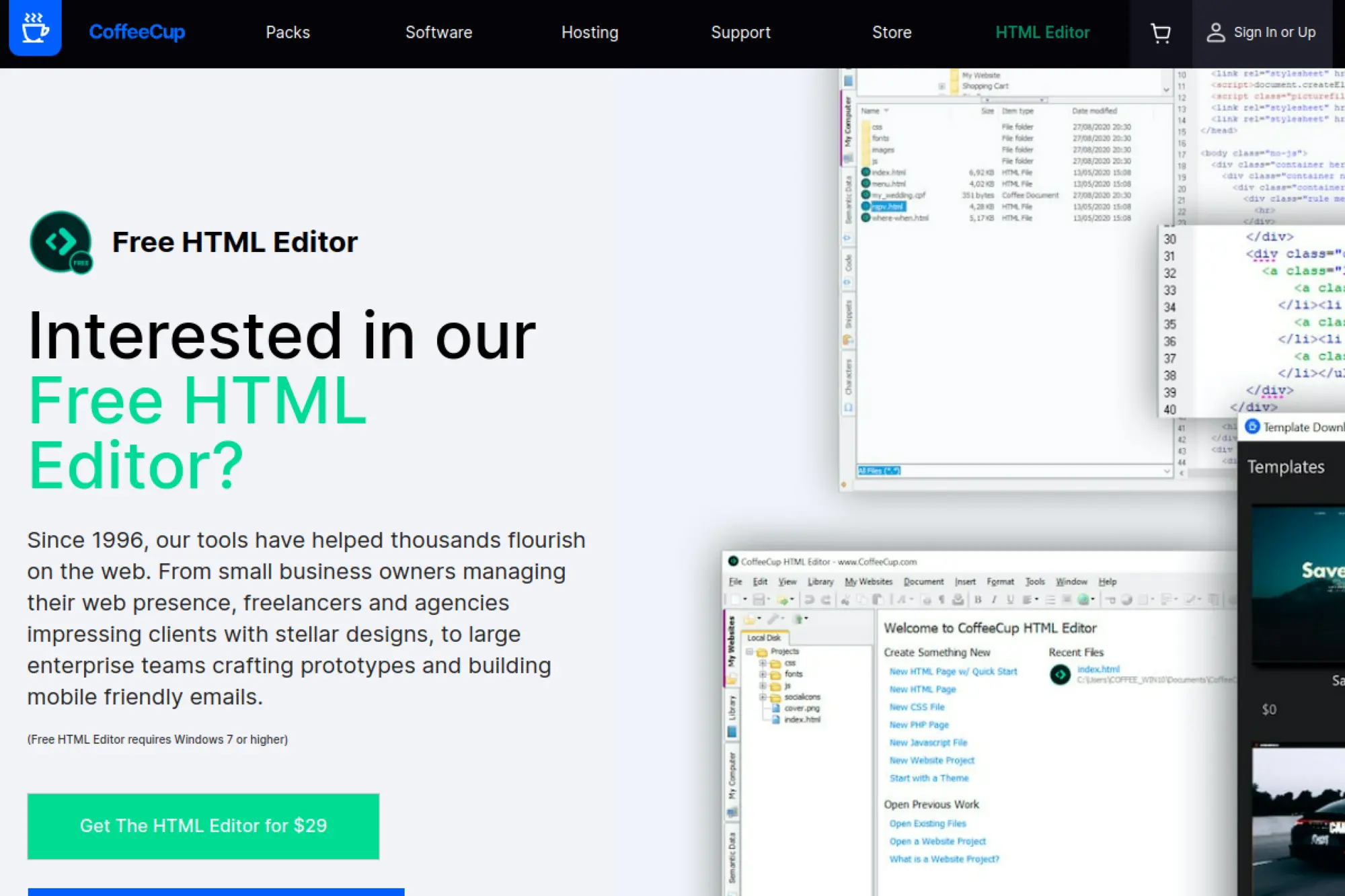
CoffeeCup is a long-standing, independently run software company focused on practical web creation tools. The Free HTML Editor feels like a guided on-ramp into “real code,” not a toy. It’s especially friendly if you want help staying organized while you learn.
Tagline: Code by hand, with guardrails that keep your pages publishable.
Best for: beginners on Windows; small business owners maintaining a site.
- [Projects workflow] → keep files, links, and assets tidy across a simple site.
- [Built-in validation + hints] → reduce back-and-forth fixes and save a few refresh cycles.
- [Live preview] → see changes quickly, with first value in about 15 minutes.
Pricing & limits: From $0/mo; the download is free. The vendor says premium features are available as a 21-day sample. Runs on Windows 7 or higher.
Honest drawbacks: Windows-only is a hard stop for many teams. Advanced team workflows, like deep Git integration, are not the point here.
Verdict: If you want a friendly Windows HTML editor, this helps you publish cleaner pages this week. Beats basic online editors on structure; trails VS Code on breadth.
Score: 3.6/5
4. Brackets

Brackets began at Adobe and now lives as a community-supported project. The site currently nudges users toward Phoenix Code, described as the “next generation” of Brackets. Still, the Brackets philosophy remains useful: visual tools, front-end focus, and fewer distractions.
Tagline: Design in the browser, while your HTML stays in your editor.
Best for: front-end learners; designers who prefer visual feedback.
- [Live Preview] → tweak HTML and CSS and see results without context switching.
- [Preprocessor support] → reduce manual compile steps and keep styles consistent.
- [Lightweight footprint] → reach first value in about 10 minutes.
Pricing & limits: From $0/mo; no trial needed. Limits depend on the community build you install and your OS support.
Honest drawbacks: The ecosystem is smaller than modern giants. Long-term direction is less predictable than corporate-backed tools.
Verdict: If you want fast front-end iteration, this helps you tighten feedback loops in an afternoon. Beats heavier IDEs at focus; trails VS Code on extensions.
Score: 3.7/5
5. Brackets Extension Registry
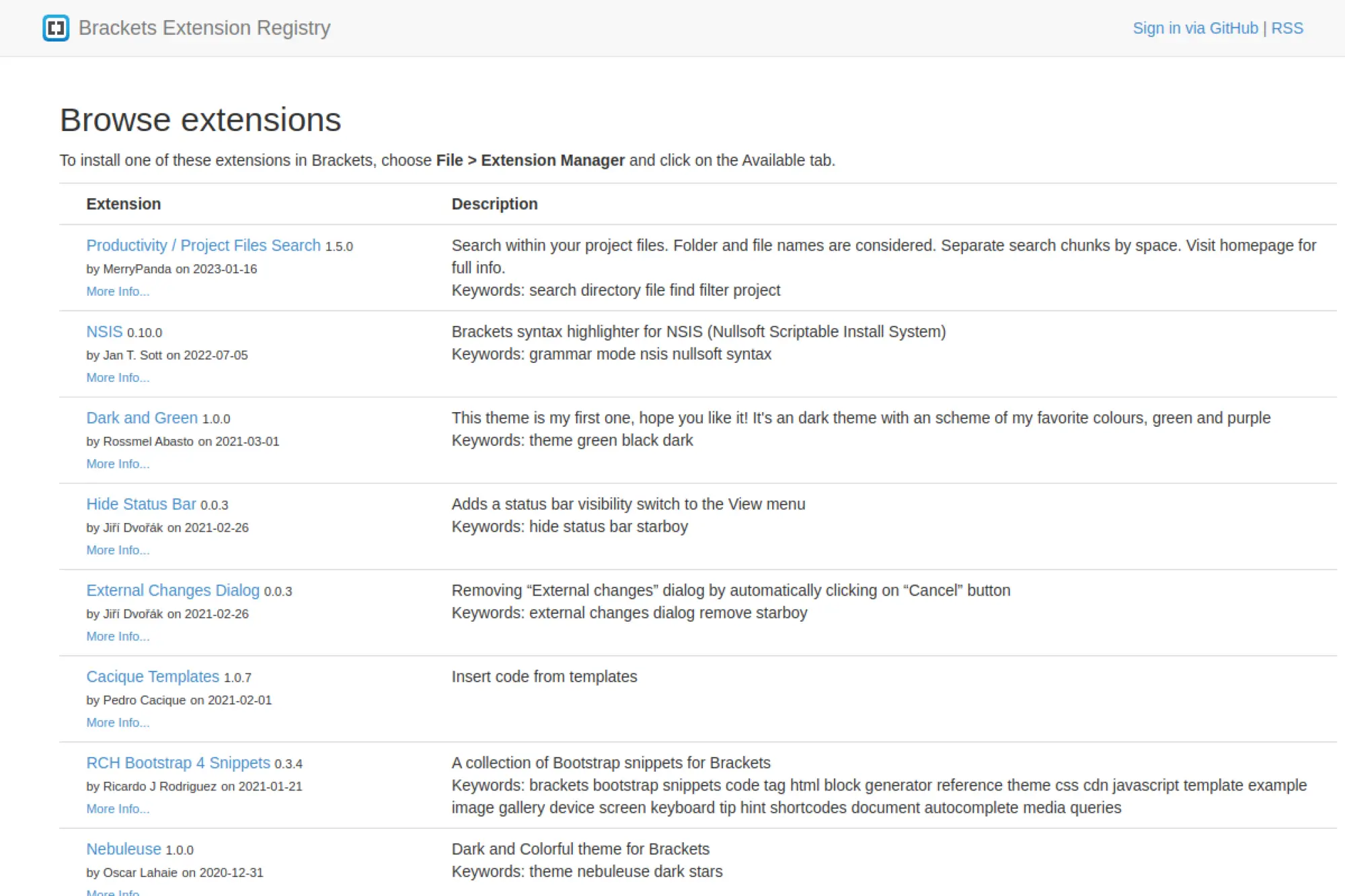
The Brackets Extension Registry is the community catalog that keeps Brackets feeling customizable. It’s not a company product so much as a shared shelf of plugins, themes, and workflow helpers. When Brackets feels “too bare,” this is where you fix that.
Tagline: Extend Brackets until it fits your exact HTML workflow.
Best for: Brackets users; front-end tinkerers who like plugins.
- [Extension Manager flow] → add formatting, Emmet-like speedups, and validators quickly.
- [Themes and language tools] → save setup time by avoiding manual config files.
- [In-editor install] → get first value in about 5 minutes from a clean setup.
Pricing & limits: From $0/mo; no trial needed. There’s no fixed cap, but extension quality varies by maintainer.
Honest drawbacks: Some listings are old, and maintenance can be uneven. Security review is not at enterprise levels, so choose carefully.
Verdict: If you use Brackets daily, this helps you tailor it to your projects in an hour. Beats hunting random downloads; trails VS Code Marketplace on scale.
Score: 3.6/5
6. Komodo Edit

Komodo Edit came from ActiveState’s tooling era, with a focus on multi-language editing. The important reality in 2026 is status: ActiveState has stated Komodo IDE and Edit were discontinued and no longer supported. That changes the risk profile fast.
Tagline: A once-solid editor, now best treated as legacy.
Best for: developers maintaining legacy setups; offline environments that cannot change quickly.
- [Multi-language editing] → keep older web codebases readable and navigable.
- [Project-style workflows] → reduce file hunting and save a few clicks per change.
- [Familiar IDE feel] → reach first value in about 30 minutes, if you can install it.
Pricing & limits: From $0/mo; no trial needed. The bigger limit is end-of-life support and updates.
Honest drawbacks: Discontinued software can become a security liability. Community forks may exist, but you should assume limited momentum.
Verdict: If you must keep an old Komodo workflow alive, this helps you edit HTML without retraining today. Beats no editor at all; trails modern tools on safety.
Score: 2.7/5
7. Sublime Text

Sublime Text is built by Sublime HQ, a small team known for performance obsession. The editor is famous for feeling instant, even on big files. For HTML, that speed matters when you are hopping between templates, partials, and snippets all day.
Tagline: Move through markup like it’s muscle memory.
Best for: power users; developers who value speed over hand-holding.
- [Multiple cursors + selection tricks] → edit repeated HTML blocks in one pass.
- [Packages + build tools] → reduce manual formatting and save 3–4 steps per file.
- [Fast startup] → hit first value in under 10 minutes on most machines.
Pricing & limits: From $0/mo to evaluate. A Sublime Text license is listed at $80, and personal licenses include 3 years of updates.
Honest drawbacks: The best experience often requires tuning and packages. Teams wanting a fully guided, batteries-included IDE may feel friction.
Verdict: If you want a fast, focused editor, this helps you ship HTML changes the same day. Beats VS Code on raw snappiness; trails VS Code on built-ins.
Score: 3.9/5
8. Atom editor
Atom was created at GitHub and became a beloved “hackable editor” for web work. Its story now includes an ending: the official repository was archived and is read-only. That makes Atom more of a snapshot than a living tool in 2026.
Tagline: A great editor idea, frozen in time.
Best for: hobbyists on old machines; developers exploring editor UX history.
- [Community packages] → get basic HTML comforts without building a full IDE stack.
- [Custom theming] → shape your writing space and reduce visual fatigue quickly.
- [Familiar UI] → reach first value in 20 minutes, if you already know it.
Pricing & limits: From $0/mo; no trial needed. The real limit is lack of ongoing official updates after archival.
Honest drawbacks: Discontinued software can age badly around security and OS updates. New projects should pick an actively maintained editor instead.
Verdict: If you already love Atom, this helps you keep writing HTML in the short term. Beats plain text editors on comfort; trails modern tools on longevity.
Score: 3.1/5
9. HTML Notepad
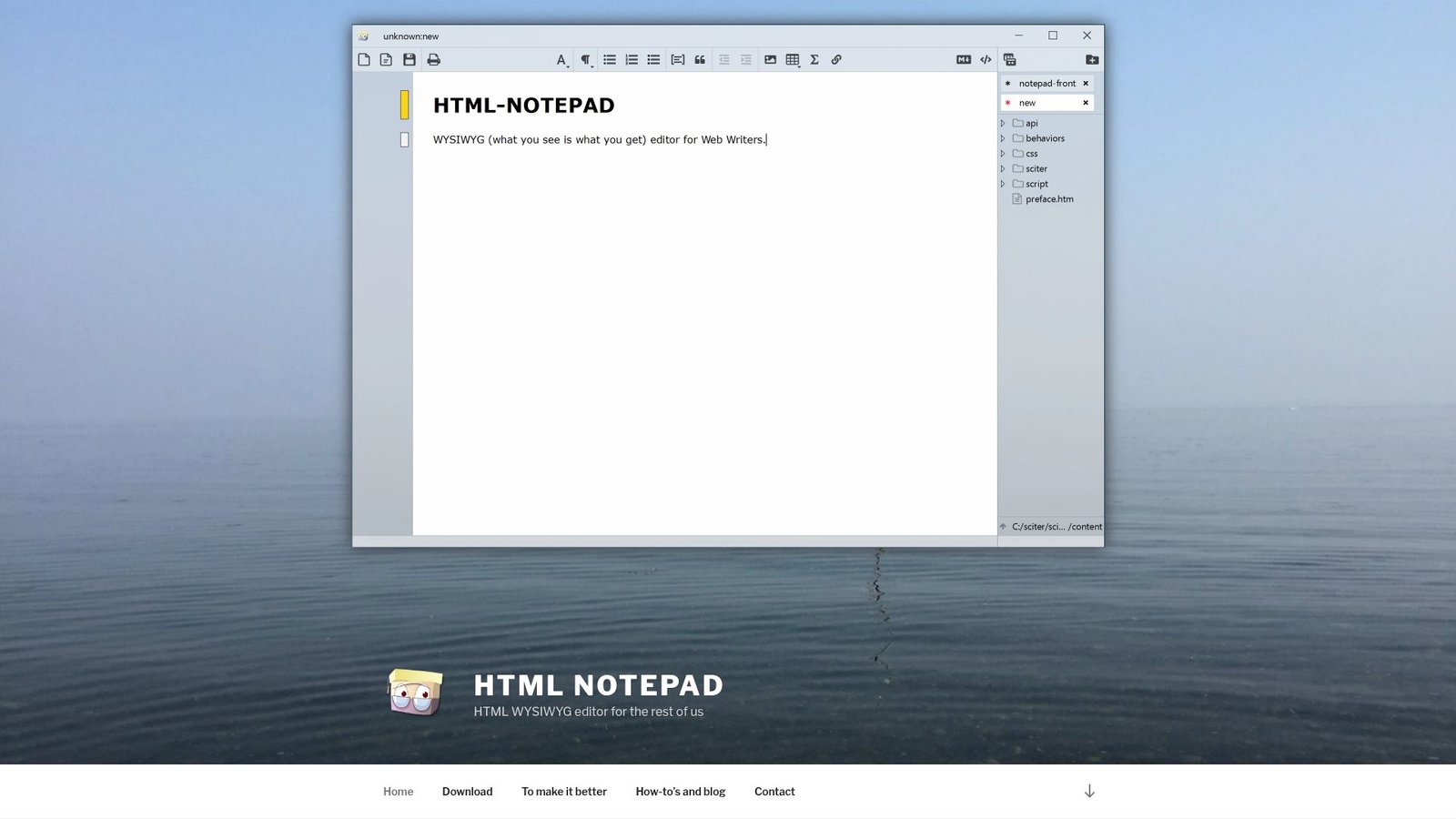
HTML-NOTEPAD is presented as a focused app by its author, aimed at structured documents rather than full web page design. The philosophy is refreshingly honest: WYSIWYG for content, not for “cool layouts.” It also leans into keyboard-first editing.
Tagline: Write structured HTML content without Word’s messy markup.
Best for: technical writers; designers producing clean page content blocks.
- [Structured WYSIWYG] → generate headings, lists, and tables without HTML fuss.
- [Clean output mindset] → avoid inline-style junk and save cleanup steps later.
- [Portable app] → get first value in about 10 minutes after download.
Pricing & limits: From $0/mo; no trial needed. Downloads are offered for Windows, macOS, and Linux, with a lightweight “two files” approach.
Honest drawbacks: It is not a full web design tool, by design. If you need CSS-first workflows, you will still live in a code editor.
Verdict: If you produce clean content HTML, this helps you draft blocks in an hour, then paste anywhere. Beats Word-to-HTML chaos; trails VS Code on developer tooling.
Score: 2.8/5
10. CKEditor
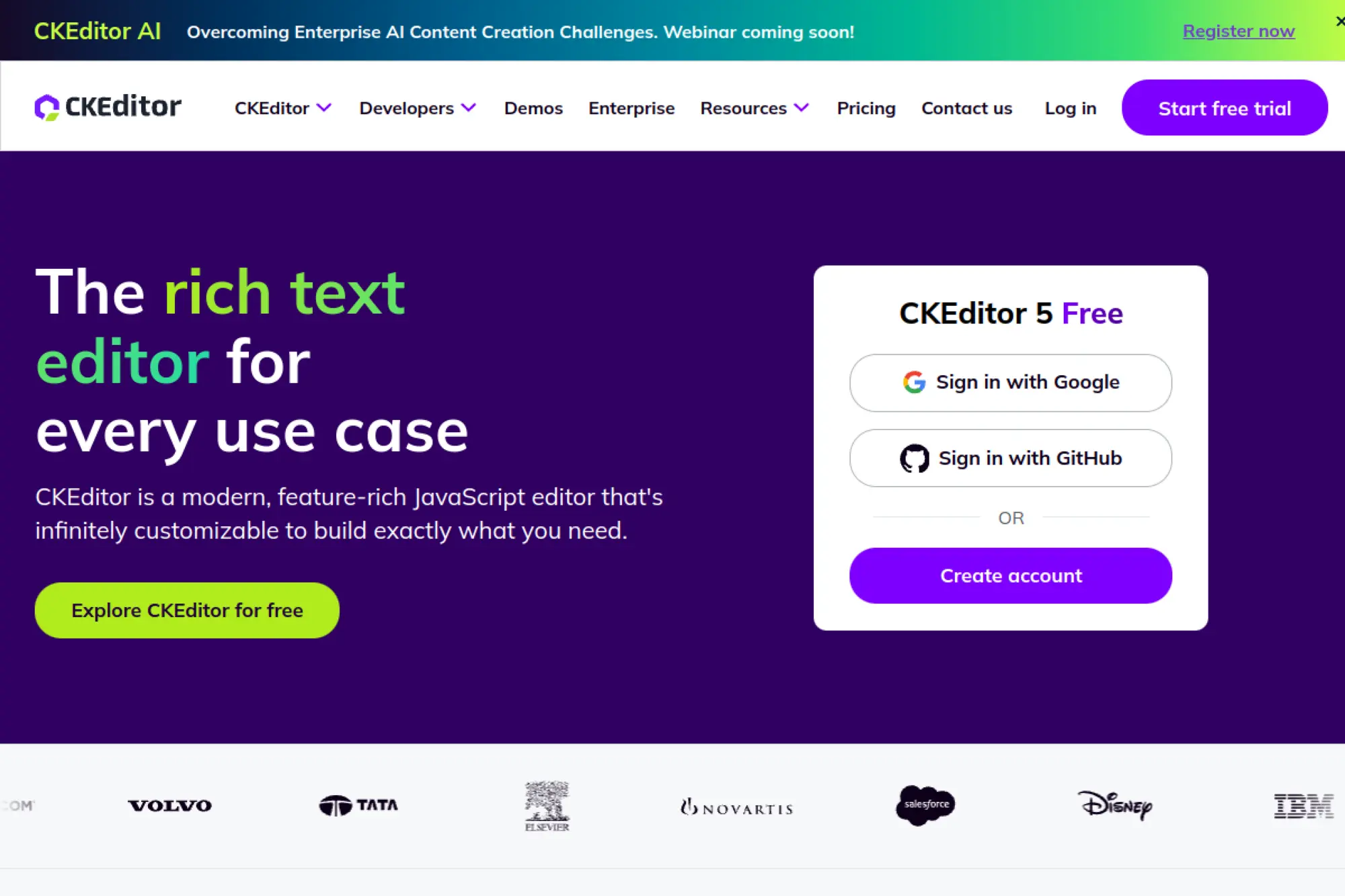
CKEditor is built by CKSource and backed by a mature engineering organization. It’s not a “code editor” in the classic sense. Instead, it’s a rich text editor you embed into apps, dashboards, and CMS products where users must author HTML safely.
Tagline: Let non-developers create structured HTML without breaking your site.
Best for: product teams building CMS features; SMBs needing a reliable WYSIWYG.
- [Structured editing] → keep headings, lists, and tables consistent across authors.
- [Cloud plans + add-ons] → reduce build work and save weeks of custom editor effort.
- [Drop-in setup] → reach first value in 1–2 hours for a basic embed.
Pricing & limits: From $0/mo with a free plan. The pricing page lists 1,000 editor loads per month in the free tier, with a 14-day trial for all features.
Honest drawbacks: Licensing and compliance can be complex, especially with GPL versus commercial needs. Deep customization can require real engineering time.
Verdict: If you need safe rich-text editing, this helps you ship authoring in a sprint. Beats most “random online editors” on polish; trails code editors for raw HTML control.
Score: 4.0/5
11. Onlinehtmleditor.dev
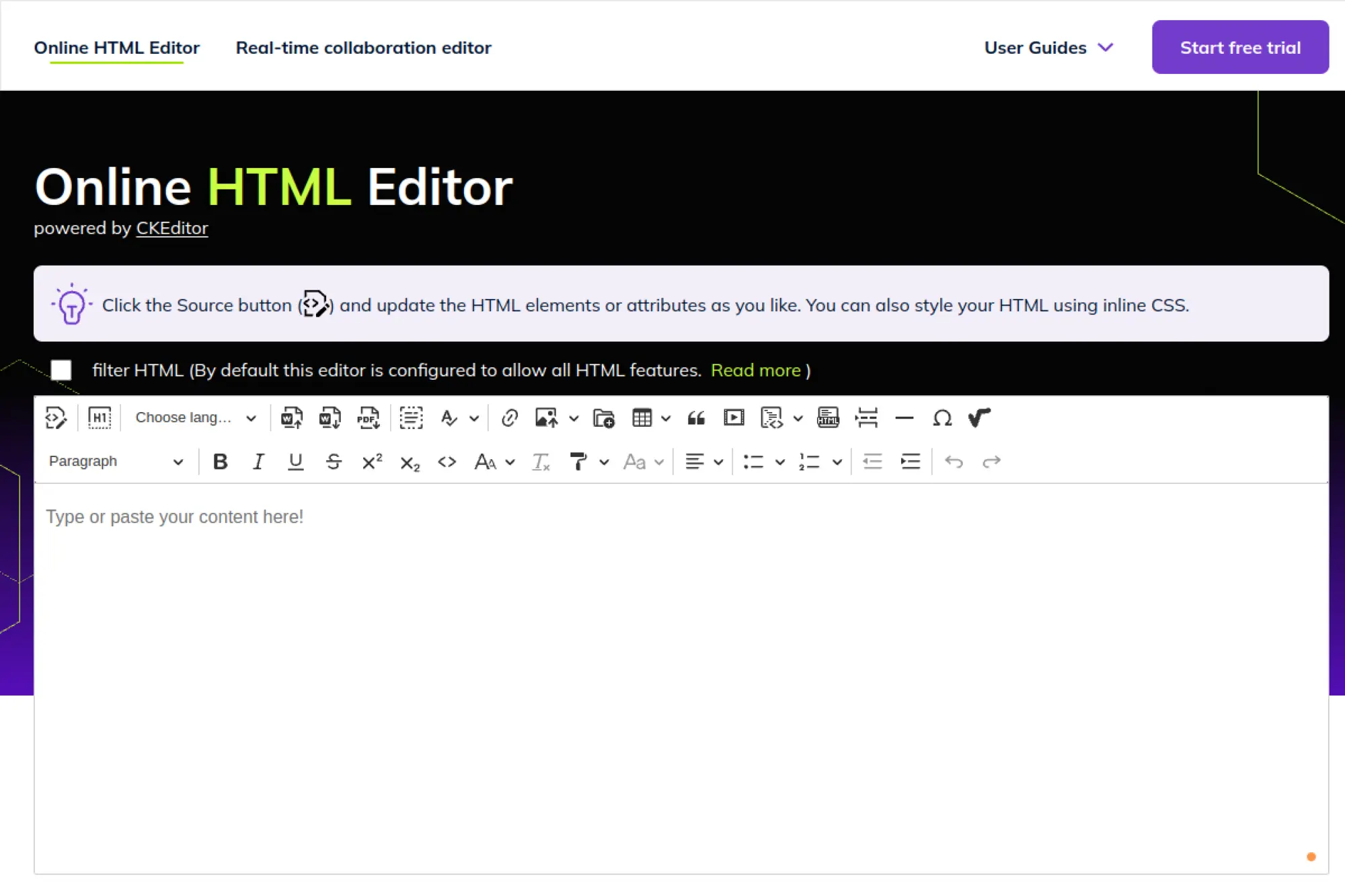
Onlinehtmleditor.dev is a web-based editor experience powered by CKEditor. It reads like a demo-first site, designed to help you test formatting and conversions quickly. The team behind it is less visible than a big vendor, so treat it like a handy tool, not a platform.
Tagline: Paste content, tweak HTML, and move on with your day.
Best for: content marketers; support teams prepping clean help-center pages.
- [Source toggle] → adjust tags and attributes without losing WYSIWYG context.
- [Word to HTML flow] → cut copy-paste cleanup and save 5–10 minutes per doc.
- [Browser-only] → reach first value in about 1 minute, no installs.
Pricing & limits: From $0/mo to use the embedded editor. The site also points to CKEditor plans and a free trial via CKEditor’s portal. Limits depend on the hosted editor setup.
Honest drawbacks: Privacy and data handling deserve extra caution for sensitive text. Advanced developer workflows, like repos and linting, are out of scope.
Verdict: If you need quick HTML cleanup, this helps you produce usable markup in minutes. Beats heavyweight installs for speed; trails desktop editors on control.
Score: 3.5/5
12. HTML5-Editor.net
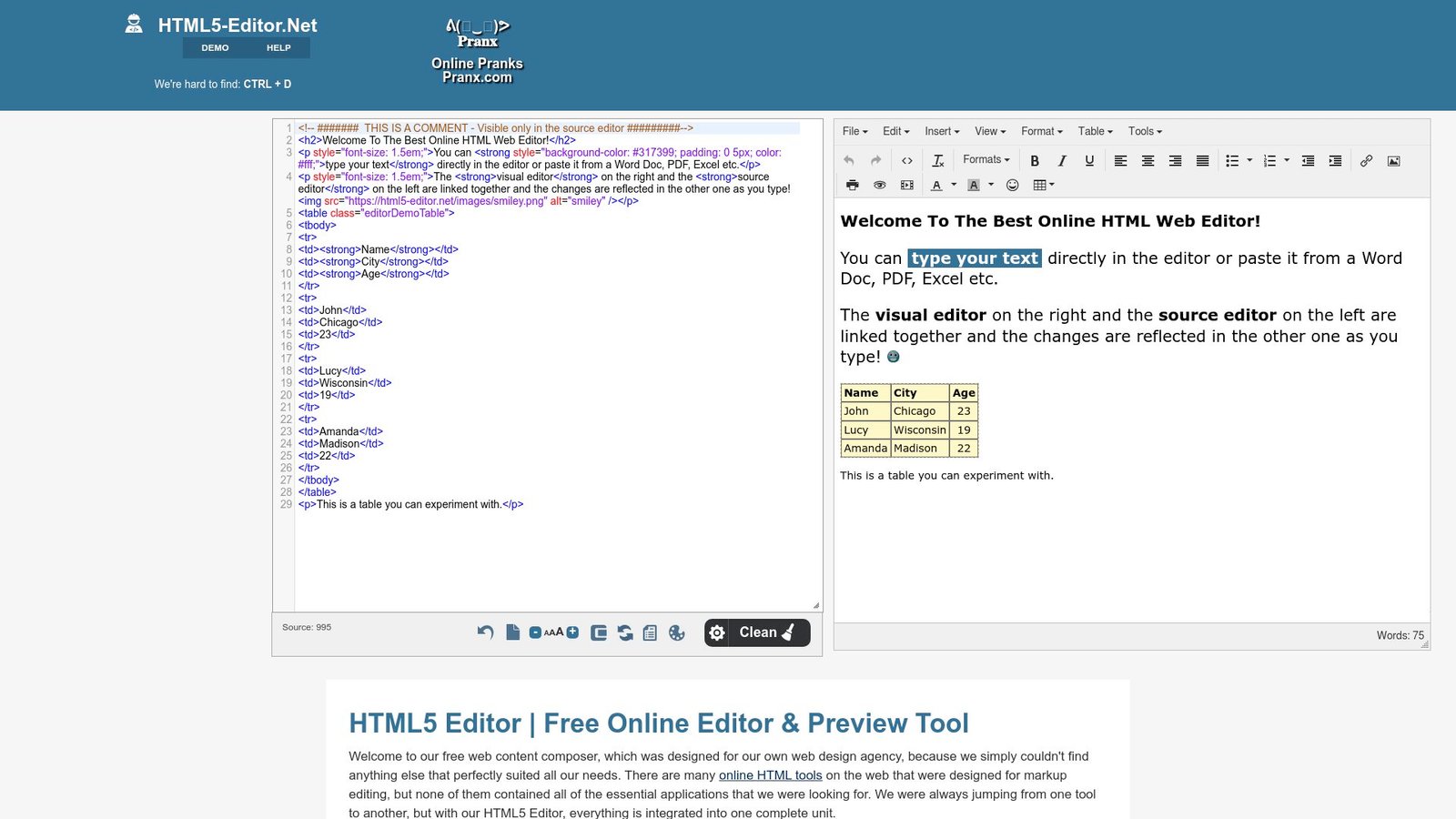
HTML5-Editor.net is a free online editor built like a “toolbox page” for web content. It openly positions itself as an integrated set of small utilities: cleaning, replacing, colors, and preview. The vibe is practical, not precious.
Tagline: Clean up HTML body content fast, with fewer side tools.
Best for: bloggers; CMS users who paste formatted content often.
- [Cleaning options] → strip messy inline styles and make markup easier to theme.
- [Find and replace panel] → handle bulk fixes and save several repetitive edits.
- [Instant preview] → reach first value in under 2 minutes.
Pricing & limits: From $0/mo; no trial needed. The page states no registration or login is required, and it focuses on body content, not full pages.
Honest drawbacks: “Guaranteed valid markup” claims deserve your own testing. Ads and a tool-heavy UI can distract during long sessions.
Verdict: If you need cleaner paste-in HTML, this helps you sanitize content in minutes. Beats writing regex by hand; trails CKEditor on enterprise polish.
Score: 3.1/5
13. HTML-Online.com
HTML-Online.com is a long-running browser tool aimed at editing and cleaning HTML generated from rich text. It positions itself as client-side and copy-out, not a storage service. That makes it useful when you want “fix it now,” not “manage content forever.”
Tagline: Convert and clean rich text into publish-ready HTML.
Best for: CMS editors; marketers converting Word or PDF content.
- [WYSIWYG + source view] → see what you write and what you ship.
- [Cleaner workflow] → remove junk markup and save 10+ manual deletions per page.
- [No-login tool] → get first value in about 60 seconds.
Pricing & limits: From $0/mo; no trial needed. The site notes you can’t save documents, so you copy the generated code out.
Honest drawbacks: No saving means no real workflow continuity. Ads and “pro version” hints can make it feel like a demo, not a workspace.
Verdict: If you paste content into a CMS, this helps you generate cleaner HTML in minutes. Beats Word’s HTML output; trails desktop editors for coding features.
Score: 3.4/5
14. RGBColorCode Color Mixer
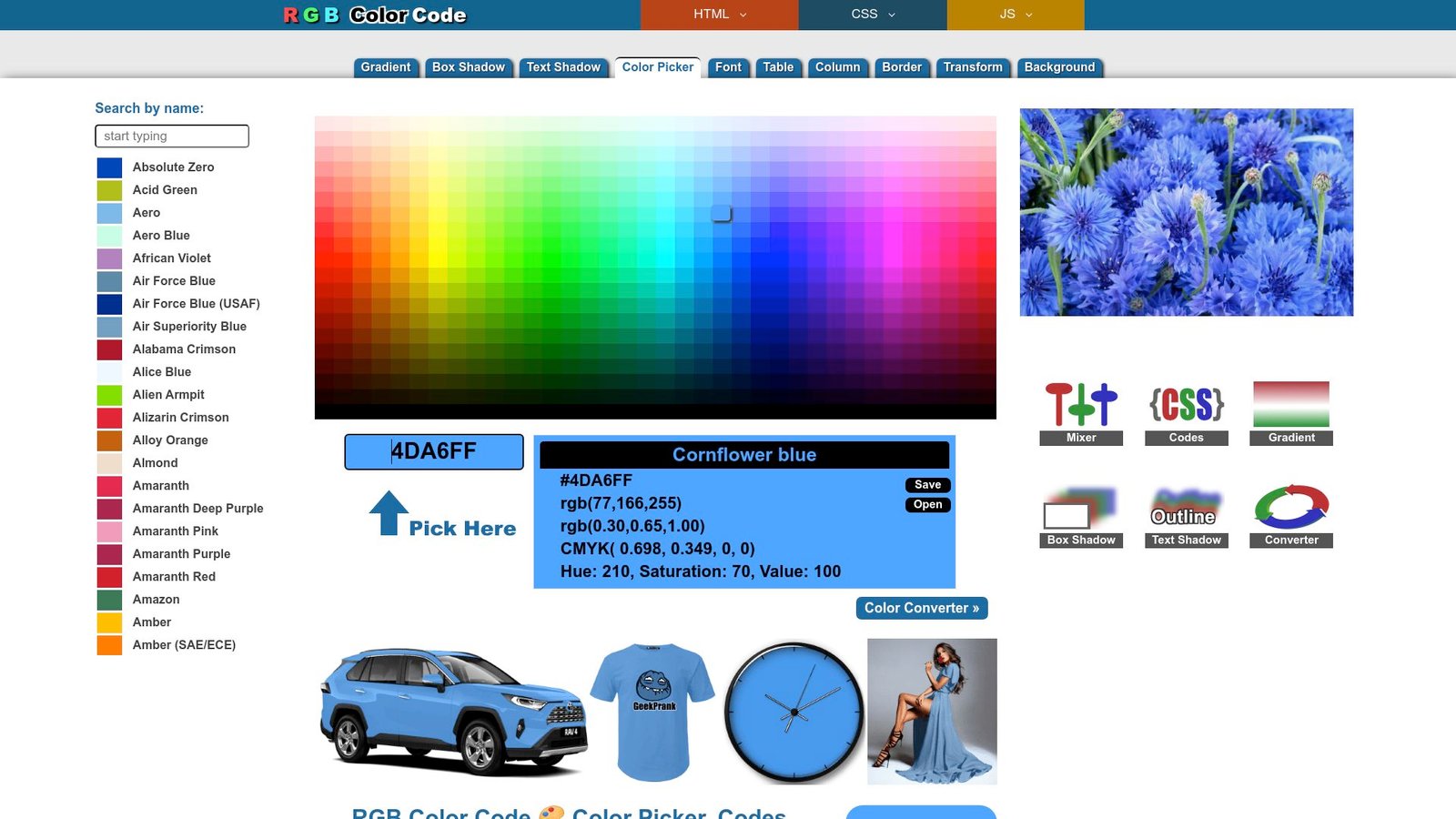
RGBColorCode is a web utility site centered on colors, naming, and conversions. It is not an HTML editor, but it supports HTML work constantly. When your real problem is “pick the right hex and move on,” this is the kind of tool that saves time.
Tagline: Choose colors faster, so your HTML and CSS ship sooner.
Best for: designers who code; developers matching brand palettes.
- [Color picker and lists] → find usable values without guessing or eyeballing.
- [Conversions] → swap RGB and hex quickly and save a few lookup steps.
- [Browser utility] → reach first value in under 1 minute.
Pricing & limits: From $0/mo; no trial needed. Limits are minimal, beyond normal browser performance and ad clutter.
Honest drawbacks: It won’t manage palettes like a design system tool. Context is thin when you need accessibility checks or contrast validation.
Verdict: If you need a fast color answer, this helps you pick values in minutes. Beats hunting through old CSS files; trails dedicated design tools on governance.
Score: 3.1/5
15. W3Schools HTML Online Editor
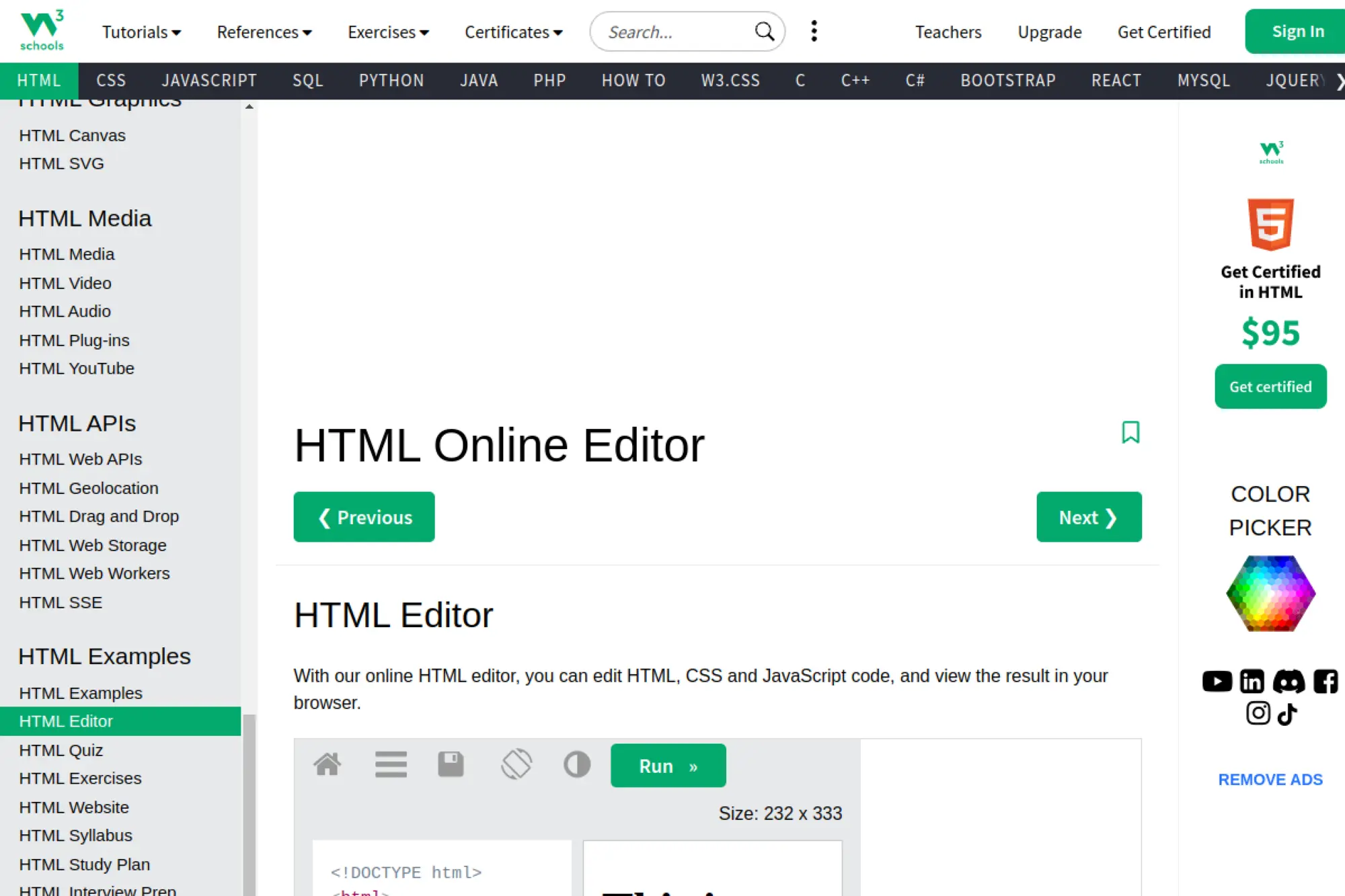
W3Schools is a tutorial platform with a large education-focused team and a huge learner audience. Its HTML online editor is built for quick practice and quick proof. The value is not depth. The value is speed and low friction.
Tagline: Test HTML instantly, right where you learn it.
Best for: students; teachers running in-browser exercises.
- [Run-in-browser examples] → validate ideas without setting up a project.
- [Try-it workflow] → skip local tooling and save 5–10 setup steps.
- [One-click start] → reach first value in about 30 seconds.
Pricing & limits: From $0/mo; no trial needed. The page states you can edit HTML, CSS, and JavaScript and view results in the browser. Publishing and saving push you toward their broader platform.
Honest drawbacks: This is not a serious production workspace. Advanced needs like lint rules, repos, and previews across files require a real editor.
Verdict: If you’re learning HTML, this helps you see results immediately. Beats most random playgrounds on clarity; trails VS Code on real-world workflow.
Score: 3.8/5
16. VS Code for the Web
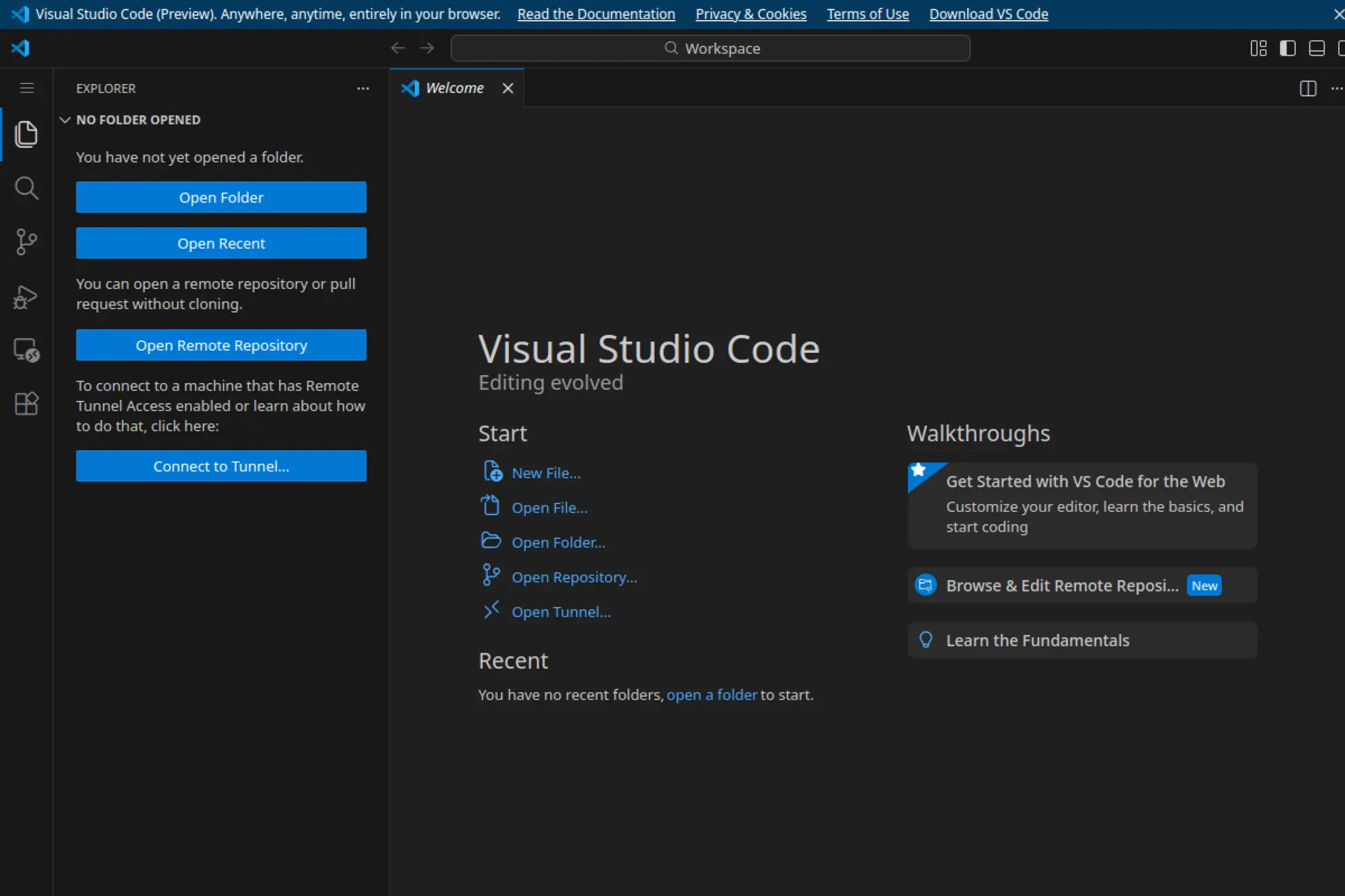
VS Code for the Web extends Microsoft’s editor into the browser. It’s aimed at “edit now” moments, like reviewing code quickly or making small fixes from a locked-down machine. The team is clear that the web runtime has constraints compared to desktop.
Tagline: Edit HTML anywhere, even when you can’t install tools.
Best for: developers on managed devices; reviewers doing small pull-request fixes.
- [Browser-based VS Code UI] → keep muscle memory while staying install-free.
- [Web extensions support] → add compatible tools and skip local setup steps.
- [Instant launch] → reach first value in about 1 minute.
Pricing & limits: From $0/mo; no trial needed. The web experience supports a subset of extensions, and some features are constrained by the browser sandbox.
Honest drawbacks: Not every extension can run in the browser. If you need a full terminal-based workflow, desktop VS Code remains the safer bet.
Verdict: If you need quick HTML edits from anywhere, this helps you land changes the same day. Beats most web editors on familiarity; trails desktop on power.
Score: 4.2/5
17. Apache HTTP Server
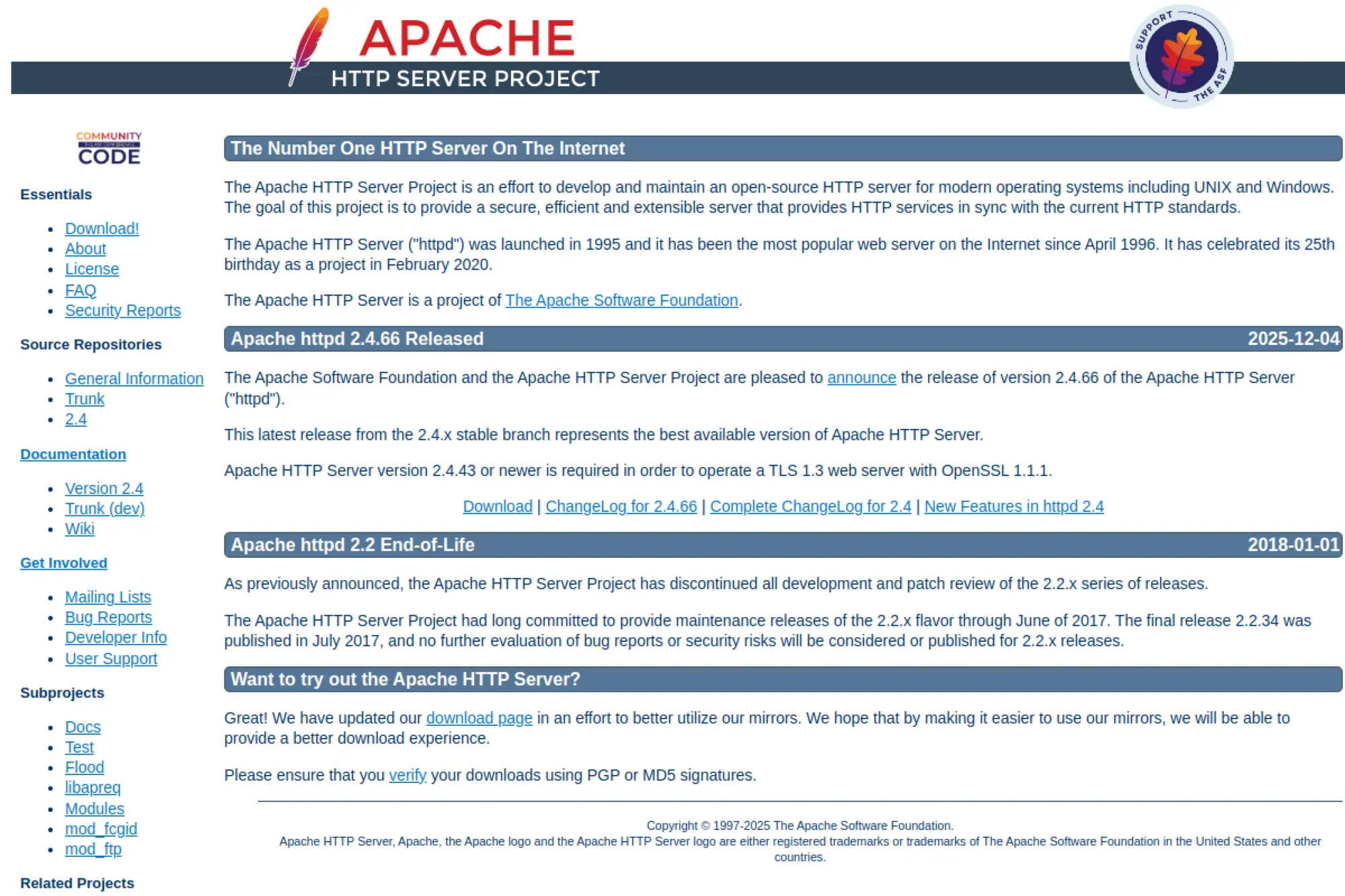
Apache HTTP Server is a project of the Apache Software Foundation, developed by a large volunteer community. It is not an HTML editor, yet it solves a core HTML job: serve pages locally in a realistic way. When your browser preview needs to match production behavior, a real server helps.
Tagline: Serve your HTML like a real site, not a file on disk.
Best for: developers testing routing and headers; learners practicing local hosting.
- [Local HTTP serving] → test relative paths, caching, and MIME behavior correctly.
- [Modules and config] → automate redirects and save repeated manual checks.
- [Classic setup path] → reach first value in 30–60 minutes on first install.
Pricing & limits: From $0/mo; no trial needed. The Apache project site notes httpd 2.4.66 was released on December 4, 2025.
Honest drawbacks: Configuration can be intimidating for beginners. For simple HTML, a lightweight dev server may be easier.
Verdict: If you need realistic local serving, this helps you validate behavior in an afternoon. Beats file:// previews; trails modern dev servers on ease.
Score: 3.8/5
18. Apache Lounge
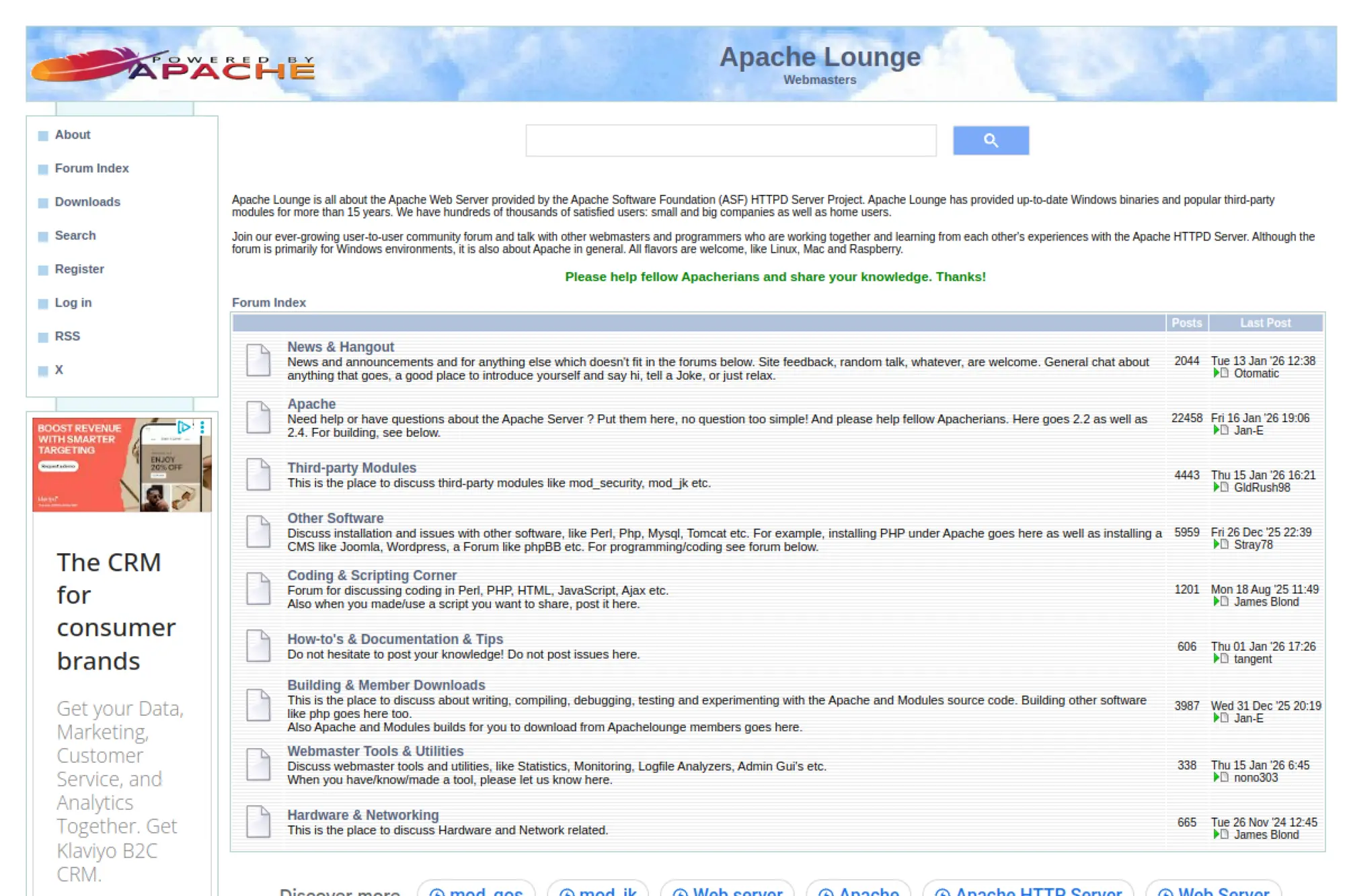
Apache Lounge is widely referenced as a Windows distribution source for Apache HTTP Server binaries. It is not part of the Apache project itself. Think of it as a convenience channel when you need to run Apache on Windows without compiling from source.
Tagline: Get Apache running on Windows faster, with fewer build headaches.
Best for: Windows developers; IT staff needing a quick local Apache stack.
- [Windows-friendly binaries] → skip compilation and get to serving HTML sooner.
- [Common stack support] → reduce setup steps when pairing Apache with related components.
- [Download-and-config] → reach first value in 30–45 minutes for simple sites.
Pricing & limits: From $0/mo; no trial needed. Apache’s own mirrors page lists Apache Lounge as an option for Windows binaries.
Honest drawbacks: Third-party binaries add a trust step you must manage. You should verify integrity and stay current, especially in business environments.
Verdict: If you need Apache on Windows fast, this helps you stand up a local server today. Beats building from source; trails official releases on direct provenance.
Score: 2.7/5
19. MDN Web Docs
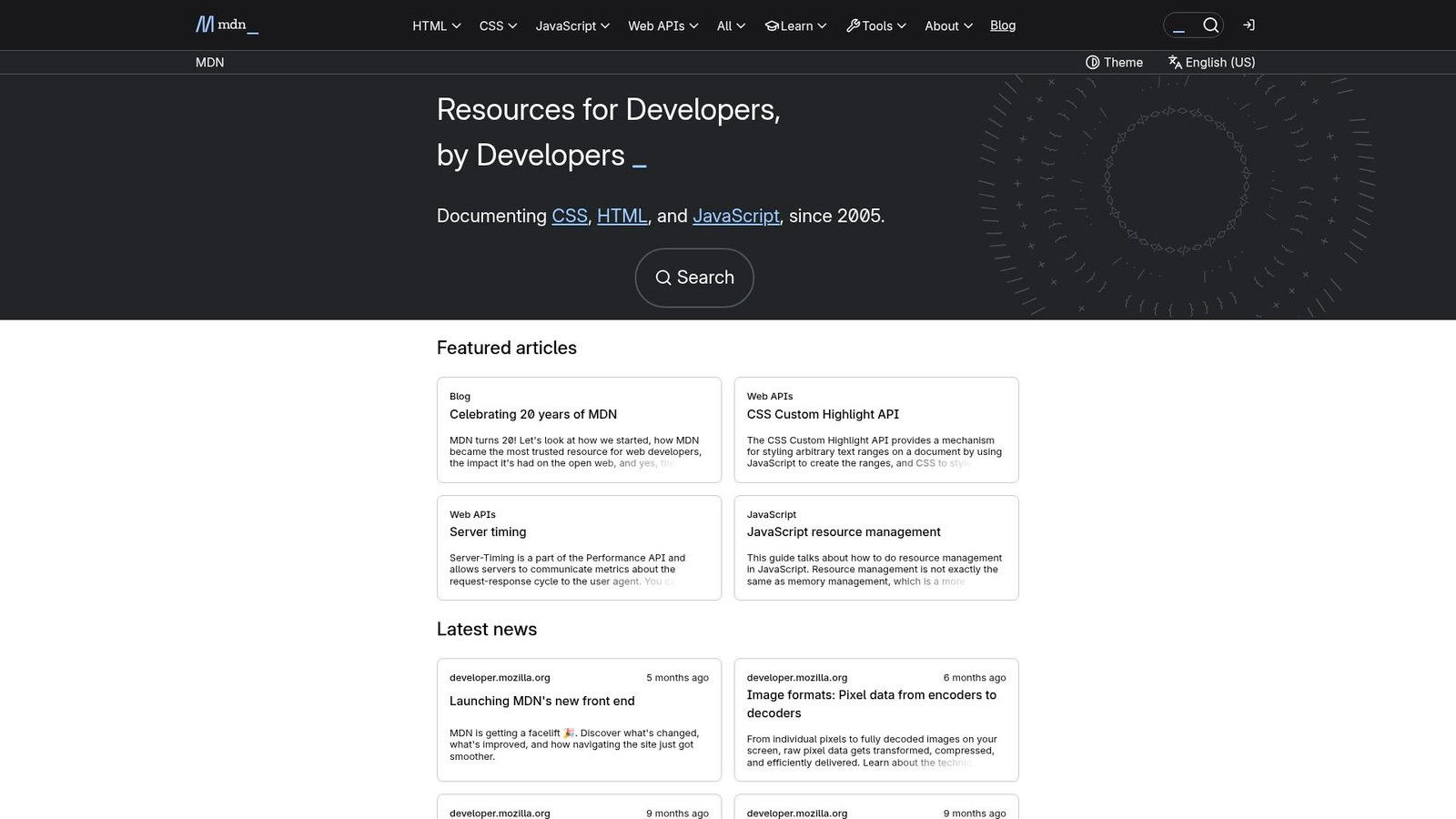
MDN Web Docs is maintained with contributions from Mozilla and the wider web community. It’s not an editor, yet it is the editor’s best friend. When you are stuck on an element, an API, or a browser behavior edge case, MDN reduces guesswork.
Tagline: Replace HTML uncertainty with the shortest path to correct markup.
Best for: front-end developers; students who want authoritative explanations.
- [Deep references] → fix semantics and accessibility mistakes with confidence.
- [Examples and guides] → cut research time and save 10–20 minutes per question.
- [Fast lookup] → reach first value in under 2 minutes per problem.
Pricing & limits: From $0/mo; no trial needed. MDN content is free to access, with reuse governed by its published licensing terms.
Honest drawbacks: It won’t write code for you or enforce style rules. Some topics still require cross-checking specs or framework docs.
Verdict: If you want fewer HTML mistakes, this helps you correct them today, not next week. Beats generic blogs on trust; trails IDE docs on context.
Score: 4.2/5
20. Stack Overflow Developer Survey Insights
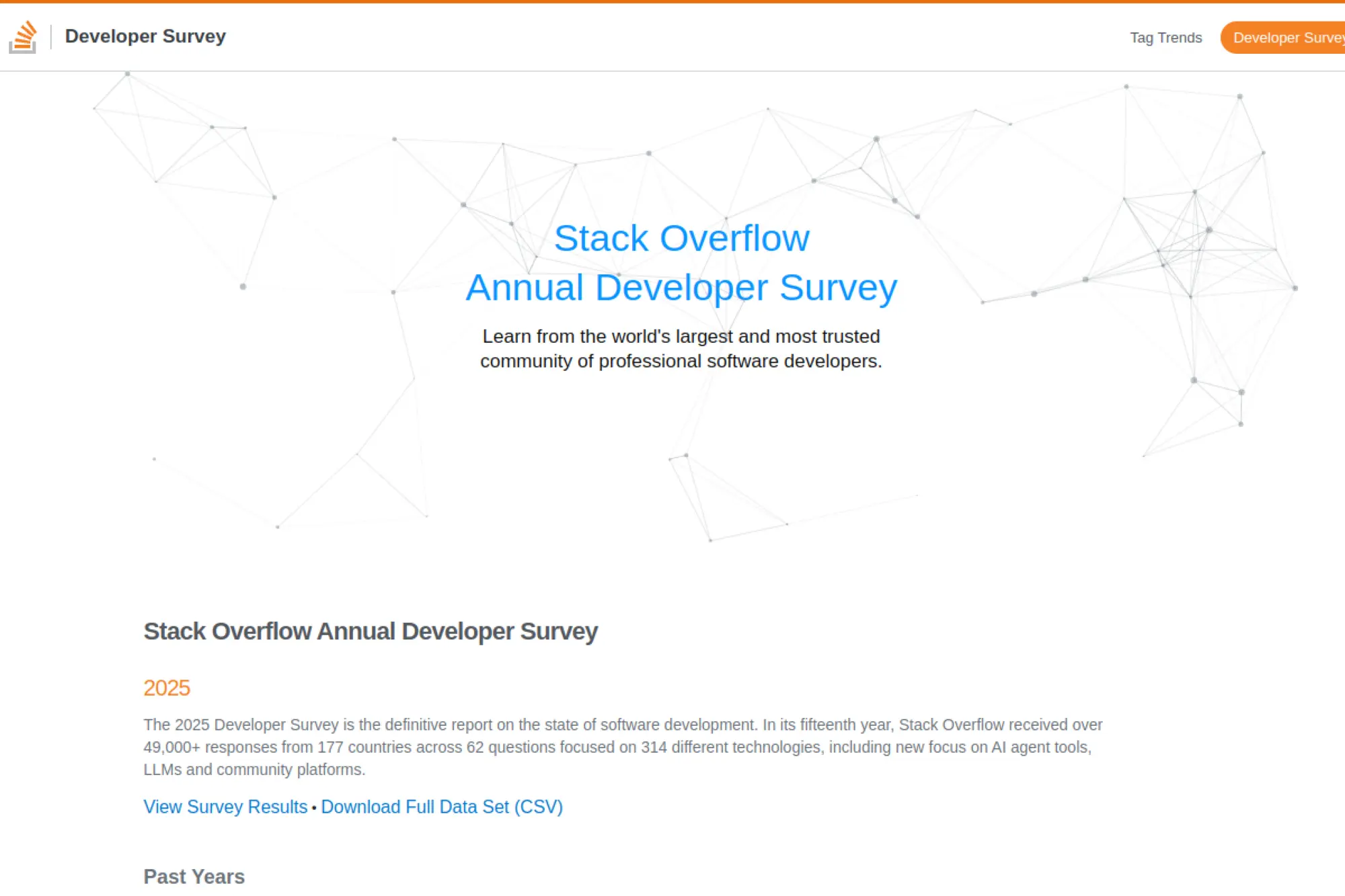
Stack Overflow’s survey team turns community responses into trend snapshots. This is not an HTML editor, but it can shape your editor choices. If you need to justify tooling to a manager, survey data can be a useful sanity check.
Tagline: Use developer trends to pick tools you can actually hire for.
Best for: engineering managers; team leads standardizing workflows.
- [Annual survey results] → validate mainstream tooling choices with real respondent data.
- [Downloadable datasets] → save hours when building internal benchmarks and slides.
- [Quick browsing] → reach first value in 5 minutes for high-level decisions.
Pricing & limits: From $0/mo; no trial needed. The page highlights the 2025 survey and offers results plus a downloadable CSV dataset.
Honest drawbacks: Survey data is descriptive, not prescriptive. “Popular” is not the same as “best for your stack.”
Verdict: If you need a tool adoption compass, this helps you decide in an afternoon. Beats guessing; trails hands-on trials for real fit.
Score: 3.5/5
21. Sevalla Application Hosting
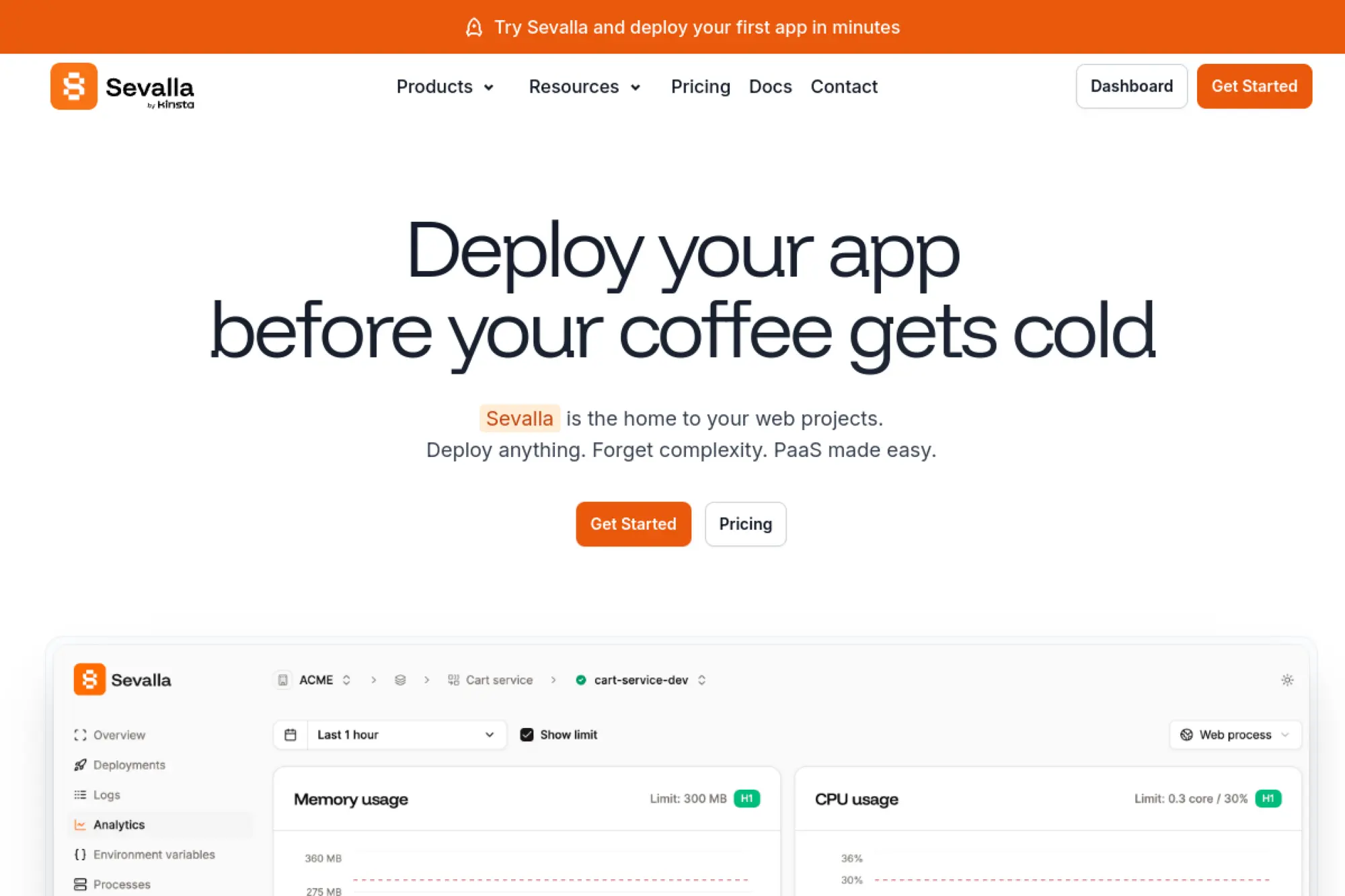
Sevalla positions itself as a hosting platform built for shipping web projects without per-seat pricing. While it is not an HTML editor, it is part of the “edit and publish” loop. If your HTML lives in a repo, Sevalla’s value is deployment speed and predictable packaging.
Tagline: Deploy web projects fast, so your HTML edits reach users sooner.
Best for: indie builders; small teams shipping static sites and simple apps.
- [Static site hosting] → publish changes quickly without managing servers.
- [Git-based deploys] → cut manual upload steps and save 5–8 actions per release.
- [Simple onboarding] → reach first value in about 30 minutes for a basic site.
Pricing & limits: From $0/mo for static site hosting. The pricing page lists a 1GB size limit per site, 100GB free bandwidth, 600 free build minutes, and up to 100 sites per account. Application hosting is listed from $5/mo.
Honest drawbacks: Hosting is not editing, so you still need a real code editor. Usage-based costs can surprise you if builds or traffic spike.
Verdict: If you want fast publishing, this helps you go live the same day. Beats manual FTP on repeatability; trails full platforms on enterprise depth.
Score: 3.8/5
22. Kinsta System Status
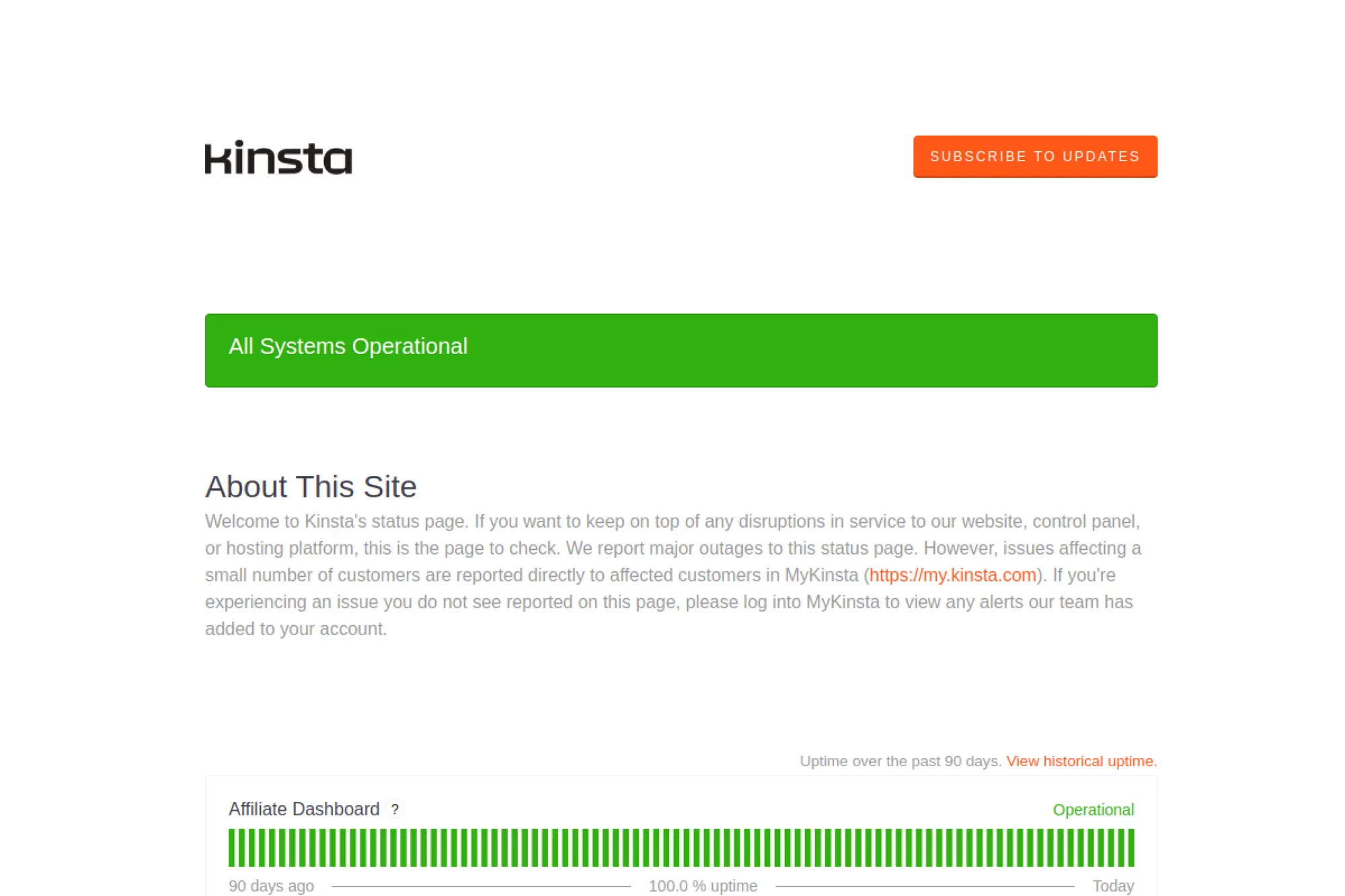
Kinsta’s status page is part of its operations and support posture. It is not an editor, yet it matters when your HTML changes are “fine” and the platform is not. A clear status page reduces panic, duplicate tickets, and Slack spirals.
Tagline: Know whether the problem is your code or the platform.
Best for: site owners; agencies managing client uptime expectations.
- [Incident visibility] → confirm outages fast and stop chasing phantom HTML bugs.
- [Subscriptions and feeds] → reduce check-ins and save several “is it down?” messages.
- [Instant access] → reach first value in under 1 minute during an incident.
Pricing & limits: From $0/mo; no trial needed. The page includes incident updates and lists recent events, including an incident posted January 14, 2026.
Honest drawbacks: A status page won’t cover every edge case. Some issues may still be account-specific and only visible inside your dashboard.
Verdict: If you want faster triage, this helps you decide what to do in minutes. Beats guessing; trails full monitoring suites on customization.
Score: 3.9/5
23. Kinsta Community
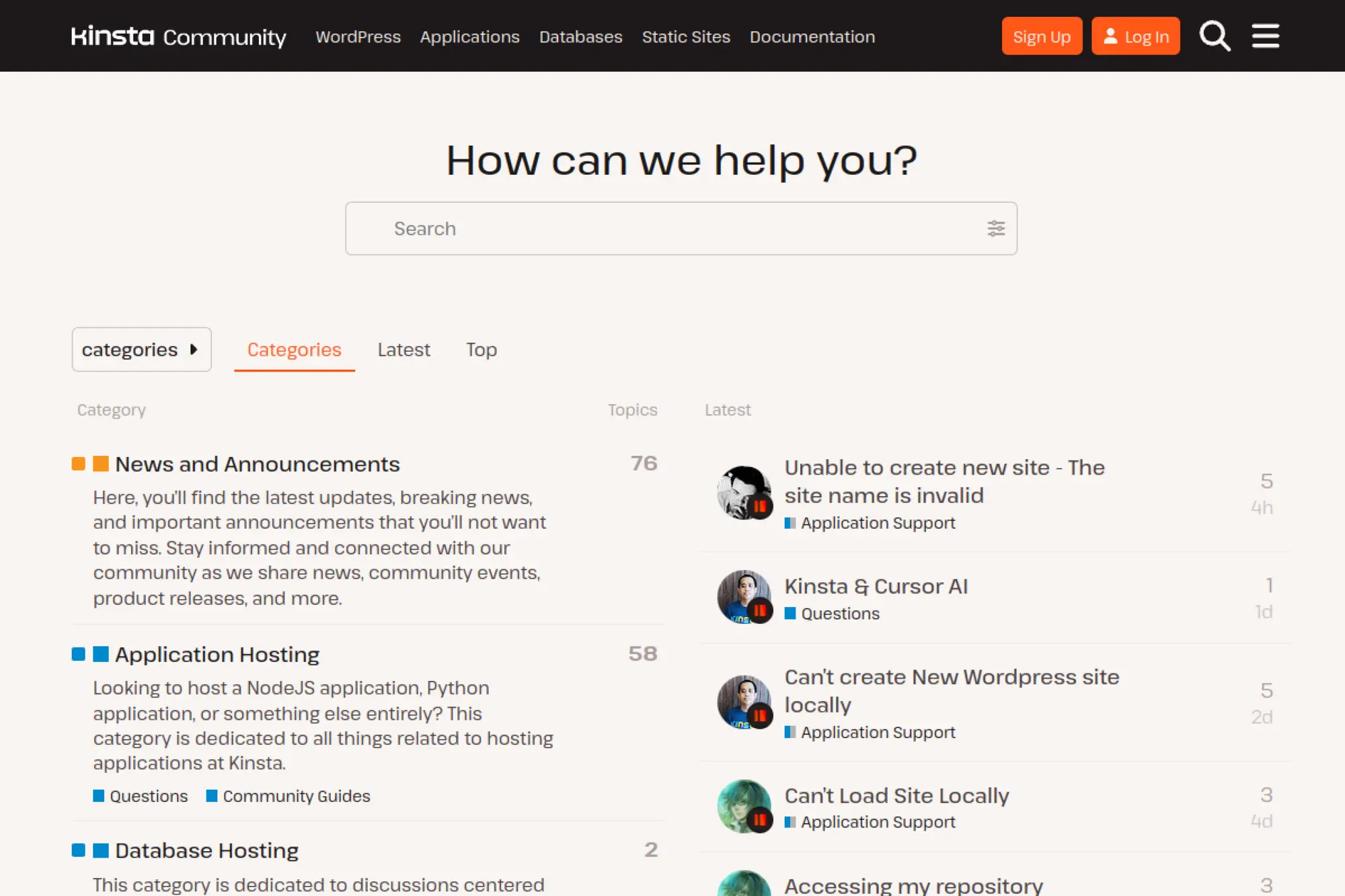
Kinsta Community runs on a forum platform and is framed as community assistance for Kinsta hosting. It’s a support-adjacent layer, not an HTML editor. Still, when you are blocked on deployment, caching, or platform behavior, peer answers can unblock your day.
Tagline: Get unstuck on hosting issues that make HTML look guilty.
Best for: WordPress site owners; agencies troubleshooting platform behavior.
- [Category-based discussions] → find relevant threads without searching the whole internet.
- [Peer + staff visibility] → reduce back-and-forth and save a support round-trip.
- [Fast browsing] → reach first value in about 5 minutes per question.
Pricing & limits: From $0/mo; no trial needed. Posting may require an account, and the forum structure reflects Kinsta product categories.
Honest drawbacks: Community depth depends on activity. Niche problems may still need direct support or deeper logs.
Verdict: If you want a second opinion, this helps you troubleshoot faster this week. Beats random comment threads; trails direct support on accountability.
Score: 3.5/5
24. MyKinsta Dashboard
MyKinsta is Kinsta’s central dashboard for managing hosted projects. The product team pitches it as an “everything under one roof” control plane. It is not an HTML editor, yet it is where HTML updates become deployments, cache clears, and rollbacks.
Tagline: Manage the hosting side of HTML changes without leaving one dashboard.
Best for: agencies; ops-minded developers managing multiple environments.
- [Deployment and logs] → move from commit to running site with fewer blind spots.
- [Built-in controls] → clear caches and manage domains, saving several support steps.
- [Guided setup] → reach first value in about 20–30 minutes per new project.
Pricing & limits: From $0/mo to access the platform UI, but it requires a Kinsta service to manage real projects. Kinsta’s API docs note Application, Database, and Static Site Hosting will be removed from MyKinsta on January 31, 2026, shifting management to Sevalla.
Honest drawbacks: You are buying into a specific hosting ecosystem. If you want provider-agnostic workflows, a separate deployment tool may fit better.
Verdict: If you want less hosting friction, this helps you ship and troubleshoot in hours, not days. Beats generic panels on focus; trails DIY stacks on control.
Score: 3.9/5
25. Gator Website Builder
Gator Website Builder is positioned as a beginner-friendly way to produce a site without living in code. It’s part of HostGator’s broader ecosystem, aimed at small businesses. As an “HTML editor,” it’s more accurate to call it an HTML generator with a UI.
Tagline: Get a site online without becoming a front-end developer.
Best for: solo business owners; non-technical teams needing a basic site.
- [Drag-and-drop building] → publish pages without hand-coding every section.
- [Template-driven flow] → skip design setup and save hours on first draft layout.
- [Guided onboarding] → reach first value in 30–60 minutes for a simple homepage.
Pricing & limits: From $3.84/mo is cited as an introductory offer in a third-party review, with multiple tiers. Trial terms and caps vary by plan and billing cycle.
Honest drawbacks: Builder tools can make later migration painful. Deep code control is limited compared to writing HTML in a real editor.
Verdict: If you want a simple site quickly, this helps you publish in a weekend. Beats raw HTML for non-coders; trails WordPress on extensibility.
Score: 3.3/5
26. HostGator Brazil
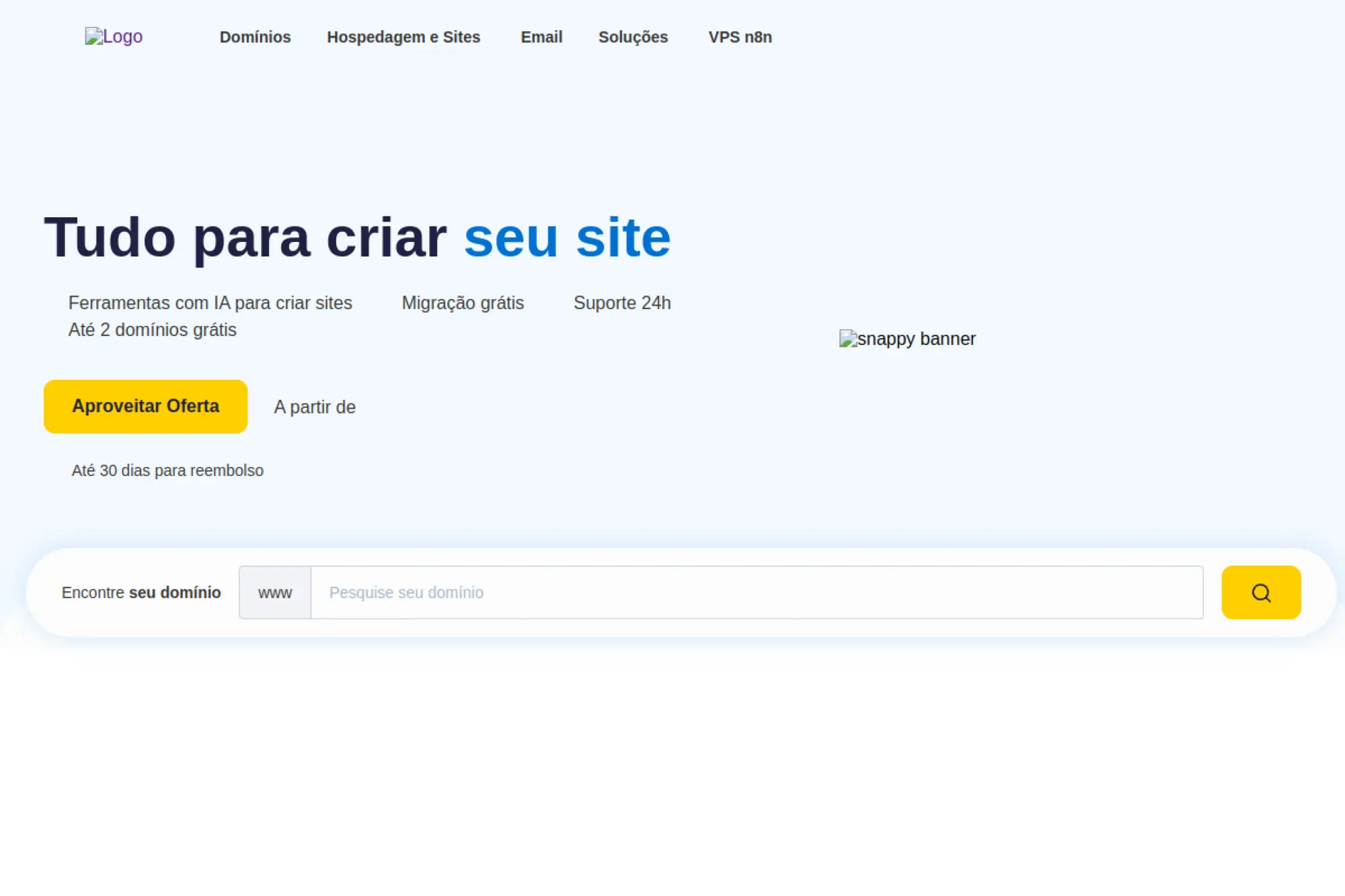
HostGator Brazil is a regional hosting provider offering site and business hosting services. It’s not an HTML editor, but it strongly influences how you publish HTML. If your job is “get the site live and keep it live,” hosting UX becomes part of your editing stack.
Tagline: Put your HTML on a real server, with support in Portuguese.
Best for: Brazilian SMBs; freelancers shipping client sites locally.
- [cPanel-based hosting] → manage files, domains, and email from one place.
- [Website creation options] → reduce setup work by choosing builder, WordPress, or manual mode.
- [Familiar onboarding] → reach first value in a few hours, including DNS time.
Pricing & limits: From $0/mo to research and access help content. A HostGator Brazil product page lists plans “a partir de R$ 37,39/mês” for one hosting offering, with up to 30 days for refund noted.
Honest drawbacks: Hosting UI can push upsells, and promos can complicate comparisons. If you only need static hosting, a simpler provider may be cheaper.
Verdict: If you need local hosting for HTML, this helps you publish with support this month. Beats self-hosting on effort; trails static hosts on simplicity.
Score: 3.4/5
27. Newfold Digital

Newfold Digital is a parent company behind multiple web presence brands. It is not an HTML editor, yet it shapes the ecosystem many small businesses buy from. Knowing the umbrella matters when you are managing renewals, support expectations, and product overlap.
Tagline: Understand the “who owns what” behind your hosting and site tools.
Best for: ops managers; SMB owners comparing hosting brands.
- [Brand portfolio context] → reduce surprises when products share systems and policies.
- [Ecosystem mapping] → save hours when planning migrations or consolidating accounts.
- [Quick research] → reach first value in about 10 minutes with basic due diligence.
Pricing & limits: From $0/mo to browse corporate info. Product pricing and trials vary by the individual brands and regions.
Honest drawbacks: Corporate context won’t fix day-to-day editing problems. Also, brand experiences can differ widely under one parent.
Verdict: If you want clearer buying decisions, this helps you spot relationships in minutes. Beats guessing ownership; trails hands-on trials for product fit.
Score: 3.0/5
28. Impact
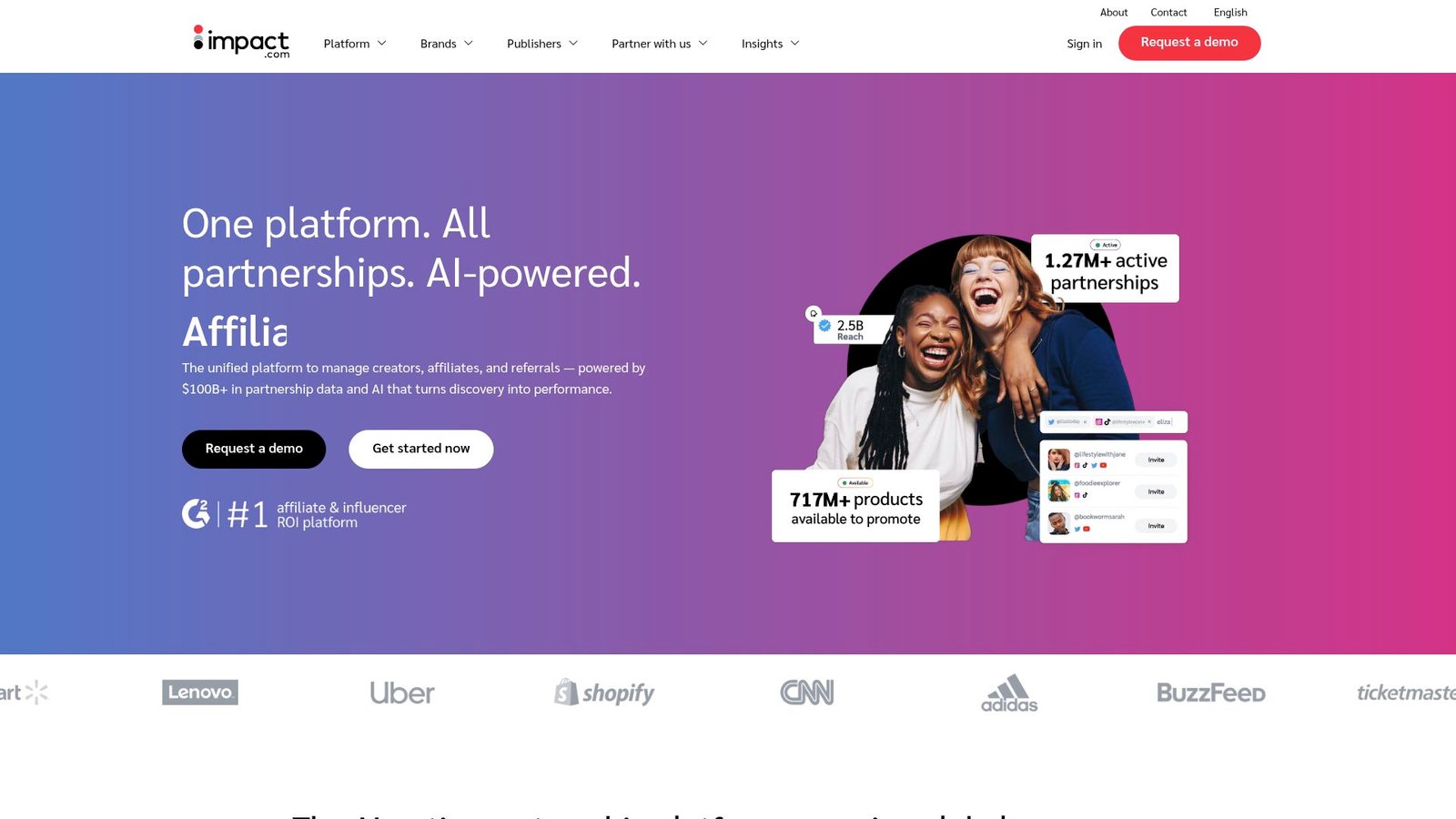
Impact’s platform is built by impact.com for partnerships and affiliate programs. The portal experience is not an HTML editor, but it often becomes part of a marketer’s “publish stack.” Creators need links, codes, and reporting that won’t break. Brands need tracking that works.
Tagline: Track partner links reliably, so your landing pages earn what they should.
Best for: affiliate managers; creators managing multiple partner programs.
- [Portal-based workflows] → grab tracking links and keep campaigns consistent.
- [Program tooling] → reduce manual reconciliation and save hours each month.
- [Account setup] → reach first value in 30–60 minutes after approval.
Pricing & limits: From $0/mo for creators to sign up as partners. For brands, impact.com lists Starter priced from $30/mo, with higher tiers above that. Limits and fees depend on plan and payout volume.
Honest drawbacks: Platform complexity can be a deal-breaker for small teams. Support expectations should be set early, especially on payouts and approvals.
Verdict: If you run partnerships, this helps you keep tracking clean in weeks, not quarters. Beats ad-hoc spreadsheets; trails simpler networks on ease.
Score: 3.6/5
29. Discord

Discord is built by a large product and infra team focused on real-time communities. It’s not an HTML editor, but it can be the fastest feedback loop you have. For many developers, a Discord server replaces slow forums and scattered comment threads.
Tagline: Get answers fast, so your HTML ships without waiting days.
Best for: open-source maintainers; student cohorts learning front-end together.
- [Community channels] → triage bugs and get quick peer review on markup decisions.
- [Threads and bots] → reduce repeated Q&A and save moderators time each week.
- [Instant onboarding] → reach first value in about 5 minutes once invited.
Pricing & limits: From $0/mo for core use. Discord’s own blog lists Nitro at $9.99/month in the US and Nitro Basic at $2.99/month. Limits vary by plan, especially around uploads and perks.
Honest drawbacks: Knowledge can be hard to search later compared to docs. Server quality varies wildly, and moderation can make or break value.
Verdict: If you want faster help, this helps you unblock work the same day. Beats email chains on speed; trails MDN on authoritative reference.
Score: 4.2/5
30. Pranx.com
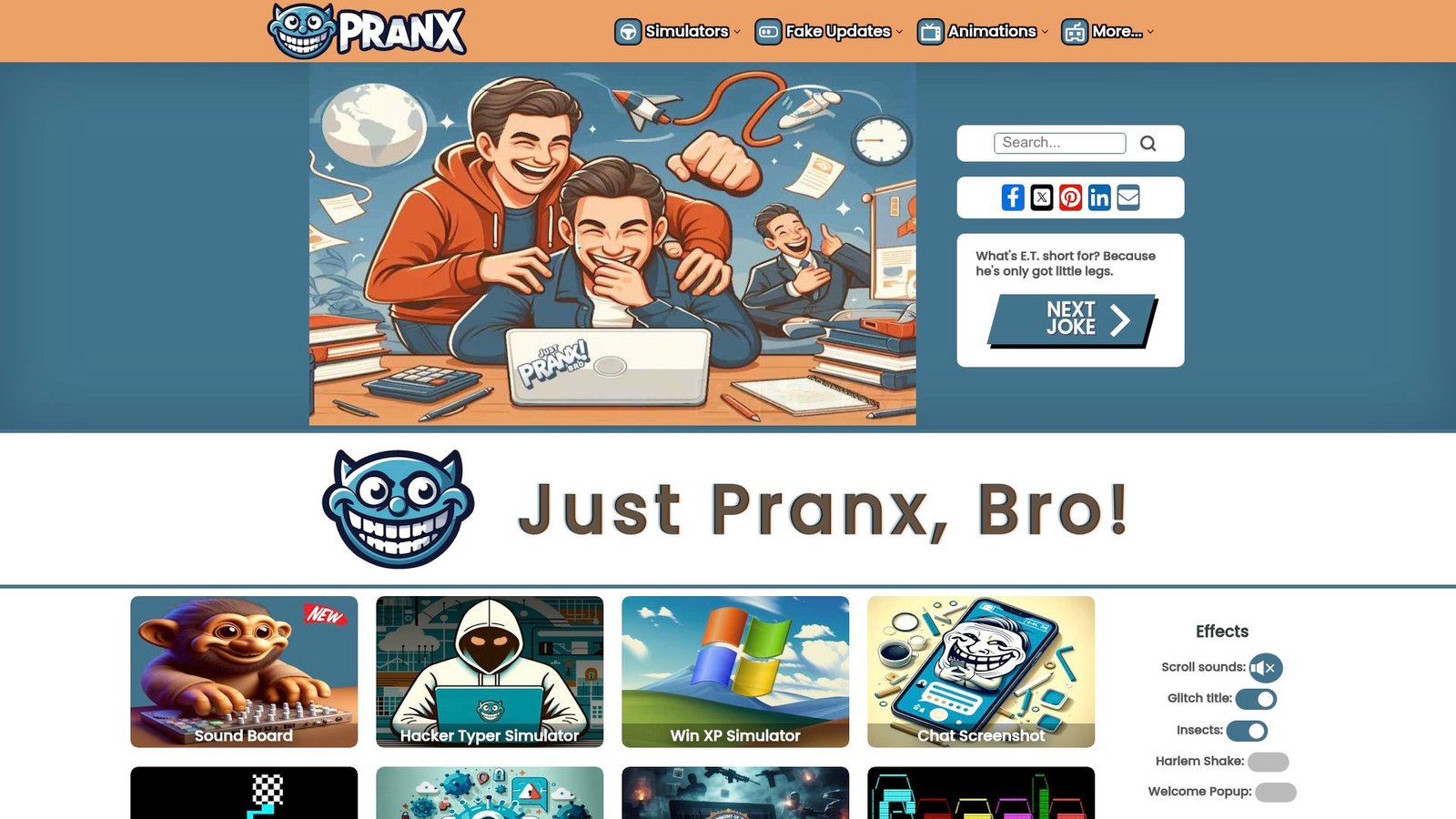
Pranx is a prank site built for playful, browser-based mischief. It is very much not an HTML editor. Still, it can be a surprising teaching tool: it shows how convincing UI simulations can be, and why “view source” literacy matters.
Tagline: Laugh, then remember why real HTML skills still matter.
Best for: classrooms teaching web skepticism; teams blowing off steam safely.
- [Hacker-typer simulators] → stage a harmless demo and spark interest in learning real code.
- [No-download pranks] → save setup steps and start instantly in the browser.
- [One-click experiences] → reach first value in under 30 seconds.
Pricing & limits: From $0/mo; no trial needed. The site positions itself as an online prank destination and describes its “GeekPrank” roots.
Honest drawbacks: This is not work software, and it can be inappropriate in many workplaces. Security teams may also dislike prank sites on corporate devices.
Verdict: If you want a quick laugh or a teachable moment, this helps you deliver it in minutes. Beats tedious icebreakers; trails anything serious on utility.
Score: 3.0/5
Recommended reading: Top 30 Best AI Resume Builder Tools to Create an ATS-Friendly Resume
Why Free HTML Editors Are Still Essential for Web Development
Deloitte reports 47% of surveyed leaders say they are moving fast with generative AI adoption inside organizations. Speed gains can be real, but they also move risk earlier in the workflow. McKinsey found developers can finish tasks up to twice as fast with generative AI tools, which makes validation and review habits even more important.
In client work, we often see a simple pattern. A team ships faster when the editor helps them see mistakes before a browser does. For example, we rebuilt a marketing microsite that kept breaking during content edits. The fix was not a new framework, but a safer editing loop with linting and preview. Another case came from a small operations team updating internal pages under time pressure. A lightweight editor plus consistent formatting rules prevented subtle regressions in navigation markup.
1. When a basic text app isn’t enough for real HTML, CSS, and JavaScript work
Basic text apps can open an HTML file, yet they rarely protect you from yourself.
In real projects, a missing closing tag becomes a broken layout that nobody can quickly explain.
Free HTML editors become essential once you edit beyond a single file.
Navigation menus, shared headers, and component fragments demand search, symbols, and structure.
From our perspective, “real work” starts when you change markup with intent.
That means semantic structure, consistent classes, predictable indentation, and clean diffs.
A good editor also shortens the time between idea and verification.
When preview is one click away, we catch mistakes while context is still fresh.
2. Workflow upgrades free html editors bring: syntax highlighting, autocomplete, and error detection
Syntax highlighting is not cosmetic for us.
Color and structure reduce cognitive load during reviews and handoffs.
Autocomplete helps more than beginners.
It prevents tiny typos that otherwise slip through manual QA.
Error detection is the quiet hero.
Lint hints, bracket matching, and tag completion stop broken markup from spreading.
In team settings, these upgrades reduce variance.
Less variance means fewer “mystery fixes” and more repeatable delivery.
3. Choosing tools that are actively maintained and compatible with your OS
An editor is part of your supply chain.
If it is unmaintained, it becomes a hidden operational risk.
Maintenance matters for security patches and platform changes.
Compatibility matters for fonts, file watching, and integrated terminals.
What We Check Before We Standardize
At TechTide Solutions, we look for active releases and predictable update channels.
We also check whether the community can survive vendor shifts.
Cross-platform support is not only convenience.
It makes onboarding smoother when teams mix Windows, macOS, and Linux.
4. Multi-language support for modern sites: HTML + CSS + JavaScript + PHP
Modern sites are rarely “just HTML.”
Templates, includes, and server rendering pull multiple languages into one workspace.
Multi-language support means consistent editing behaviors across file types.
That includes navigation, snippets, and formatters that do not fight each other.
PHP support is still relevant in many content-heavy environments.
We often see it in legacy pages, CMS themes, and internal tools.
The best free editors treat mixed files as first-class citizens.
They highlight embedded code without turning everything into noise.
5. Lightweight performance for larger projects and long code files
Speed is a feature, not a luxury.
When an editor lags, developers avoid refactors and quick cleanups.
Large projects stress file indexing and search.
Long files stress rendering and undo history.
In our testing, the “fast editor” is the one that stays responsive under pressure.
Responsiveness keeps teams in flow during debugging and reviews.
Lightweight also helps older machines.
That matters in classrooms, nonprofits, and budget-conscious teams.
6. Knowing when a built-in CMS editor works vs when you need a standalone editor
Built-in CMS editors can be practical for quick copy changes.
They keep authors near publishing controls and media assets.
Standalone editors shine once you need structure and repeatability.
They also give you version control workflows that CMS editors cannot match well.
From our experience, the deciding factor is risk.
If broken markup can impact revenue or accessibility, we edit outside the CMS.
Recommended reading: Top 30 Best AI Email Writer Tools to Streamline Email Copywriting in 2026
Free HTML Editors: Must-Have Features to Evaluate Before You Choose
1. Interface comfort: clean layouts, split views, and multi-file navigation
Interface comfort is a productivity multiplier.
A cramped layout makes simple edits feel like surgery.
Split views help when we compare markup and styling side by side.
Tabbed navigation helps when components live across many files.
We also value breadcrumbs and symbol outlines.
Those cues keep us oriented during refactors.
If an editor fights your eyes, it will eventually fight your deadlines.
Comfort is not aesthetic; it is throughput.
2. Editing essentials in free html editors: autocomplete, find-and-replace, and multi-cursor editing
Autocomplete reduces repetitive typing and enforces consistent patterns.
It also nudges teams toward valid attribute names.
Find-and-replace becomes critical during rebrands and design refreshes.
We want scoped searches that respect folders and ignore build artifacts.
Multi-cursor editing is our favorite “small superpower.”
It turns tedious edits into one controlled operation.
Editors without these essentials slow down every task.
Over weeks, the time loss becomes visible in shipping cadence.
3. Syntax highlighting and code folding for faster scanning and refactors
Good highlighting helps us read structure, not characters.
It separates content, attributes, and embedded scripts clearly.
Code folding is a scanning tool.
We fold long sections to focus on the fragment we intend to change.
During debugging, folding helps isolate suspicious areas.
During reviews, it helps validate that structure stays consistent.
These features also support teaching and onboarding.
New team members see patterns sooner when structure is obvious.
4. Validation and error detection to catch broken tags and invalid markup early
Validation is a business feature because it protects customer experience.
Broken markup can break checkout flows, forms, and tracking tags.
We like layered detection.
An editor should catch issues locally before a build system catches them later.
HTML validation also supports accessibility.
Clean structure makes ARIA and focus behavior easier to reason about.
When an editor lacks validation, teams compensate with extra manual checks.
That slows delivery and increases fatigue.
5. Live preview and switching between source view and WYSIWYG editing
Live preview is the fastest feedback loop for front-end work.
It turns layout changes into immediate visual confirmation.
Source view keeps the team honest.
It shows exactly what will land in a repository or deployment artifact.
Some editors blend both approaches well.
Others make you choose a camp and accept tradeoffs.
Our preference is simple.
We want preview to be quick, and source to remain authoritative.
6. Extensions and plugins to add missing capabilities without switching tools
Plugins keep a free editor relevant as requirements evolve.
They add linters, formatters, snippets, and deployment helpers.
Extension quality varies, so governance matters.
We typically curate a small approved set for a project.
Too many plugins create drift.
Drift leads to “works on my machine” outcomes.
A healthy ecosystem also protects long-term investments.
If needs change, the editor can adapt without migration pain.
7. Multi-language support for modern front-end stacks and mixed projects
Modern sites often mix templates, data files, and scripts.
Editors should not treat non-HTML files as second-class.
We want consistent navigation across the whole repo.
That includes symbol search and cross-file references where possible.
Even without full intelligence, basic support matters.
Indentation, highlighting, and formatting prevent accidental breakage.
Multi-language support is also a hiring advantage.
New developers feel at home faster with familiar tooling behavior.
8. Customization: themes, keybindings, and workspace personalization
Customization is about reducing friction.
Keybindings that match muscle memory cut small delays all day.
Themes matter for readability and eye strain.
We tend to standardize on a theme family per team.
Workspace settings also prevent noise.
Ignored folders, formatter preferences, and lint rules belong in the project.
Personal preference has a place, but team consistency matters more.
Consistency makes reviews easier and diffs cleaner.
9. Performance and resource usage for older machines and big codebases
Performance problems hide as “developer preference,” yet they are measurable.
Slow startup times delay quick fixes and interrupt incident response.
Big codebases stress indexing and file watchers.
Older machines stress memory and rendering.
Terminal editors often excel here.
They also pair well with remote servers and lightweight environments.
We test performance with realistic operations.
Search across folders and open multiple large files quickly.
10. FTP and server-connected workflows for updating live site files
FTP-style workflows still show up in small businesses and legacy hosting.
They can be practical, but they can also be risky.
Server-connected editing should be treated as controlled access.
We prefer secure transport and explicit file selection.
In higher-stakes environments, we avoid editing production directly.
A safer pattern is edit locally, commit, and deploy through automation.
Some editors integrate remote workflows cleanly.
Others push you toward external tools for uploads.
11. Collaboration options for teams editing HTML content together
Collaboration is not only simultaneous typing.
It also includes reviews, handoffs, and shared conventions.
Browser editors often make sharing effortless.
They trade some control for speed and accessibility.
Desktop editors collaborate best through version control.
That model scales better for serious change tracking.
We use collaboration features selectively.
For production pages, we still rely on pull requests and review gates.
12. HTML cleaning and formatting utilities for keeping output consistent
Formatting tools are the difference between readable code and archeology.
They also reduce review noise by keeping diffs focused.
HTML cleaning helps after pasting content from docs and rich editors.
It removes stray inline styles and odd nesting patterns.
We favor tools that are deterministic.
Deterministic formatting prevents endless “style debates” in code review.
Consistency also supports accessibility audits.
Clean markup is easier to scan for semantics and missing labels.
Recommended reading: Top 30 AI Presentation Maker Tools to Create Stunning Slides Faster
Picking Between Code-First and WYSIWYG Free HTML Editors
1. Code-first free html editors for full control over structure and semantics
Code-first editors keep you close to what browsers parse.
That closeness protects semantics and accessibility.
We prefer code-first tools for production interfaces.
They make it harder to accidentally generate bloated markup.
Code-first workflows also fit version control naturally.
Clean diffs make reviews meaningful and fast.
Another advantage is predictable performance.
Rendering a visual canvas can be heavier than editing plain text.
2. WYSIWYG editors for faster visual iteration and content updates
Visual editors shine when authors need to move quickly.
They reduce the intimidation factor for non-developers.
For landing pages and content blocks, WYSIWYG can be efficient.
It also helps stakeholders validate layout without reading code.
In our view, the risk is silent complexity.
WYSIWYG can generate markup that looks fine until it hits edge cases.
We treat WYSIWYG as a tool, not a default.
Context determines whether speed beats control.
3. Source-view toggles that help verify what visual edits actually generate
Source toggles are the safety valve.
They let you check whether the visual tool is behaving responsibly.
We encourage teams to spot-check source after major edits.
That habit catches nesting errors and strange inline styles early.
Source review also helps training.
Editors learn which visual actions produce which markup patterns.
Over time, this builds shared intuition.
Shared intuition leads to fewer regressions.
4. Reducing “messy markup” risks when editing visually
Messy markup is not only ugly.
It can break CSS specificity and make future changes fragile.
We reduce risk by setting rules.
Prefer classes over inline styles, and prefer structure over extra wrappers.
Another technique is formatting on save.
Formatting turns chaotic output into something reviewable.
Finally, we keep components small.
Small components reduce the blast radius of bad visual edits.
5. When a CMS editor is “good enough” vs when a standalone editor is required
A CMS editor can be good enough for copy and images.
It is often the fastest way to publish small updates.
Standalone editors become required for structural changes.
That includes navigation, templates, and reusable page fragments.
Security concerns also push teams toward standalone workflows.
Local edits plus review gates reduce the chance of risky changes.
Our internal rule is simple.
If you need rollback confidence, use version control outside the CMS.
6. When you should step up from an editor to an IDE-like workflow
Some projects outgrow “just editing files.”
Build tooling, tests, and environment management become essential.
IDE-like workflows help when debugging spans many layers.
They also help when refactors require reliable symbol navigation.
We step up when changes become systemic.
If every edit touches templates, scripts, and builds, an IDE-like setup pays off.
Still, we avoid tool bloat.
The best workflow is the one the team can sustain.
Recommended reading: Top 30 Best AI PowerPoint Generator Tools for Fast, Editable Slide Decks
Best Practices to Work Faster and Safer in Free HTML Editors
1. Fast local preview loop: save an .html file and refresh in your browser
The simplest preview loop is still powerful.
Save the file and refresh the browser.
We like this loop because it is transparent.
No hidden build steps, and no magic caching surprises.
Local preview also supports debugging with browser tools.
You can inspect DOM changes and CSS interactions immediately.
When speed matters, keep the loop tight.
Fast feedback beats complex tooling in early stages.
2. Use templates and snippets to scaffold HTML pages consistently
Snippets are how teams encode habits.
A good snippet includes accessibility-friendly defaults.
Templates reduce onboarding time.
They also reduce the chance that each page becomes its own style experiment.
In our projects, snippets encode common structures.
We standardize navigation blocks, forms, and content sections.
Consistency also improves analytics reliability.
Stable structure makes event hooks easier to maintain.
3. Keep projects organized with a structured folder and multi-file workflow
Folder structure is a form of documentation.
It tells future developers where to look first.
We separate assets, templates, and scripts deliberately.
This separation also makes cache strategies clearer later.
Multi-file workflows need editor support.
Project search, open-file lists, and quick navigation become essential.
Organization reduces mistakes during urgent fixes.
When pressure rises, structure prevents accidental edits in the wrong file.
4. Clean and normalize pasted HTML before committing changes
Pasted HTML is a common source of hidden problems.
It often brings inline styles and odd nesting.
We clean pasted markup immediately.
That keeps diffs readable and prevents style drift.
Normalization also helps accessibility reviews.
Clean structure is easier to audit and reason about.
When teams skip cleaning, future edits become painful.
Eventually someone must pay the cleanup cost anyway.
5. Use find-and-replace strategically for HTML updates and deprecations
Find-and-replace is powerful and dangerous.
We treat it like a refactor, not like typing.
Scope changes to folders and file types.
Then preview diffs before committing anything.
We also prefer incremental passes.
Smaller batches reduce the risk of unintended replacements.
After changes, we re-preview key pages.
Visual sanity checks catch issues that text cannot reveal.
6. Leverage code completion and tag references to reduce typos
Typos are cheap to create and expensive to debug.
Completion reduces that risk with almost no downside.
Tag references also help with closing tags and nesting.
They prevent subtle structural errors in long documents.
We recommend turning on helpful hints.
Hints for attributes and class names prevent inconsistent naming.
Small guardrails keep teams shipping.
Guardrails are how speed stays safe.
7. Collaboration hygiene: shared links, session timing, and change tracking
Collaboration hygiene is mostly about clarity.
Who changed what, and why, should be easy to answer.
We use clear commit messages and small pull requests.
Those habits make reviews faster and disagreements calmer.
Shared links help align stakeholders.
Preview URLs and screenshots prevent miscommunication about layout changes.
Session timing matters for pair edits.
Short sessions with clear goals outperform long, unfocused marathons.
TechTide Solutions: Custom Web Solutions Beyond Free HTML Editors
1. Custom web app development tailored to your customer needs and workflows
Editors help you write pages.
Custom software helps you run a business.
At TechTide Solutions, we build web apps that reduce operational friction.
That can mean customer portals, internal dashboards, or workflow automation.
Our philosophy is pragmatic.
We keep the front end clean, then connect it to systems that matter.
When a business relies on content updates, we design for safe change.
That includes roles, approvals, and clear rollback paths.
2. Building integrated solutions that connect editors, content systems, and deployment
Tooling works best when systems connect cleanly.
Editing, preview, review, and deploy should feel like one motion.
We often integrate editors with structured content systems.
The goal is reliable publishing without sacrificing developer control.
Deployment is where quality becomes real.
Automated checks, previews, and audit trails protect uptime and trust.
Integration also reduces manual steps.
Fewer manual steps mean fewer production incidents.
3. Scaling from prototypes to production-grade software with maintainable architecture
Prototypes move fast, yet they often become production by accident.
We plan for that reality instead of pretending it will not happen.
Maintainable architecture starts with boundaries.
Clear separation between UI, services, and data reduces long-term complexity.
We also build for observability.
Logs, metrics, and traceable errors turn debugging into a process, not luck.
Scaling is not only traffic.
It is also team size, release frequency, and changing business requirements.
Conclusion: Choosing the Right Free HTML Editor for Your Workflow
Choosing a free HTML editor is less about “best features” and more about fit.
The right tool supports your habits, your OS, and your team’s tolerance for configuration.
From our side at TechTide Solutions, we look for a few consistent signals.
Healthy maintenance, strong navigation, reliable formatting, and a preview loop you will actually use matter most.
Desktop editors usually win for production work because version control fits naturally.
Browser editors often win for demos, education, and fast collaboration.
A practical approach is to pick one primary editor and one backup.
The backup should be simpler and more resilient under pressure.
If you are unsure, start with a tool that has a broad ecosystem.
Later, switch only when the current workflow becomes a bottleneck.
Now comes the useful question we ask clients before we standardize anything.
Which matters more for your next project: rapid iteration for content authors, or stricter control for long-term maintainability?

