

At TechTide Solutions, we treat “rename a Git branch” as one of those deceptively small changes that can either tidy up a repository—or quietly detonate a team’s workflow. The command looks harmless, the UI button looks friendlier still, and yet the ripple effects can span CI, pull requests, default-branch settings, internal documentation, and automation that nobody remembers exists until it fails at the worst possible moment.
From a business angle, this matters because branch names aren’t just developer ergonomics; they’re integration contracts. When a branch name is embedded in a release pipeline, referenced by a deployment job, or used as a policy trigger (think “only release/* can deploy”), renaming becomes a coordination problem, not a personal preference. In a world where Gartner says worldwide IT spending $5.43 trillion in 2025, we’ve found that the “little” operational paper cuts—broken pipelines, stalled PRs, surprise permission blocks—are exactly where teams bleed time and credibility.
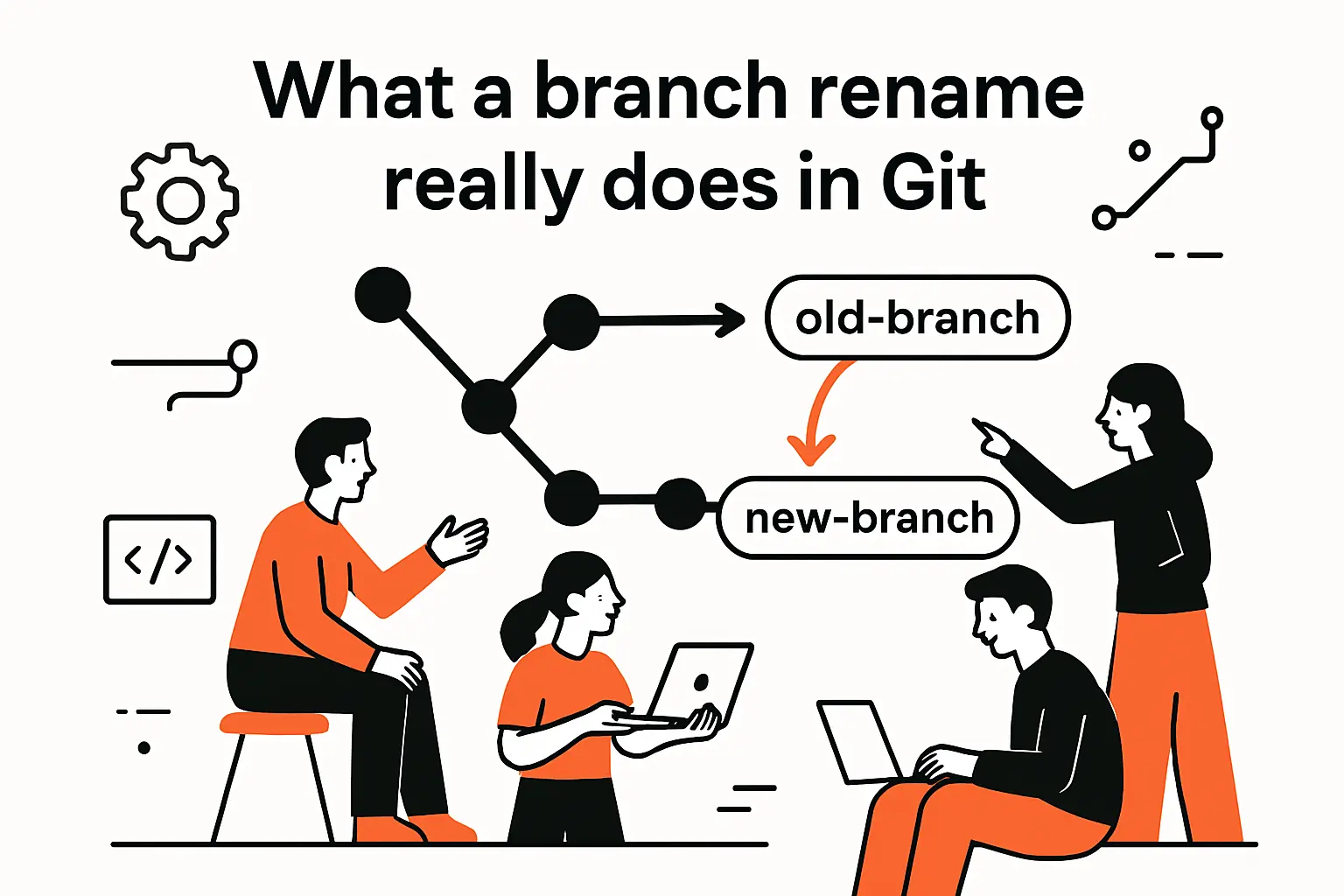
What a branch rename really does in Git
We’ve also seen branch renames break in places engineers don’t intuitively expect. One real-world cautionary tale: the maintainers of a popular setup action warned that testing found that this rename breaks existing GitHub Actions workflows that are pinned to the old branch name. That’s the kind of failure mode that doesn’t show up in a unit test; it shows up in production when a critical workflow can’t fetch what it thinks is a stable reference.
So let’s go deep—mechanics first, then safe procedures—because “safe” in Git isn’t a vibe. It’s a sequence.
1. Branches are self-updating labels while tags are fixed labels
Branch names feel like “folders” or “lanes” in a repo, but Git doesn’t store them that way. Conceptually, a branch is a moving label: as new commits land on that line of work, the label advances. Tags, by contrast, are designed to be stable labels—used to mark a specific point for release, auditing, or long-term reference—even if the project keeps moving forward.
That behavioral difference is why renaming branches is operationally common (and usually okay), while “renaming” tags often turns into a delete-and-recreate story with much more caution around immutability and provenance. Put differently: branches are built for iteration, tags are built for recall. The clearest mental model we use internally is captured by the idea that a tag changes only when you explicitly update it, whereas a branch advances as a natural consequence of committing on it.
2. A branch is stored as a pointer to a commit ID
Under the hood, Git is obsessively commit-centric. Names—branches, tags, and other references—exist primarily so humans and tools don’t have to memorize hashes. A branch name ultimately resolves to “the current commit at the tip of that branch,” and your next commit moves that pointer forward.
We prefer to explain this using Git’s own language: Named pointers called refs mark interesting points in history. If we keep that one sentence in view, a lot of Git’s “mysteries” stop being mysteries—especially why renaming a branch is typically a metadata move, not a history rewrite.
3. Branch names map to refs heads entries inside the Git directory
When we’re debugging a gnarly situation—like a rename that “worked” locally but looks wrong in tooling—we often drop down a level and remind ourselves where names live. Git stores references in a structure under the repository’s internal directory, and local branches live in a “heads” namespace.
A practical, grounding detail is that refs are stored as normal text files in the .git/refs directory (or sometimes packed into a single file when Git optimizes). That means branch names are not magical objects; they’re entries in Git’s reference system that map a friendly name to a commit hash.
4. Renaming a branch is effectively renaming the reference, not rewriting commits
When we rename a branch, we’re not editing commits, changing file contents, or altering the commit graph. Instead, we’re changing which human-readable name points to a particular tip commit. The commit history remains intact; the label changes.
This is exactly why branch renames are often the right fix for a messy naming convention: you get better clarity without paying the cost of history surgery. Still, “not rewriting commits” does not mean “no consequences.” Tooling that depends on branch names can fail even when commit history is untouched, because those tools are often wired to names, not commit identities.
5. Commits can exist without any branch name pointing to them
One of Git’s most important (and sometimes unsettling) properties is that commits can exist even when no branch name points at them. That happens most famously during detached-HEAD work, where you can create commits that aren’t on a named branch unless you later attach them to one.
If you’ve ever seen Git warn you that you are in ‘detached HEAD’ state, you’ve touched this reality directly. In our experience, this detail matters during renames because people sometimes treat branch names as “containers” that hold commits; Git actually treats branch names as references that can come and go while commits still exist (at least until garbage collection makes unreachable history truly vanish).
When renaming is worth it and when to avoid it
1. Correcting a wrong or inconsistent branch name before more work depends on it
Renaming early is one of the few times we’ll recommend acting fast. If a branch name is misleading—say, it reads like a feature but it’s actually a hotfix—it can cause subtle process failures: reviewers apply the wrong expectations, release notes become confusing, and the team’s “muscle memory” starts to encode nonsense.
In practice, the moment we notice a naming mismatch, we ask one question: “Has anyone else integrated this name into their work yet?” If the answer is “no,” rename promptly and move on. If the answer is “maybe,” slow down and treat it like a change-management task.
2. Why renaming a pushed branch can disrupt collaborator workflows
Once a branch is pushed, other clones may have local branches tracking the old name, open work based on it, scripts referencing it, or PRs attached to it. A rename can make those dependencies fail in ways that look unrelated: a developer’s pull fails, a CI job can’t find a branch, or a deployment pipeline triggers on the wrong ref pattern.
Git can’t “telepathically” rename everyone’s local references. Every clone is its own database of names. That decentralization is Git’s power, but it’s also why renames require coordination: what you rename in one repo does not automatically rename in another.
3. Remote renames require extra coordination because the old remote name must be removed
Most Git servers do not offer a true “rename branch” primitive at the protocol level in the way people imagine it. Operationally, remote renaming usually behaves like: create a new branch name pointing at the same commit, then delete the old branch name. That delete step is what tends to make teams nervous—and rightly so.
Coordination becomes necessary for a simple reason: until the old name is removed, people will keep using it. After it’s removed, anyone who still tries to push or pull it will hit errors and lose time. The safest play is to communicate the change window clearly, then execute in a short, deliberate sequence.
4. How branch renames can affect open pull requests and require manual attention
PR behavior depends on the platform and the direction of the rename (base vs head branch). Even when a host “helps,” it may help in some areas and not others. In our delivery work, we’ve seen teams assume “the platform will handle it,” only to discover that required checks, PR targeting, or automation references still point at the old name.
Our rule is blunt but effective: after any rename that touches a shared remote, we audit PRs, protections, and CI references as if nothing was automatically updated. If everything is fine, that audit costs minutes. If something breaks, the audit saves hours.
Git rename branch locally with git branch -m

1. Rename the current checked out branch with git branch -m NEW_NAME
Local renames are the cleanest starting point because they’re entirely within your clone. The key behavior to understand is described in the official documentation: With a -m or -M option, <oldbranch> will be renamed to <newbranch>, and Git updates related metadata (like reflogs) to remember that rename.
In a typical workflow, we check out the branch we want to rename and run:
git branch -m NEW_NAMEAfter that, everything local that refers to the branch name (like your prompt or your local branch list) should reflect the new name immediately.
2. Rename a different local branch with git branch -m OLD_NAME NEW_NAME
Sometimes we’re not currently on the branch we want to rename—especially when we’re trying to keep the working directory stable while doing “repo hygiene.” In that case, we rename by specifying both names explicitly:
git branch -m OLD_NAME NEW_NAMEOperationally, we like this approach because it avoids “oops, I renamed the wrong branch” moments when someone’s terminal is in a different state than they think.
3. Rename via another branch such as master by checking out master first
Many teams still keep a primary integration branch that’s treated as the “safe place to stand” while performing maintenance. Even if your default branch isn’t named what older tutorials assume, the practice still holds: check out a stable branch, then rename the target branch by name.
From our perspective, this is less about Git’s capability (Git can rename the current branch just fine) and more about human factors: renaming while checked out on the branch can feel like you’re changing the ground under your feet, and that’s exactly when people forget to verify upstream tracking or remote state.
4. Confirm the change by listing branches with git branch –list and git branch -a
Verification is boring, which is why it’s essential. The simplest confirmation is to list local branches and ensure the old name is gone and the new name is present:
git branch --listNext, we usually check local and remote-tracking branches together, especially if the branch might already exist on a remote:
git branch -aThat second view is where “it renamed locally, but my remote situation is messy” becomes visible early—before you push confusion to a shared origin.
5. Edge case: dealing with a branch name that starts with a hyphen
Hyphen-prefixed branch names are a classic footgun because many Git commands treat a leading hyphen as “this is an option.” If you ever inherit a repo where someone created a branch with that shape—or you accidentally did it yourself—the fix is to tell Git where options end and names begin.
A concise example pattern is captured in the community guidance that git branch -d — ‘-f’ works by using the -- separator, and the same idea applies when you need to rename: separate flags from the branch name explicitly, and quote the name so your shell doesn’t get clever.
Renaming a remote branch from the command line, GUI, and automation

1. Standard workflow: push the new name, set upstream, then delete the old remote branch
Remote renaming is where teams get hurt, mainly because the “rename” is effectively a create-and-delete sequence. Our default workflow is intentionally explicit because explicit steps are easier to audit, roll back, and explain to a teammate who is mid-flight on the old branch name.
In broad strokes, our sequence is:
- Rename locally.
- Push the new name and set upstream tracking.
- Delete the old remote branch name once you’re confident.
That middle step—setting upstream—prevents the classic confusion where your local branch has the new name but still “tracks” the old remote name, making git pull and git push behave in surprising ways.
2. Alternative one-command remote rename syntax using git push origin :OLD_NAME NEW_NAME
We’ll be honest: we rarely recommend the one-liner to teams that are still building Git confidence. Still, it’s useful in automation or in the hands of someone who understands refspecs deeply.
The key concept is in the push refspec definition: The format of a <refspec> parameter is an optional plus, followed by the source object, followed by a colon, followed by the destination ref. That’s why “push nothing to a destination” can mean “delete it,” and why you can combine “delete old” with “create new” in a single push invocation.
When we do use a compact approach, we still wrap it in careful checks (branch existence, correct remote, correct current directory) because the failure mode is not “rename didn’t work,” it’s “we deleted something we didn’t mean to delete.”
3. Re-establish upstream tracking so git pull and git push work under the new name
Upstream tracking is the quiet configuration that makes Git feel “automatic.” After a rename, we want the local branch to track the corresponding remote branch under the new name, so that plain git push and git pull do the expected thing.
A reliable pattern is to set upstream at push time:
git push --set-upstream origin NEW_NAMEAlternatively, if the remote branch already exists and you only need to adjust tracking, you can set upstream directly using git branch -u. The important part is not which command you choose; it’s that you confirm the result before declaring “done.”
4. Special case on Windows: capitalization-only renames using git branch -M
Case-only renames are where cross-platform realities show up. Some environments treat names with different capitalization as effectively the same path, and Git’s ref storage can run into that underlying filesystem behavior. When we must do a capitalization-only rename, we tend to use the force-move form, and we communicate aggressively because teammates can experience confusing diffs in tooling that caches ref lists.
Operationally, we also like a “two-hop rename” when force-move feels too risky: rename to a temporary distinct name, then rename to the final capitalization. That approach is slower but often reduces surprises in mixed-OS teams.
5. Rename a remote branch in GitKraken by setting upstream, pushing, then deleting the old origin branch
We’re not purists about CLI versus GUI; we’re purists about correctness and repeatability. For teams that live in GitKraken, the key is to respect the same underlying sequence: you still need the new remote name to exist, you still need upstream tracking to be correct, and you still need the old remote name deleted when you’re ready.
GitKraken’s guidance aligns with that model: to update a remote Git branch in GitKraken, you will have to change the upstream, push the new branch, and then delete the old remote branch. The UI reduces typing, but it does not reduce the need for coordination.
6. Automate repetitive rename steps with a shell script, chmod, and a shell alias
In larger organizations, branch renames happen as part of standardization: migrating naming conventions, introducing new prefixes, or aligning default branches across many repositories. That’s when automation becomes attractive, and also when safety rails become non-negotiable.
Script skeleton we typically start from
#!/usr/bin/env shset -euold_name="$1"new_name="$2"remote="${3:-origin}"git fetch "$remote"git branch -m "$old_name" "$new_name"git push --set-upstream "$remote" "$new_name"git push "$remote" --delete "$old_name"git remote prune "$remote"After the script exists, we mark it executable with chmod +x, then wrap it in a short alias so the team uses the same safe sequence every time. The real value isn’t speed; it’s reducing improvisation when the stakes are shared.
Updating local clones and tracking references after a branch rename
1. Fetch updated remote refs after a rename with git fetch origin
Once a rename happens on a remote, every other clone is now out of date until it fetches. A fetch updates your remote-tracking references so your local repo knows what branch names exist on the remote now.
Git describes this behavior precisely: Remote-tracking branches are updated when you fetch refs from another repository. That single line is the difference between “my local Git still thinks the old branch exists” and “my local Git is aware of the new reality.”
2. Update tracking with git branch -u origin NEW_NAME NEW_NAME
After the fetch, the next failure we see is upstream mismatch. The local branch has the new name, but it still tracks the old remote name (or tracks nothing), so default pulls and pushes fail or target the wrong place.
In a cleanup pass, we explicitly set the upstream:
git branch -u origin/NEW_NAME NEW_NAMEFrom a team-lead perspective, this step is also a teaching moment: tracking is configuration, not magic. When the name changes, the configuration may not.
3. Refresh the remote default branch reference with git remote set-head origin -a
Sometimes the rename involved the default branch, or the remote’s “HEAD branch” changed during related cleanup. In that situation, stale defaults cause confusion: tools show the wrong primary branch, scripts assume the wrong branch, and developers clone and land on something unexpected.
If we need to re-sync that default pointer in an existing clone, we typically run git remote set-head origin -a. When we’re teaching this internally, we point engineers to the explanation that Query the remote to determine the default branch and set it to the ref refs/remotes/origin/HEAD is exactly what the auto mode is doing.
4. Remove stale remote tracking references with git remote prune origin
Renames that behave like “create new name, delete old name” leave behind stale remote-tracking references in other clones until those clones prune. In our experience, stale refs are more than clutter: they cause accidental checkouts, misleading GUIs, and wasted time when someone tries to base work on a branch that no longer exists.
The standard cleanup command is straightforward:
git remote prune originAfter pruning, the old origin/OLD_NAME reference should disappear from your local view, which is exactly what you want: fewer ghosts in the machine.
5. Optional cleanup: git branch –unset-upstream then set upstream again
When tracking configuration gets tangled—especially after multiple renames or partial migrations—we sometimes clear upstream tracking entirely, then re-establish it cleanly. This is less common, but it’s a useful “reset lever” when Git’s behavior feels inconsistent.
Practically, we do this when a developer’s branch keeps trying to pull from the old remote name despite repeated pushes to the new name. Clearing the upstream removes ambiguity, and re-setting it makes the relationship explicit again.
Renaming a branch on GitHub.com
1. Who can rename: write permissions versus admin permissions for default and protected branches
On GitHub, permission boundaries matter a lot more than developers expect. In many orgs, people can rename “normal” branches but not the default branch, and protected branches have extra constraints to prevent bypassing governance.
GitHub’s documentation is explicit: People with write permissions to a repository can rename a branch in the repository unless it is the default branch or a protected branch. That single sentence is often the reason a rename attempt “mysteriously” fails in the UI for one user but works for another.
2. Rename steps: view all branches, open branch actions, rename branch, confirm local environment notes
In the web UI, the mechanics are simple: find the branch list, choose the branch’s action menu, rename, and confirm. The trap is not the click-path; it’s the assumption that the rename is “done” when the UI says it’s done.
During the confirmation, GitHub shows notes about local environments for a reason: every clone still needs to fetch, update tracking, and prune. In other words, the UI rename is the start of the process, not the end.
3. Post-rename expectation: collaborators must update their local clones to match the new name
After a GitHub-side rename, we tell teams to expect a short wave of “my pull broke” and “my push is rejected” messages until everyone updates. That expectation-setting reduces panic and prevents people from applying the wrong fixes (like recloning unnecessarily or force-pushing in frustration).
One subtlety we stress: GitHub may redirect some web URLs, but Git commands are not web browsing. A human clicking a link and a CI runner doing a fetch are different species, and they don’t get the same safety nets by default.
How GitHub handles links, pull requests, and automation after a rename

1. URL redirects: GitHub redirects many URLs that include the old branch name
For day-to-day collaboration, redirects are a lifesaver. They preserve institutional memory: old wiki pages, old Slack links, old bookmarks. From our perspective, that’s the difference between “minor rename” and “mass archaeology project.”
GitHub’s own guidance around default-branch renaming emphasizes that we’ve updated GitHub.com to redirect links that contain the deleted branch name to the corresponding location on the new branch. That’s a real usability win, and we wish every host handled it as cleanly.
2. Redirect limitation: raw file URLs are not redirected after a branch rename
Here’s where teams get surprised: “the link works in the browser” does not guarantee “the raw content URL works.” Many build systems, dependency fetchers, and documentation generators use raw URLs specifically because they want bytes, not HTML.
In our audits, raw URL usage is one of the first things we search for before renaming anything widely referenced. If we find it, we plan a coordinated update, because otherwise the rename turns into a distributed outage where different consumers fail at different times.
3. Git behavior: git pull does not redirect when using the previous branch name
Git is not a web client, and it doesn’t treat “old branch name” as something that can be transparently redirected in a safe way. Even when the hosting platform tries to be helpful on the web side, the Git protocol behavior is still strict: if the ref you asked for doesn’t exist, you don’t get it.
That strictness is healthy. It prevents ambiguous fetches from quietly landing you on the wrong branch. Still, it means your operational plan must include “update local clones,” not merely “rename on the server.”
4. Pull request behavior: branch protections and PR base branches update, and head-branch renames can close PRs
PRs are where rename semantics meet social process. If the base branch is renamed, retargeting can be helpful. If the head branch is renamed, closure can be disastrous, because it can disrupt review history and coordination.
In our experience, the safe approach is to treat active PR branches as “do not rename unless we must,” and if we must, we do it with the reviewers online and the change window communicated. That’s less about technology and more about respecting the human workflow built around the PR discussion.
5. GitHub Actions behavior: workflows do not follow renames and published actions pinned to old branch names can break
CI/CD is where “branch names are contracts” becomes painfully concrete. A workflow file that triggers on a branch name, a reusable workflow referenced by branch, or an action pinned to a branch can all fail after a rename—even if the commits are identical.
Our default mitigation is simple: stop pinning to branches for published actions, and prefer immutable references (tags or commit SHAs) where possible. When we can’t change that overnight, we at least inventory who depends on the branch name before we rename it.
6. Rules and policies: organizational rulesets can restrict branch renames and default branch changes
Governance has teeth now. Many organizations use rulesets, required workflows, and branch protections not just for safety, but for compliance and auditability. A rename that bypasses governance can be blocked—or worse, can partially succeed and leave the repo in an inconsistent state that requires admin cleanup.
From a delivery standpoint, we recommend checking rule constraints first, then planning the rename around them. When a rename is blocked midstream, the recovery path is often more disruptive than doing the planning up front.
7. Stacked PR workflows: Graphite gt rename, restack, and resubmitting PRs after a rename
Stacked PR tooling adds another layer: metadata outside vanilla Git references. In those workflows, “rename branch” can mean “rename branch and update stack metadata,” which is a different operation than Git alone can express.
Graphite’s CLI makes that explicit: gt rename renames a branch and updates metadata referencing it, and it also warns that PR association can be impacted because PR branch names are treated as immutable on the platform side. In stacked workflows, our recommendation is to rename with tooling awareness, then immediately restack and re-submit where necessary, rather than letting the stack drift into a broken state.
TechTide Solutions custom software development for Git driven workflows

1. Custom developer tooling to standardize branch naming, CI checks, and release workflows
At TechTide Solutions, we’ve learned that “write a naming convention in a wiki” is not process; it’s wishful thinking. Real standardization comes from tooling that nudges the right behavior and blocks the wrong behavior with clear, fast feedback.
In practical terms, that can look like:
- Pre-push checks that reject forbidden branch patterns before the branch ever reaches the remote.
- CI validation that ensures branches intended for release follow the expected naming and protection rules.
- Release automation that derives environment behavior from branch semantics in a way that is documented and testable.
When those controls exist, renames become safer because the system itself highlights what must change: config references, workflow triggers, or deployment routing rules.
2. Git and GitHub integrations to automate branch maintenance and reduce manual coordination
Renames become dramatically less painful when the “aftercare” is automated. For example, we often integrate repository webhooks with internal tooling so that when a branch rename event occurs, the tool opens a checklist issue, posts guidance in the appropriate chat channel, and runs a scan to find references to the old name in workflow files and documentation.
Just as importantly, we make those automations reversible: if the rename needs to be rolled back, the same system can help revert references rather than relying on tribal knowledge and scattered manual edits.
3. Tailored software solutions that fit existing team processes, repos, and compliance requirements
Different teams have different constraints. A startup optimizing for speed will accept disruption differently than a regulated enterprise optimizing for traceability. Our approach is to build around what’s already working—Git flow, trunk-based development, stacked PRs, mono-repos, multi-repos—and then formalize the risky edges, including branch renames.
If your environment includes compliance gates, we also treat branch names as part of the audit surface. That means renames must be logged, communicated, and reflected consistently across policy, automation, and documentation—not because it’s “nice,” but because inconsistent naming can become a compliance and operational risk.
Conclusion: Git rename branch quick checklist
1. Pick the new branch name and communicate the change before renaming a pushed branch
Before touching any shared branch name, we align on a single new name, a clear window for the change, and a short migration message teammates can copy/paste. Ambiguity is what turns a rename into a week of background noise.
- In chat, announce the rename and the exact old and new names.
- In the repo, update docs that mention the old branch name.
- In CI, search for branch-name triggers and references before executing.
2. Rename locally with git branch -m and verify the new name is correct
Local-first keeps the operation understandable. After renaming, we verify by listing branches and confirming we didn’t accidentally rename the wrong target.
- Run
git branch --listto confirm the local rename. - Use
git branch -ato see whether remote-tracking refs suggest further cleanup.
3. Push the new branch name, set upstream tracking, and delete the old remote name
Remote renames succeed when the order is disciplined. We push the new name with upstream tracking configured, then delete the old name only after we confirm the new remote branch exists and is correct.
- Push with upstream so future pushes are predictable.
- Delete the old remote branch name only when coordination is complete.
- Expect a short period where some developers still have the old name locally.
4. Update local clones with fetch, upstream updates, and pruning stale remote references
Every collaborator’s clone needs aftercare. The minimum is fetch + upstream fix; pruning removes confusing stale references so the repo “looks” correct in tools.
- Fetch to learn about the new branch name.
- Update upstream to prevent pull/push confusion.
- Prune to eliminate stale remote-tracking refs.
5. Recheck GitHub pull requests, branch protections, and GitHub Actions references after the rename
Finally, we do a platform audit: PRs, protections, and automation. If something broke, it will usually show up here first—and fixing it immediately is far cheaper than discovering it during a release.
If you’re planning a rename that’s already pushed and widely referenced, do you want to treat it as a quick cosmetic cleanup—or as a mini-migration with a checklist, owners, and a verification pass?